1. Introduction
This manual provides detailed instructions for the setup, operation, maintenance, and troubleshooting of your Tascam BD-MP4K Professional-Grade 4K UHD Blu-Ray Player. The BD-MP4K is designed for high-performance playback in commercial installations, offering robust features for various media formats.

Figure 1.1: Front view of the Tascam BD-MP4K player.
2. Key Features
The Tascam BD-MP4K offers a comprehensive set of features for professional audio and video playback:
- Supports 4K Ultra HD BD, Blu-ray Disc, DVD, and CD playback.
- Compatibility with exFAT file format and playback of various video, image, and audio formats from SD cards and USB flash memory.
- Power on Play function for automatic playback upon startup (BD/4K UHD BD, DVD, CD-DA).
- Seamless repeat functionality: by chapter, title, and A-B points.
- Multiple audio/video outputs including HDMI 2.0 (video/audio) and HDMI 1.4 (audio only).
- Professional-grade XLR balanced stereo analog outputs and RCA unbalanced stereo outputs.
- Analog outputs for 7.1 surround sound systems.
- Coaxial digital audio output.
- External remote control options via RS-232C and Gigabit Ethernet IP network connectivity.
- Panel lock, IR lock, and tray lock functions to prevent accidental operation.
- Hide Menu function to display a black screen during boot-up and disc insertion, bypassing factory setup screens and source menus.

Figure 2.1: The BD-MP4K is designed for professional touring and installation environments.
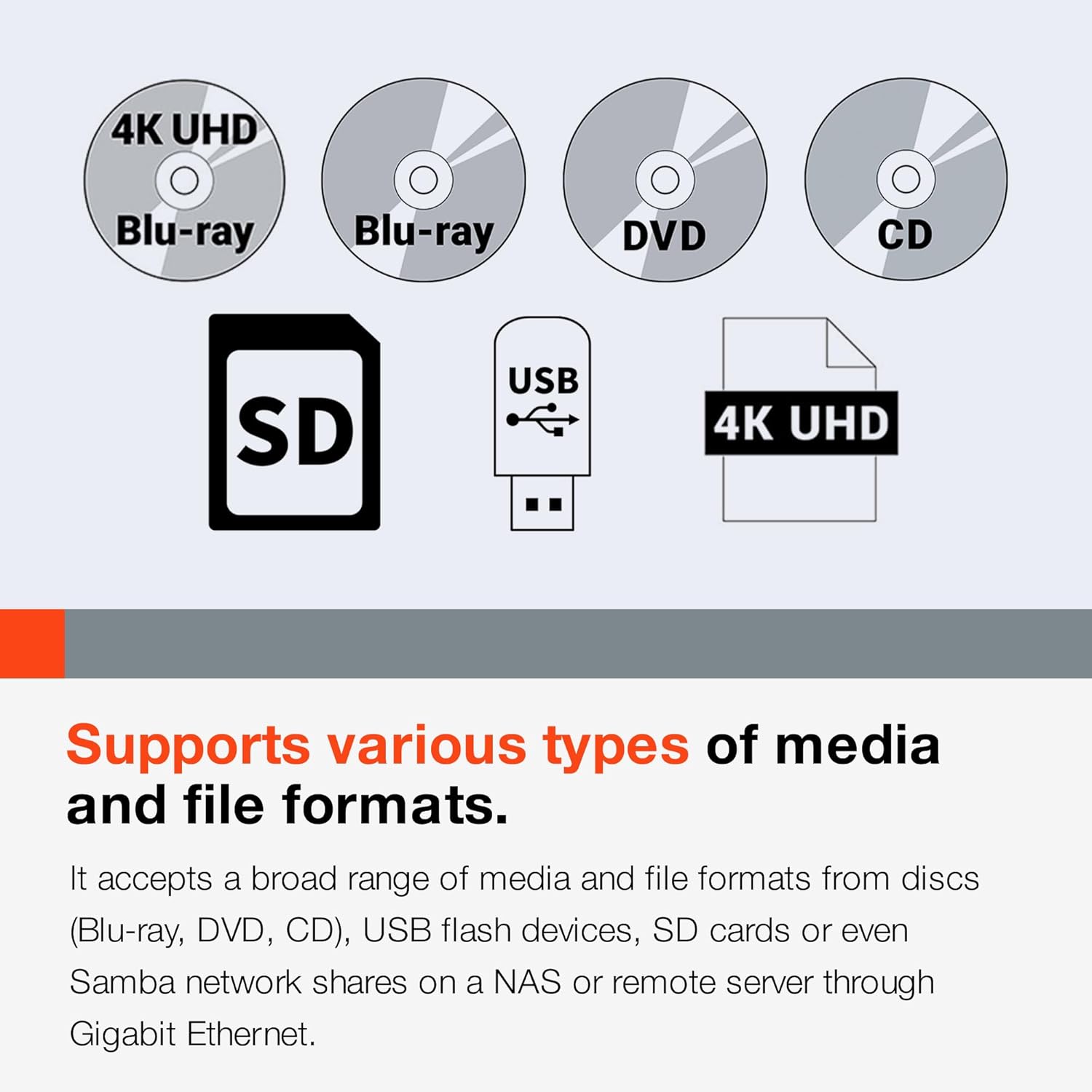
Figure 2.2: The player supports a wide range of disc and file formats.

Figure 2.3: Power-on play and seamless repeat functions for continuous content playback.
3. Setup
3.1 Unpacking
Carefully remove the BD-MP4K player and all accessories from the packaging. Verify that all components listed in the packing list are present. Retain the original packaging for future transport or storage.
3.2 Connecting to a Display
Use an HDMI cable to connect the HDMI 2.0 (Video/Audio) output on the rear panel of the BD-MP4K to an HDMI input on your television or display. Ensure your display supports 4K UHD resolution for optimal picture quality.
3.3 Connecting to an Audio System
The BD-MP4K offers multiple audio output options:
- HDMI Audio: Connect the HDMI 1.4 (Audio Only) output to an audio receiver or soundbar for dedicated audio transmission.
- XLR Balanced Audio: For professional audio setups, connect the XLR balanced outputs to your audio mixer or amplifier.
- RCA Unbalanced Audio: Use the RCA outputs for standard stereo connections to an audio receiver.
- 7.1 Channel Analog Audio: Connect the dedicated 7.1 analog outputs to a compatible surround sound processor or amplifier.
- Coaxial Digital Audio: Connect to a digital audio receiver using a coaxial cable.
3.4 Network Connection
Connect an Ethernet cable from the BD-MP4K's LAN port to your network router or switch for network control capabilities.
3.5 Power Connection
Connect the supplied power cord to the AC IN port on the rear panel of the player and then to a suitable AC power outlet. The unit supports 100V-240V. Note: The power cord included may be for European regions; an appropriate power cord for your region may be required.

Figure 3.1: Front and rear panel connections of the BD-MP4K.
4. Operating Instructions
4.1 Basic Playback
- Power On: Press the power button on the front panel or the remote control.
- Disc Playback: Press the OPEN/CLOSE button to open the disc tray. Place a disc (4K UHD BD, Blu-ray, DVD, or CD) on the tray and press OPEN/CLOSE again to close it. Playback will typically begin automatically.
- USB/SD Playback: Insert a USB flash drive into the front USB port or an SD card into the SD card slot. Use the navigation buttons on the remote or front panel to select the desired media file from the on-screen menu.
- Playback Controls: Use the PLAY, PAUSE, STOP, FAST FORWARD, REWIND, and SKIP buttons on the remote or front panel to control playback.
4.2 Remote Control Usage
The included RC-BDMP4K wireless remote control provides full functionality for operating the player. Point the remote control directly at the player's IR sensor. Ensure there are no obstructions between the remote and the player.

Figure 4.1: The RC-BDMP4K Wireless Remote Control Unit.
4.3 Advanced Playback Functions
- Seamless Repeat: Use the A-B button on the remote to set start (A) and end (B) points for a specific section to repeat continuously.
- Power On Play: Enable this feature in the system settings to automatically start playback of the last played media when the unit is powered on.
- Lock Functions: The front panel, IR receiver, and disc tray can be locked to prevent unauthorized or accidental operation. Refer to the system settings menu for configuration.
5. Maintenance
5.1 Cleaning the Unit
To clean the exterior of the player, use a soft, dry cloth. For stubborn marks, slightly dampen the cloth with water and then wipe dry. Do not use abrasive cleaners, waxes, or solvents as they may damage the finish.
5.2 Disc Handling
Always handle discs by their edges. Avoid touching the playback surface. Store discs in their cases when not in use to prevent scratches and dust accumulation. Clean dirty discs with a soft, lint-free cloth wiping from the center outwards.
5.3 Firmware Updates
Firmware updates for the BD-MP4K are typically provided via an SD card. Visit the official Tascam website for the latest firmware and instructions on how to perform the update. Ensure the unit remains powered during the update process.
6. Troubleshooting
If you encounter issues with your BD-MP4K, refer to the following common problems and solutions:
- No Power: Ensure the power cord is securely connected to both the player and the power outlet. Check the power outlet with another device.
- No Picture: Verify that the HDMI cable is correctly connected to both the player and the display. Ensure the correct HDMI input is selected on your display. Try a different HDMI cable.
- No Sound: Check all audio cable connections (HDMI, XLR, RCA, Coaxial). Ensure the correct audio input is selected on your audio receiver/amplifier. Verify the volume level on both the player and your audio system.
- Disc Not Playing/Freezing: Ensure the disc is clean and free of scratches. Try a different disc. Verify the disc format is supported by the player.
- Remote Control Not Responding: Check the batteries in the remote control and replace if necessary. Ensure there are no obstructions between the remote and the player's IR sensor.
- External Drive Issues: The player is recommended for use with SSD/flash external drives. There is a 2TB limit for external drives connected via USB. Ensure your drive meets these specifications.
- AVI Files Not Playing: While AVI playback is listed, some specific AVI codecs may not be supported. Ensure your AVI files use commonly supported codecs.
- HDMI CEC Issues: The player may have limited HDMI CEC implementation. Functions like chapter seeking, fast forward, and rewind via CEC may not be fully supported.
- OSD (On-Screen Display) Cannot Be Turned Off: The OSD, including A-B repeat indicators, may not have an option to be disabled. This is a design characteristic of the unit.
If the problem persists after attempting these solutions, please contact Tascam customer support.
7. Specifications
| Specification | Value |
|---|---|
| Brand | Tascam |
| Model Name | BD MP4K |
| Item Model Number | BDMP4K |
| Resolution | 3840x2160 (4K UHD) |
| Media Type | Blu-Ray Disc, CD, DVD |
| Connectivity Technology | HDMI, Infrared, USB, Ethernet (RS-232C) |
| Compatible Devices | Television |
| Connector Type | HDMI |
| Color | Black |
| Item Weight | 11.2 pounds |
| Product Dimensions | 22 x 14 x 6 inches |
| Date First Available | November 26, 2020 |
8. Warranty and Support
For information regarding warranty coverage, technical support, and service, please refer to the warranty card included with your product or visit the official Tascam website. You can typically find FAQs, driver downloads, and contact information for customer service there. Please have your model number (BD-MP4K) and serial number ready when contacting support.


