
TCL 32S334
TCL 32-inch Class 3-Series HD LED Smart Android TV User Manual
Model: 32S334
Brand: TCL
Introduction
This manual provides essential information for setting up, operating, maintaining, and troubleshooting your TCL 32-inch Class 3-Series HD LED Smart Android TV. Please read this manual thoroughly before using your television to ensure proper and safe operation. Keep this manual for future reference.
What's in the Box
- TCL 32-inch Class 3-Series HD LED Smart Android TV
- Power Cable
- Voice Remote Control
- TV Stand (2 pieces)
- Screws for TV Stand
- Quick Start Guide
Setup
1. Attaching the TV Stand
Carefully place the TV face-down on a soft, clean surface to prevent screen damage. Align the stand pieces with the screw holes on the bottom of the TV. Secure the stands using the provided screws.

Image: Side view of the television, illustrating the design and where the stand attaches.
2. Connecting Your Devices
Your TCL Android TV features multiple input ports for various devices. Ensure all connections are secure.
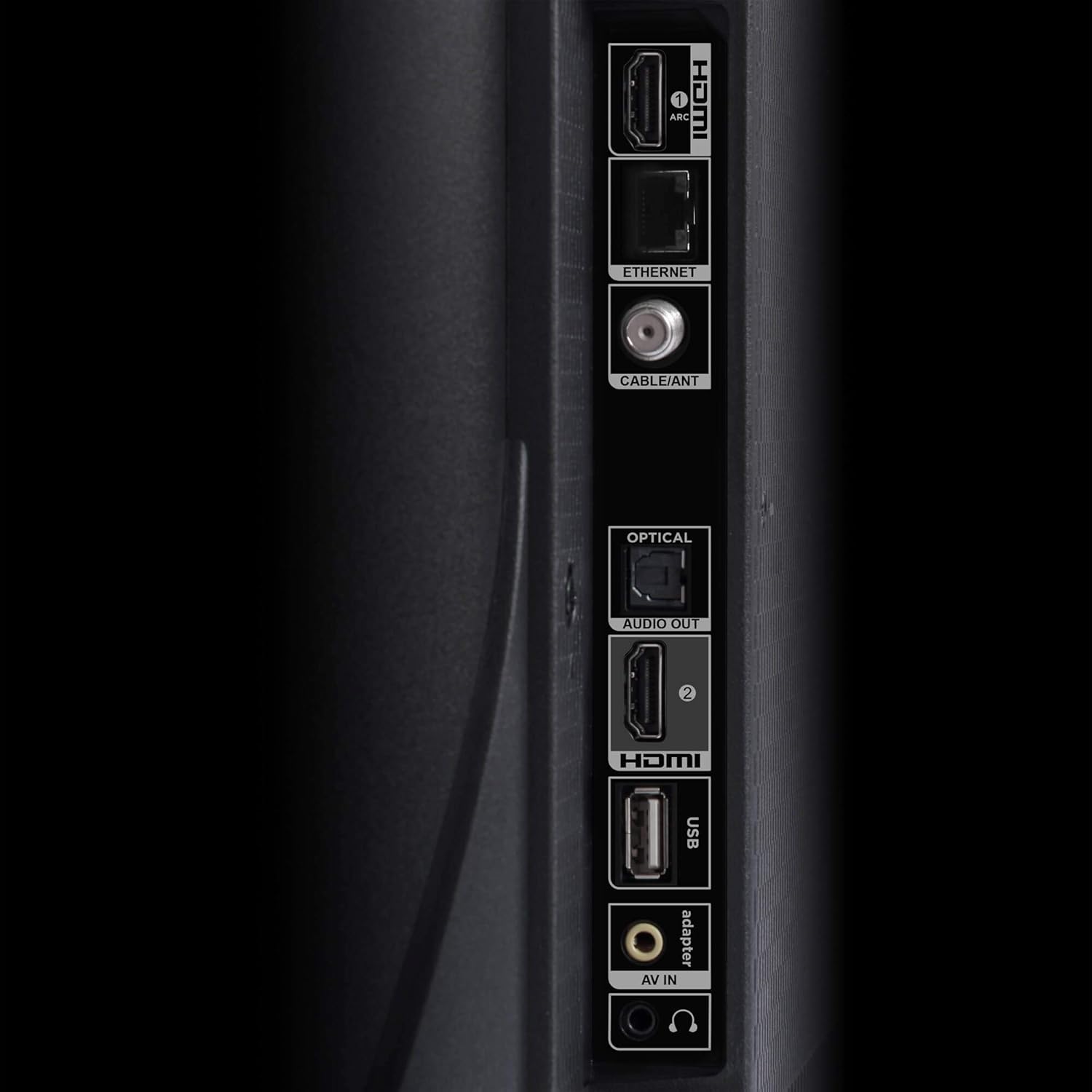
Image: Detailed view of the television's rear input panel, highlighting ports for HDMI, Ethernet, Cable/Antenna, Optical Audio Out, USB, and AV In.
- HDMI: Connect Blu-ray players, gaming consoles, cable boxes, etc. (2 HDMI inputs available).
- Ethernet: For a wired internet connection.
- Cable/ANT: Connect an antenna for over-the-air broadcasts or a cable TV connection.
- Optical Audio Out: For connecting to a soundbar or audio receiver.
- USB: For playing media from a USB drive.
- AV In (Adapter): For older devices using composite video and stereo audio.
3. Powering On and Initial Setup
Connect the power cable to the TV and a wall outlet. Press the power button on the remote control. Follow the on-screen instructions to complete the initial setup, including language selection, network connection (Wi-Fi or Ethernet), and Google account sign-in.

Image: Front view of the TCL 32-inch Smart Android TV, showcasing its display and sleek design.
Operating Your TV
Smart Android TV Features
Your TCL TV runs on the Android TV operating system, providing access to a vast library of apps, streaming services, and smart features.
- Home Screen: The simplified home screen provides quick access to your favorite apps, live TV, and connected devices.
- Google Assistant: Use the built-in Google Assistant for voice commands. Search for movies, shows, get recommendations, control smart home devices, and ask questions. Activate by pressing the Google Assistant button on your voice remote.
- Chromecast Built-in: Easily cast content (movies, shows, photos) from your Android or iOS device directly to your TV. Ensure your mobile device and TV are on the same Wi-Fi network.
- Streaming Apps: Access thousands of streaming apps like Netflix, Hulu, YouTube, and more through the Google Play Store.
Remote Control Usage
The minimalist remote control allows intuitive navigation. Use the directional pad to move through menus. The 'OK' button typically confirms selections or pauses/restarts playback. The back arrow navigates back in menus or within content.
Maintenance
Cleaning Your TV
- Always unplug the TV before cleaning.
- Use a soft, lint-free cloth to gently wipe the screen. For stubborn marks, lightly dampen the cloth with water or a specialized screen cleaner. Do not spray cleaner directly onto the screen.
- Wipe the TV cabinet and stand with a soft, dry cloth.
- Avoid using abrasive cleaners, waxes, or solvents as they can damage the finish.
General Care
- Do not block ventilation openings on the back of the TV.
- Keep the TV away from direct sunlight, heat sources, and excessive dust.
- Avoid placing heavy objects on top of the TV.
Troubleshooting
If you encounter issues with your TV, refer to the following common problems and solutions:
| Problem | Possible Solution |
|---|---|
| No Power | Ensure the power cable is securely plugged into the TV and a working electrical outlet. Try a different outlet. |
| No Picture, but Sound is Present | Check input source. Ensure external devices are powered on and connected correctly. |
| No Sound, but Picture is Present | Check volume level and mute settings. Ensure external audio devices are connected and configured correctly. |
| Remote Control Not Working | Replace batteries. Ensure there are no obstructions between the remote and the TV. Re-pair the remote if it's a voice remote. |
| Wi-Fi Connection Issues | Ensure your router is on and working. This TV's Wi-Fi primarily operates on 2.4GHz; if your router is set to 5GHz only, try adjusting its settings or using an Ethernet cable. Restart your router and TV. |
| Google Assistant Not Responding | Ensure the remote is properly paired. If issues persist, perform a factory reset: Go to Settings > More Settings > Device Preferences > Reset. Note: This will erase all data and settings. |
| Slow User Interface Response | Close unused applications. Restart the TV. Consider a factory reset if performance does not improve. |
| TV Does Not Turn On After Auto-Off | Unplug the TV from the power outlet for a few minutes, then plug it back in. |
Specifications
Key technical specifications for your TCL 32-inch Class 3-Series HD LED Smart Android TV:
| Feature | Detail |
|---|---|
| Screen Size | 32 Inches |
| Display Technology | LED |
| Resolution | 720p (1366 x 768) |
| Refresh Rate | 60 Hz |
| Operating System | Android TV |
| Connectivity | Wi-Fi, Ethernet |
| HDMI Ports | 2 |
| USB Ports | 1 |
| Audio Output | Optical Digital Audio Out |
| Speaker Type | Built-In |
| Product Dimensions (WxDxH) without Stand | 28.8 x 3.0 x 17.2 inches |
| Item Weight | 9.7 pounds |
| VESA Wall Mount Pattern | 100mm (V) x 100mm (H) |
| On-mode Power Consumption | 60 watts |

Image: Dimensional drawing of the television, indicating its width, height, and depth for placement and mounting considerations.
Warranty and Support
For warranty information and technical support, please refer to the official TCL website or the documentation included with your product. A detailed User Manual (PDF) is also available for download from the manufacturer's support page.
For additional assistance, you may visit the official TCL support page or contact their customer service directly. Keep your purchase receipt and product serial number handy when seeking support.
You can find the official User Manual PDF here.
Related documents32S334


Ask a question about this manual
Ask about setup, troubleshooting, compatibility, parts, safety, or missing instructions. Manuals+ will review the question and use this page’s manual context to help answer it.