
TCL 50S434
TCL 50-inch Class 4-Series 4K UHD HDR Smart Android TV
Model: 50S434
Introduction
Welcome to your new TCL 50-inch Class 4-Series 4K UHD HDR Smart Android TV. This television delivers stunning Ultra HD picture quality with four times the resolution of Full HD, providing enhanced clarity and detail for an immersive viewing experience. With Android TV, you gain access to thousands of streaming apps, including over 700,000 movies and TV episodes. Seamlessly connect your cable box, gaming console, and other devices, all accessible from a simple and speedy home screen. Utilize Google Assistant for voice commands to search for content, get recommendations, control media playback, and manage smart home devices. Chromecast built-in allows for easy casting of content from your Android or iOS devices.
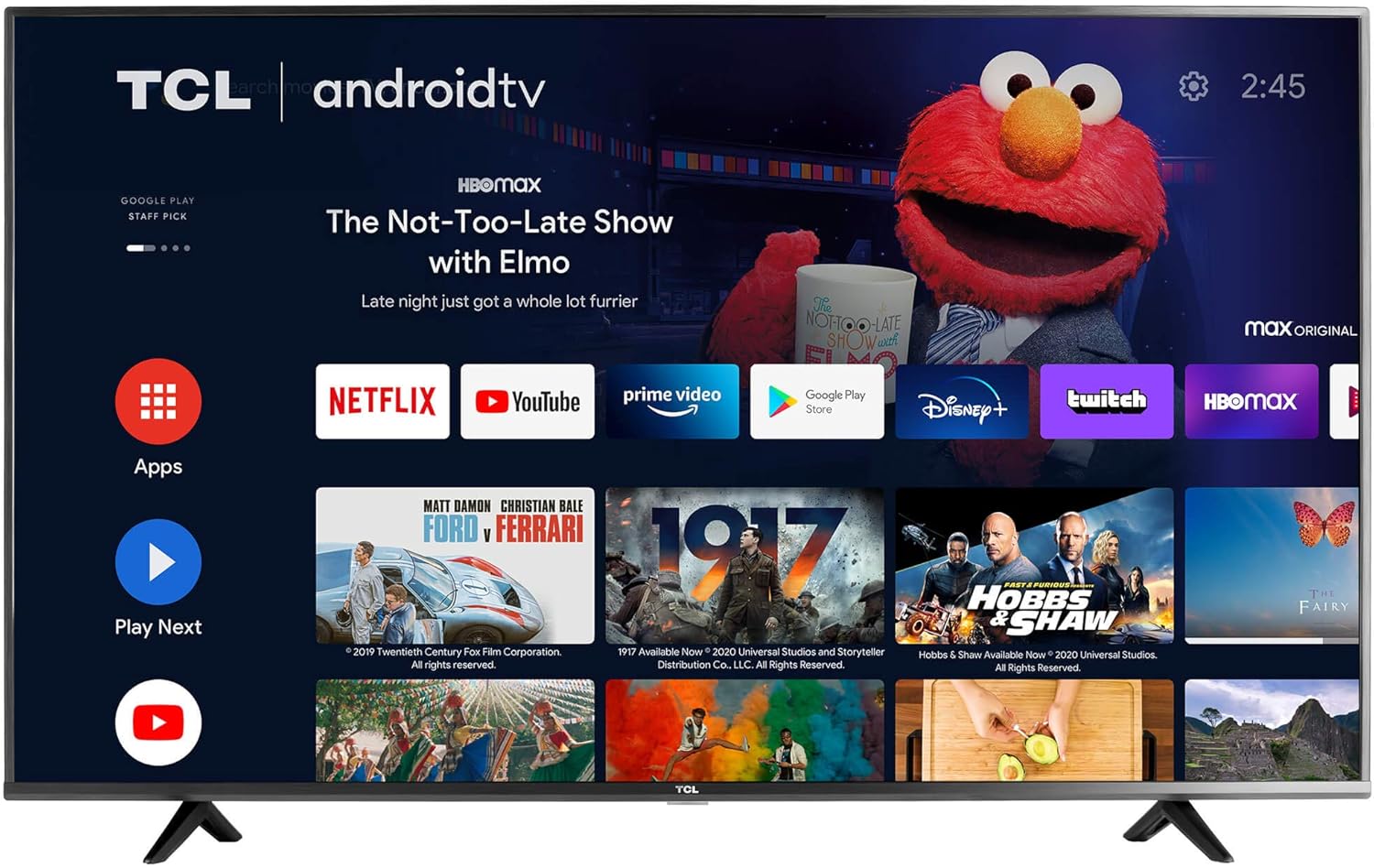
Figure 1: Front view of the TCL 50-inch Class 4-Series 4K UHD HDR Smart Android TV, showcasing the Android TV interface with various streaming app icons.
What's in the Box
Upon unboxing your new television, please ensure all the following components are present:
- TCL 50-inch Class 4-Series 4K UHD HDR Smart Android TV
- Voice Remote
- User Manual (this document)
- Remote Batteries (3 AAA batteries)
- TV Stands (2) and Screws
- Power Cable
Setup Guide
1. Attaching the TV Stands
If you are not wall-mounting your TV, you will need to attach the included stands.
- Carefully place the TV face-down on a soft, clean surface to prevent screen damage.
- Align each stand with the corresponding screw holes on the bottom of the TV.
- Secure each stand using the provided screws. Ensure they are tightened firmly.

Figure 2: Detail of the TV stand attachment, showing the secure fit of the stand to the television base.
2. Connecting Devices
Your TCL Android TV offers multiple input options for various devices.
- HDMI Ports: Connect your cable box, gaming console, Blu-ray player, or other HDMI-enabled devices.
- USB Port: For connecting USB storage devices to view media.
- Ethernet Port: For a wired internet connection.
- Antenna/Cable Input: For connecting an antenna for over-the-air broadcasts or a cable connection.
- Audio Out (Optical/Headphone): For connecting external audio systems or headphones.

Figure 3: Side view of the television displaying various input and output ports, including HDMI, USB, Ethernet, and audio connections.

Figure 4: Detailed close-up of the television's connectivity panel, highlighting the arrangement of HDMI, USB, and other essential ports for device integration.
3. Initial Power-On and Network Setup
After connecting all desired devices, plug the power cable into an electrical outlet.
- Press the power button on the remote control.
- Follow the on-screen instructions to complete the initial setup, including language selection, time zone, and network connection (Wi-Fi or Ethernet).
- Sign in with your Google account to access Android TV features and download apps.
Operating Your TV
Remote Control Functions
The included Voice Remote allows for intuitive navigation and control.
- Power Button: Turns the TV on or off.
- Google Assistant Button: Activates voice commands. Hold to speak your command.
- Navigation Pad (Up/Down/Left/Right/OK): Navigates menus and selects options.
- Back Button: Returns to the previous screen.
- Home Button: Returns to the Android TV home screen.
- Volume Up/Down: Adjusts the volume level.
- Channel Up/Down: Changes channels (for antenna/cable input).
- Input Button: Cycles through available input sources.
- App Shortcut Buttons: Direct access to popular streaming services.
Android TV Interface
The Android TV home screen provides personalized content recommendations and easy access to your apps.
- For You: Personalized content suggestions based on your viewing habits.
- Live: Access live TV channels from connected tuners or supported streaming services.
- Apps: Browse and launch installed applications.
- Library: Access your purchased or rented content.
- Settings: Configure TV settings, network, accounts, and more.

Figure 5: The Android TV home screen, showing various streaming applications and content recommendations.
Chromecast Built-in
Easily cast movies, shows, photos, and more from your Android or iOS device to your TCL Android TV. Ensure your mobile device and TV are connected to the same Wi-Fi network. Look for the Cast icon ▶ within compatible apps on your mobile device.
Maintenance
Cleaning Your TV
To maintain the clarity and longevity of your TV, follow these cleaning guidelines:
- Always unplug the TV before cleaning.
- Use a soft, lint-free cloth to gently wipe the screen. For stubborn marks, slightly dampen the cloth with water or a specialized screen cleaner (avoid harsh chemicals).
- Wipe the frame and stand with a soft, dry cloth.
- Do not spray liquids directly onto the TV.
Troubleshooting
If you encounter issues with your TV, refer to the following common problems and solutions:
| Problem | Possible Solution |
|---|---|
| No Power | Ensure the power cable is securely plugged into both the TV and a working electrical outlet. Check if the outlet has power. |
| No Picture/Sound | Verify the correct input source is selected. Check all cable connections (HDMI, antenna, etc.). Try a different input source or device. |
| Poor Picture Quality | Check the resolution settings of your connected device. Ensure the antenna signal is strong. Adjust picture settings (brightness, contrast, etc.) in the TV menu. |
| Remote Control Not Working | Replace the batteries (3 AAA). Ensure there are no obstructions between the remote and the TV's IR sensor. |
| Cannot Connect to Wi-Fi | Ensure your Wi-Fi router is on and working. Re-enter the Wi-Fi password carefully. Try restarting both the TV and the router. |
Specifications
Detailed technical specifications for the TCL 50-inch Class 4-Series 4K UHD HDR Smart Android TV (Model 50S434):
| Feature | Detail |
|---|---|
| Brand | TCL |
| Model Number | 50S434 |
| Screen Size | 50 Inches |
| Display Technology | LED |
| Resolution | 4K UHD (3840 x 2160) |
| High Dynamic Range (HDR) | Yes |
| Refresh Rate | 60 Hz (120 CMI) |
| Smart TV Platform | Android TV with Google Assistant & Chromecast Built-in |
| Connectivity | Bluetooth, Wi-Fi, Ethernet |
| Product Dimensions (with stand) | 44.2"W x 11.8"D x 27.8"H |
| Item Weight | 21 Pounds |
| Power Consumption (On-mode) | 11.4 watts |
| Annual Energy Consumption | 100 kWh (based on 4 hours/day) |

Figure 6: Diagram illustrating the key dimensions of the TCL 50-inch Class 4-Series TV, including width, depth, and height.
Warranty and Support
For warranty information, technical support, or service inquiries, please refer to the official TCL website or contact their customer support directly.
- TCL Official Website: www.tcl.com
- Customer Support: Refer to the contact information provided in your product packaging or on the official TCL website.
- Additional Resources: You can find additional user guides and support documents on the User Manual (PDF) and User Guide (PDF) links provided by Amazon.
Related documents50S434


Ask a question about this manual
Ask about setup, troubleshooting, compatibility, parts, safety, or missing instructions. Manuals+ will review the question and use this page’s manual context to help answer it.