
Epson DS-770 II
Epson DS-770 II Color Duplex Document Scanner
User Manual
Introduction
This manual provides detailed instructions for setting up, operating, maintaining, and troubleshooting your Epson DS-770 II Color Duplex Document Scanner. Please read this manual thoroughly before using the scanner to ensure proper operation and to maximize its performance and longevity.

The Epson DS-770 II scanner in an office environment, highlighting its high-speed color document scanning capabilities.
Setup
1. Unpacking and Component Check
Carefully remove all components from the packaging. Verify that all items listed below are present:
- Epson DS-770 II Color Duplex Document Scanner
- Start Here Poster
- AC Adapter and Power Cable
- SuperSpeed USB 3.0 Cable
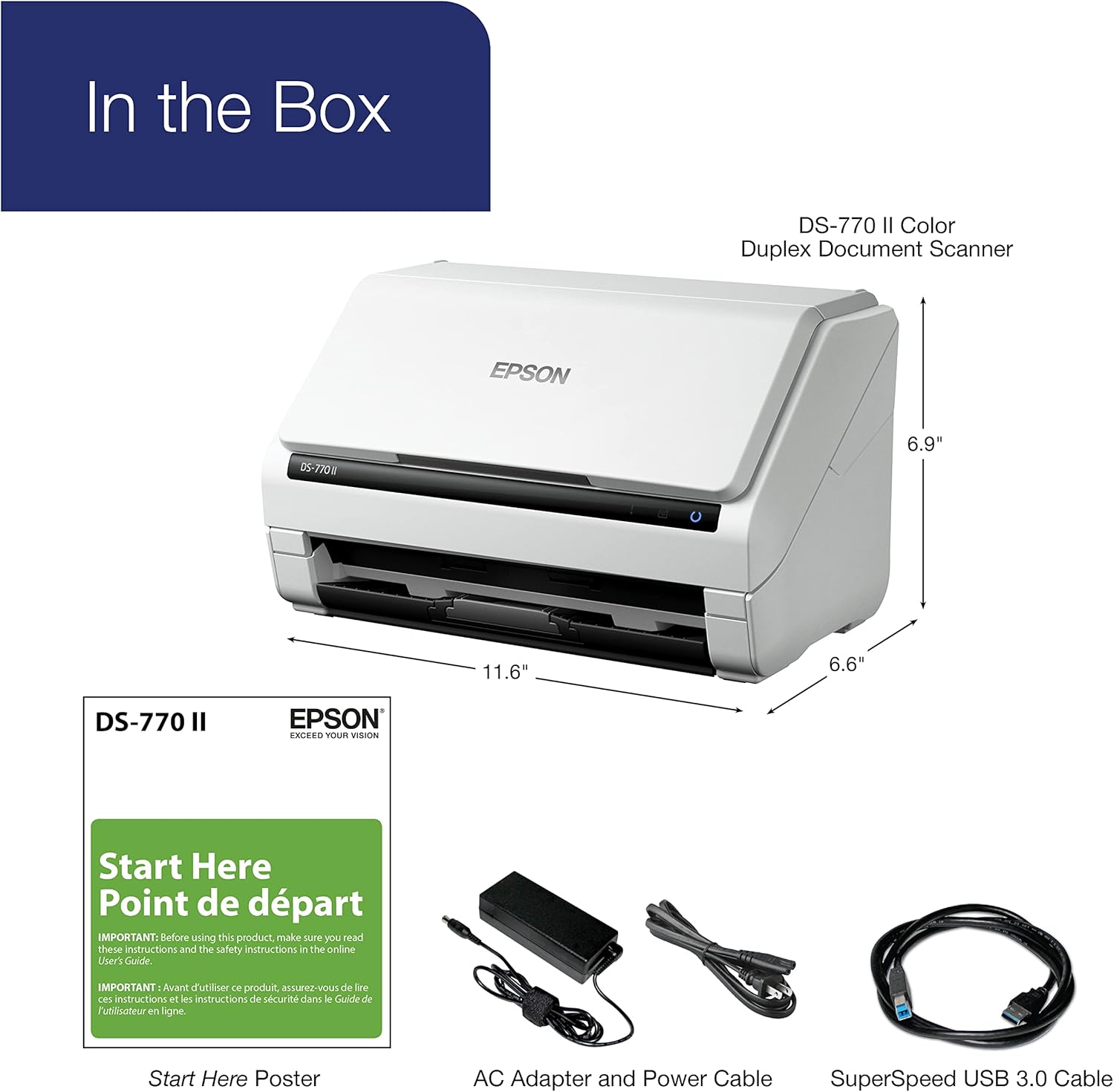
Image showing the Epson DS-770 II scanner along with its included accessories: the 'Start Here' poster, AC adapter and power cable, and SuperSpeed USB 3.0 cable.
2. Physical Setup
- Place the scanner on a stable, flat surface with adequate space for document feeding and output.
- Connect the AC adapter to the scanner's power input and then plug the power cable into an electrical outlet.
- Connect the SuperSpeed USB 3.0 cable from the scanner to an available USB port on your computer.
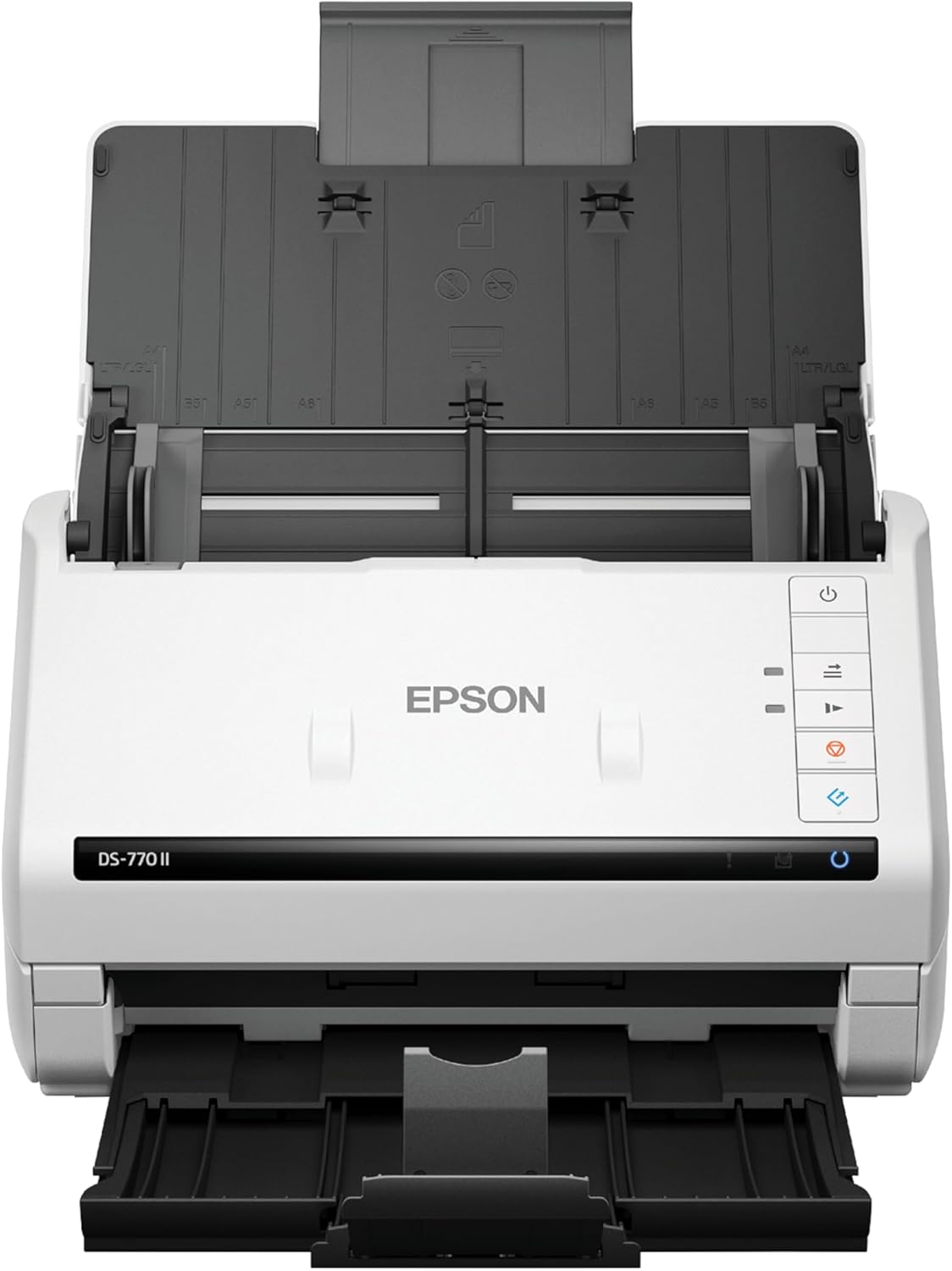
Front view of the Epson DS-770 II scanner with its input and output trays closed, ready for setup.
3. Software Installation
Install the necessary drivers and software from the Epson support website or the provided installation media. The Epson DS-770 II supports TWAIN and ISIS drivers for broad compatibility with document management systems.

Image illustrating the seamless compatibility of the Epson DS-770 II scanner with TWAIN and ISIS drivers, showing the scanner connected to a computer with scanning software.
Operating Instructions
1. Loading Documents
Open the input tray and adjust the paper guides to fit the width of your documents. Load up to 100 pages into the Automatic Document Feeder (ADF). The scanner can handle mixed document types and sizes.

The Epson DS-770 II scanner with various documents loaded into its 100-page Automatic Document Feeder, demonstrating its ease of use for scanning stacks of mixed documents.
2. Scanning Process
Utilize the installed scanning software to configure scan settings such as resolution, color mode, and duplex scanning. The DS-770 II offers fast scan speeds of up to 45 ppm/90 ipm.

The Epson DS-770 II scanner actively scanning a document, illustrating its fast scan speeds of up to 45 pages per minute (ppm) and 90 images per minute (ipm).
3. Saving and Organizing Scans
The scanner's software allows you to save scanned documents to various formats and locations, including direct integration with online storage accounts like SharePoint, Dropbox, Evernote, and Google Drive.

Image showing the Epson DS-770 II scanner with icons representing various online storage options like Dropbox, Evernote, and Google Drive, indicating its capability to scan directly to these platforms.
Maintenance
1. Cleaning the Scanner
Regular cleaning ensures optimal performance. Use a soft, lint-free cloth to wipe the exterior. For the interior, refer to the detailed cleaning instructions in the full user guide available on the Epson support website. Ensure the scanner is powered off and unplugged before cleaning.
2. Consumables and Replacement Parts
Periodically check the rollers and separation pad for wear. Replacement kits are available from authorized Epson dealers. Refer to the full user guide for replacement procedures and part numbers.
Troubleshooting
This section addresses common issues you might encounter with your Epson DS-770 II scanner.
1. Paper Jams
If a paper jam occurs, carefully open the scanner covers as indicated in the 'Start Here' poster or the full user guide. Gently pull the jammed paper in the direction of the paper path. Avoid tearing the paper, as small pieces can cause further issues.
2. Image Quality Issues
If scanned images appear streaky, dirty, or have lines, clean the scanner's glass surfaces and rollers. Ensure documents are free of staples, paper clips, or other obstructions before scanning.
3. Scanner Not Detected
Verify that the USB cable is securely connected to both the scanner and the computer. Try connecting to a different USB port. Ensure all necessary drivers are correctly installed. Restart both the scanner and the computer.
4. Blank Pages Not Skipped
If the scanner is not skipping blank pages as expected, check the settings within your scanning software. Ensure the 'skip blank pages' option is enabled and configured correctly for your document type.
Specifications
| Feature | Specification |
|---|---|
| Model Name | DS-770 II |
| Scanner Type | Document |
| Connectivity Technology | USB |
| Product Dimensions | 6.6"D x 11.6"W x 6.9"H |
| Item Weight | 8.1 Pounds |
| Resolution | 300 dpi (Optical) |
| Sheet Size | Letter |
| Wattage | 12 watts |
| Daily Duty Cycle | 7,000 sheets (Peak) |
Warranty and Support
The Epson DS-770 II Color Duplex Document Scanner comes with a 3-year limited warranty, which includes Next-Business-Day Replacement to minimize downtime. For technical support, driver downloads, and additional resources, please visit the official Epson support website or contact Epson customer service.

Image highlighting the 3-year limited warranty with Advance Exchange service provided by Epson, ensuring minimal downtime for your scanner.
For the most up-to-date information and comprehensive support, please refer to the official Epson website: www.epson.com/support
Related documentsDS-770 II


Ask a question about this manual
Ask about setup, troubleshooting, compatibility, parts, safety, or missing instructions. Manuals+ will review the question and use this page’s manual context to help answer it.