
Epson ES-500W II
Epson Workforce ES-500W II Wireless Document Scanner
User Manual
1. Introduction
Welcome to the user manual for your Epson Workforce ES-500W II Wireless Color Duplex Desktop Document Scanner. This guide provides detailed instructions on setting up, operating, maintaining, and troubleshooting your scanner to help you efficiently digitize your documents.
The ES-500W II is designed for fast and reliable scanning, featuring wireless connectivity, automatic duplex scanning, and a robust Auto Document Feeder (ADF) to streamline your workflow. It supports scanning to various devices including PCs, Macs, smartphones, and tablets.

Figure 1.1: Epson Workforce ES-500W II Wireless Document Scanner, front view with paper loaded.
2. Setup
2.1 Unpacking and Contents Verification
Before you begin, carefully unpack all components and verify that the following items are included:
- Epson Workforce ES-500W II Scanner
- AC Adapter and Power Cable
- USB Cable
- Setup Guide
- Software CD (or download instructions)
If any items are missing or damaged, please contact Epson support.
2.2 Physical Setup
- Choose a stable, flat surface for the scanner, ensuring adequate space for document feeding and output.
- Connect the AC adapter to the scanner's power port and then plug the power cable into an electrical outlet.
- Open the document feeder and output tray as shown in the diagram below.

Figure 2.1: Scanner dimensions and open trays for physical setup.
2.3 Software Installation
For full functionality, install the Epson ScanSmart Software and necessary drivers on your computer or the Epson Smart Panel app on your mobile device.
- For PC/Mac: Insert the software CD or visit the official Epson support website to download the latest drivers and Epson ScanSmart Software. Follow the on-screen instructions for installation. The included TWAIN driver allows integration with most document management software.
- For Smartphone/Tablet: Download the Epson Smart Panel app from your device's app store (Google Play Store for Android, Apple App Store for iOS).
2.4 Wireless Setup
The ES-500W II supports wireless scanning. Follow these steps to connect your scanner to your Wi-Fi network:
- Ensure your scanner is powered on.
- Use the Epson ScanSmart Software on your computer or the Epson Smart Panel app on your mobile device to initiate the wireless setup process.
- Follow the prompts to select your Wi-Fi network and enter the password.
- Once connected, the Wi-Fi indicator light on the scanner will illuminate steadily.
3. Operating the Scanner
3.1 Loading Documents
The Auto Document Feeder (ADF) can hold up to 50 sheets of paper. Ensure documents are free of staples, paper clips, or tears before loading.
- Fan the edges of the paper stack to separate sheets.
- Adjust the paper guides to fit the width of your documents.
- Load the documents face-down, top edge first, into the ADF until they meet resistance.
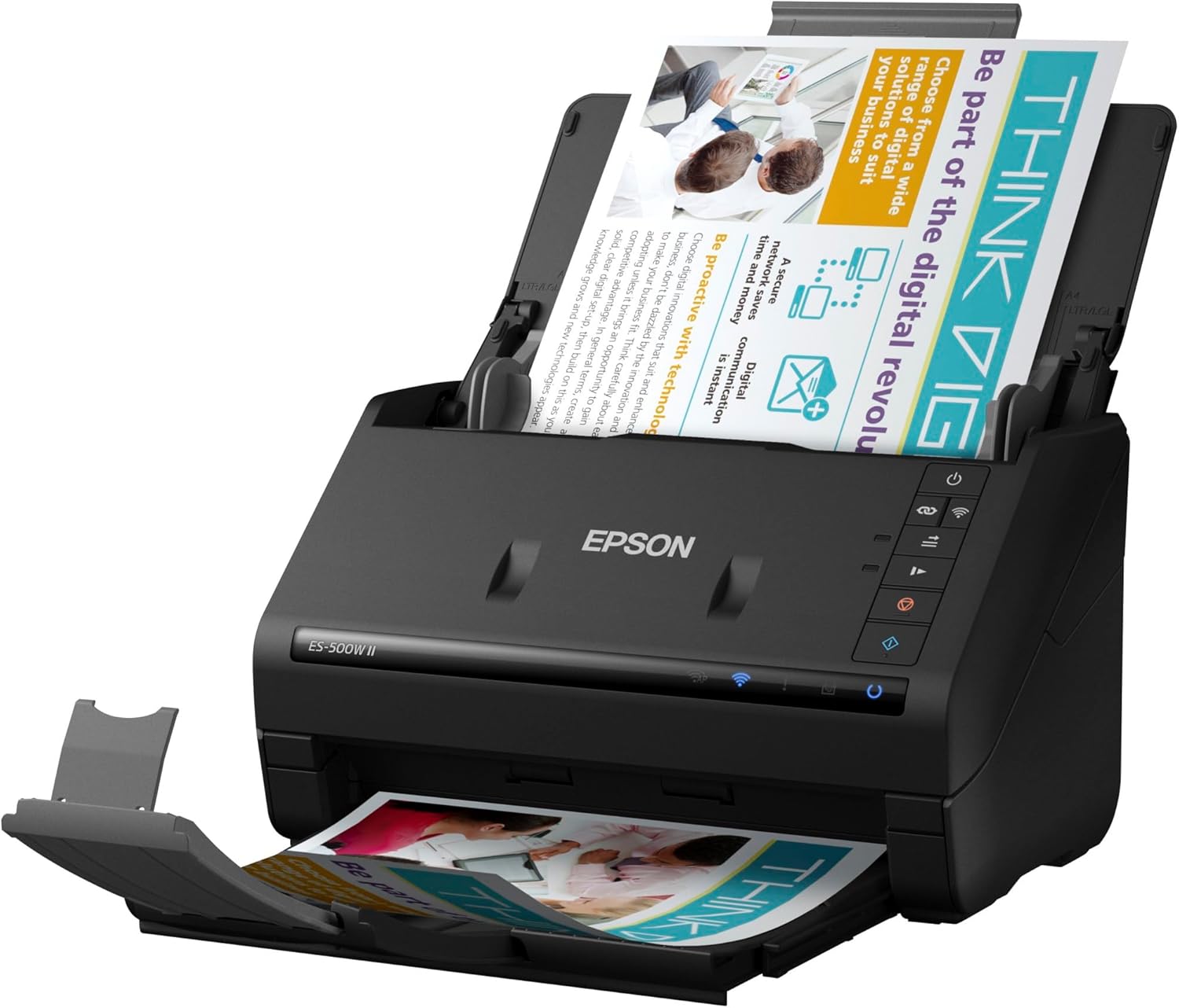
Figure 3.1: Documents properly loaded into the Auto Document Feeder.
3.2 Performing a Scan
You can initiate a scan from your computer using Epson ScanSmart Software or from your mobile device using the Epson Smart Panel app.
- Using Epson ScanSmart Software (PC/Mac):
- Open Epson ScanSmart Software.
- Select your desired scan settings (e.g., color, grayscale, resolution, single-sided/duplex).
- Click the 'Scan' button. The scanner will automatically feed and scan documents at up to 35 ppm/70 ipm (images per minute for duplex).
- After scanning, you can preview, edit, and save your documents.
- Using Epson Smart Panel App (Smartphone/Tablet):
- Open the Epson Smart Panel app.
- Ensure your mobile device is connected to the same Wi-Fi network as the scanner.
- Select the scan function and adjust settings as needed.
- Tap the 'Scan' button to begin.
3.3 Advanced Scan Features
- Single-Step Technology: Captures both sides of a document in one pass for efficient duplex scanning.
- Optical Character Recognition (OCR): Convert scanned documents into searchable PDFs or editable Word and Excel files.
- Intelligent Image Adjustments: Features like auto crop, blank page skip, background removal, dirt detection, and paper-skew correction enhance scan quality.
- Cloud Integration: Easily upload scanned documents to popular cloud storage services such as Dropbox, Evernote, Google Drive, and OneDrive.
4. Maintenance
4.1 Cleaning the Scanner
Regular cleaning ensures optimal performance and extends the life of your scanner. Always turn off and unplug the scanner before cleaning.
- Exterior: Wipe the exterior of the scanner with a soft, damp, lint-free cloth. Do not use abrasive cleaners or solvents.
- Feed Rollers: Over time, dust and paper residue can accumulate on the feed rollers, affecting paper feeding. Refer to the detailed cleaning instructions in the full electronic manual for specific steps on cleaning the rollers.
- Scan Glass: Gently wipe the scan glass with a soft, lint-free cloth moistened with a small amount of glass cleaner (non-ammonia based).
It is recommended to clean the scanner regularly, especially if you notice streaks or poor image quality in your scans.
5. Troubleshooting
This section addresses common issues you might encounter with your Epson Workforce ES-500W II scanner. For more detailed troubleshooting, refer to the comprehensive online support resources from Epson.
5.1 Common Issues and Solutions
| Problem | Solution |
|---|---|
| Scanner not detected / Wireless connection lost |
|
| Paper jam |
|
| Poor scan quality (streaks, blurry images) |
|
| Documents not feeding properly |
|
If you continue to experience issues, please consult the Epson support website or contact customer service.
6. Specifications
| Feature | Detail |
|---|---|
| Model Name | B11B263201 (ES-500W II) |
| Scanner Type | Document Scanner (Duplex, ADF) |
| Connectivity Technology | Wi-Fi, USB |
| Scan Speed | Up to 35 ppm / 70 ipm |
| Auto Document Feeder (ADF) Capacity | 50 sheets |
| Optical Resolution | 300 dpi (up to 1200 dpi interpolated) |
| Product Dimensions (D x W x H) | 11.6"D x 11.6"W x 6.9"H |
| Item Weight | 8.1 Pounds |
| Power Consumption | 11 watts (Operating) |
| Supported Sheet Size | Letter, Legal, A4, Business/ID cards, long pages up to 240" |
7. Warranty and Support
7.1 Product Warranty
Epson products are manufactured to high quality standards. Your Epson Workforce ES-500W II scanner comes with a limited warranty. Please refer to the warranty card included with your product or visit the official Epson website for detailed warranty terms and conditions specific to your region.
7.2 Technical Support
For technical assistance, driver downloads, FAQs, and additional support resources, please visit the official Epson support website:
When contacting support, please have your scanner's model name (ES-500W II) and serial number ready.
Related documentsES-500W II


Ask a question about this manual
Ask about setup, troubleshooting, compatibility, parts, safety, or missing instructions. Manuals+ will review the question and use this page’s manual context to help answer it.