
Introduction and Overview
The ANTELA Indoor WiFi Surveillance Camera (Model Speed 4S) provides comprehensive home monitoring with its advanced features. Designed for ease of use and reliable performance, this camera allows you to keep an eye on your home, pets, or children from anywhere, at any time.

The ANTELA Indoor WiFi Surveillance Camera, a compact and modern device designed for discreet home monitoring.
Key Features:
- 1080p Full HD Resolution: Provides clear and smooth live video feed for detailed monitoring.
- Pan/Tilt/Zoom Functionality: Offers a 355° horizontal and 110° vertical rotation with a wide-angle lens to cover all areas.
- Infrared Night Vision: Ensures clear visibility up to 10 meters (32 feet) in low-light or complete darkness.
- Smart Motion Detection: Sends instant notifications to your app upon detecting movement, with alarm video recording.
- Two-Way Audio: Built-in microphone and speaker allow for real-time communication.
- Voice Assistant Compatibility: Works seamlessly with Amazon Alexa and Google Assistant for hands-free control.
- Flexible Storage Options: Supports local storage via Micro SD card (up to 128GB) and secure cloud storage.
Setup Guide
Follow these steps for a quick and easy installation of your ANTELA camera:
- Download the Smart Life App:
Search for "Smart Life" on the Google Play Store for Android devices or the Apple App Store for iOS devices and download the application.

Step 1: Download the Smart Life app from your device's app store.
- Power On Your Camera:
Connect the camera to a power source using the provided power adapter. Ensure the camera is placed within range of your 2.4 GHz Wi-Fi network (5G Wi-Fi is not supported).

Step 2: Plug in your camera to power it on.
- Follow In-App Guide for Connection:
Open the Smart Life app, register or log in, and follow the on-screen instructions to add your new device. The app will guide you through connecting the camera to your Wi-Fi network.

Step 3: Follow the in-app guide to complete the setup and connect to Wi-Fi.
Operating Instructions
Pan/Tilt/Zoom Control
The camera offers extensive coverage with its 355° horizontal and 110° vertical rotation. You can control the camera's viewing angle directly from the Smart Life app by swiping on the live view or using the directional controls.

Control the camera's pan (355°) and tilt (110°) movements directly from your smartphone app.
Smart Motion Detection
The camera is equipped with intelligent motion detection. When motion is detected, the camera will immediately send a notification to your smartphone via the Smart Life app. You can customize detection sensitivity and set specific detection zones within the app.

The camera detects motion and sends instant alerts to your mobile device, displaying a timeline of detected events.
Two-Way Audio Communication
With the built-in microphone and speaker, you can engage in real-time two-way conversations through the camera. This feature is ideal for communicating with family members, pets, or even deterring intruders.

Engage in real-time conversations with loved ones or pets using the camera's two-way audio function.
Infrared Night Vision
The camera automatically switches to infrared night vision mode in low-light conditions, providing clear black and white video up to 10 meters (32 feet). This ensures 24/7 monitoring capability.

The camera provides clear infrared night vision, allowing for continuous monitoring even in complete darkness.
Remote Control and Monitoring
Access your camera's live feed and control its functions from anywhere using the Smart Life app on your smartphone or tablet, as long as you have an internet connection.

Monitor your home remotely from anywhere using the mobile application.
Voice Assistant Integration
The ANTELA camera is compatible with Amazon Alexa and Google Assistant, allowing for convenient voice control. You can ask your voice assistant to display the camera feed on compatible smart displays.
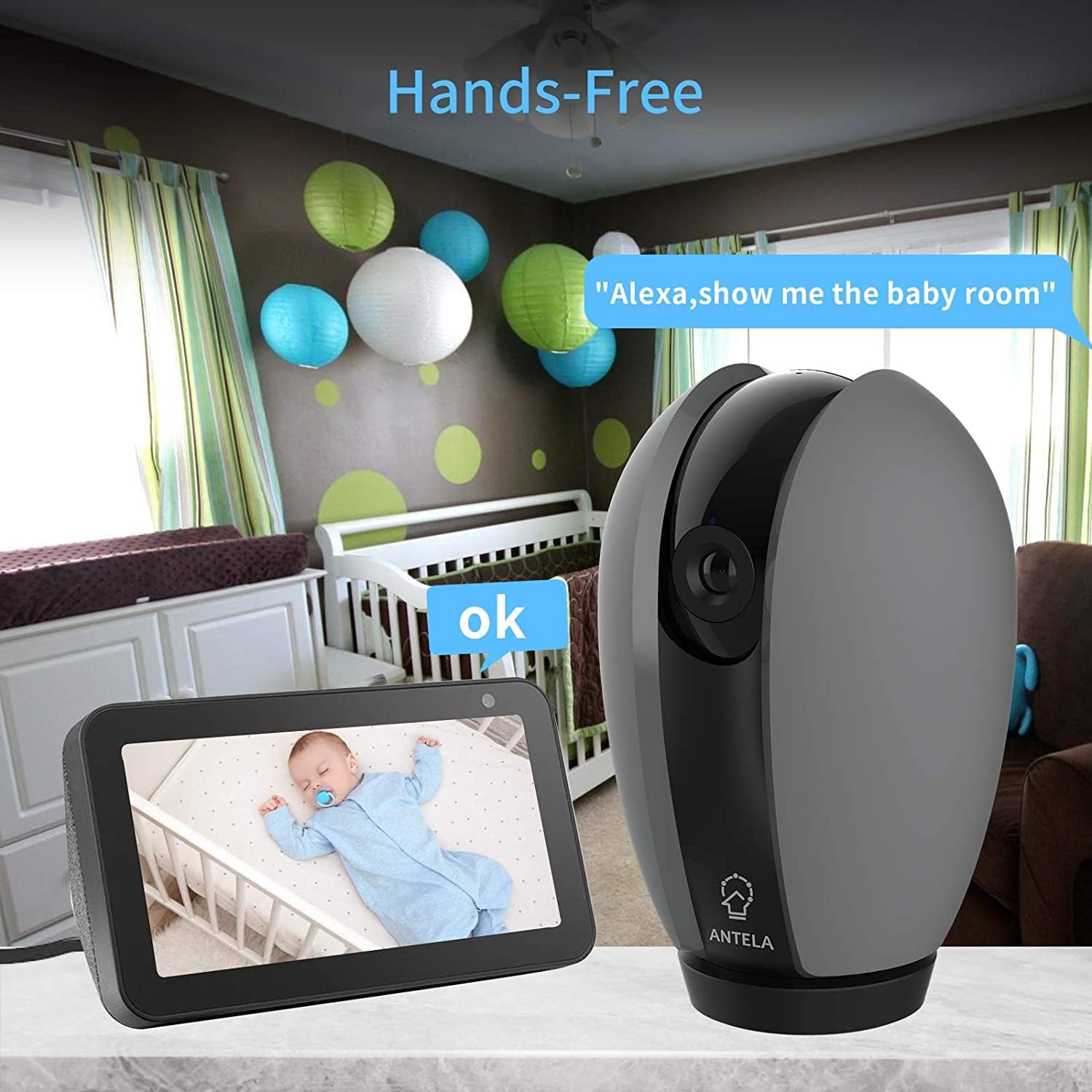
Use voice commands with Alexa to view your camera feed on compatible devices.
Storage Options
The camera supports two storage methods for recorded video and images:
- Micro SD Card: Insert a Micro SD card (up to 128GB, not included) into the camera's designated slot for local storage of recordings.
- Cloud Storage: Subscribe to the optional cloud storage service via the Smart Life app for secure, encrypted storage of your video data.
Maintenance
To ensure optimal performance and longevity of your ANTELA camera, follow these simple maintenance guidelines:
- Cleaning: Gently wipe the camera lens and body with a soft, dry, lint-free cloth. Avoid using harsh chemicals, cleaning solvents, or abrasive materials, as these can damage the camera's surface or lens.
- Placement: Ensure the camera is placed in a stable location, away from direct sunlight, extreme temperatures, and high humidity. Do not block the ventilation holes.
- Software Updates: Regularly check the Smart Life app for firmware updates. Keeping your camera's software up-to-date ensures you have the latest features and security enhancements.
- Power Supply: Always use the original power adapter provided with the camera to prevent damage.
Troubleshooting
If you encounter issues with your ANTELA camera, refer to the following common problems and solutions:
| Problem | Possible Cause | Solution |
|---|---|---|
| Camera fails to connect to Wi-Fi. | Incorrect Wi-Fi password; 5GHz Wi-Fi network; camera too far from router. | Ensure correct 2.4GHz Wi-Fi password. Move camera closer to router. Restart camera and router. |
| Poor video quality. | Weak Wi-Fi signal; dirty lens; insufficient lighting. | Improve Wi-Fi signal strength. Clean the camera lens. Ensure adequate lighting or enable night vision. |
| Motion detection alerts are too frequent or not working. | Sensitivity settings too high/low; incorrect detection zone. | Adjust motion detection sensitivity in the app. Define specific detection zones to avoid false alarms. |
| Two-way audio not functioning. | Microphone/speaker muted in app; app permissions. | Check audio settings in the Smart Life app. Ensure the app has microphone permissions on your phone. |
| SD card not recording. | SD card full or corrupted; incorrect formatting; card not inserted properly. | Format the SD card via the app. Replace with a new SD card if corrupted. Ensure proper insertion. |
Specifications
Detailed technical specifications for the ANTELA Indoor WiFi Surveillance Camera (Model Speed 4S):
| Feature | Detail |
|---|---|
| Brand | ANTELA |
| Model Name | Speed 4S |
| Connectivity Technology | Wireless (Wi-Fi 2.4 GHz) |
| Video Resolution | 1080p Full HD |
| Pan Angle | 355 degrees |
| Tilt Angle | 110 degrees |
| Special Features | Local Recording, Night Vision, HD Resolution, Motion Detection, Two-Way Audio |
| Indoor/Outdoor Use | Indoor |
| Power Source | Corded Electric (240 Volts AC, 4.5 Watts) |
| Material | Plastic |
| Dimensions (L x W x H) | 6.3 x 5.8 x 9.6 cm |
| Weight | 310 grams |
| Night Vision Range | Up to 10 meters (32 feet) |
| Storage | Micro SD card (max 128GB), Cloud Storage |

Physical dimensions of the ANTELA camera: 6.3 cm width and 9.6 cm height.
Warranty and Support
ANTELA products are designed for reliability and performance. For specific warranty information, please refer to the warranty card included with your product or visit the official ANTELA website. For technical support, troubleshooting assistance, or any inquiries not covered in this manual, please contact ANTELA customer service through their official channels.
You can often find additional support resources, FAQs, and updated manuals on the brand's official website: Visit the ANTELA Store on Amazon


