1. Introduction and Overview
The Tommee Tippee Timekeeper Connected Sleep Trainer Clock is an app-enabled device designed to assist children in understanding when it is time to sleep and when it is acceptable to wake up. This sleep aid utilizes colors and symbols to visually communicate sleep and wake times, making it intuitive for young children. It also functions as an alarm clock and nightlight, offering customizable settings via a smartphone application.

Figure 1.1: Front view of the Tommee Tippee Timekeeper Connected Sleep Trainer Clock, displaying a bear illustration and the time 08:16 AM.
2. Setup
2.1 Unboxing and Power Connection
Carefully remove the Sleep Trainer Clock from its packaging. The device is powered via a micro-USB charger. Please note that an adapter plug is not included but the device is compatible with most standard USB phone chargers.
- Connect the micro-USB cable to the port on the back of the Sleep Trainer Clock.
- Plug the USB end of the cable into a compatible USB power adapter (not supplied) and then into a wall outlet.
- The clock display will illuminate, indicating it is powered on.

Figure 2.1: Rear view of the Sleep Trainer Clock, highlighting the micro-USB power input and physical control buttons.
2.2 App Download and Initial Pairing
The Tommee Tippee Timekeeper Sleep Trainer Clock is controlled via a dedicated smartphone application.
- Download the Tommee Tippee app from the Google Play Store (for Android devices) or the Apple App Store (for iOS devices).
- Open the app and follow the on-screen instructions to create an account or log in.
- Select the option to add a new device and choose the Sleep Trainer Clock.
- The app will guide you through the pairing process, which typically involves connecting to the clock's temporary Wi-Fi network and then connecting the clock to your home Wi-Fi network.
- Once successfully paired, you can control all clock settings from your smartphone.
3. Operating Instructions
All primary functions and settings of the Sleep Trainer Clock are managed through the Tommee Tippee app.
3.1 Setting Sleep and Wake-Up Alarms
The clock uses visual cues (colors and symbols) to indicate sleep and wake times.
- Open the Tommee Tippee app on your smartphone.
- Navigate to the 'Alarms' or 'Schedule' section for your Sleep Trainer Clock.
- Set desired wake-up times, nap times, and sleep times. You can configure multiple alarms for different routines (e.g., weekdays vs. weekends).
- Assign specific colors or symbols to represent these periods (e.g., a sleeping bear for sleep time, an awake bear for wake-up time).
3.2 Customizing Display and Sounds
The app allows for personalization of the clock's visual and auditory elements.
- Colors: Adjust the display colors for different modes (sleep, wake, nightlight) to suit your child's preference.
- Brightness: Control the brightness level of the display and nightlight function.
- Soothing Sounds: Select from 10 pre-programmed soothing sounds, including 5 lullabies and 5 natural sounds, to aid in settling your child to sleep. You can set these to play for a specified duration.

Figure 3.1: The Tommee Tippee app interface on a smartphone, demonstrating control over the Sleep Trainer Clock's settings.
3.3 Child Lock Function
To prevent accidental changes by children, the clock features a child lock.
- Activate the child lock feature through the Tommee Tippee app. This will disable physical button interactions on the clock itself.
- Deactivate the child lock via the app when you need to adjust settings directly on the device or if the app is unavailable.
3.4 Nightlight Function
The Sleep Trainer Clock can also serve as a nightlight.
- Control the nightlight's color and brightness settings through the app.
- The nightlight can provide comfort and reassurance, or assist during night-time toilet trips.
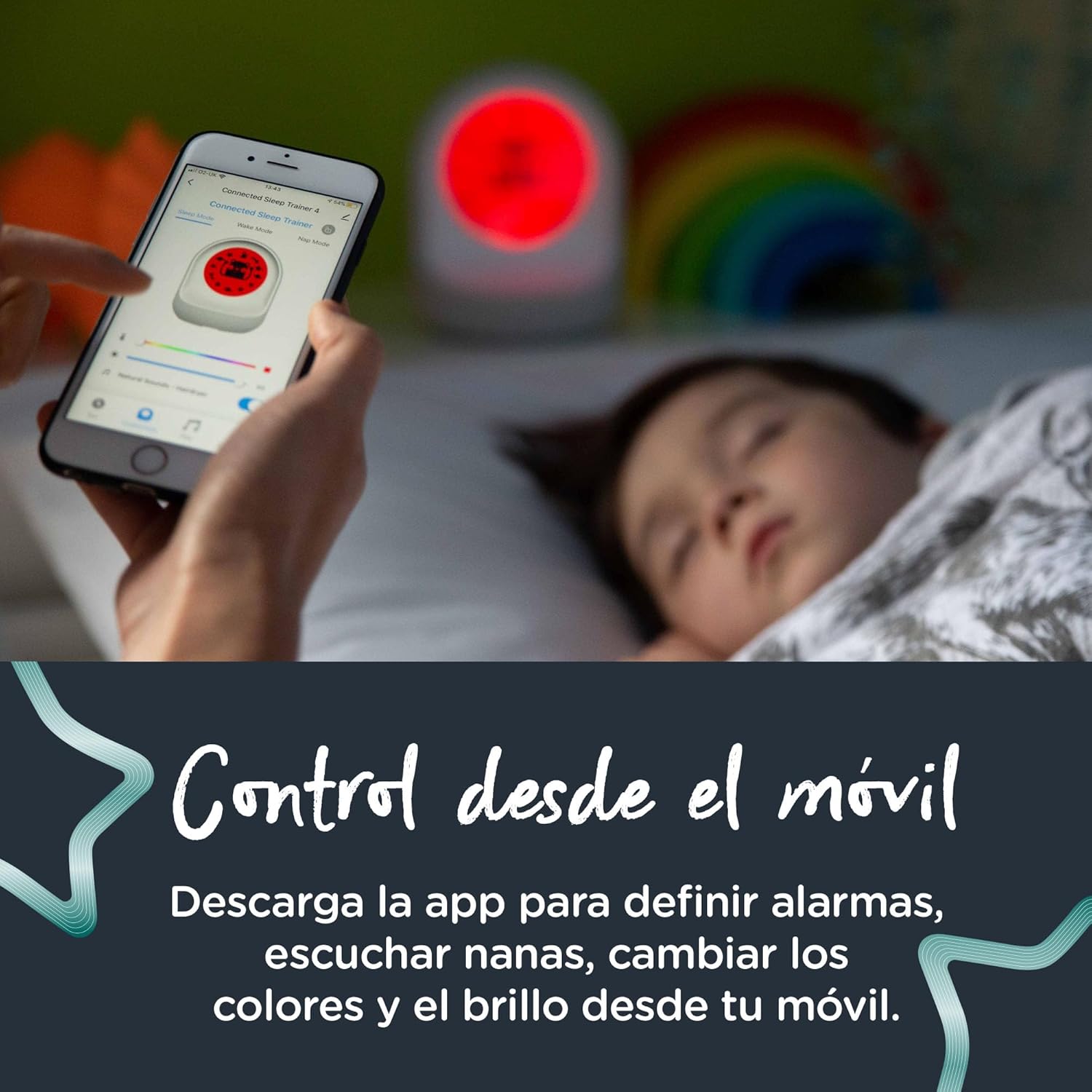
Figure 3.2: A child interacting with the Sleep Trainer Clock, which is emitting a red light, indicating a sleep period.
4. Features Overview
- App-Enabled Control: Manage all settings including display, music, colors, brightness, and alarm schedules directly from your smartphone.
- Visual Sleep Training: Teaches children sleep and wake times using intuitive colors and symbols.
- Customizable Alarms: Set multiple alarms for wake-up, naptime, and other routines.
- 10 Soothing Sounds: Features 5 lullabies and 5 natural sounds to help children fall asleep.
- Child Lock: Prevents children from altering settings on the device.
- Power Cut Recovery: The clock retains its settings in the event of a power outage.
- Micro-USB Powered: Operates without the need for batteries (adapter not included).
5. Maintenance
5.1 Cleaning
To maintain the cleanliness and functionality of your Sleep Trainer Clock:
- Ensure the device is unplugged from the power source before cleaning.
- Wipe the exterior surfaces with a soft, damp cloth.
- Do not use abrasive cleaners, solvents, or harsh chemicals, as these can damage the device.
- Avoid submerging the clock in water or exposing it to excessive moisture.
5.2 Storage
When not in use for extended periods, store the Sleep Trainer Clock in a cool, dry place, away from direct sunlight and extreme temperatures.
6. Troubleshooting
If you encounter issues with your Tommee Tippee Timekeeper Connected Sleep Trainer Clock, please refer to the following common solutions:
- Device Not Powering On: Ensure the micro-USB cable is securely connected to both the clock and a working USB power adapter/outlet. Try a different USB adapter or outlet.
- App Connectivity Issues:
- Verify your smartphone's Bluetooth and Wi-Fi are enabled.
- Ensure the clock is within range of your Wi-Fi router.
- Restart the Tommee Tippee app.
- Unplug the clock, wait 10 seconds, and plug it back in to restart the device.
- If issues persist, try re-pairing the device through the app's setup process.
- Settings Not Saving: The clock features power cut recovery. If settings are not saving, ensure the device is not being frequently unplugged without proper shutdown (if applicable) or check for app synchronization issues.
- Display Malfunctions: If the display is dim or flickering, check the brightness settings in the app. If the issue persists, contact customer support.
For further assistance, consult the help section within the Tommee Tippee app or visit the official Tommee Tippee support website.
7. Specifications
| Feature | Specification |
|---|---|
| Brand | Tommee Tippee |
| Model Number | 423107 |
| Display Type | Digital |
| Color | White |
| Dimensions (W x H) | 5.31" x 6.85" |
| Power Source | Corded Electric (Micro-USB) |
| Material | Plastic |
| Item Weight | 0.38 Kilograms (13.4 ounces) |
| Special Features | Alarm, App-Enabled, Nightlight, Child Lock, Power Cut Recovery |
| Indoor/Outdoor Usage | Indoor |
8. Warranty and Support
For information regarding product warranty, returns, or technical support, please visit the official Tommee Tippee website or contact their customer service department. Specific warranty terms may vary by region and purchase location.
You can typically find contact information and support resources on the Tommee Tippee brand store page or through the help section of the Tommee Tippee app.


