
aigo AT240
aigo AT240 CPU Liquid Cooler Instruction Manual
Model: AT240
Brand: aigo
1. Introduction
Thank you for choosing the aigo AT240 240mm Black CPU Liquid Cooler. This All-in-One (AIO) liquid cooling system is designed to provide efficient heat dissipation for your CPU, featuring ARGB lighting and PWM fans for optimal performance and aesthetics. This manual provides essential information for the proper installation, operation, and maintenance of your AT240 cooler.
Package Contents
Before proceeding with installation, please verify that all components listed below are present in your package:
- aigo AT240 Radiator with Integrated Pump and Tubing
- 2 x 120mm PWM ARGB Fans
- Intel Mounting Bracket Kit (LGA 115x/1200/20xx)
- AMD Mounting Bracket Kit (AM4/AM3+/AM3)
- Mounting Screws and Hardware
- Thermal Paste
- ARGB Controller (if not using motherboard sync)
- Installation Guide

Image: The aigo AT240 liquid cooler, including the radiator, fans, CPU block, and all included accessories such as mounting hardware, thermal paste, and the instruction manual.
2. Safety Information
Please read and understand the following safety precautions before installing or operating the aigo AT240 liquid cooler. Failure to do so may result in damage to the product, your computer components, or personal injury.
- Always disconnect power from your computer before installing or removing any components.
- Handle the cooler and its components with care to avoid damage.
- Ensure proper grounding to prevent electrostatic discharge (ESD) damage to sensitive electronic components.
- Do not open the liquid cooling loop. The system is pre-filled and sealed. Opening it will void the warranty and may cause leaks.
- Keep the product away from children and pets.
- Do not expose the product to extreme temperatures or humidity.
- Ensure proper airflow within your computer case to maintain optimal cooling performance.
3. Setup and Installation
This section outlines the general steps for installing your aigo AT240 liquid cooler. Refer to the detailed installation guide included in your package for specific diagrams and instructions for your CPU socket type (Intel LGA 115x/1200/20xx or AMD AM4/AM3+/AM3).
Installation Steps:
- Prepare Your System: Power off your computer and disconnect all cables. Open your computer case.
- Prepare CPU Socket: Remove any existing CPU cooler. Clean the CPU surface thoroughly with isopropyl alcohol to remove old thermal paste.
- Install Mounting Hardware: Attach the appropriate backplate (if required) and standoffs for your CPU socket type (Intel or AMD) to the motherboard.
- Apply Thermal Paste: Apply a small, pea-sized amount of the included thermal paste to the center of your CPU's integrated heat spreader (IHS).
- Mount CPU Block: Carefully place the CPU block onto the CPU, aligning it with the mounting holes. Secure it with the provided thumb screws or nuts, tightening them in a cross pattern until snug.
- Install Fans to Radiator: Attach the two 120mm PWM ARGB fans to the radiator using the long screws provided. Ensure the fan airflow direction is appropriate for your case's cooling setup (typically pushing air through the radiator).
- Mount Radiator: Install the radiator assembly into your computer case. Common mounting locations include the top or front of the case, depending on available space and case design. Secure the radiator with the appropriate screws.
- Connect Cables:
- Connect the pump's 3-pin power connector to a CPU_FAN or AIO_PUMP header on your motherboard.
- Connect the fan's 4-pin PWM connectors to available fan headers on your motherboard (e.g., CPU_OPT or SYS_FAN).
- Connect the ARGB (Addressable RGB) cables from the fans and pump to a 5V 3-pin ARGB header on your motherboard. If your motherboard does not have an ARGB header, use the included ARGB controller (if applicable) and connect it to a SATA power connector from your PSU.
- Cable Management: Route all cables neatly to ensure proper airflow and a clean build.
- Close Case and Power On: Close your computer case, reconnect all external cables, and power on your system. Verify that the pump and fans are operating and that the ARGB lighting is functioning.
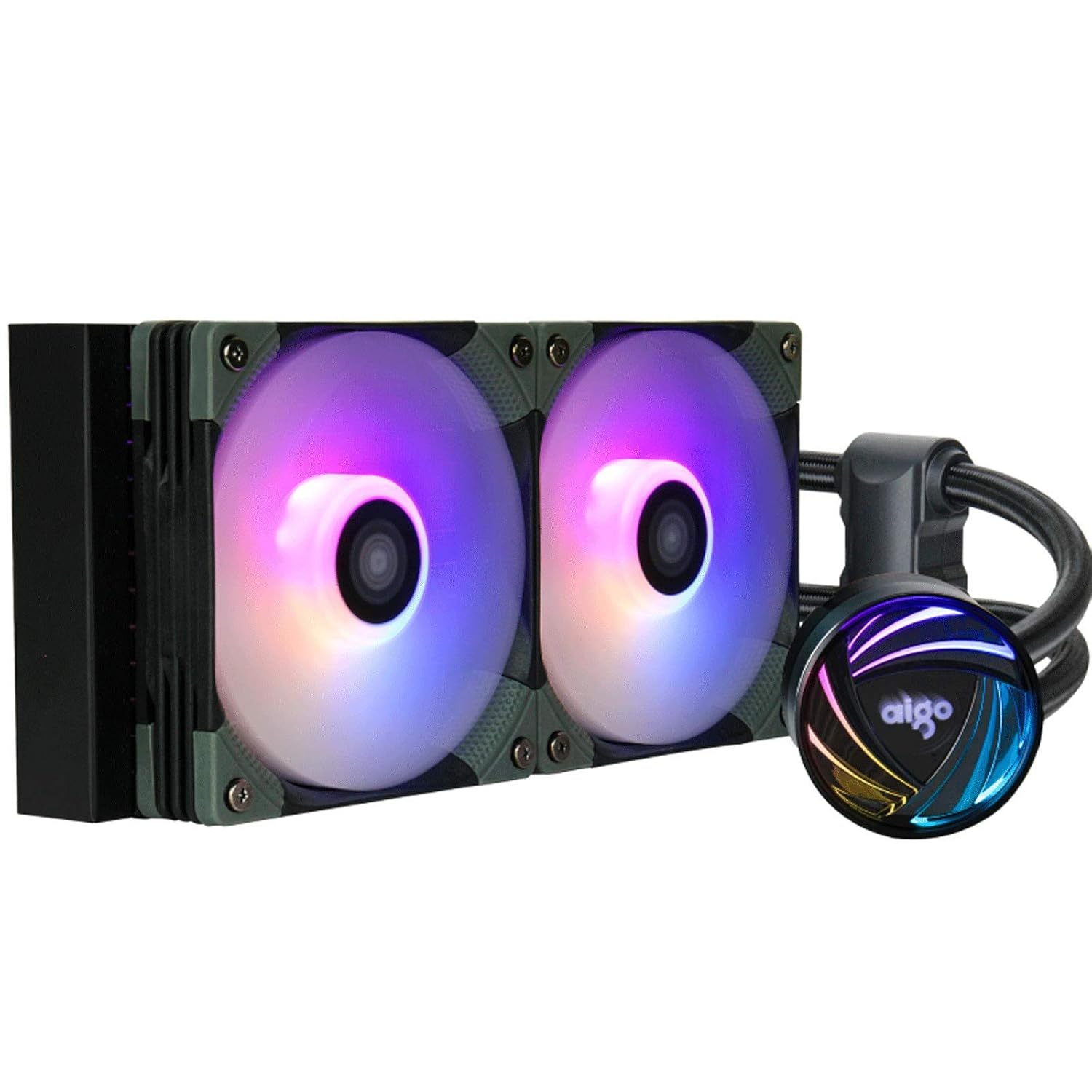
Image: The aigo AT240 liquid cooler, showcasing its radiator, two 120mm ARGB fans, and the illuminated CPU pump block.

Image: The aigo AT240 liquid cooler installed within a PC case, showing the radiator mounted at the top and the CPU block connected to the motherboard, with ARGB lighting active.
4. Operating Instructions
ARGB Lighting Control
The aigo AT240 features Addressable RGB (ARGB) lighting on both the fans and the pump head. This lighting can be synchronized with your motherboard's ARGB software for a unified lighting experience.
- Motherboard SYNC: Compatible with GIGABYTE (RGB Fusion), MSI (Mystic Light Sync), ASUS (Aura Sync), and AsRock (Polychrome Sync) header motherboards. Connect the ARGB cables to the 5V 3-pin ARGB header on your motherboard and use the respective motherboard software to customize lighting effects.
- ARGB Controller: If your motherboard lacks a 5V 3-pin ARGB header, use the included ARGB controller (if provided) to cycle through pre-set lighting modes and colors. Refer to the controller's specific instructions for operation.
Fan Speed Control (PWM)
The 120mm fans included with the AT240 are PWM (Pulse Width Modulation) controlled, allowing their speed to be adjusted based on CPU temperature. This ensures efficient cooling when needed and quieter operation during lighter loads.
- BIOS/UEFI Settings: Access your motherboard's BIOS/UEFI settings to configure fan curves. You can set the fans to increase speed as CPU temperature rises.
- Motherboard Software: Many motherboard manufacturers provide desktop software utilities that allow for real-time fan speed monitoring and adjustment within the operating system.

Image: A diagram illustrating the operational range of the PWM fans, from 800 to 2,000 RPM, indicating that speed adjusts according to temperature for higher airflow when needed and lower noise when not.
5. Maintenance
Regular maintenance helps ensure the longevity and optimal performance of your aigo AT240 liquid cooler.
- Dust Cleaning: Periodically inspect the radiator fins and fan blades for dust buildup. Use compressed air or a soft brush to gently remove dust. Ensure the fans are not spinning rapidly when using compressed air.
- Check Tubing and Connections: Occasionally inspect the tubing and connections for any signs of wear, kinks, or leaks. While AIOs are sealed systems, a visual check can provide peace of mind.
- CPU Block Surface: If you ever need to re-seat the CPU block, ensure the CPU and cold plate surfaces are thoroughly cleaned and fresh thermal paste is applied.
6. Troubleshooting
If you encounter issues with your aigo AT240 liquid cooler, refer to the following common problems and solutions:
| Problem | Possible Cause | Solution |
|---|---|---|
| High CPU Temperatures | Improper CPU block mounting; Insufficient thermal paste; Fans not spinning or incorrectly oriented; Pump not running; Radiator clogged with dust. | Re-seat CPU block, apply fresh thermal paste; Check fan connections and orientation; Verify pump power connection; Clean radiator fins. |
| Fans Not Spinning / No RGB | Loose power or ARGB connections; Incorrect header connection; Software conflict. | Ensure all fan and ARGB cables are securely connected to the correct headers; Check motherboard BIOS/software settings for fan control and RGB. |
| Unusual Noise (Gurgling/Buzzing) | Air bubbles in the loop (common initially); Pump noise; Fan bearing noise. | Allow system to run for a few hours for air bubbles to settle; Ensure radiator is mounted higher than the pump if possible; Check fan screws for tightness; If noise persists, contact support. |
| ARGB Not Syncing | Incorrect ARGB header (e.g., 12V RGB instead of 5V ARGB); Software not detecting device. | Ensure connection to a 5V 3-pin ARGB header; Update motherboard BIOS and ARGB software; Try using the included ARGB controller if available. |
7. Specifications
Detailed technical specifications for the aigo AT240 CPU Liquid Cooler:
| Feature | Specification |
|---|---|
| Model Number | AT240 |
| Product Dimensions | 27.7 x 12 x 2.7 cm |
| Weight | 2 kg |
| Cooling Method | Water |
| Radiator Material | Aluminum |
| Cold Plate Material | Copper (99.7% Copper Content) |
| Fan Size | 120mm |
| Fan Speed | 800-2000 RPM (PWM Controlled) |
| Noise Level | 31 dB (Max) |
| Pump Power Connector | 3-Pin |
| Voltage | 12 Volts (DC) |
| Wattage | 2.5 watts |
| Compatible Devices | Desktop |
| CPU Socket Compatibility | Intel: LGA 115x/1200/20xx, AMD: AM4/AM3+/AM3 |

Image: A diagram illustrating the independent pump design of the aigo AT240, showing how the pump is separated from the cold head to improve heat dissipation efficiency, along with a comparison of water channel designs.

Image: A close-up view of the aigo AT240 radiator, highlighting its 27mm thickness for improved water flow, and the copper cold plate with 99.7% copper content for efficient heat transfer.
8. Warranty Information
aigo products are manufactured to the highest quality standards. For specific warranty terms and conditions, please refer to the warranty card included with your purchase or visit the official aigo website. The warranty typically covers defects in materials and workmanship under normal use.
Please retain your proof of purchase for any warranty claims.
9. Customer Support
If you have any questions, require technical assistance, or experience issues not covered in this manual, please contact aigo customer support. Contact information can typically be found on the official aigo website or on the product packaging.
When contacting support, please have your product model (AT240) and proof of purchase ready.
Ask a question about this manual
Ask about setup, troubleshooting, compatibility, parts, safety, or missing instructions. Manuals+ will review the question and use this page’s manual context to help answer it.