
VEIKK VK640
VEIKK VK640 Digital Graphics Tablet Instruction Manual
Model: VK640 | Brand: VEIKK
1. Introduction
The VEIKK VK640 is a compact and versatile digital graphics tablet designed for a wide range of creative and professional applications. Featuring a 6x4 inch active area, a battery-free stylus with 8192 levels of pressure sensitivity and tilt function, and 6 customizable shortcut keys, it offers an intuitive and efficient experience for drawing, painting, sketching, e-signatures, online teaching, and more. Its portable design makes it an ideal tool for both desktop and on-the-go use.

Figure 1: VEIKK VK640 Drawing Tablet with its battery-free stylus.
2. What's in the Box
Upon opening your VEIKK VK640 package, please ensure all the following items are present:
- VEIKK VK640 Drawing Tablet
- Digital Pen (Battery-Free Stylus)
- Pen Holder
- Pen Nibs (x28)
- OTG Adapters (x2 - for Android connectivity)
- Artist Glove
- USB Cable (attached to tablet)
- Quick Start Guide

Figure 2: All items included in the VEIKK VK640 package.
3. Setup Guide
To ensure optimal performance, follow these steps for initial setup:
- Driver Installation: Before connecting the tablet, please visit the official VEIKK website (www.veikk.com) to download the latest driver for your operating system (Windows, macOS, Linux, Chrome OS). Ensure any existing tablet drivers from other brands are uninstalled to prevent conflicts.
- Connect the Tablet: Plug the tablet's USB cable into an available USB port on your computer. For Android devices (Android 6.0 or above, excluding Samsung), use the provided OTG adapters to connect the tablet to your phone.
- Install Driver: Run the downloaded driver installation file and follow the on-screen prompts. Restart your computer if prompted.
- Verify Installation: After installation, open the VEIKK Pen Tablet application from your desktop or system tray to confirm the tablet is recognized and functioning correctly. You can adjust pen pressure, mapping, and shortcut key settings here.

Figure 3: Connecting the VEIKK VK640 to a laptop for setup.
4. Operating the Tablet
The VEIKK VK640 is designed for seamless integration with various software and operating systems, enhancing your digital workflow.
4.1 Pen Functionality
The battery-free stylus supports 8192 levels of pressure sensitivity, allowing for precise control over line thickness and opacity. It also features up to 60 degrees of tilt function, enabling natural shading and brush strokes. The pen does not require charging, ensuring uninterrupted creative sessions.
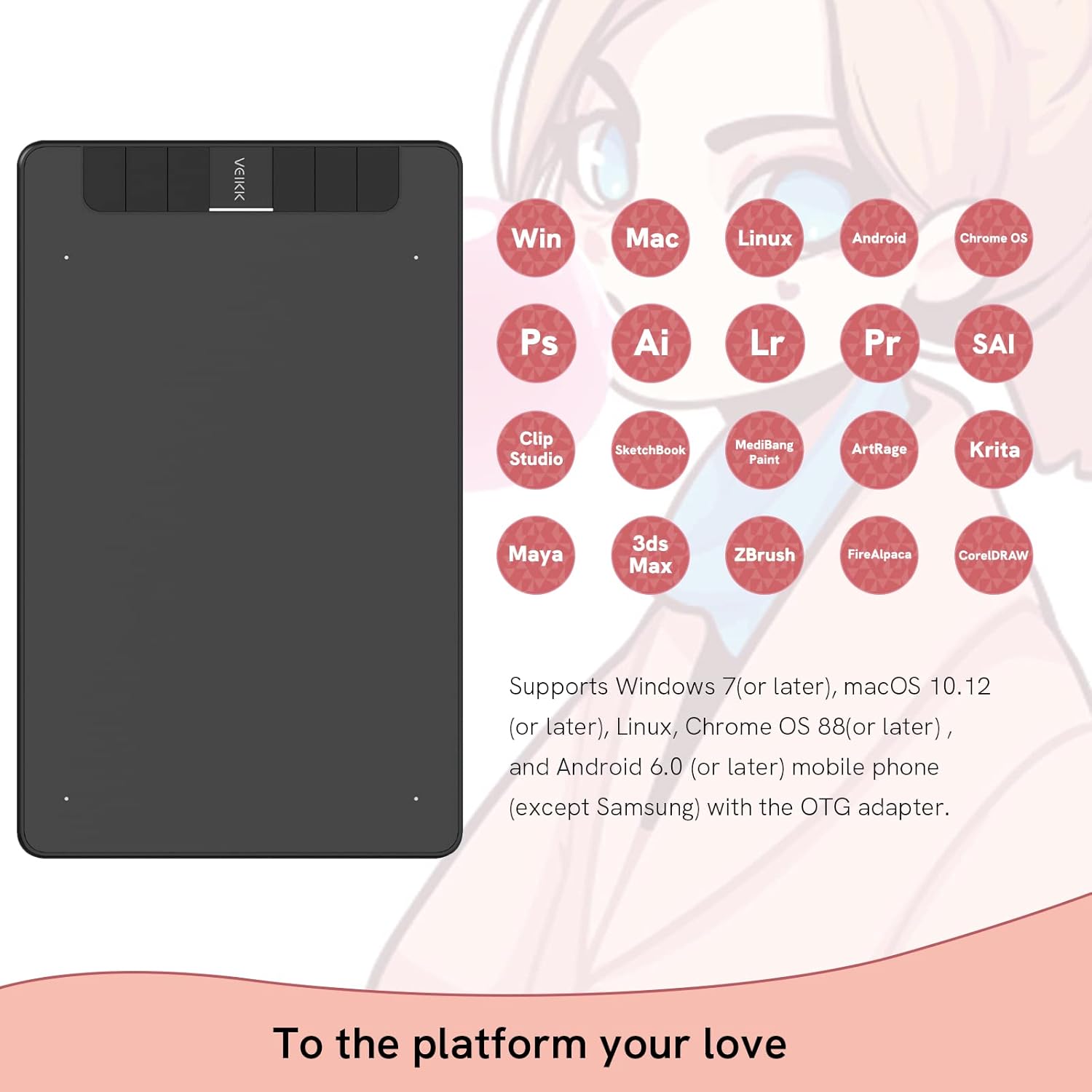
Figure 4: Key features of the VEIKK VK640 battery-free stylus.
4.2 Customizable Shortcut Keys
The VK640 features 6 customizable shortcut keys located on the side of the tablet. These keys can be programmed to perform various functions, such as undo, redo, zoom in/out, or switch tools, significantly enhancing your workflow efficiency in different software applications.
4.3 Software Compatibility
The tablet is compatible with most major drawing and design software, including Adobe Photoshop, Krita, Adobe Illustrator, SAI, SketchBookPro, FireAlpaca, OpenCanvas, and Manga Studio. It also supports various operating systems such as Windows 11/10/8/7, macOS 10.12 or later, Chrome OS, and Linux OS.

Figure 5: VEIKK VK640's broad compatibility with software and operating systems.
4.4 Usage Scenarios
Beyond digital art, the VK640 is an excellent tool for online education, web conferences, and live broadcasts, allowing for natural handwriting and annotations. It's also suitable for e-signatures and even gameplay, particularly for OSU!.

Figure 6: Diverse applications of the VEIKK VK640 tablet.
4.5 Using with Microsoft Office
The VEIKK VK640 can be effectively used with Microsoft Office applications for annotations, drawing, and more. This video demonstrates how to integrate the tablet with Microsoft Office Team and Windows Whiteboard for enhanced productivity.
Video 1: How to use Microsoft Office Team with VEIKK Drawing Tablet. This video demonstrates the tablet's functionality within Microsoft Office applications, including Word, Excel, PowerPoint, and OneNote, as well as Windows Whiteboard.
5. Maintenance
Proper maintenance ensures the longevity and optimal performance of your VEIKK VK640 tablet.
- Cleaning: Use a soft, dry cloth to gently wipe the tablet surface and stylus. Avoid using harsh chemicals or abrasive materials, as they may damage the surface.
- Nib Replacement: The pen nibs may wear down over time with regular use. Your tablet comes with 28 spare nibs. To replace a nib, use the included nib remover tool to gently pull out the old nib, then insert a new one firmly until it clicks into place.
- Storage: When not in use, store the tablet and pen in a clean, dry place away from direct sunlight and extreme temperatures.
6. Troubleshooting
If you encounter any issues with your VEIKK VK640 tablet, please refer to the following common solutions:
- No Pen Response: Ensure the tablet is securely connected to your computer/device. Verify that the VEIKK driver is correctly installed and running. Try restarting your computer.
- Pen Pressure Not Working: Check the pen pressure settings in the VEIKK Pen Tablet application. Ensure your drawing software supports pen pressure and that the feature is enabled within the software. Reinstalling the driver might resolve the issue.
- Inaccurate Cursor: Calibrate the working area in the VEIKK Pen Tablet application. Ensure your monitor resolution is correctly set.
- Shortcut Keys Not Functioning: Verify that the shortcut keys are correctly programmed in the VEIKK Pen Tablet application. Ensure there are no conflicting hotkeys with other software.
- Compatibility Issues: Ensure your operating system and software versions meet the minimum requirements. Update your operating system and software if necessary.
For more detailed troubleshooting guides or persistent issues, please visit the official VEIKK support page on their website.
7. Specifications
| Feature | Detail |
|---|---|
| Product Dimensions | 9.13 x 5.98 x 0.35 inches |
| Item Weight | 9.8 ounces |
| Active Area | 6 x 4 inches |
| Pressure Sensitivity | 8192 Levels |
| Report Rate | 250 PPS (Points Per Second) |
| Resolution | 5080 LPI (Lines Per Inch) |
| Reading Height | 10mm |
| Accuracy | ±0.01 inch |
| Connectivity Technology | USB |
| Operating System Compatibility | Windows 11/10/8/7, macOS 10.12 or later, Chrome OS, Linux OS, Android 6.0 or above (except Samsung) |
| Special Features | 6 Customizable Shortcut Keys, 60° Tilt Support |
8. Warranty and Support
VEIKK provides a one-year warranty for the VK640 graphics tablet from the date of purchase. This warranty covers manufacturing defects and ensures your product is free from material and workmanship flaws under normal use.
In addition to the warranty, VEIKK offers lifetime technical support for the VK640. If you have any questions, require assistance with setup, or encounter any issues not covered in this manual, please do not hesitate to contact VEIKK customer support through their official website (www.veikk.com). Their dedicated team is available to provide comprehensive assistance.
Related documentsVK640


Ask a question about this manual
Ask about setup, troubleshooting, compatibility, parts, safety, or missing instructions. Manuals+ will review the question and use this page’s manual context to help answer it.