
Genmitsu RC4030
Genmitsu PROVerXL 4030 Offline Control Module User Manual
Model: RC4030
Introduction
This manual provides detailed instructions for the Genmitsu PROVerXL 4030 Offline Control Module. This module is designed to enhance the functionality of your Genmitsu CNC Router PROVerXL 4030 and PROVerXL 4030 V2 by enabling standalone operation without the need for a connected computer. It features a 2.4-inch touchscreen for intuitive control and easy G-code file management via an SD card.

Image: Genmitsu PROVerXL 4030 Offline Control Module.
Compatibility
This offline control module is specifically compatible with the following Genmitsu CNC Router models:
- Genmitsu CNC Router PROVerXL 4030
- Genmitsu CNC Router PROVerXL 4030 V2

Image: The Genmitsu Offline Control Module connected to a PROVerXL 4030 CNC machine, demonstrating its integration.
Setup Instructions
-
Prepare the SD Card: Insert your generated G-code project files onto the included SD card. Ensure the files are in a compatible format for your CNC machine.
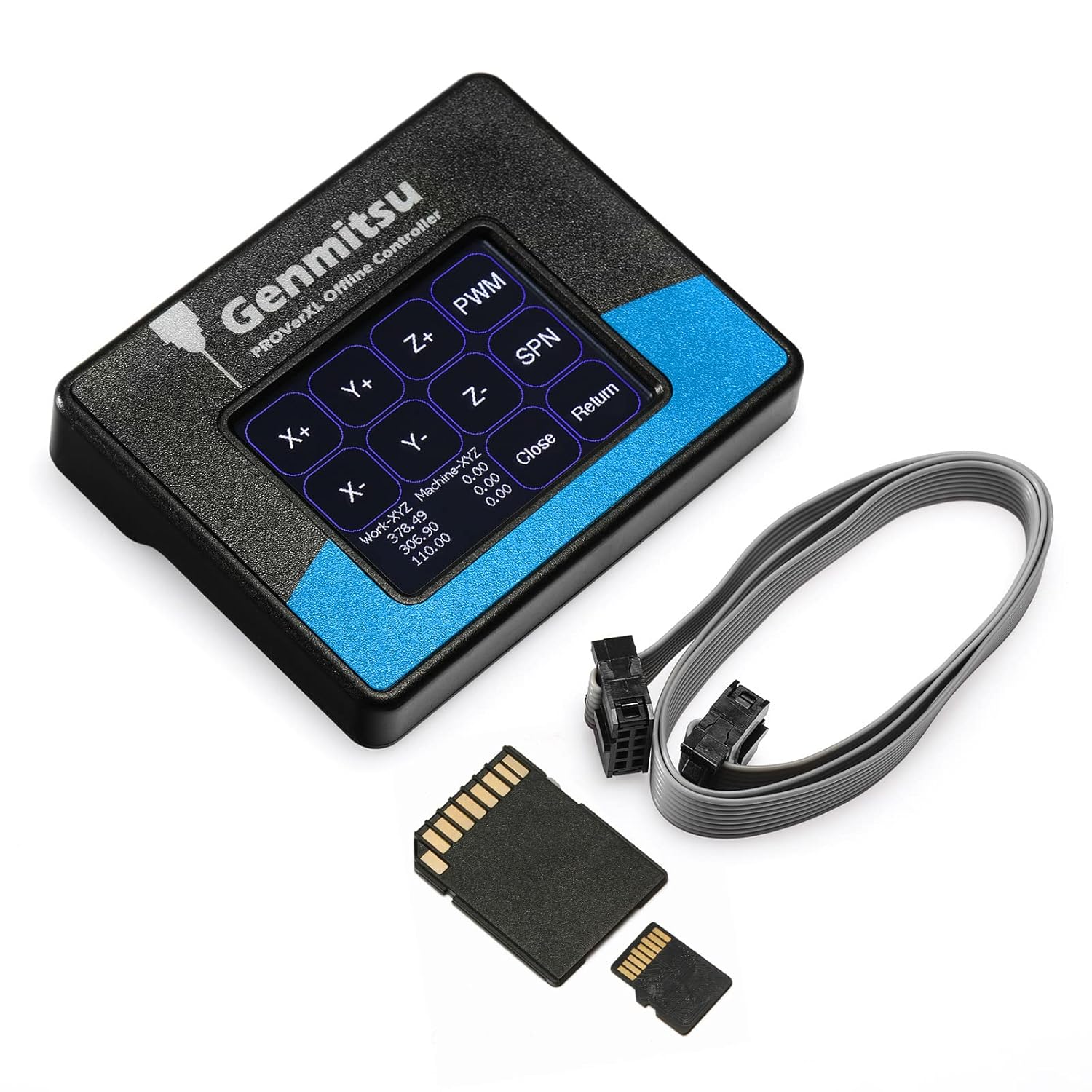
Image: The Genmitsu Offline Control Module shown with its connecting cable and an SD card, ready for file transfer.
-
Insert SD Card: Locate the SD card slot on the side of the offline control module and insert the prepared SD card.

Image: A close-up view of the offline controller's side, highlighting the SD card slot and the 8-pin ISP port.
- Connect the Module: Connect the offline control module to your Genmitsu PROVerXL 4030 or PROVerXL 4030 V2 CNC machine using the provided cable. Refer to your CNC machine's manual for the specific connection port.
- Power On: Power on your CNC machine. The offline control module should initialize and display the main interface on its touchscreen.
Operating Instructions
The Genmitsu Offline Control Module provides direct manual control over your CNC router, eliminating the need for a computer during operation.
Using the Touchscreen Interface
The 2.4-inch touchscreen display allows for easy navigation and control.
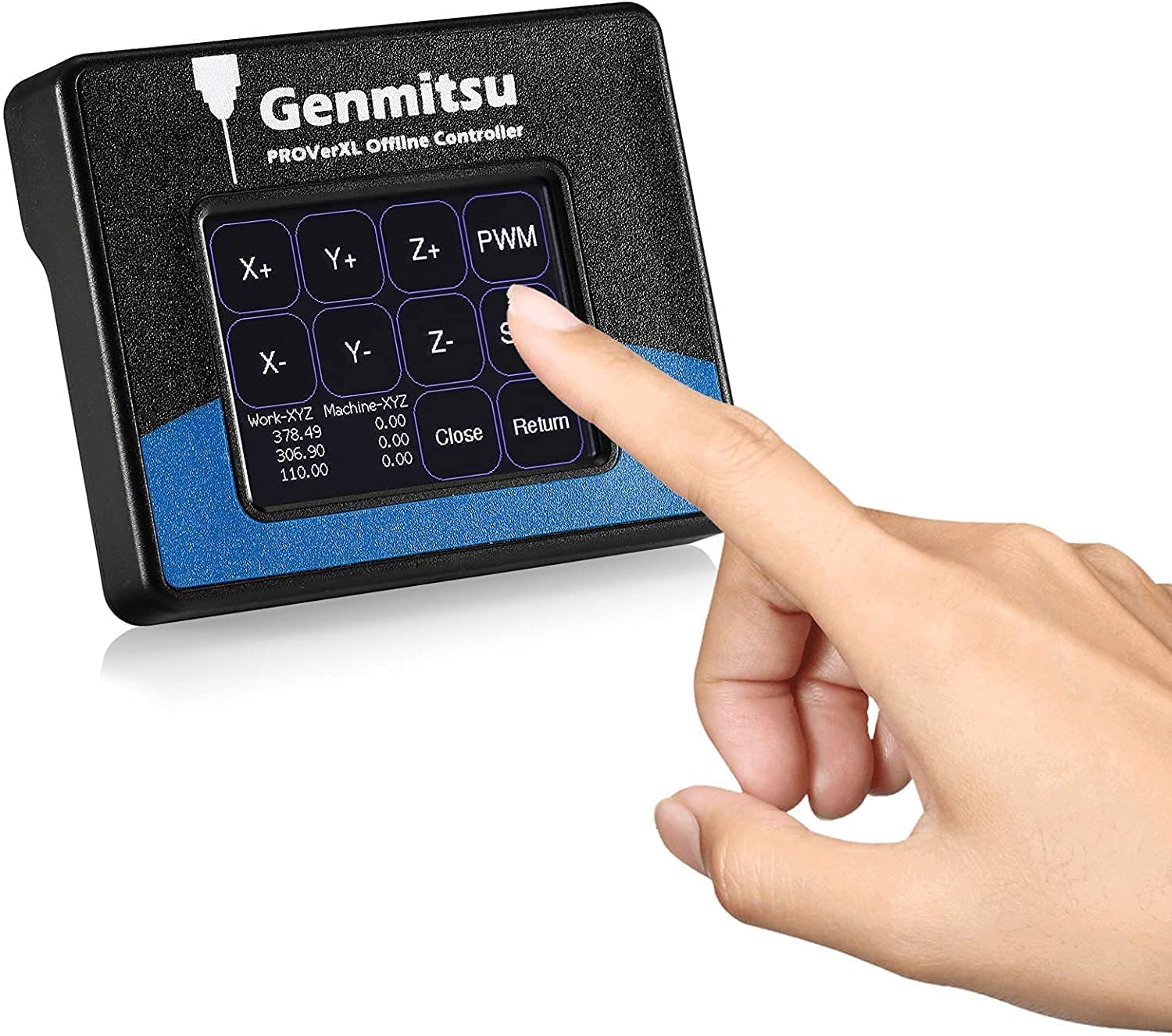
Image: A hand interacting with the touchscreen interface of the Genmitsu Offline Control Module, showing the control buttons.
Manual Control (Jogging)
You can manually move the CNC machine's axes (X, Y, Z) using the dedicated buttons on the touchscreen.
- X+, X-: Move the X-axis in positive or negative directions.
- Y+, Y-: Move the Y-axis in positive or negative directions.
- Z+, Z-: Move the Z-axis in positive or negative directions.
- PWM: Controls the Pulse Width Modulation, typically for spindle speed.
- SPN: Toggles the spindle on or off.
- Close/Return: Navigates through menus or exits current operations.
Loading and Running G-Code Projects
- Ensure your G-code files are on the inserted SD card.
- Navigate the touchscreen menu to find the "File" or "Load Project" option.
- Select your desired G-code file from the list displayed on the screen.
- Follow the on-screen prompts to start the carving or cutting process.
Maintenance
To ensure the longevity and optimal performance of your Genmitsu Offline Control Module, follow these maintenance guidelines:
- Keep the module clean and free from dust and debris. Use a soft, dry cloth for cleaning.
- Avoid exposing the module to extreme temperatures or humidity.
- Do not use abrasive cleaners or solvents on the touchscreen or casing.
- Ensure all cable connections are secure before operation.
- Handle the SD card carefully to prevent damage to the card or the module's slot.
Troubleshooting
If you encounter issues with your offline control module, consider the following common solutions:
- Module Not Powering On:
- Ensure the module is correctly connected to the CNC machine.
- Verify that the CNC machine itself is powered on.
- G-code Files Not Recognized:
- Check if the SD card is properly inserted into the slot.
- Confirm that the G-code files are in a compatible format and not corrupted.
- Try re-saving the G-code files to the SD card.
- Unresponsive Touchscreen:
- Gently clean the screen surface with a soft cloth.
- Restart the CNC machine and the module.
- Machine Not Responding to Commands:
- Ensure all cables between the module and the CNC machine are securely connected.
- Check for any error messages on the module's display or the CNC machine's control board.
For further assistance, please refer to the support section or contact Genmitsu customer service.
Specifications
| Feature | Detail |
|---|---|
| Brand | Genmitsu |
| Model | Offline Controller (RC4030) |
| Compatibility | Genmitsu PROVerXL 4030, PROVerXL 4030 V2 |
| Display Type | 2.4" Touchscreen |
| Product Dimensions (L x W x H) | 3.5" x 2.8" x 0.7" (90mm x 71mm x 18mm) |
| Item Weight | 0.12 kg |
| Color | Black |
| Included Components | Offline Controller, Connecting Cable, SD Card |
| UPC | 816550024133 |

Image: Diagram showing the physical dimensions of the Genmitsu Offline Control Module and its cable.
Warranty and Support
Warranty Information
This product is covered by a return policy that typically allows for refunds or replacements within 30 days of purchase. For specific warranty details and terms, please refer to the documentation included with your purchase or contact the seller directly.
Customer Support
For technical assistance, troubleshooting, or any inquiries regarding your Genmitsu Offline Control Module, please visit the official Genmitsu Store or contact their customer service.
Genmitsu Store: Visit the Genmitsu Store on Amazon
Related documentsRC4030


Ask a question about this manual
Ask about setup, troubleshooting, compatibility, parts, safety, or missing instructions. Manuals+ will review the question and use this page’s manual context to help answer it.