
PlayZoom GoCam
PlayZoom GoCam User Manual
Waterproof Kids Action Camera
Model: GoCam | Brand: PlayZoom
Introduction
The PlayZoom GoCam is a durable and fun waterproof action camera designed specifically for kids. It allows young adventurers to capture their exciting moments in 1080P HD video and 12MP photos, whether on land or underwater. With its robust waterproof casing, built-in microphone and speaker, and a variety of mounting options, the GoCam is ready for any adventure.

The PlayZoom GoCam, enclosed in its protective waterproof housing, ready for action.
Product Overview
Familiarize yourself with the various parts and components of your PlayZoom GoCam.

Detailed view of the GoCam's buttons and ports, including the Power/Mode button, Shutter/Select button, Micro SD slot, and Micro USB port.
Camera Components:
- Lens: Captures images and videos.
- 2-inch LCD Screen: For viewing live footage, playback, and menu navigation.
- Power/Mode Button: Turns the camera on/off and switches between video, photo, and playback modes.
- Shutter/Select Button: Starts/stops recording, takes photos, and confirms selections.
- Up Button: Navigates menus upwards or zooms in.
- Down/Shutter Button: Navigates menus downwards or acts as an alternative shutter button.
- Microphone: Records audio.
- Speaker: For audio playback.
- Micro SD Slot: For inserting a Micro SD card (up to 32GB, not included) to store recordings.
- Micro USB Port: For charging the camera and transferring data.
- Status Indicator Light: Shows camera status (e.g., charging, recording).
Included Accessories:
- Waterproof Case: Protects the camera underwater up to 90 feet (30 meters).
- Mounting Kit: Various mounts for attaching the camera to helmets, bikes, skateboards, and more.
- USB Charging Cable: For charging the camera.

Key features of the GoCam, including its 2-inch LCD screen and built-in battery.
Setup
1. Charging the Camera
Before first use, fully charge your GoCam. Connect the included USB charging cable to the camera's Micro USB port and the other end to a USB power adapter (not included) or a computer's USB port. The status indicator light will show charging progress and turn off when fully charged. A full charge provides approximately 1.5 hours of recording time.
2. Installing a Micro SD Card
The GoCam requires a Micro SD card (not included) to save photos and videos. It supports cards up to 32GB. Locate the Micro SD slot on the side of the camera. Gently insert the Micro SD card with the gold contacts facing the back of the camera until it clicks into place. To remove, push the card in again until it springs out.
3. Attaching the Waterproof Case and Mounts
For underwater adventures or added protection, place the GoCam inside its waterproof case. Ensure the case is securely latched before submersion. The included mounting kit allows you to attach the camera to various surfaces and gear.
- Open the waterproof case by releasing the latch.
- Carefully place the GoCam inside, ensuring it fits snugly.
- Close the case firmly, making sure the latch is secure.
- Attach the desired mount (e.g., helmet mount, bike mount) to the bottom of the waterproof case using the provided screws and adapters.
- Secure the mount to your gear.

Examples of how to use the mounting kit for different activities like skateboarding and biking.

The GoCam is versatile for various adventures, from roller coasters to mountain climbing.
Operating Instructions
Power On/Off
- To turn on: Press and hold the Power/Mode Button for a few seconds until the screen lights up.
- To turn off: Press and hold the Power/Mode Button again until the screen turns off.
Switching Modes
Once the camera is on, short press the Power/Mode Button to cycle through the different modes: Video Recording, Photo Capture, and Playback.
Recording Videos
- Switch to Video Recording mode (indicated by a video camera icon on the screen).
- Press the Shutter/Select Button once to start recording. A red dot or recording timer will appear on the screen.
- Press the Shutter/Select Button again to stop recording. The video file will be saved to the Micro SD card.
Taking Photos
- Switch to Photo Capture mode (indicated by a camera icon on the screen).
- Frame your shot using the LCD screen.
- Press the Shutter/Select Button once to take a photo. The image will be saved to the Micro SD card.
Playback
- Switch to Playback mode (indicated by a play icon).
- Use the Up and Down buttons to navigate through your recorded videos and photos.
- Press the Shutter/Select Button to play a video or view a photo in full screen.
Underwater Use
The PlayZoom GoCam is waterproof up to 90 feet (30 meters) when properly enclosed in its waterproof case. Always ensure the case is clean and securely sealed before taking it underwater. After use in saltwater, rinse the case with fresh water and let it air dry.
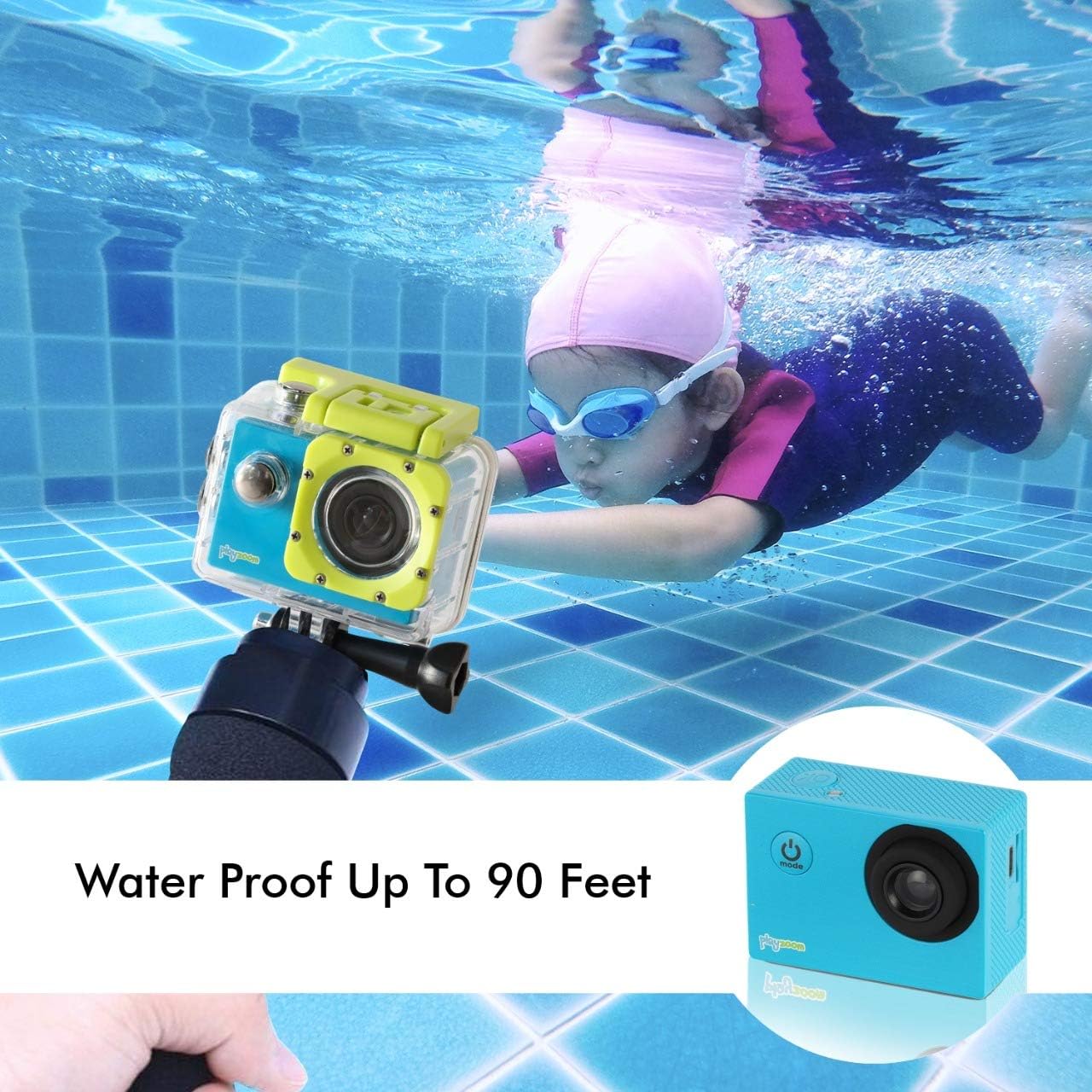
The GoCam is designed for underwater adventures, waterproof up to 90 feet.
Maintenance
- Cleaning: Use a soft, dry cloth to clean the camera body. For the lens, use a lens cleaning cloth. For the waterproof case, rinse with fresh water after each use, especially in saltwater, and wipe dry.
- Storage: Store the camera in a cool, dry place away from direct sunlight and extreme temperatures. Remove the Micro SD card if storing for extended periods.
- Battery Care: To prolong battery life, avoid fully discharging the battery frequently. Charge the camera regularly, even if not in use, to maintain battery health.
- Waterproof Case Seal: Periodically inspect the rubber seal of the waterproof case for any dirt, debris, or damage. A clean and intact seal is crucial for maintaining its waterproof integrity.
Troubleshooting
| Problem | Possible Cause | Solution |
|---|---|---|
| Camera does not turn on. | Battery is drained. | Charge the camera fully using the USB cable. |
| Cannot record video or take photos. | No Micro SD card inserted or card is full/corrupted. | Insert a Micro SD card. If already inserted, check if it's full and delete files or format the card (this will erase all data). Try a different Micro SD card. |
| Poor image/video quality. | Lens is dirty or lighting conditions are poor. | Clean the camera lens with a soft cloth. Ensure adequate lighting for best results. |
| Camera freezes or becomes unresponsive. | Software glitch. | Press and hold the Power/Mode button for 10-15 seconds to force a shutdown. Restart the camera. |
Specifications
| Feature | Detail |
|---|---|
| Brand | PlayZoom |
| Model Name | GoCam |
| Video Capture Resolution | 1080p HD |
| Effective Still Resolution | 12 MP |
| Screen Size | 2 Inches (LCD) |
| Water Resistance Level | Waterproof (up to 90 feet / 30 meters with case) |
| Flash Memory Type | Micro SD (supports up to 32GB) |
| Built-in Battery | 400 mAh Rechargeable Lithium Battery |
| Recording Time | Approx. 1.5 hours |
| Item Weight | 4 ounces |
| Product Dimensions | 3 x 1 x 3.5 inches |
Warranty and Support
For warranty information and customer support, please refer to the contact details provided with your product packaging or visit the official PlayZoom website. Keep your purchase receipt as proof of purchase for any warranty claims.
For additional assistance or frequently asked questions, you may visit the PlayZoom Store on Amazon.
Related documentsGoCam


Ask a question about this manual
Ask about setup, troubleshooting, compatibility, parts, safety, or missing instructions. Manuals+ will review the question and use this page’s manual context to help answer it.