
1. Introduction
This manual provides detailed instructions for the installation, operation, and maintenance of your Luntak E12 Smart LED Light Bulbs. Please read this manual thoroughly before use to ensure proper functionality and safety. These smart bulbs offer advanced lighting control, including color changing capabilities, dimming, and voice control integration.

Image 1.1: Luntak E12 Smart LED Light Bulbs
This image displays a pack of six Luntak E12 Smart LED Light Bulbs, each with a candelabra base and a B11 shape. The bulbs are illuminated with a gradient of purple, pink, and yellow light, highlighting their color-changing capabilities.
2. Key Features
The Luntak E12 Smart LED Light Bulbs are designed to enhance your lighting experience with the following features:
- Voice & Remote Control: Control your lights remotely using voice commands via compatible smart assistants or through the dedicated mobile application.
- Color Changing (RGB) & Tunable White: Adjust the light color from a wide spectrum of RGB colors and fine-tune white light from warm to cool temperatures.
- Dimmable: Adjust the brightness level to suit any mood or activity.
- Scene Modes: Pre-set and customizable lighting scenes for various occasions.
- Music Synchronization: Lights can sync with the rhythm of music for dynamic effects.
- Grouping Functionality: Control multiple bulbs simultaneously by grouping them in the app.
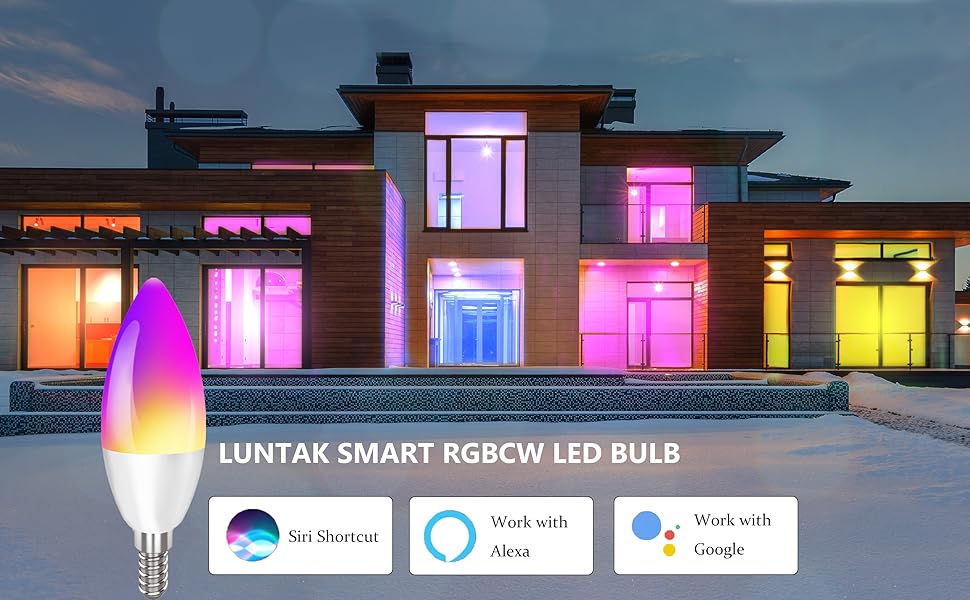
Image 2.1: Smart Home Integration
This image illustrates a modern house with its exterior and interior lights controlled by Luntak smart bulbs, showcasing different colors. Logos for Siri Shortcut, Alexa, and Google Assistant are displayed, indicating compatibility with these voice control platforms.
3. Setup Guide
3.1. Physical Installation
- Ensure the power to the light fixture is turned off before installation.
- Carefully screw the Luntak E12 Smart LED Light Bulb into the compatible E12 candelabra base socket.
- Turn on the power to the light fixture. The bulb should light up.
3.2. App Installation and Pairing
- Download the 'Smart Life' app from your mobile device's app store (iOS or Android).
- Register or log in to your Smart Life account.
- Ensure your mobile device is connected to a 2.4GHz Wi-Fi network. (Note: 5GHz networks are not supported for initial pairing).
- In the app, tap the '+' icon to add a device.
- Select 'Lighting' or 'Light Source (Wi-Fi)' from the device list.
- Follow the in-app instructions to put the bulb into pairing mode (usually by cycling the power switch ON-OFF-ON-OFF-ON until the bulb flashes rapidly).
- Confirm the bulb is flashing rapidly in the app and proceed with network configuration.
- Once successfully paired, you can rename the bulb for easier control.
3.3. Voice Assistant Integration (Siri)
Integrate your Luntak smart bulbs with Siri Shortcuts for convenient voice control.
Video 3.1: How to Play Siri Shortcuts
This video demonstrates the process of setting up and using Siri Shortcuts to control your Luntak smart bulbs. It shows how to create a custom phrase in the Smart Life app to trigger actions like turning the light on or off.
Video 3.2: How to Connect Siri Shortcut for Luntak Smart Bulb
This video provides a step-by-step guide on connecting the Siri Shortcut feature for your Luntak smart bulb. It illustrates how to configure specific commands within the Smart Life app to enable Siri voice control for various light functions.
3.4. Voice Assistant Integration (Alexa)
Connect your Luntak smart bulbs to Amazon Alexa for hands-free control.
- Ensure your Luntak smart bulbs are already paired with the Smart Life app.
- Open the Amazon Alexa app.
- Go to 'Skills & Games' and search for 'Smart Life'.
- Enable the Smart Life skill and link your Smart Life account using your credentials.
- Discover devices. Alexa will find your Luntak smart bulbs.
- You can now control your lights using voice commands like, "Alexa, turn on the bedroom lights."
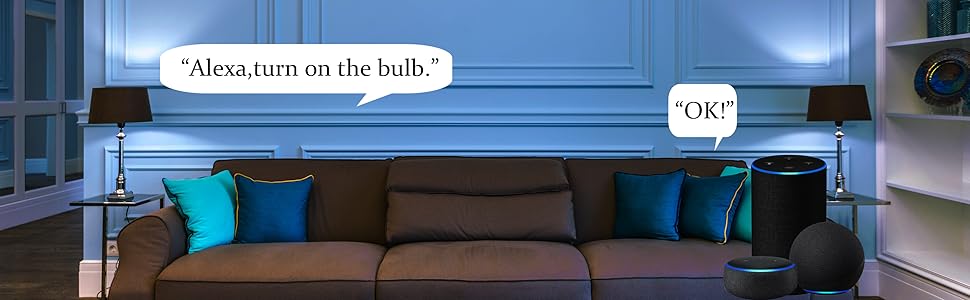
Image 3.1: Alexa Voice Control
This image depicts a living room with an Amazon Echo device, illustrating how voice commands are used to control the smart bulbs. A speech bubble shows the command "Alexa, turn on the bulb." followed by Alexa's response "OK!".
Video 3.3: E12 Smart Light Bulbs Candelabra LED Bulb Color Changing
This video demonstrates the color-changing capabilities of the Luntak E12 smart bulbs and their control via the mobile app. It shows how to adjust brightness, switch between warm white and cool white, and select various RGB colors, including a brief segment on Alexa voice control.
4. Operating Your Smart Bulbs
4.1. Basic Controls (via Smart Life App)
- On/Off: Tap the power icon next to the bulb's name in the app to turn it on or off.
- Brightness: Use the slider in the app to adjust the light intensity from 1% to 100%.
- Color Change: Select the 'Color' tab in the bulb's control interface to choose from a full spectrum of RGB colors.
- White Light Adjustment: Switch to the 'White' tab to adjust the color temperature from warm white (2700K) to cool white (6500K).
4.2. Scene Modes
The Smart Life app offers various pre-set scenes and allows you to create custom scenes to match your preferences.

Image 4.1: Play Game Scene
This image shows a man engaged in a game or music production, with the room illuminated by red ambient lighting, suggesting a dynamic 'Play Game' scene.

Image 4.2: Romantic Scene
This image captures a couple holding hands in a dimly lit setting with warm, soft lighting, illustrating a 'Romantic' scene mode.

Image 4.3: Take Rest Scene
This image shows a comfortable armchair next to a lamp and bookshelves, depicting a serene 'Take Rest' scene with soft, inviting illumination.

Image 4.4: Holiday Scenes
This collage displays various festive scenes, such as Halloween, Christmas, and New Year's Eve, each enhanced with appropriate lighting from the smart bulbs, showcasing their versatility for holiday decorations.
4.3. Grouping Bulbs
Control multiple bulbs simultaneously by creating groups within the Smart Life app. This allows you to manage lights in a room or area with a single command.
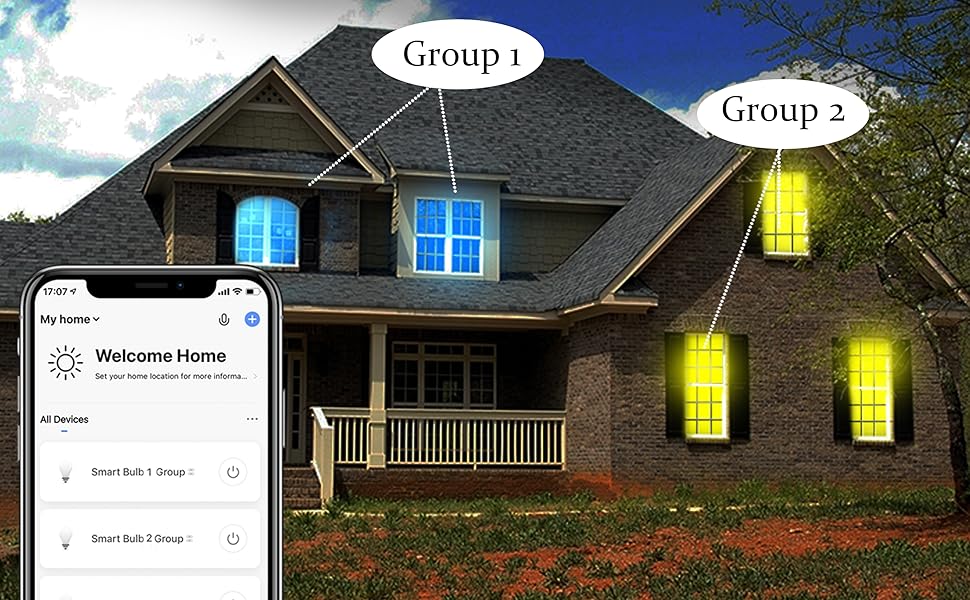
Image 4.5: Grouping Smart Bulbs
This image shows a house with its windows illuminated in distinct colors (blue and yellow), labeled as 'Group 1' and 'Group 2'. A smartphone screen on the left displays the app interface for controlling these grouped smart bulbs, demonstrating the ability to manage multiple lights collectively.
4.4. Music Synchronization
Activate the music synchronization feature in the app to make your lights change color and brightness in rhythm with your music.
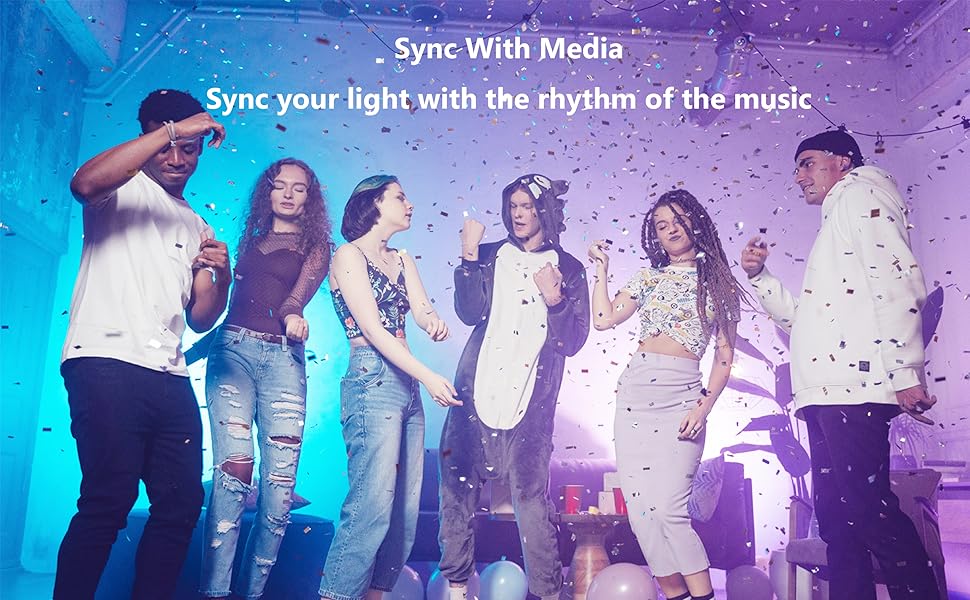
Image 4.6: Music Sync Feature
This image captures a group of young people dancing at a party, surrounded by dynamic, colorful lighting effects. The text overlay "Sync With Media" and "Sync your light with the rhythm of the music" highlights the music synchronization feature of the smart bulbs.
5. Maintenance
To ensure the longevity and optimal performance of your Luntak E12 Smart LED Light Bulbs, follow these simple maintenance guidelines:
- Cleaning: Before cleaning, ensure the power to the bulb is off and it has cooled down. Wipe the bulb with a soft, dry cloth. Do not use liquid cleaners or abrasive materials, as they may damage the bulb.
- Storage: If storing the bulbs for an extended period, keep them in a cool, dry place away from direct sunlight and extreme temperatures.
- Handling: Handle the bulbs carefully to avoid dropping or physical damage.
6. Troubleshooting
If you encounter issues with your Luntak E12 Smart LED Light Bulbs, refer to the following common problems and solutions:
| Problem | Possible Cause | Solution |
|---|---|---|
| Bulb does not turn on. | No power, loose connection, faulty bulb. | Check power supply. Ensure bulb is screwed in tightly. Test bulb in another fixture. |
| Bulb cannot be paired with the app. | Incorrect Wi-Fi network (5GHz), bulb not in pairing mode, weak Wi-Fi signal. | Ensure connection to 2.4GHz Wi-Fi. Cycle power to put bulb in rapid flashing mode. Move router closer or use a Wi-Fi extender. |
| Voice control not working. | Smart Life skill not enabled/linked, incorrect voice command, internet connectivity issues. | Verify Smart Life skill is enabled and linked in your voice assistant app. Use precise commands. Check internet connection. |
| Lights flicker or respond slowly. | Weak Wi-Fi signal, network congestion. | Improve Wi-Fi signal strength. Reduce number of devices on network. |
7. Technical Specifications
| Specification | Value |
|---|---|
| Brand | Luntak |
| Light Type | LED |
| Wattage | 35 Watt-hours (equivalent to 40 Watts incandescent) |
| Bulb Shape Size | B11 |
| Bulb Base | E12 |
| Specific Uses | Both outdoor and indoor |
| Light Color | RGB, Color Changing Light |
| Voltage | 110 Volts (AC) |
| Unit Count | 6 Count |
| Color Temperature | 6500 Kelvin (tunable white range implied) |
| Brightness | 320 Lumen |
| Shape | Type B (Candelabra) |
| Power Source | AC |
| Color Rendering Index | 100 |
| Control Method | App |
| Item Weight | 9.9 ounces |
| Product Dimensions | 4.6 x 4.2 x 2.9 inches |
8. Warranty and Support
Luntak products are manufactured to high-quality standards. For warranty information, please refer to the product packaging or contact our customer support.
If you require further assistance or have any questions regarding your Luntak E12 Smart LED Light Bulbs, please contact our support team:
Email: SERVICE@LUNTAK.CN
