
1. Introduction
The Greisinger GRS 3100 RS232 Interface Converter (Model 602175) is designed to facilitate data communication between compatible Greisinger measuring devices and a computer via an RS232 serial port. This manual provides essential information for the correct installation, operation, and maintenance of the interface converter.
2. Safety Instructions
- Read this manual thoroughly before using the device.
- Ensure all connections are secure before powering on any connected equipment.
- Do not expose the converter to moisture, extreme temperatures, or direct sunlight.
- Avoid bending or kinking the cable excessively.
- Only use the converter with compatible Greisinger devices as specified by the manufacturer.
- Do not attempt to open or modify the converter, as this will void the warranty and may cause damage.
3. Package Contents
Verify that all items are present and in good condition upon unpacking:
- One (1) Greisinger GRS 3100 RS232 Interface Converter (Model 602175)
4. Product Overview
The GRS 3100 RS232 Interface Converter features a standard DB9 serial connector on one end and a 3.5mm jack on the other, connected by a durable black cable. The DB9 connector is typically used for connection to a computer's serial port, while the 3.5mm jack connects to the compatible Greisinger measuring device. The converter is designed to enable data transfer and requires specific power and signal handling.
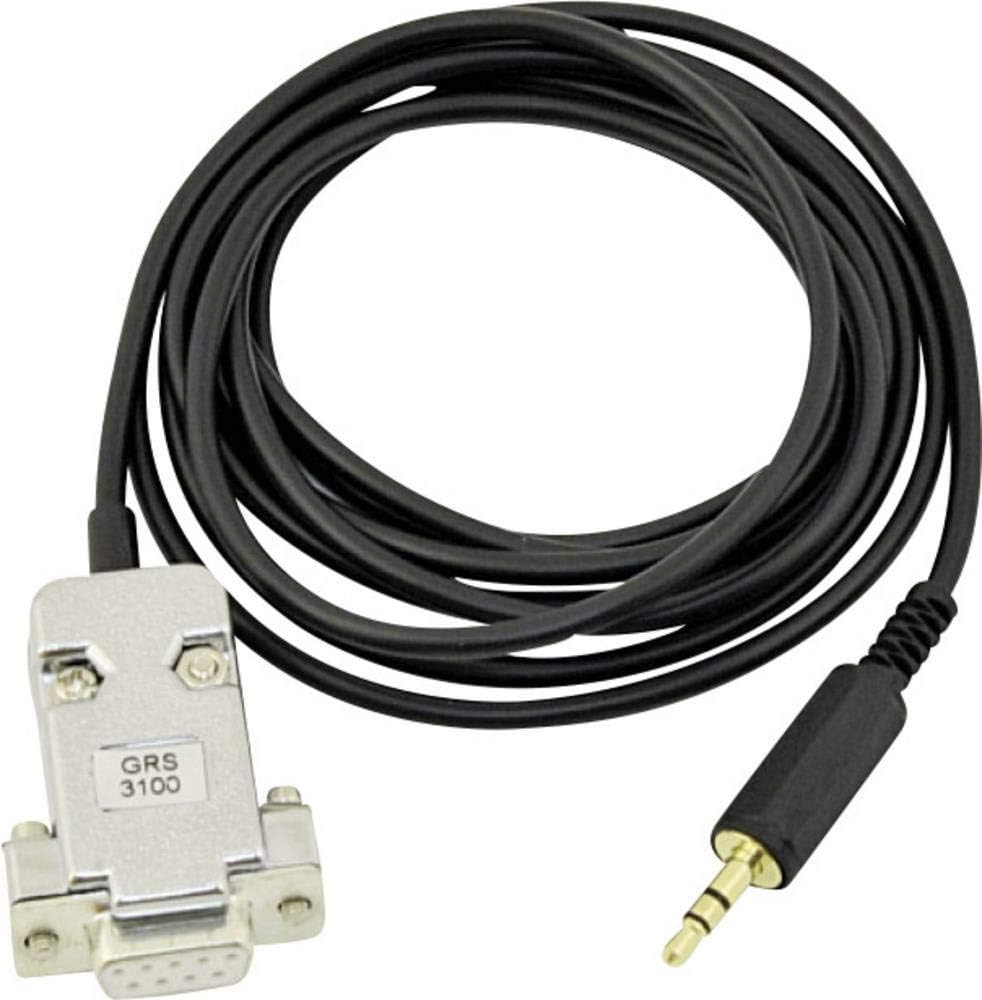
Figure 1: Greisinger GRS 3100 RS232 Interface Converter. This image displays the black cable with a silver DB9 serial connector labeled 'GRS 3100' on one end and a black 3.5mm audio jack on the other, against a white background.
5. Setup
Follow these steps to set up your GRS 3100 RS232 Interface Converter:
- Connect to Computer: Plug the DB9 serial connector of the GRS 3100 into an available RS232 serial port on your computer. If your computer does not have a serial port, a USB-to-serial adapter may be required (not included).
- Connect to Greisinger Device: Insert the 3.5mm jack into the designated interface port on your compatible Greisinger measuring device.
- Power Requirements: The GRS 3100 RS232 cable requires power supply via DTR (+12V) / RTS (-). Ensure that the connected computer's serial port is configured to provide these signals. Standard USB-to-serial adapters or smartphone OTG connections may not provide the necessary voltage.
- Driver Installation: Install any necessary drivers or software provided by Greisinger for your specific measuring device and operating system. This is crucial for proper communication, especially due to the inverted signals used by Greisinger for the 3.5mm jack.
6. Operating Instructions
Once the converter is physically connected and drivers are installed, data transfer can commence:
- Launch Software: Open the Greisinger data acquisition or control software on your computer.
- Configure Port: Within the software, select the correct COM port corresponding to your RS232 connection.
- Initiate Communication: Follow the software's instructions to establish communication with your Greisinger device. The GRS 3100 cable is designed to work seamlessly with Greisinger's protocols, handling the inverted signals internally when DTR is active.
- Data Transfer: You can now transfer data, configure settings, or perform real-time monitoring as supported by your Greisinger device and software.
7. Maintenance
To ensure the longevity and reliable operation of your GRS 3100 Interface Converter:
- Cleaning: Use a soft, dry cloth to clean the cable and connectors. Do not use liquid cleaners or solvents.
- Storage: Store the converter in a cool, dry place, away from direct sunlight and extreme temperatures. Avoid tangling the cable.
- Handling: Always grasp the connectors when plugging or unplugging the cable, not the cable itself.
8. Troubleshooting
If you encounter issues with your GRS 3100 Interface Converter, consider the following:
- No Communication:
- Verify that both the DB9 and 3.5mm jack connections are secure.
- Ensure your computer's serial port is active and providing the necessary DTR (+12V) / RTS (-) power.
- Check if the correct COM port is selected in your software.
- Confirm that the appropriate Greisinger drivers and software are installed and up-to-date.
- Note that Greisinger uses inverted signals for the 3.5mm jack; generic RS232 cables may not function without modification. This specific cable is designed to handle this.
- Device Not Recognized:
- Restart your computer and the Greisinger measuring device.
- Try connecting to a different serial port if available, or a different USB-to-serial adapter.
- Smartphone/Tablet Connectivity: The GRS 3100 RS232 cable is generally not suitable for direct connection to smartphones via OTG, as most smartphones cannot provide the required DTR power. For smartphone connectivity, consider using a Greisinger USB cable (e.g., GREISINGER USB 3100 N) if compatible with your device.
9. Specifications
| Feature | Specification |
|---|---|
| Brand | GREISINGER |
| Model | 602175 (GRS 3100 RS232) |
| Interface Type | RS232 to 3.5mm Jack |
| Power Source | Manual operation (powered via DTR/RTS from RS232 port) |
| Number of Ports | 1 (RS232) |
| Components Included | 1 piece (Interface Converter) |
10. Warranty
For detailed warranty information regarding the Greisinger GRS 3100 RS232 Interface Converter, please refer to the manufacturer's official website or consult your point of purchase. Warranty terms and conditions may vary based on region and retailer.
11. Support
Should you require technical assistance, have questions about product compatibility, or need further support, please contact Greisinger customer service or your authorized Greisinger dealer. Contact information can typically be found on the official Greisinger website or on your product packaging.


