
1. Introduction
This manual provides detailed instructions for the installation, operation, and maintenance of your Foscam SD2 2MP PTZ Wi-Fi Dome IP Camera. Please read this manual thoroughly before using the product to ensure proper setup and functionality. Keep this manual for future reference.
2. Safety Information
To prevent damage to the product or injury to yourself or others, observe the following safety precautions:
- Ensure the power supply voltage matches the camera's requirements (12V).
- Do not expose the camera to extreme temperatures, humidity, or direct sunlight.
- Avoid placing the camera near strong electromagnetic fields.
- Do not attempt to disassemble or modify the camera. Refer all servicing to qualified personnel.
- Keep the camera and its accessories out of reach of children.
- Use only Foscam-approved accessories.
3. Package Contents
Verify that all items are present in your package:
- Foscam SD2 IP Camera
- Power Adapter
- Mounting Bracket and Screws
- Ethernet Cable (for initial setup or wired connection)
- Quick Installation Guide
4. Product Overview
The Foscam SD2 is a 2-megapixel PTZ (Pan-Tilt-Zoom) Wi-Fi dome IP camera designed for comprehensive surveillance. It features 4x optical zoom, a 118° wide viewing angle, and advanced human detection capabilities.
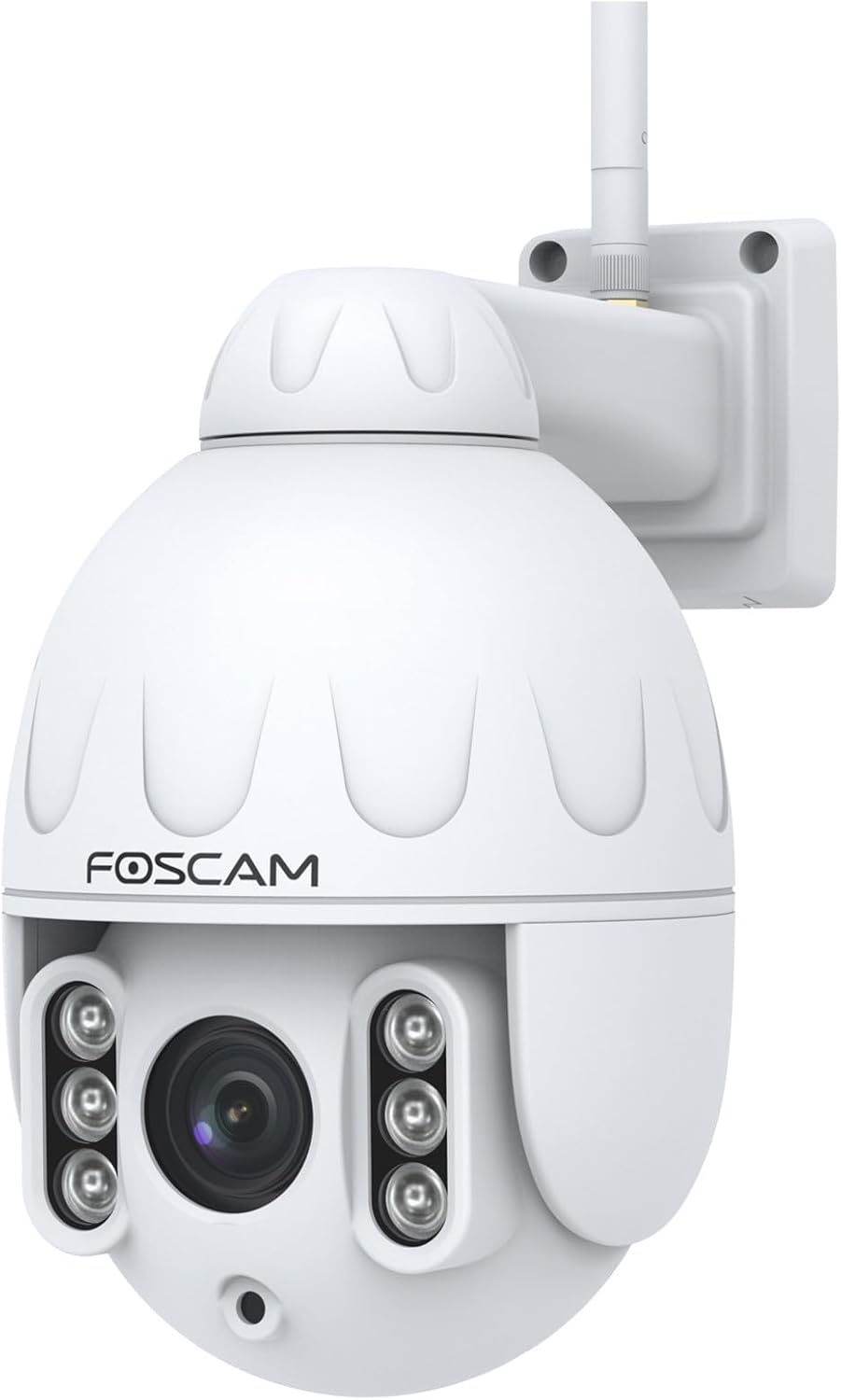
Figure 4.1: Front view of the Foscam SD2 PTZ Dome IP Camera. This image shows the camera's main lens, infrared LEDs, and the Foscam logo on its white dome housing.

Figure 4.2: Side view of the Foscam SD2 camera, illustrating the integrated mounting arm for wall installation. The antenna for Wi-Fi connectivity is visible at the top.

Figure 4.3: Rear view of the Foscam SD2 camera, showing the power and Ethernet cable connections. These cables are essential for providing power and network access to the device.
5. Setup
5.1 Physical Installation
The Foscam SD2 camera is designed for both indoor and outdoor use and can be wall-mounted.
- Choose a Location: Select a suitable location that provides the desired viewing angle and is within range of your Wi-Fi network or an Ethernet connection. Ensure the mounting surface is sturdy enough to support the camera.
- Mount the Bracket: Use the provided mounting bracket as a template to mark drill holes on the wall. Drill the holes, insert wall anchors if necessary, and secure the bracket with the screws.
- Attach the Camera: Securely attach the camera to the mounted bracket.
- Connect Power: Connect the power adapter to the camera and plug it into a power outlet.

Figure 5.1: The Foscam SD2 camera shown mounted on an exterior white wall, demonstrating a typical installation scenario. The camera's antenna is visible, indicating Wi-Fi connectivity.
5.2 Network Connection
The Foscam SD2 supports dual-band Wi-Fi (2.4GHz/5GHz) or a wired Ethernet connection.
- Wired Connection (Optional): Connect an Ethernet cable from your router to the camera's Ethernet port.
- Wi-Fi Connection: For wireless setup, proceed to install the Foscam app.
5.3 App Installation and Initial Setup
To configure and control your camera, download the Foscam app on your smartphone or tablet.
- Download the App: Search for "Foscam" in the App Store (iOS) or Google Play Store (Android) and install the official Foscam app.
- Create an Account: Open the app and follow the on-screen instructions to create a new Foscam account or log in if you already have one.
- Add Camera: Tap the "+" icon to add a new device. Follow the in-app wizard to connect your camera to your Wi-Fi network. This typically involves scanning a QR code on the camera or manually entering its details.
- Complete Setup: Once connected, you can name your camera and adjust initial settings.
6. Operating Instructions
6.1 Remote Access and Live View
Access your camera's live feed and controls from anywhere using the Foscam app or web interface.
- Foscam App: Open the Foscam app, select your camera from the device list, and tap to view the live stream.
- Web Interface/Foscam VMS: For PC access, open a web browser and navigate to the camera's IP address or use the Foscam VMS software.
6.2 PTZ Control and Optical Zoom
The SD2 camera offers Pan, Tilt, and Zoom functionalities.
- Pan/Tilt: In the live view, swipe your finger across the screen (or use directional controls in the app/web interface) to pan (rotate horizontally up to 350°) and tilt the camera.
- Optical Zoom: Use the zoom controls within the app or web interface to activate the 4x optical zoom, allowing you to magnify specific areas without losing image quality.
6.3 Smart Motion Detection (Human Detection)
The camera features intelligent motion detection that distinguishes human shapes from other objects, reducing false alarms.
- Enable Detection: Navigate to the camera settings in the Foscam app. Locate the "Alarm" or "Detection" section.
- Configure Human Detection: Enable "Human Detection" and adjust sensitivity levels as needed.
- Set Up Notifications: Configure push notifications to receive alerts on your smartphone when human motion is detected.
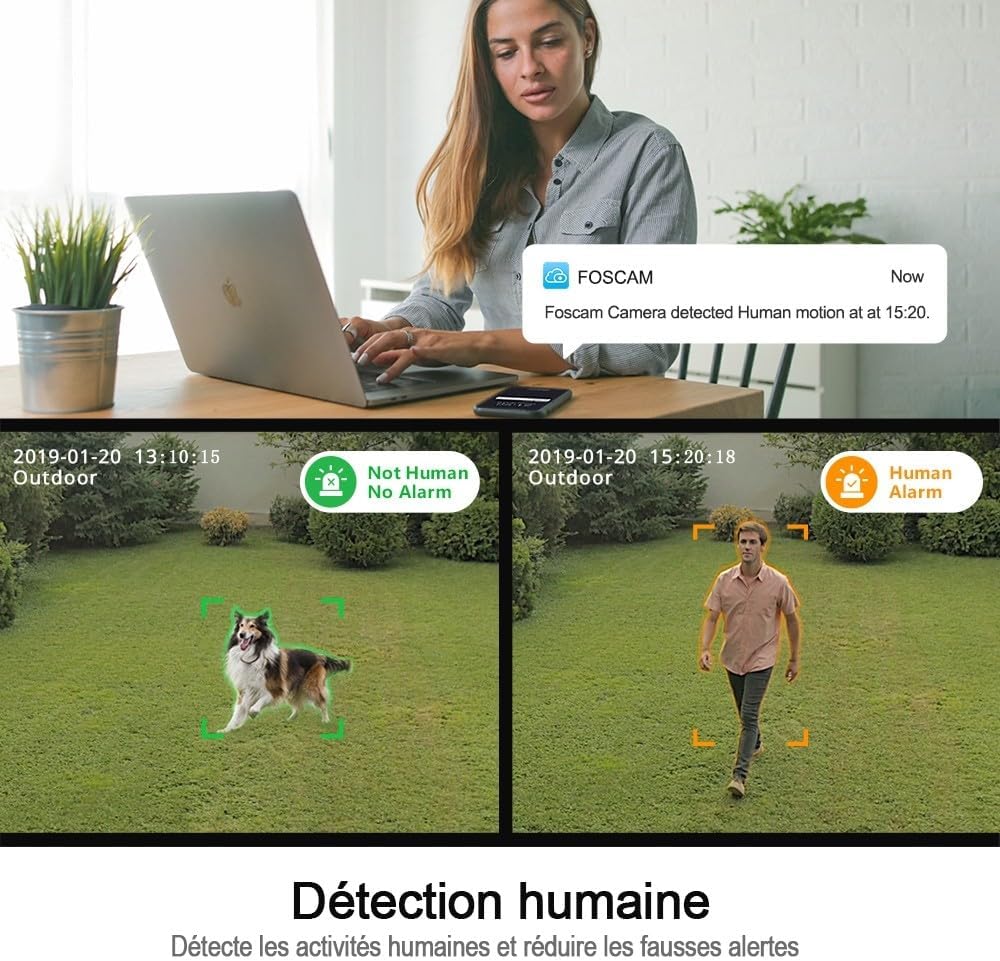
Figure 6.1: An illustration of the Foscam SD2's human detection feature. The image displays two scenarios: one where a dog is detected but not flagged as human, and another where a person is detected and triggers a human alarm, demonstrating the camera's ability to differentiate subjects.
6.4 Voice Control Integration
The Foscam SD2 is compatible with Amazon Alexa and Google Assistant for convenient voice control.
- Link Accounts: In your Alexa or Google Home app, search for the Foscam skill/action and link your Foscam account.
- Discover Devices: Allow the assistant to discover your camera.
- Voice Commands: Use commands like "Alexa, show me the [camera name]" or "Hey Google, show [camera name] on [display device]" to view the live feed on compatible smart displays.

Figure 6.2: This image demonstrates the Foscam SD2's compatibility with voice assistants like Google Assistant and Amazon Alexa. A smart display shows the camera's live feed, controlled by voice commands from a smart speaker.
6.5 Storage Options
The camera supports multiple storage methods for recorded footage.
- Foscam Cloud Storage: Subscribe to Foscam Cloud for secure off-site storage of your recordings.
- SD Card Storage: Insert a microSD card (up to 128GB, sold separately) into the camera's SD card slot for local storage.
7. Maintenance
Regular maintenance ensures optimal performance and longevity of your Foscam SD2 camera.
- Cleaning: Gently wipe the camera lens and housing with a soft, dry cloth. Do not use harsh chemicals or abrasive cleaners.
- Firmware Updates: Periodically check for and install firmware updates via the Foscam app to ensure your camera has the latest features and security enhancements.
- Network Check: Ensure your Wi-Fi signal is strong and stable, especially for outdoor installations.
8. Troubleshooting
If you encounter issues with your Foscam SD2 camera, refer to the following common solutions:
- Camera Offline: Check power connection, Wi-Fi signal strength, and router status. Restart the camera and your router.
- No Live View: Ensure your internet connection is active. Check app permissions and camera settings.
- Poor Image Quality: Clean the camera lens. Ensure adequate lighting. Check network bandwidth.
- False Motion Alerts: Adjust motion detection sensitivity in the app. Ensure human detection is enabled if desired.
- Cannot Connect to Wi-Fi: Verify correct Wi-Fi password. Ensure camera is within router range. Try connecting to the 2.4GHz band if experiencing issues with 5GHz.
9. Specifications
| Model Number | SD2 |
| Brand | Foscam |
| Connectivity Technology | Wireless (Wi-Fi 2.4GHz/5GHz) |
| Special Features | Night Vision, PTZ (Pan-Tilt-Zoom), 4x Optical Zoom, Human Detection, Voice Control (Alexa/Google Assistant), IP66 Weatherproof |
| Resolution | 2 Megapixels (1920 x 1080 pixels) |
| Viewing Angle | 118° |
| Pan Rotation | 350° |
| Power | 12 Volts, 24 Watts |
| Material | Acrylic |
| Dimensions (L x W x H) | 10 x 5 x 1.27 cm |
| Weight | 1 Kilogram |
| Storage Options | Foscam Cloud, MicroSD Card (up to 128GB) |
| Video Compression | H.264 |
10. Warranty
The Foscam SD2 camera comes with a 2-year manufacturer's warranty. This warranty covers defects in materials and workmanship under normal use. Please retain your proof of purchase for warranty claims. The warranty does not cover damage caused by misuse, accidents, unauthorized modifications, or natural disasters.
11. Support
For technical assistance, troubleshooting, or further information, please visit the official Foscam support website or contact their customer service. Refer to the Foscam website for the most up-to-date contact information and support resources.
Online Resources: www.foscam.com


