1. Introduction
Thank you for choosing the Lenovo TWS Earbuds Model ZA800000WW. These true wireless earbuds are designed to provide a high-quality audio experience with the convenience of Bluetooth 5.1 connectivity. This manual will guide you through the setup, operation, and maintenance of your new earbuds.

Figure 1: Lenovo TWS Earbuds and their compact charging case.
2. Safety Information
Please read all safety instructions carefully before using this product to ensure safe and proper use. Keep this manual for future reference.
- Avoid prolonged exposure to high volume levels to prevent hearing damage.
- Do not use the earbuds in situations where inability to hear ambient sounds may be dangerous (e.g., while driving, cycling, or walking in traffic).
- Keep the earbuds and charging case away from water and moisture. While the earbuds are rated waterproof, the charging case is not.
- Do not attempt to disassemble, repair, or modify the product.
- Keep out of reach of children and pets.
3. Package Contents
- Lenovo TWS Earbuds (Left and Right)
- Charging Case
- USB-C Charging Cable
- User Manual
4. Product Overview
The Lenovo TWS Earbuds are designed for comfort and portability. The lightweight construction and ergonomic in-ear shape ensure a secure and comfortable fit for extended listening sessions. The compact charging case provides additional battery life on the go.
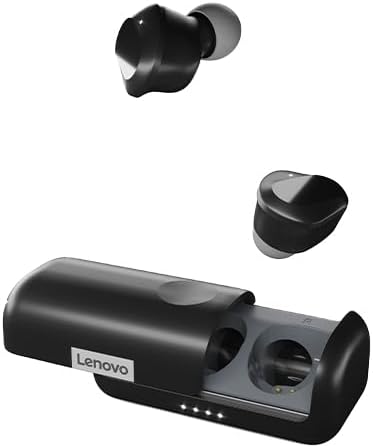
Figure 2: Earbuds removed from the charging case, highlighting their compact design.
Video 1: An overview of the Lenovo TWS Earbuds, demonstrating their key features and design.
5. Setup
5.1. Charging the Earbuds and Case
Before first use, fully charge the earbuds and the charging case.
- Place the earbuds into the charging case. Ensure they are correctly seated.
- Connect the USB-C charging cable to the charging port on the case and to a power source.
- The LED indicators on the charging case will illuminate to show the charging status.

Figure 3: Earbuds securely placed in the charging case, with visible LED indicators for battery status.
5.2. Bluetooth Pairing
To pair your earbuds with a device:
- Ensure the earbuds are charged and inside the charging case.
- Open the charging case. The earbuds will automatically enter pairing mode.
- On your device (smartphone, tablet, etc.), enable Bluetooth.
- Search for available Bluetooth devices and select "Lenovo TWS Earbuds" (or similar name, e.g., "Lenovo SE-631TWC").
- Once connected, you will hear an audio prompt, and the earbud indicator lights may change.
- To manually enter pairing mode if disconnected, tap the touch panel on either earbud 7 times.
6. Operating the Earbuds
6.1. Wearing the Earbuds
Gently insert the earbuds into your ears, ensuring a snug and comfortable fit. Adjust them until they feel secure. The ergonomic design helps maintain stability during use.
6.2. Touch Controls
The earbuds feature touch-sensitive panels for easy control of music playback and calls.
| Function | Left Earbud Operation | Right Earbud Operation |
|---|---|---|
| Play/Pause Music | Tap touch panel twice | Tap touch panel twice |
| Previous Song | Press and hold 2s | N/A |
| Next Song | N/A | Press and hold 2s |
| Pick/Hang up Call | Tap touch panel twice | Tap touch panel twice |
| Reject Call | Press and hold 2s | Press and hold 2s |
| Activate Voice Assistant | Tap touch panel 3 times | Tap touch panel 3 times |
| Enter Pairing Mode (from disconnected) | Tap touch panel 7 times | Tap touch panel 7 times |
| Power On (not in charging box) | Press and hold 5s | Press and hold 5s |
| Power Off (not in charging box) | Press and hold 8s | Press and hold 8s |
7. Maintenance
7.1. Cleaning
- Regularly clean the earbuds and charging case with a soft, dry cloth.
- Remove ear tips and clean them with mild soap and water if necessary. Ensure they are completely dry before reattaching.
- Do not use harsh chemicals or abrasive materials.
7.2. Storage
When not in use, store the earbuds in their charging case to protect them and ensure they remain charged.
8. Troubleshooting
- No Sound/Poor Sound Quality: Ensure earbuds are charged, properly paired, and within Bluetooth range (10 meters). Check device volume.
- Earbuds Not Pairing: Ensure Bluetooth is enabled on your device. Try placing earbuds back in the case, closing it, and reopening to re-initiate pairing mode. If issues persist, manually enter pairing mode by tapping the touch panel 7 times.
- Disconnections: Ensure you are within the 10-meter Bluetooth range. Avoid obstacles that may interfere with the signal.
- Microphone Issues: Ensure you are in a relatively quiet environment for optimal call quality.
- Earbuds Not Charging: Check the USB-C cable and power source. Ensure earbuds are correctly seated in the charging case.
9. Specifications
| Feature | Detail |
|---|---|
| Model Name | ZA800000WW |
| Connectivity Technology | Wireless |
| Wireless Communication | Bluetooth 5.1 |
| Bluetooth Range | 10 Meters |
| Included Components | Charging Case, Cable |
| Material | Plastic |
| Item Weight | 4.8 Ounces |
| Water Resistance Level | Waterproof |
| Control Method | Touch |
| Battery Life | 20 Hours (with charging case) |
| Audio Driver Type | Dynamic Driver |
| Earpiece Shape | In Ear |
| Special Feature | Lightweight |
| Product Dimensions | 2.4 x 1.29 x 1 inches |
| Color | Black |
| Noise Control | Active Noise Cancellation |
| UPC | 195348955232 |
10. Warranty and Support
For warranty information and technical support, please refer to the official Lenovo website or contact Lenovo customer service. Keep your purchase receipt for warranty claims.


