
Pyle PDA4BU
Pyle PDA4BU Bluetooth Multi Channel Home Theater Preamplifier Stereo Sound System User Manual
Model: PDA4BU
Introduction
This manual provides detailed instructions for the setup, operation, and maintenance of your Pyle PDA4BU Bluetooth Multi Channel Home Theater Preamplifier Stereo Sound System. Please read this manual thoroughly before using the device to ensure proper functionality and to maximize your audio experience.
The Pyle PDA4BU is designed to enhance your home audio setup, offering versatile connectivity options including Bluetooth, USB, SD, AUX, and multiple microphone inputs. It is ideal for home theater systems, karaoke, and general audio amplification.
Package Contents
Upon opening the package, please verify that all components are present and in good condition. The standard package includes:
- Pyle PDA4BU Stereo Amplifier Receiver
- Remote Control
- FM Antenna
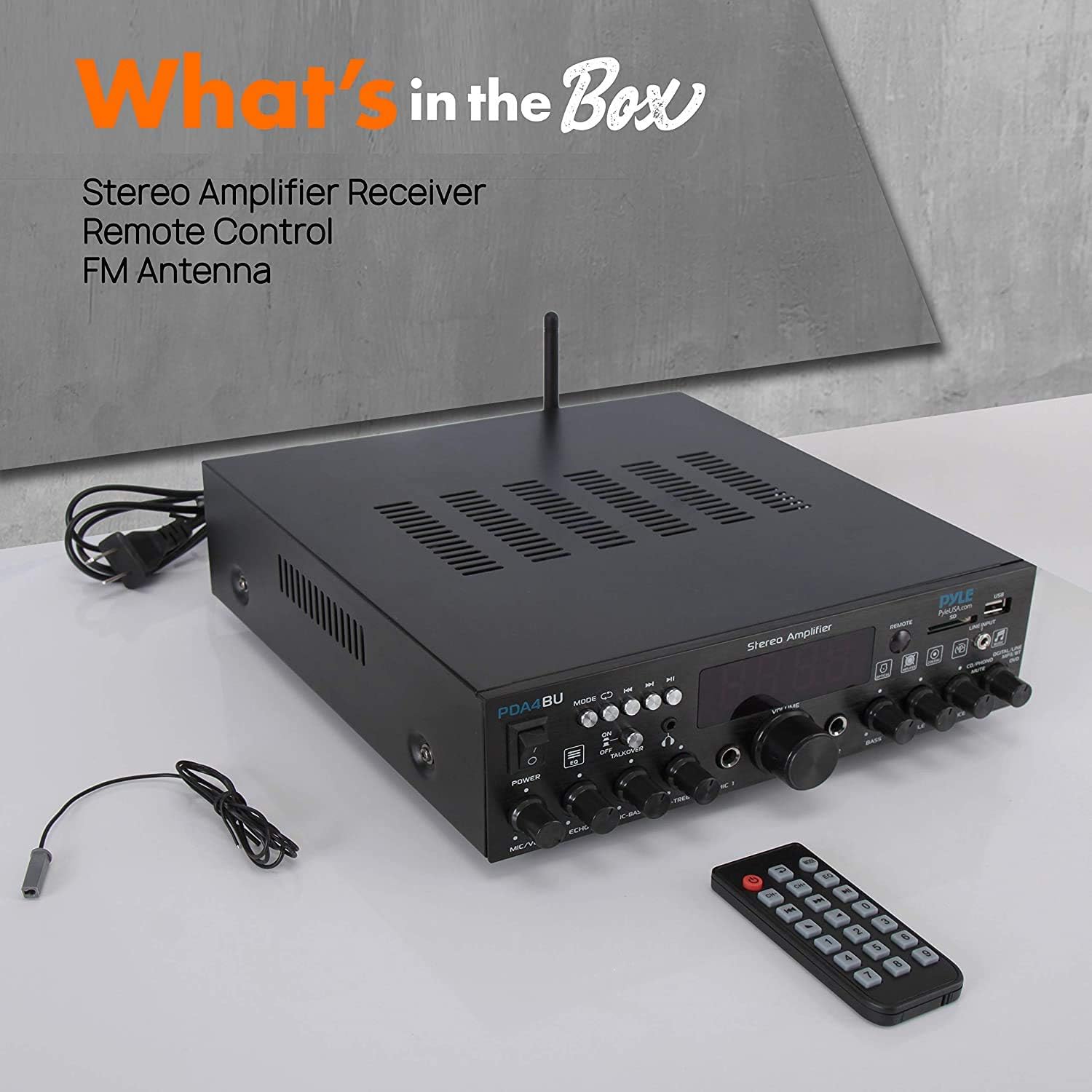
Image: Contents of the Pyle PDA4BU package, showing the stereo amplifier receiver, its remote control, and the FM antenna.
Product Overview
The Pyle PDA4BU is a compact yet powerful stereo amplifier designed for various audio applications. It features a comprehensive set of inputs and controls for a versatile audio experience.
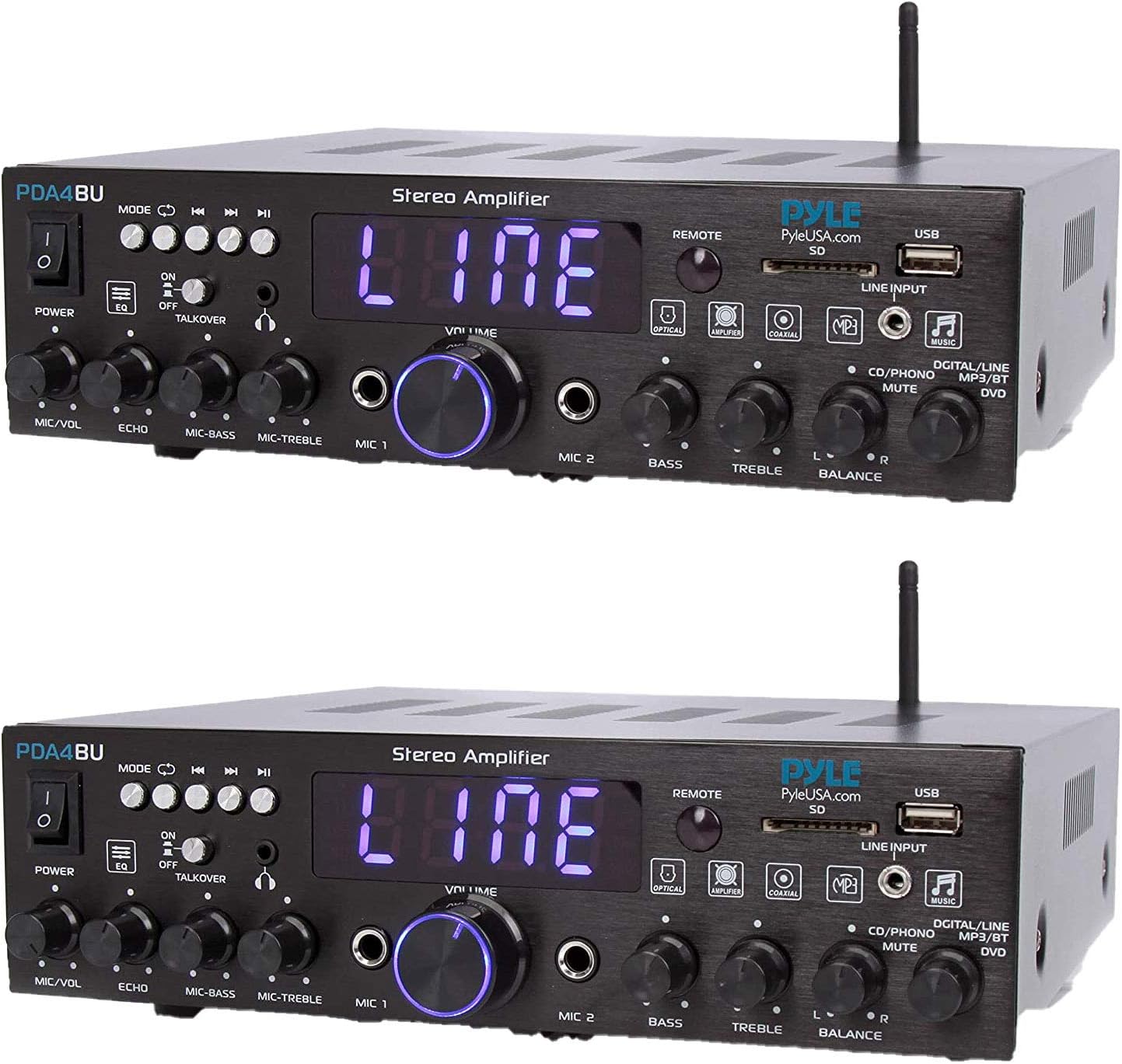
Image: Front view of two Pyle PDA4BU units, showcasing the control panel, display, and various input/output ports.
Front Panel Controls and Features:
- POWER Button: Turns the unit on or off.
- MODE Button: Cycles through input sources (Bluetooth, USB, SD, FM, AUX, Optical, Coaxial, Phono).
- Playback Controls: Previous, Play/Pause, Next buttons for media playback.
- EQ Button: Adjusts equalization settings.
- TALKOVER Switch: Activates microphone priority function.
- MIC/VOL Knob: Adjusts microphone volume.
- ECHO Knob: Adjusts microphone echo effect.
- MIC-BASS Knob: Adjusts microphone bass level.
- MIC-TREBLE Knob: Adjusts microphone treble level.
- MIC 1 & MIC 2 Inputs: 1/4-inch jacks for connecting microphones.
- VOLUME Knob: Main volume control for all audio.
- BASS Knob: Adjusts overall bass level.
- TREBLE Knob: Adjusts overall treble level.
- BALANCE Knob: Adjusts left/right channel balance.
- Digital LED Display: Shows current mode, volume level, and track information.
- USB Port: For USB flash drive playback.
- SD Card Slot: For SD memory card playback.
- LINE INPUT (3.5mm AUX): For connecting external audio devices.
Rear Panel Connections:
- Speaker Outputs: Left and Right speaker terminals.
- RCA Inputs (CD/DVD): For connecting CD players, DVD players, or other RCA audio sources.
- Optical Input: For digital audio connection.
- Coaxial Input: For digital audio connection.
- Phono Input: For connecting a turntable.
- FM Antenna Terminal: For connecting the included FM antenna.
- Power Input: For connecting the power cord.
Setup Instructions
Follow these steps to set up your Pyle PDA4BU amplifier:
- Placement: Place the amplifier on a stable, flat surface with adequate ventilation. Ensure there is enough space around the unit for heat dissipation.
- Speaker Connection: Connect your passive speakers to the speaker output terminals on the rear panel. Ensure correct polarity (+ to + and - to -) for optimal sound.

Image: Connection diagram illustrating how to connect speakers, PC via USB, AUX devices, and Bluetooth devices to the Pyle PDA4BU amplifier.
- Audio Source Connection:
- RCA Devices (CD/DVD): Connect your CD or DVD player to the RCA input jacks on the rear panel.
- 3.5mm AUX Devices: Connect smartphones, tablets, or other devices using a 3.5mm audio cable to the AUX input on the front panel.
- Digital Audio (Optical/Coaxial): Connect compatible devices using optical or coaxial cables to the respective inputs on the rear panel.
- USB/SD: Insert a USB flash drive or SD card into the front panel slots for media playback.
- Microphones: Connect up to two 1/4-inch microphones to the MIC 1 and MIC 2 inputs on the front panel.
- FM Antenna: Connect the included FM antenna to the FM antenna terminal on the rear panel for radio reception. Extend the antenna for better signal.
- Power Connection: Plug the power cord into the amplifier's power input and then into a standard AC power outlet.
Operating Instructions
Power On/Off:
Press the POWER button on the front panel to turn the unit on or off. The digital display will illuminate when the unit is powered on.
Selecting Input Source:
Press the MODE button on the front panel or the remote control to cycle through available input sources: Bluetooth, USB, SD, FM, AUX, Optical, Coaxial, and Phono. The selected mode will be displayed on the LED screen.
Bluetooth Pairing:
- Switch the amplifier to Bluetooth mode using the MODE button. The display will show "BT" and start blinking, indicating it's ready for pairing.
- On your smartphone, tablet, or other Bluetooth device, enable Bluetooth and search for available devices.
- Select "Pyle PDA4BU" from the list of devices.
- Once paired, the "BT" indicator on the amplifier's display will stop blinking and remain solid. You can now stream audio wirelessly.

Image: The Pyle PDA4BU amplifier demonstrating its Bluetooth connectivity with a laptop and tablet, highlighting the simple pairing process.
USB/SD Card Playback:
- Insert a USB flash drive or SD card into the corresponding slot on the front panel.
- The unit will automatically switch to USB or SD mode and begin playing compatible audio files (MP3, WMA, etc.).
- Use the Play/Pause, Previous, and Next buttons to control playback.

Image: A family enjoying media with the Pyle PDA4BU, illustrating the use of USB flash drives, SD memory cards, and FM radio features.
FM Radio Operation:
- Switch to FM mode using the MODE button.
- Press the Play/Pause button to initiate an automatic station scan. The unit will scan and save available FM stations.
- Use the Previous and Next buttons to navigate through saved stations.
Microphone and Karaoke Function:
- Connect your 1/4-inch microphones to the MIC 1 or MIC 2 inputs.
- Adjust microphone volume using the MIC/VOL knob.
- Adjust echo effect with the ECHO knob.
- Fine-tune microphone bass and treble using the MIC-BASS and MIC-TREBLE knobs.
- Activate the TALKOVER switch for microphone priority, which automatically lowers background music when you speak into the microphone.

Image: A person using a professional microphone connected to the Pyle PDA4BU amplifier, demonstrating its capability for vocal input and karaoke.
Volume and Tone Control:
- Use the large VOLUME knob to adjust the overall output volume.
- Adjust the BASS and TREBLE knobs to customize the low and high frequency response of your audio.
- The BALANCE knob allows you to adjust the audio output balance between the left and right speakers.
Maintenance
Proper maintenance ensures the longevity and optimal performance of your Pyle PDA4BU amplifier.
- Cleaning: Disconnect the power before cleaning. Use a soft, dry cloth to wipe the exterior of the unit. Do not use liquid cleaners or abrasive chemicals, as they may damage the finish or internal components.
- Ventilation: Ensure that the ventilation openings on the unit are not blocked. Proper airflow is crucial to prevent overheating.
- Storage: If storing the unit for an extended period, disconnect it from power and store it in a cool, dry place away from direct sunlight and extreme temperatures.
- Power Cord: Regularly inspect the power cord for any signs of damage. If damaged, do not use the unit and contact customer support.
Troubleshooting
If you encounter any issues with your Pyle PDA4BU, please refer to the following common problems and solutions:
| Problem | Possible Cause | Solution |
|---|---|---|
| No Power | Power cord not connected; Power outlet faulty; Unit is off. | Ensure power cord is securely plugged in. Try a different power outlet. Press the POWER button to turn on the unit. |
| No Sound Output | Incorrect input source selected; Volume too low; Speakers not connected or faulty; Mute function active. | Select the correct input source. Increase the VOLUME. Check speaker connections and ensure they are working. Check if the unit is muted. |
| Bluetooth Not Connecting | Unit not in Bluetooth mode; Device too far; Interference; Device already paired with another unit. | Ensure amplifier is in Bluetooth mode ("BT" blinking). Move device closer to the amplifier (within 40 ft). Turn off other Bluetooth devices. Disconnect from other devices and try pairing again. |
| USB/SD Playback Issues | Unsupported file format; Corrupted files; USB/SD card not inserted correctly. | Ensure files are in a supported format (e.g., MP3). Try a different USB/SD card. Reinsert the USB/SD card. |
| Poor FM Radio Reception | Antenna not connected or extended; Weak signal. | Connect and fully extend the FM antenna. Try repositioning the antenna for better signal. |
| Microphone Not Working | Microphone not connected; MIC/VOL too low; Microphone faulty. | Ensure microphone is securely connected to MIC 1 or MIC 2 input. Increase MIC/VOL. Test with another microphone if possible. |
Specifications
Detailed technical specifications for the Pyle PDA4BU amplifier:
- Brand: Pyle
- Model: PDA4BU
- Connectivity Technology: Auxiliary, Bluetooth, RCA, USB
- Controller Type: Android
- Special Feature: DAB
- Compatible Devices: Smartphone, Speaker
- Connector Type: 3.5mm Jack, USB
- Audio Output Mode: Stereo
- Product Dimensions (D x W x H): 9.8" x 10.2" x 2.8"
- Number of Channels: 2
- Control Method: Remote
- Manufacturer: PyleUSA
- First Available: November 17, 2020
Warranty and Support
For warranty information and technical support, please refer to the official PyleUSA website or contact their customer service department. Keep your purchase receipt as proof of purchase for warranty claims.
PyleUSA Official Website: www.pyleusa.com
Customer Support: Please visit the website for contact details, FAQs, and further assistance.
Related documentsPDA4BU


Ask a question about this manual
Ask about setup, troubleshooting, compatibility, parts, safety, or missing instructions. Manuals+ will review the question and use this page’s manual context to help answer it.