
Introduction
Thank you for choosing the LEDWOOD Explorer Wireless Stereo Bluetooth Earbuds. These earbuds are designed to provide a superior wireless audio experience with advanced features such as Bluetooth 5.0 + EDR, automatic pairing, sensitive touch controls, and voice assistant compatibility. The ergonomic design ensures a comfortable and secure fit for extended use. This manual provides essential information for setup, operation, maintenance, and troubleshooting to help you get the most out of your device.
Safety Information
- Do not expose the earbuds or charging case to extreme temperatures, humidity, or corrosive substances.
- Avoid dropping or subjecting the device to strong impacts.
- Do not attempt to disassemble or modify the device. This will void the warranty and may cause damage.
- Keep the device away from children and pets.
- Use only the provided or certified charging cables and adapters.
- Prolonged exposure to high volume levels may cause hearing damage. Adjust volume to a moderate level.
Package Contents
Please check the package for the following items:
- LEDWOOD Explorer Wireless Earbuds (L & R)
- Charging Case
- Micro USB Charging Cable
- User Manual
Product Overview

Figure 1: LEDWOOD Explorer Charging Case. This image shows the compact white charging case with the LEDWOOD logo on the front.
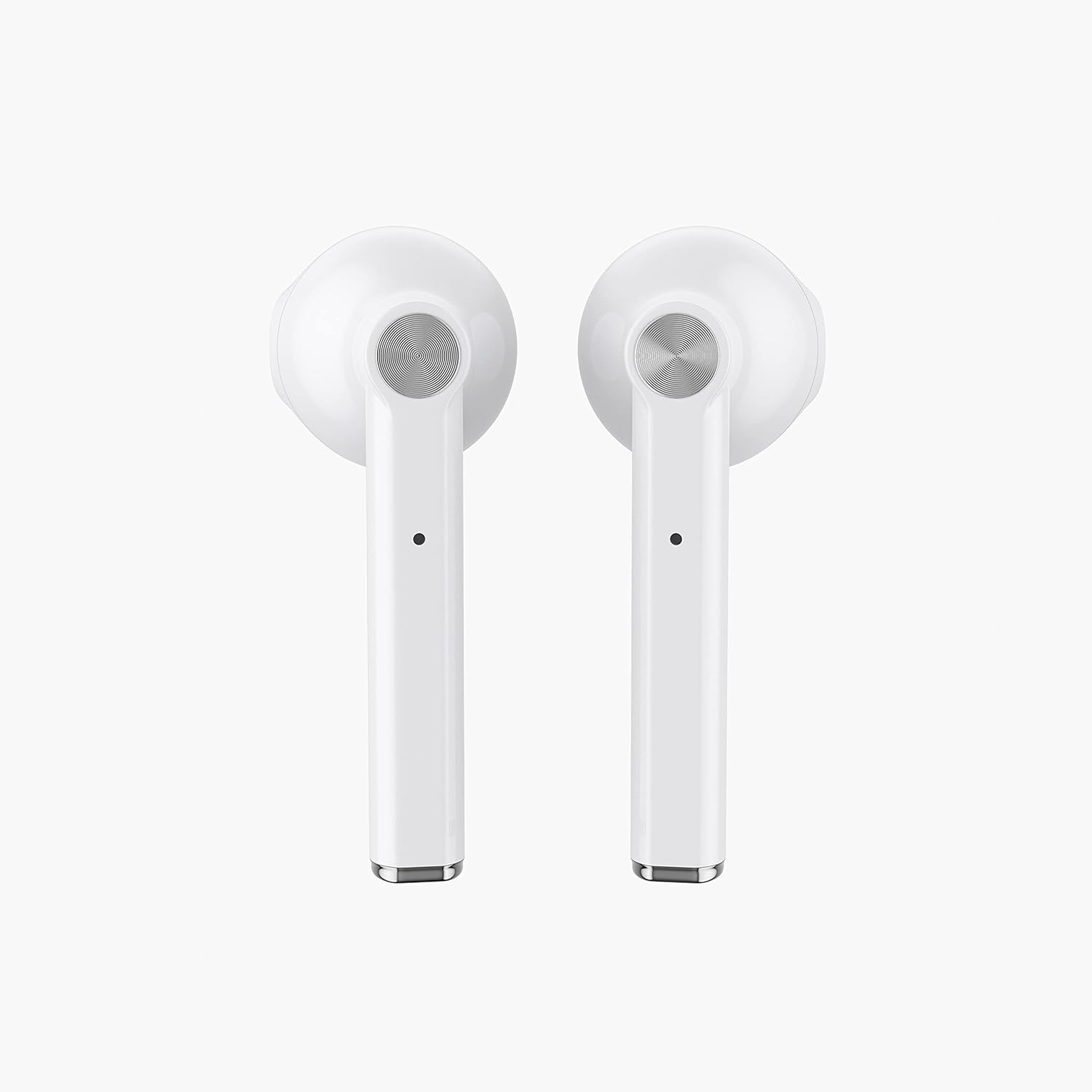
Figure 2: LEDWOOD Explorer Earbuds (Front View). This image displays the front view of both white earbuds, highlighting the speaker grilles and ergonomic shape.

Figure 3: LEDWOOD Explorer Earbuds (Back View). This image shows the back of both white earbuds, revealing the charging contacts and microphone placement.

Figure 4: LEDWOOD Explorer Earbuds and Open Cases. This image presents both white and black versions of the earbuds and their charging cases, with the cases open to show the earbuds inside.
Earbud Components:
- Touch Control Area: For playback, call management, and voice assistant activation.
- Microphone: For calls and voice commands.
- Charging Contacts: Connects to the charging case.
- LED Indicator: Shows pairing status and battery level.
Charging Case Components:
- Earbud Charging Slots: Holds and charges the earbuds.
- Micro USB Charging Port: For charging the case.
- Charging Indicator: Shows the case's battery status.
Setup
1. Charging the Earbuds and Case
- Initial Charge: Before first use, fully charge both the earbuds and the charging case.
- Charging the Case: Connect the Micro USB cable to the charging port on the case and to a USB power source (e.g., computer, wall adapter). The case's indicator light will show charging status.
- Charging the Earbuds: Place the earbuds into their respective slots in the charging case. Ensure the charging contacts align. The earbuds will automatically begin charging. The earbud indicators will show charging status and turn off when fully charged.
2. Powering On/Off
- Power On: The earbuds will automatically power on when removed from the charging case.
- Power Off: The earbuds will automatically power off and begin charging when placed back into the charging case.
- Manual Power On/Off: If earbuds are out of the case and off, press and hold the touch control area on both earbuds for approximately 3-5 seconds to power on. To power off manually, press and hold for 5-7 seconds.
3. Bluetooth Pairing
- Automatic Pairing: Remove both earbuds from the charging case. They will automatically power on and attempt to pair with each other. A voice prompt will confirm successful inter-earbud pairing.
- Device Pairing: Once the earbuds are paired with each other, activate Bluetooth on your smartphone or other device.
- Search for "LEDWOOD Explorer" in the list of available Bluetooth devices and select it to connect.
- A voice prompt will confirm successful connection to your device.
- The earbuds will automatically reconnect to the last paired device when removed from the case, if Bluetooth is enabled on the device.
Operating
1. Wearing the Earbuds

Figure 5: Proper Earbud Placement. This image shows a person wearing the LEDWOOD Explorer earbuds, demonstrating the correct and comfortable fit in the ear.
Gently insert each earbud into your ear canal. Adjust them slightly until they feel secure and comfortable. The ergonomic design is intended for a stable fit during various activities.
2. Touch Controls
The LEDWOOD Explorer earbuds feature sensitive touch controls on the outer surface of each earbud. The functions are as follows:
- Play/Pause: Single tap on either earbud.
- Next Track: Double tap on the right earbud.
- Previous Track: Double tap on the left earbud.
- Answer/End Call: Single tap on either earbud during an incoming call or active call.
- Reject Call: Press and hold either earbud for 2 seconds during an incoming call.
- Activate Voice Assistant: Triple tap on either earbud.
3. Making and Receiving Calls
When connected to your smartphone, the earbuds allow for hands-free calling:
- Answering Calls: A single tap on either earbud will answer an incoming call.
- Ending Calls: A single tap on either earbud during an active call will end it.
- Rejecting Calls: Press and hold either earbud for 2 seconds to reject an incoming call.
4. Voice Assistant
The earbuds are compatible with major voice assistants (e.g., Siri, Google Assistant). Triple tap on either earbud to activate your device's voice assistant. You can then issue commands through the earbud's microphone.
Maintenance
1. Cleaning
- Regularly clean the earbuds and charging case with a soft, dry, lint-free cloth.
- Do not use abrasive cleaners, alcohol, or chemical solvents.
- Ensure the charging contacts on both the earbuds and the case are clean and free of debris to ensure proper charging.
2. Storage
- When not in use, store the earbuds in their charging case to protect them and keep them charged.
- Store the device in a cool, dry place, away from direct sunlight and extreme temperatures.
Troubleshooting
| Issue | Possible Solution |
|---|---|
| Earbuds not pairing with each other | Place both earbuds back into the charging case, close the lid, wait a few seconds, then remove them again. Ensure they are fully charged. |
| Earbuds not connecting to device | Ensure Bluetooth is enabled on your device. Forget "LEDWOOD Explorer" from your device's Bluetooth list and attempt to pair again. Ensure earbuds are fully charged. |
| No sound from one earbud | Check if both earbuds are charged. Try resetting the earbuds by placing them in the case and then removing them. Re-pair with your device. |
| Charging case not charging | Ensure the Micro USB cable is securely connected to both the case and the power source. Try a different cable or power adapter. |
| Voice assistant not responding | Ensure the earbuds are properly connected to your device. Check your device's settings to confirm the voice assistant is enabled and configured correctly. |
Specifications
- Model Number: LD-T16-TWS
- Bluetooth Version: 5.0 + EDR
- Wireless Range: Up to 10 meters (33 feet)
- Charging Time: Approximately 1 hour
- Battery Capacity: Earbuds: 30 mAh each; Charging Case: 300 mAh
- Total Playtime: Up to 20 hours (with charging case)
- Input Type: Micro USB
- Voice Assistant: Yes
- Touch Control: Yes
- Compatibility: iOS/Android
- Form Factor: In-Ear
- Internal Material: Stainless Steel
Warranty
The LEDWOOD Explorer Earbuds come with a 2-year warranty from the date of purchase. This warranty covers manufacturing defects. It does not cover damage caused by misuse, accidents, unauthorized modifications, or normal wear and tear. Please retain your proof of purchase for warranty claims.
Support
If you encounter any issues or have questions not covered in this manual, please refer to the LEDWOOD official website or contact their customer support for assistance. Provide your product model number (LD-T16-TWS) and a detailed description of the issue when seeking support.


