1. Product Overview
The MOZA Nano SE is an extendable smartphone stabilizer designed for vlogging, travel shooting, and capturing various moments with enhanced stability. It features a built-in Bluetooth remote control and supports advanced shooting modes like Time-Lapse and Slow Motion.

Image 1.1: The MOZA Nano SE stabilizer, showing its extendable design, phone clamp, Bluetooth remote, and included USB charging cable.
2. Setup
2.1 Charging the Device
Before first use, fully charge the MOZA Nano SE using the provided USB cable. Connect the cable to the charging port on the device and a standard USB power source. The charging indicator will show the charging status.
2.2 Mounting Your Smartphone
Gently extend the phone clamp and securely place your smartphone within it. Ensure the phone is balanced in the clamp to optimize stabilization performance. The device supports phones with a width range of 50mm-90mm and a maximum payload of 280 grams.

Image 2.1: The MOZA Nano SE extended to its full length, demonstrating its rotatable phone holder and adjustable extension arm for wider shooting angles.
2.3 Bluetooth Pairing
- Power on the MOZA Nano SE.
- Enable Bluetooth on your smartphone.
- Search for "MOZA Nano SE" in your phone's Bluetooth settings and pair.
- For full functionality, download and install the MOZA Genie APP from your smartphone's app store.

Image 2.2: The MOZA Nano SE with its removable Bluetooth remote control, illustrating the remote's effective distance of up to 32 feet for convenient operation.
3. Operating Instructions
3.1 Extending and Adjusting
The Nano SE features a 4-stage extension, allowing it to extend up to 690mm (approximately 27 inches) for wider shooting perspectives. Simply pull the handle to extend the stick to your desired length.
3.2 Switching Horizontal/Vertical Mode
To quickly switch between horizontal and vertical shooting orientations, press the 'M' button (top button) on the device. This allows for seamless transitions to capture the perfect angle with a single click.

Image 3.1: A close-up of the MOZA Nano SE's control panel, highlighting the 'M' button used for instantly switching between horizontal and vertical shooting modes.
3.3 Using the Bluetooth Remote Control
The removable Bluetooth remote control allows you to operate the stabilizer from a distance of up to 32 feet. Use the remote to trigger photos, start/stop video recording, and control other functions within the MOZA Genie APP.
3.4 MOZA Genie APP Features
The MOZA Genie APP unlocks the full potential of your Nano SE, offering a variety of creative shooting templates and modes:
- Time-Lapse Mode: Capture long events and condense them into short, artistic films.
- Slow Motion Mode: Record moments in slow motion for dramatic effect.
- Creative Templates: Access built-in templates for dynamic, soothe, relax, and travel shooting styles.
- One-Click Masterpiece: Utilize the app's features to create professional-looking content with ease.
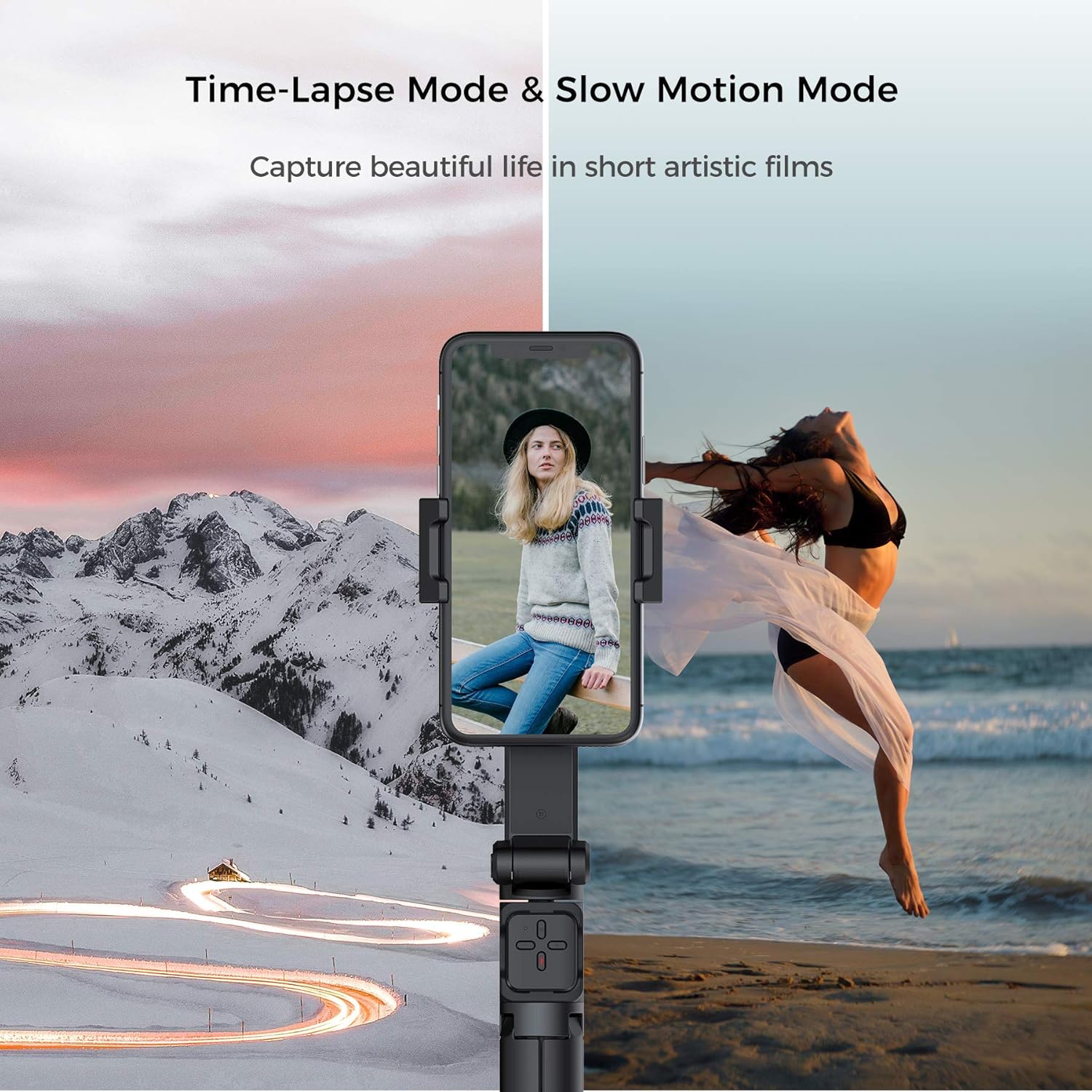
Image 3.2: Screenshot of the MOZA Genie App interface, displaying various creative shooting templates such as "Music Rhythm" for easy content creation.

Image 3.3: Visual representation of the Time-Lapse and Slow Motion modes available with the MOZA Nano SE, illustrating their ability to capture dynamic scenes.
4. Maintenance
To ensure the longevity and optimal performance of your MOZA Nano SE, follow these maintenance guidelines:
- Keep the device clean and free from dust and debris. Use a soft, dry cloth for cleaning.
- Avoid exposing the device to extreme temperatures, moisture, or direct sunlight for prolonged periods.
- Store the stabilizer in a cool, dry place when not in use.
- Do not attempt to disassemble or repair the device yourself. Refer to authorized service personnel for any repairs.
5. Troubleshooting
| Problem | Possible Cause | Solution |
|---|---|---|
| Phone has difficulty rotating or balancing. | Phone is too heavy or too wide; phone case interfering. | Ensure phone weight is within 140g-280g and width is 50mm-90mm. Remove bulky phone cases if necessary. Re-balance the phone in the clamp. |
| Bluetooth remote control not working. | Battery low; not paired; software issue. | Charge the device. Re-pair the Bluetooth remote. Check for MOZA Genie APP updates. If issues persist, contact customer support. |
| Device shuts down after a short period (e.g., 10 minutes). | Battery issue; internal malfunction. | Ensure the device is fully charged. If the problem persists, contact MOZA customer support for assistance. |
| MOZA Genie APP not saving settings or not compatible with other apps. | App limitation; compatibility issue. | Some settings may need to be re-applied upon restart. Check MOZA's official website or app store for app updates and compatibility information. The gimbal can often be used with native camera apps. |
6. Specifications
- Product Dimensions: 6.81 x 2.4 x 2.36 inches
- Item Weight: 8.8 ounces (250 Grams)
- Maximum Phone Payload: 280 Grams
- Phone Width Range: 50mm - 90mm
- Storage Dimensions: 173*61*60mm
- Color: Cyan
- Brand: MOZA
- Model Number: NANO SE
- Manufacturer: Gudsen
- Date First Available: November 16, 2020
- UPC: 756029663497, 756029663992

Image 6.1: The MOZA Nano SE demonstrating its ultra-compact and lightweight design, along with key specifications such as max phone payload, phone width range, and storage dimensions.
7. Warranty and Support
For warranty information, technical support, or service inquiries, please contact MOZA customer support directly. Refer to the official MOZA website for the most up-to-date contact details and support resources.
You can often find support information on the manufacturer's official website or through the MOZA Genie APP.


