
Ziyituod ZYT-AX210S
Ziyituod WiFi Card 5400Mbps PCIe WiFi 6E Card with Bluetooth 5.3 - Instruction Manual
Model: ZYT-AX210S
Introduction
The Ziyituod WiFi Card (Model: ZYT-AX210S) is a high-performance PCIe adapter designed to upgrade your PC's wireless connectivity. Featuring Intel WiFi 6E AX210 technology and Bluetooth 5.3, this card offers tri-band support (2.4GHz, 5GHz, and 6GHz) for superior speeds, lower latency, and enhanced reliability. It is compatible with Windows 10 (64-bit) and Windows 11 (64-bit) operating systems.

Image: Ziyituod WiFi 6E PCIe Card with two external antennas attached.
This manual provides detailed instructions for the installation, setup, and operation of your Ziyituod WiFi Card.
Safety Information
Warning: Do not install this card in a standard PCI slot. It is designed for PCI Express (PCIe) slots only.
Package Contents
Please verify that all items are present in your package:
- 1 x Ziyituod WiFi 6E Tri-Band AX5400 PCIe Adapter
- 1 x Bluetooth Cable (for motherboard USB header connection)
- 2 x External 5dBi Tri-Band Antennas
- 1 x Low-profile Bracket (for small form factor PCs)
- 1 x Quick Start Guide
- 1 x Driver CD
- Several Screws
- 1 x Screwdriver

Image: The package contents including the WiFi card, antennas, Bluetooth cable, low-profile bracket, driver CD, screws, and screwdriver.
System Requirements
- Operating System: Windows 11 (64-bit) or Windows 10 (64-bit)
- Available PCI Express (PCIe) slot (x1, x4, x8, or x16)
- Available F_USB (9-pin USB) header on motherboard (for Bluetooth functionality)
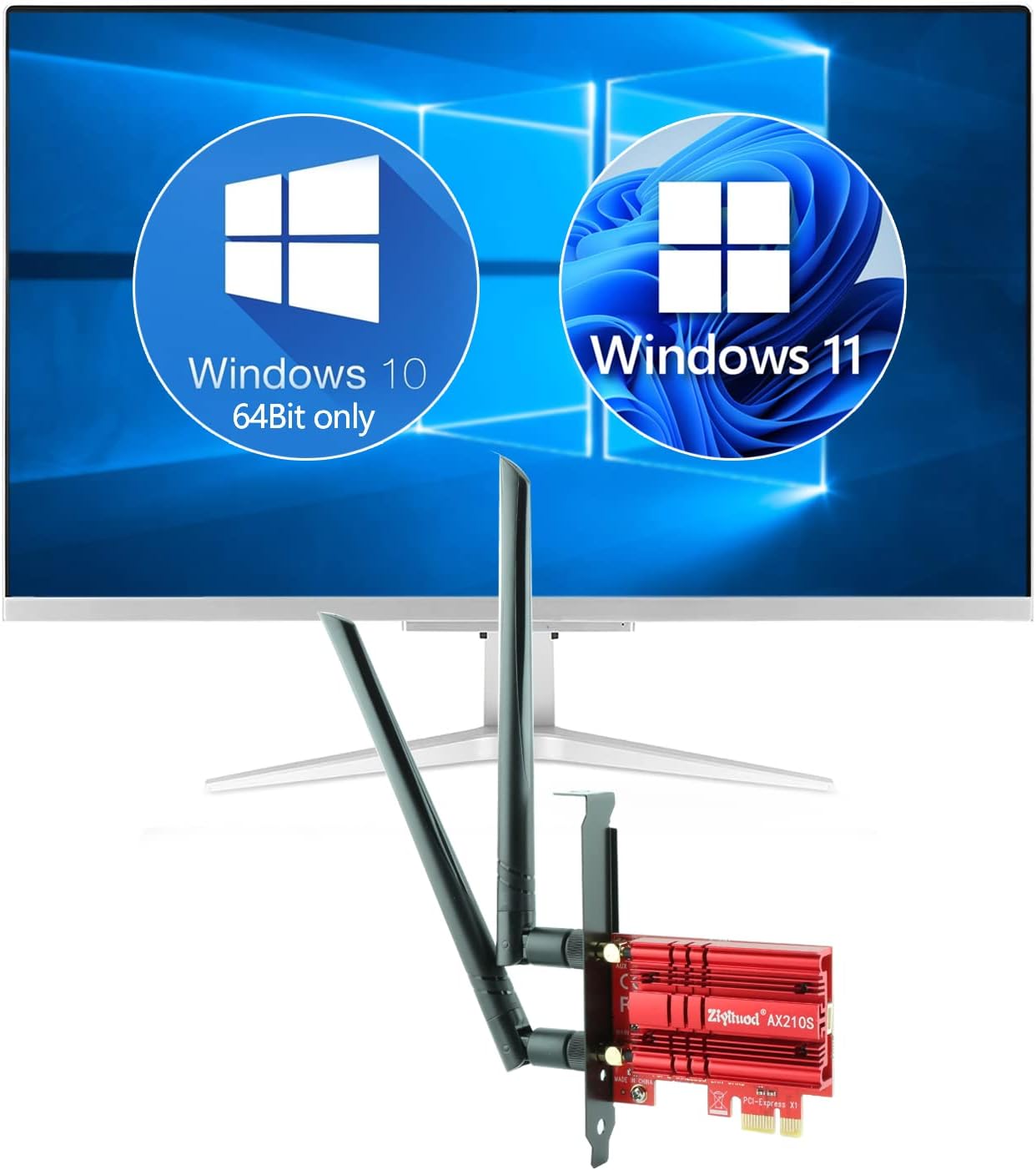
Image: Visual representation of Windows 10 (64-bit only) and Windows 11 compatibility.
Setup & Installation
1. Physical Installation
- Prepare your PC: Unplug your computer from the power outlet and remove the side panel of the PC case.
- Connect Bluetooth Cable: Connect the small end of the included Bluetooth cable to the adapter's dedicated port.
- Insert WiFi Card: Locate an available PCI Express (PCIe) slot (x1, x4, x8, or x16) on your motherboard. Carefully align the WiFi card with the slot and press it firmly until it is securely seated.
- Connect Bluetooth to Motherboard: Locate an available 9-pin F_USB header on your motherboard. Connect the other end of the Bluetooth cable to this header. This connection is essential for Bluetooth functionality.
- Attach Antennas: Screw the two external 5dBi tri-band antennas onto the connectors at the back of the WiFi card. Adjust their orientation for optimal signal reception.
- Close PC Case: Reinstall the PC case side panel and plug your computer back into the power outlet.

Image: Visual guide for identifying compatible PCIe slots (x1, x4, x8, x16) and the 9-pin USB header on the motherboard for Bluetooth connection.
2. Driver Installation
After physical installation, you will need to install the appropriate drivers for both Wi-Fi and Bluetooth. It is recommended to download the latest drivers directly from the Intel website.
- Access Internet: Temporarily connect your PC to the internet via an Ethernet cable or another working Wi-Fi adapter.
- Download Drivers: Visit the official Intel website and search for
Ask a question about this manual
Ask about setup, troubleshooting, compatibility, parts, safety, or missing instructions. Manuals+ will review the question and use this page’s manual context to help answer it.