
Behringer FLOW 8
Behringer FLOW 8 Digital Mixer User Manual
Model: FLOW 8
Introduction
The Behringer FLOW 8 is an ultra-low noise, high headroom digital mixer with wireless remote control capabilities. Designed for intuitive operation and professional audio quality, it integrates seamlessly into various setups, from home studios to live performances.
This manual provides essential information for setting up, operating, and maintaining your FLOW 8 mixer, ensuring optimal performance and longevity.

Figure 1: Front view of the Behringer FLOW 8 Digital Mixer with a tablet showing the control application.
Setup
Before connecting your FLOW 8, ensure all audio equipment is powered off. This prevents potential damage to your devices.
Power Connection
Connect the provided power adapter to the DC IN port on the rear panel of the FLOW 8. Plug the adapter into a suitable power outlet.

Figure 2: Rear panel of the FLOW 8, highlighting the USB Audio and DC In connections.
Audio Connections
The FLOW 8 features multiple input and output options:
- Inputs 1-2: XLR/TRS combo jacks with Midas microphone preamps and 48V phantom power. Ideal for microphones.
- Inputs 3-4: XLR/TRS combo jacks. Suitable for microphones or line-level instruments.
- Inputs 5/6 & 7/8: Stereo TRS inputs. Designed for stereo line-level sources like keyboards or media players.
- Main Outputs: Balanced XLR outputs for connecting to main PA systems or studio monitors.
- Monitor Sends 1-2: TRS outputs for connecting to stage monitors or personal monitoring systems.
- Phones: Stereo TRS headphone output with dedicated level control.

Figure 3: Overview of the FLOW 8's input and output connections.
Bluetooth and USB Connectivity
The FLOW 8 offers Bluetooth for wireless remote control via the FLOW App (iOS/Android) and USB Audio for direct connection to a computer for recording and playback.
- Bluetooth: Pair your mobile device with the FLOW 8 to control all mixer functions wirelessly.
- USB Audio: Connect the USB-B port to your computer for multi-track recording and stereo playback.
Operating the FLOW 8
The FLOW 8 combines physical controls with comprehensive app-based functionality for flexible operation.

Figure 4: Detailed view of the FLOW 8's control surface.
EZ-GAIN Function
The EZ-GAIN function simplifies setting optimal input levels. Press the EZ-GAIN button, then send a signal through the desired channel (e.g., speak into a microphone). The mixer automatically analyzes the signal and sets the appropriate gain for optimal headroom, preventing clipping.
Channel Faders and Controls
Each channel features a 60 mm fader for level control. Dedicated buttons for Mute, Solo, and FX Send are also available. The main rotary control with LED collar adjusts the master output level.
Effects Processing
The FLOW 8 includes two independent effects engines with various high-quality effects. Use the FX1 and FX2 buttons to access and adjust these effects. The FX TEMPO button allows for tap tempo synchronization for time-based effects.
FLOW App Control
For advanced control and detailed parameter adjustments, use the Behringer FLOW App. The app provides a visual interface for EQ, compression, panning, and routing, offering deeper customization than physical controls alone.
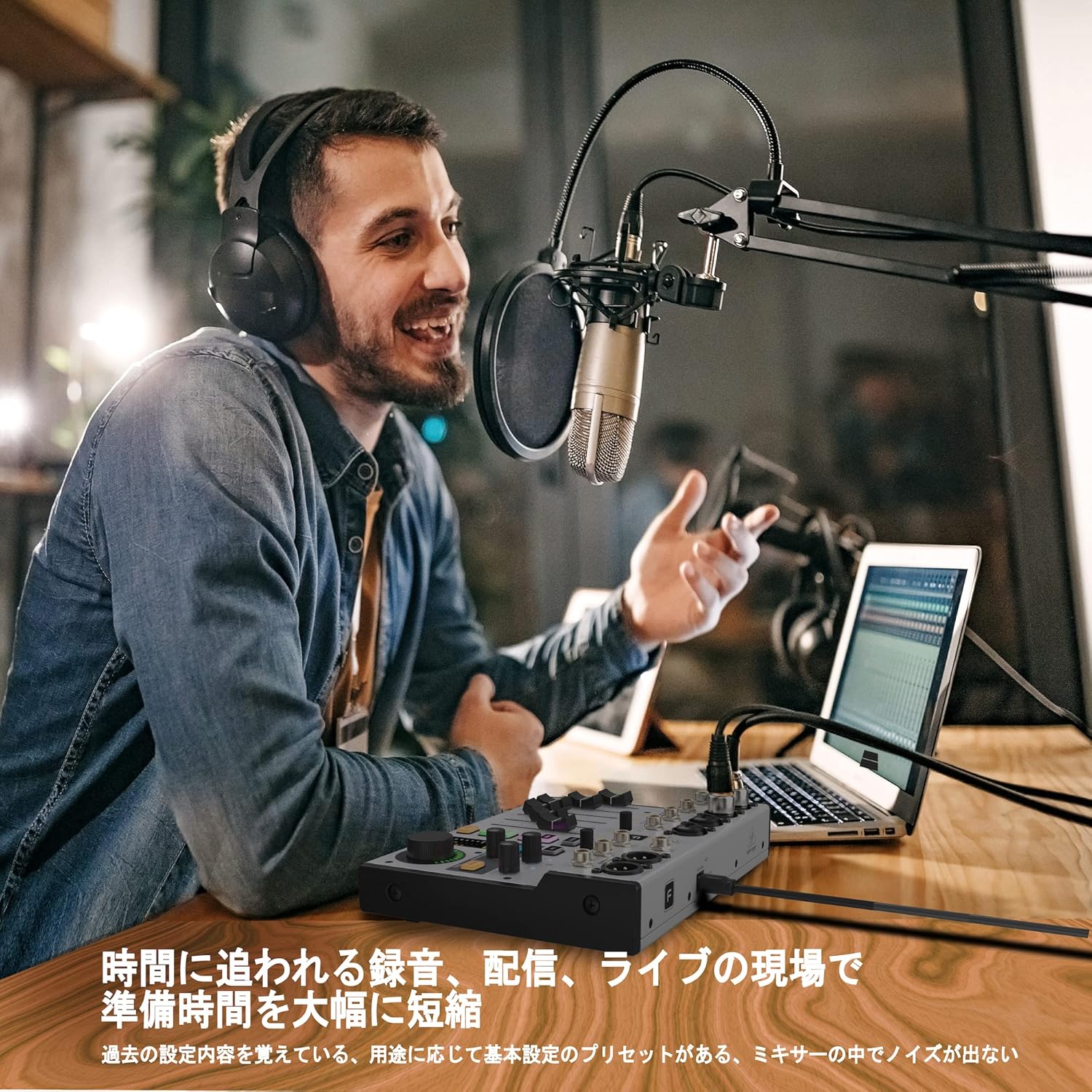
Figure 5: A user demonstrating the FLOW 8 in a recording setup, highlighting its compact size and app integration.
Maintenance
Regular maintenance ensures the longevity and reliable performance of your FLOW 8 mixer.
- Cleaning: Use a soft, dry cloth to clean the exterior of the mixer. Avoid abrasive cleaners or solvents that could damage the finish.
- Dust Protection: Keep the mixer covered when not in use to prevent dust accumulation, especially around faders and knobs.
- Storage: Store the mixer in a cool, dry place away from direct sunlight and extreme temperatures.
- Cable Management: Ensure cables are neatly organized and not under strain to prevent damage to connectors and ports.
Troubleshooting
If you encounter issues with your FLOW 8, refer to the following common troubleshooting steps:
| Problem | Possible Cause | Solution |
|---|---|---|
| No audio output | Main fader down; incorrect routing; cables disconnected. | Check main fader level; verify routing in FLOW App; ensure all cables are securely connected. |
| No sound from a specific channel | Channel fader down; channel muted; incorrect input gain. | Raise channel fader; unmute channel; use EZ-GAIN to set input level. |
| Bluetooth connection issues | Device not paired; interference; out of range. | Ensure FLOW 8 is in pairing mode; move closer to mixer; minimize other wireless devices. |
| Distorted audio | Input gain too high (clipping); output level too high. | Reduce input gain using EZ-GAIN; lower channel or main output levels. |
Specifications
- Brand: Behringer
- Model: FLOW 8
- Item Weight: 3.09 pounds (1400 Grams)
- Product Dimensions: 1.1 x 9.7 x 6.5 inches (6.5"D x 9.7"W x 1.1"H)
- Number of Channels: 10
- Microphone Preamps: Two Midas preamps with 48V phantom power
- Connectivity Technology: Bluetooth, USB
- Power Source: Corded Electric
- Voltage: 48 Volts
- Key Features: EZ-GAIN function, 60 mm channel faders, master rotary control with LED collar, FLOW App for wireless remote control.
Warranty and Support
For detailed warranty information and technical support, please refer to the official Behringer website or contact their customer service. Keep your purchase receipt as proof of purchase for warranty claims.
Online Resources: Visit the Behringer Store on Amazon for additional product information and support.
Related documentsFLOW 8


Ask a question about this manual
Ask about setup, troubleshooting, compatibility, parts, safety, or missing instructions. Manuals+ will review the question and use this page’s manual context to help answer it.