
1. Introduction
This manual provides essential information for the setup, operation, and maintenance of your Arlo Pro 3 Floodlight Wireless Camera. Designed for outdoor security, this camera combines a powerful LED floodlight with 2K HDR video, color night vision, and two-way audio to enhance your property's safety.
2. Package Contents
Ensure all items are present before proceeding with installation:
- Arlo Pro 3 Floodlight Camera
- Extended Rechargeable Battery
- Power Adapter
- Micro-USB Cable
- Wall Plate and Screw Kit
- Quick Start Guide
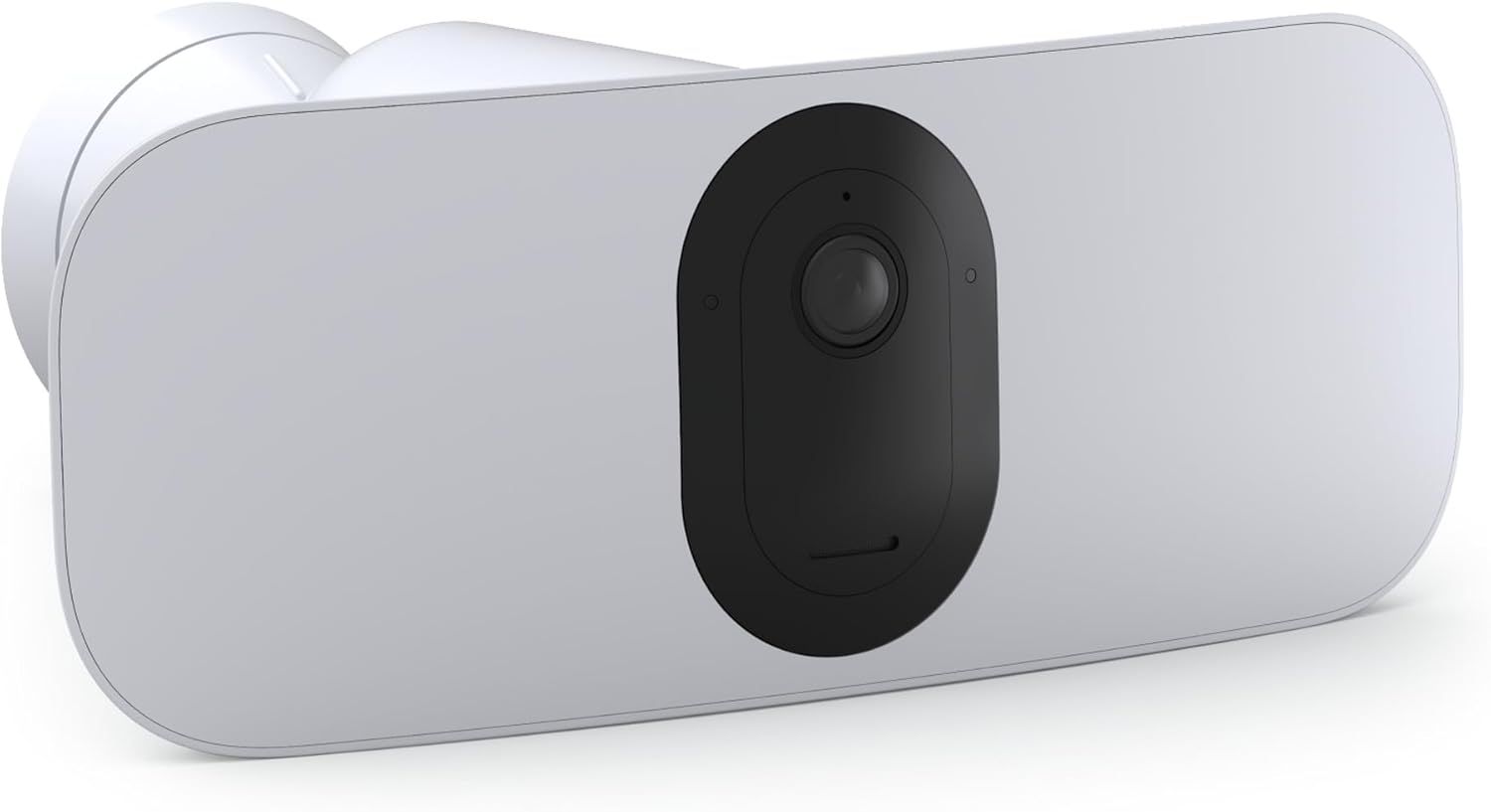
Image: Arlo Pro 3 Floodlight Camera with its retail packaging, showcasing the product and its components.
3. Key Features
- Powerful 2K Vision: Captures detailed footage in 2K with HDR for clear video quality day and night.
- Wire-Free Convenience: Easy installation anywhere outdoors without the need for cables.
- Smart Alerts & Audio: Receive motion sensor notifications and communicate via clear 2-Way Audio.
- All-Weather Reliability: Designed to withstand various weather conditions (heat, cold, rain, sun).
- 160-Degree Field of View: Provides a wide coverage area.
- Extremely Bright Floodlight: Illuminates the area effectively upon motion detection.
- Alexa Integration: Connects to Amazon Alexa for smart home control.
- Activity Zones: Customize areas for motion detection to reduce unwanted notifications.
4. Setup
4.1. Battery Installation and Charging
The Arlo Pro 3 Floodlight Camera uses a rechargeable battery. To install or charge the battery:
- Locate the release button on the camera unit.
- Press the button to detach the camera module from the floodlight housing.
- Insert the extended rechargeable battery into the camera module.
- To charge, connect the Micro-USB cable to the camera module's charging port and then to the power adapter.
- Reattach the camera module to the floodlight housing.
Note: The battery typically lasts about a week with regular use. Consider purchasing additional batteries and a charging station for continuous operation, or a solar panel for sustained power.

Image: Front view of the Arlo Pro 3 Floodlight Camera, illustrating the camera lens and floodlight panels.
4.2. Mounting the Camera
The camera comes with a wall plate and screw kit for easy installation:
- Choose a suitable outdoor location with good Wi-Fi signal strength.
- Securely attach the wall plate to the desired surface (plastic, metal, or brick) using the provided screws.
- Align the camera's base with the wall plate and twist to lock it into place.
- Adjust the camera's angle to achieve the desired field of view (160 degrees).

Image: The Arlo Pro 3 Floodlight Camera mounted on an outdoor wall, demonstrating its wire-free setup flexibility.
4.3. Connecting to the Arlo App and Smart Hub
The Arlo Pro 3 Floodlight Camera requires an Arlo Smart Hub (sold separately) for full functionality. Follow these steps:
- Download the Arlo app from your device's app store.
- Follow the in-app instructions to set up your Arlo Smart Hub.
- Once the Smart Hub is configured, add your Arlo Pro 3 Floodlight Camera to the system via the app.
- Ensure a strong Wi-Fi connection for optimal performance.
Video: An overview of the Arlo Pro 3 Floodlight Camera's features and setup process, highlighting its security capabilities.
5. Operation
5.1. Motion Detection and Alerts
The camera features advanced motion detection. You can customize settings via the Arlo app:
- Sensitivity: Adjust the motion detection sensitivity to minimize false alerts.
- Activity Zones: Define specific areas within the camera's view where motion detection should be active, ignoring other areas.
- Smart Alerts: Receive notifications on your phone for detected motion, with differentiation between animals, people, and vehicles.

Image: Screenshot of the Arlo app demonstrating how to set up custom activity zones for motion detection.
5.2. Floodlight and Night Vision
The integrated LED floodlight provides powerful illumination, and the camera offers color night vision:
- The floodlight activates automatically upon motion detection in low-light conditions.
- Color night vision ensures clear and detailed footage even in complete darkness.

Image: The Arlo Pro 3 Floodlight Camera actively illuminating an outdoor area at night, demonstrating its powerful lighting capability.
5.3. Two-Way Audio and Siren
- Two-Way Audio: Use the Arlo app to speak through the camera and hear responses from visitors or intruders.
- Siren: Activate the built-in siren remotely via the app to deter unwanted guests.
5.4. Alexa Integration
Integrate your Arlo Pro 3 Floodlight Camera with Amazon Alexa for voice control and live viewing on compatible devices.
6. Maintenance
- Battery Charging: Monitor battery levels via the Arlo app and recharge as needed. Consider a solar panel accessory for continuous charging.
- Cleaning: Periodically wipe the camera lens and floodlight panels with a soft, damp cloth to ensure clear visibility and optimal light output. Avoid abrasive cleaners.
- Firmware Updates: Keep your camera's firmware updated through the Arlo app to ensure the latest features and security enhancements.
Video: A user review highlighting the camera's power and suggesting pairing it with a solar panel for extended battery life.
7. Troubleshooting
- No Power/Battery Drain: Ensure the battery is fully charged and properly inserted. If using a solar panel, verify its connection and exposure to sunlight.
- Connectivity Issues: Check your Wi-Fi signal strength at the camera's location. Ensure the Smart Hub is online and within range. Restarting the camera and hub may resolve minor glitches.
- False Motion Alerts: Adjust motion detection sensitivity and configure Activity Zones in the Arlo app to focus on relevant areas.
- Poor Video Quality: Ensure the camera lens is clean. Check your internet connection speed.
- Two-Way Audio Problems: Verify microphone and speaker settings in the Arlo app. Ensure there are no obstructions.
8. Specifications
| Feature | Detail |
|---|---|
| Model Name | FB1001-100NAS-cr |
| Indoor/Outdoor Usage | Outdoor |
| Power Source | Battery Powered |
| Connectivity Protocol | Wi-Fi |
| Video Capture Resolution | 2K |
| Low Light Technology | Color Night Vision |
| Alert Type | Motion Only |
| International Protection Rating | IP54 (Water Resistant) |
| Item Dimensions (L x W x H) | 7 x 6 x 2 inches |
| Item Weight | 2.51 pounds |
| Compatible Devices | Smartphone, Amazon Alexa, Vera |
9. Warranty and Support
This Arlo Pro 3 Floodlight Camera (Renewed) comes with a 1-year warranty from the manufacturer. For detailed warranty information, technical support, or service inquiries, please refer to the official Arlo support channels or the documentation included with your product. A 90-day refund/replacement return policy may also apply, depending on the retailer.


