
mophie JP-CNCT-5K
mophie Juice Pack Connect Compact User Manual
Model: JP-CNCT-5K
Product Overview
The mophie Juice Pack Connect Compact is a portable 5,000mAh battery designed to provide extra power to Qi-enabled smartphones. It features a unique connect anchor system for easy attachment and removal, and includes a dual-purpose stand for versatile use.
- Power On Demand: Simply slide the juice pack connect in place to begin charging.
- Qi Wireless Charging: Works with virtually any Qi-enabled smartphone.
- Charges Through Lightweight Cases: Charges your phone through cases up to 5mm thick.
- Connect Stand Included: Prop your phone up while watching a video or get a secure hold while on-the-go.
- Battery Capacity: Provides up to 70% extra battery life.
What's in the Box
- Juice pack Connect
- Connect Stand
- Owner's Manual
- USB-A to USB-C Cable (for charging the Juice Pack Connect)
- Two Connect Adapters
- Cleaning Wipe
- Alignment Tool
Setup and Installation
Follow these steps to properly install the mophie Juice Pack Connect anchor system onto your device or phone case. Proper alignment is crucial for optimal wireless charging performance.
1. Prepare Your Device/Case
Ensure the back surface of your phone or phone case is clean and dry. Use the provided cleaning wipe to remove any dust or oils. Allow the surface to dry completely before proceeding.

Image: A hand cleaning the back of a smartphone in a clear case with a white wipe. This step ensures proper adhesion of the connect adapter.
Important Note: The connect adapter can be attached to the back of your phone or to the back of a phone case. If using a case, ensure it is not too thick (max 5mm) and avoid fabric or porous cases, as these may interfere with wireless charging.
2. Use the Alignment Tool
Place the alignment tool on the back of your device or case. Align the top, bottom, left, and right sides of your phone or case with the corresponding numbered lines on the alignment tool. Both edges (top/bottom and left/right) must meet the same numbered line for correct centering.

Image: A person's hands adjusting a black alignment tool on the back of a smartphone inside a clear case. The tool helps find the precise center for the adapter placement.
3. Attach the Connect Adapter
Peel off the adhesive lining from the back of one of the connect adapters. While the alignment tool is still in place, stick the adapter through the hole in the alignment tool onto the back of your device or case. Press firmly to ensure a secure bond. Once attached, the adapter is not adjustable.
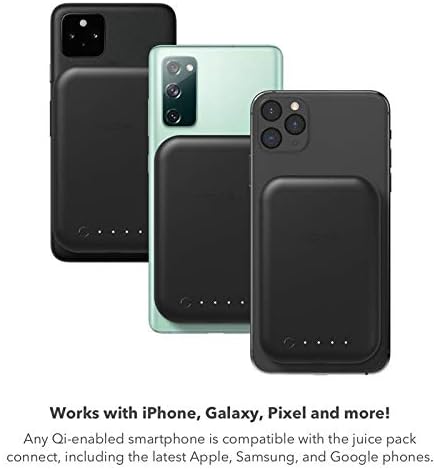
Image: A hand peeling the backing off the connect adapter and then pressing it onto the back of a phone, guided by the alignment tool. This shows the final step of securing the adapter.
For a visual guide on the installation process, please watch the official mophie Juice Pack Connect installation video:
Video: Official mophie Juice Pack Connect installation guide. This video demonstrates the unboxing, cleaning, alignment, and attachment of the connect adapter to a smartphone or case.
Operating Instructions
Attaching and Charging Your Device
Once the connect adapter is securely attached to your phone or case, simply slide the mophie Juice Pack Connect onto the adapter. The juice pack will click into place, and charging will begin automatically. To remove, slide the juice pack off the adapter.

Image: The mophie Juice Pack Connect attached to the back of a smartphone, showing its compact design and how it integrates with the device.
The Juice Pack Connect is compatible with any Qi-enabled smartphone, including popular models from Apple, Samsung, and Google.
Image: Multiple smartphones (iPhone, Samsung, Pixel) with the mophie Juice Pack Connect attached, illustrating its universal compatibility with Qi-enabled devices.
Using the Connect Stand
The included connect stand also easily slides onto the connect adapter. Use it to prop up your phone for hands-free viewing or to get a secure grip while on the go.
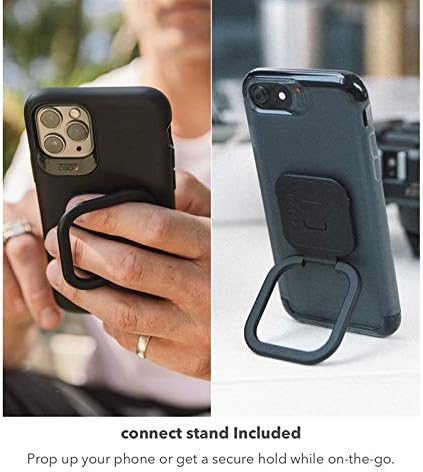
Image: A smartphone with the mophie Connect Stand attached, demonstrating its use as a kickstand for horizontal viewing and as a finger grip for secure handling.
Charging the Juice Pack Connect
The Juice Pack Connect can be recharged wirelessly using any Qi-enabled wireless charging pad or stand. It can also charge another device via its USB-C port. The pass-through charging feature allows you to wirelessly charge both your phone and the juice pack connect simultaneously when placed on a Qi-enabled wireless pad.
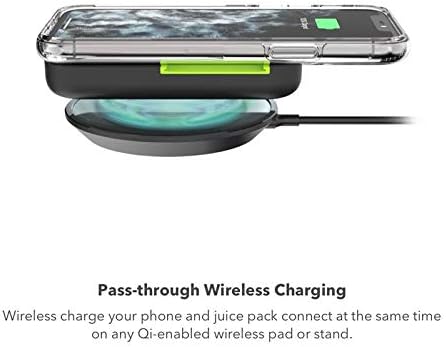
Image: The mophie Juice Pack Connect resting on a wireless charging pad, indicating its ability to be recharged wirelessly.
Maintenance
To ensure the longevity and optimal performance of your mophie Juice Pack Connect, keep it clean and free from dust and debris. Use a soft, dry cloth for general cleaning. For the adhesive surface of the connect adapter, use the provided cleaning wipe or a similar alcohol-based wipe to ensure proper adhesion if re-applying or cleaning the surface before initial application.
Troubleshooting
- Not Charging Wirelessly:
- Ensure the connect adapter is properly aligned and securely attached to the center of your phone or case.
- Verify that your phone is Qi-enabled.
- Check if your phone case is too thick (over 5mm) or made of fabric/porous material, which can interfere with wireless charging.
- Ensure the Juice Pack Connect itself is charged. Check the LED indicators.
- Poor Adhesion of Connect Adapter:
- Make sure the surface was thoroughly cleaned and dry before application.
- Apply firm pressure for several seconds after attaching the adapter.
- Avoid repositioning the adapter once it has been attached.
- Juice Pack Connect Not Sliding On/Off Easily:
- Ensure the connect adapter is free from debris.
- Verify that the juice pack is aligned correctly with the adapter's grooves before sliding.
Specifications
| Feature | Detail |
|---|---|
| Product Dimensions | 7 x 4.5 x 1.2 inches |
| Item Weight | 4.6 ounces |
| Item Model Number | JP-CNCT-5K |
| Battery Type | 1 Lithium Polymer battery (included) |
| Connectivity Technologies | USB |
| Special Features | Slide-in Battery Pack, Detachable Connect Stand |
| Other Display Features | Wireless |
| Form Factor | Bumper |
| Color | Black |
| Manufacturer | mophie |
| Compatible Phone Models | Qi-enabled smartphones |
| Compatible Devices | Qi-enabled smartphones |
| Material | Plastic |
| Date First Available | November 12, 2020 |
Warranty and Support
Your mophie Juice Pack Connect Compact comes with a limited manufacturer's warranty. Please refer to the included owner's manual for detailed warranty information, terms, and conditions. For technical support, product registration, or further assistance, please visit the official mophie support website or contact their customer service.
For more information, visit the mophie Store on Amazon.
Related documentsJP-CNCT-5K


Ask a question about this manual
Ask about setup, troubleshooting, compatibility, parts, safety, or missing instructions. Manuals+ will review the question and use this page’s manual context to help answer it.