
1. Introduction and Overview
The Bluesound Pulse SUB+ is a wireless powered subwoofer meticulously engineered to enhance your audio experience by complementing Bluesound wireless speakers, amplifiers, and streamers. It delivers powerful and detailed bass through its 8-inch woofer and intelligent DSP amplifier, producing an impressive 150 watts of distortion-free output. Designed for seamless integration, the Pulse SUB+ eliminates the need for tangled wires, offering flexible placement options and intuitive control via the BluOS Controller App.
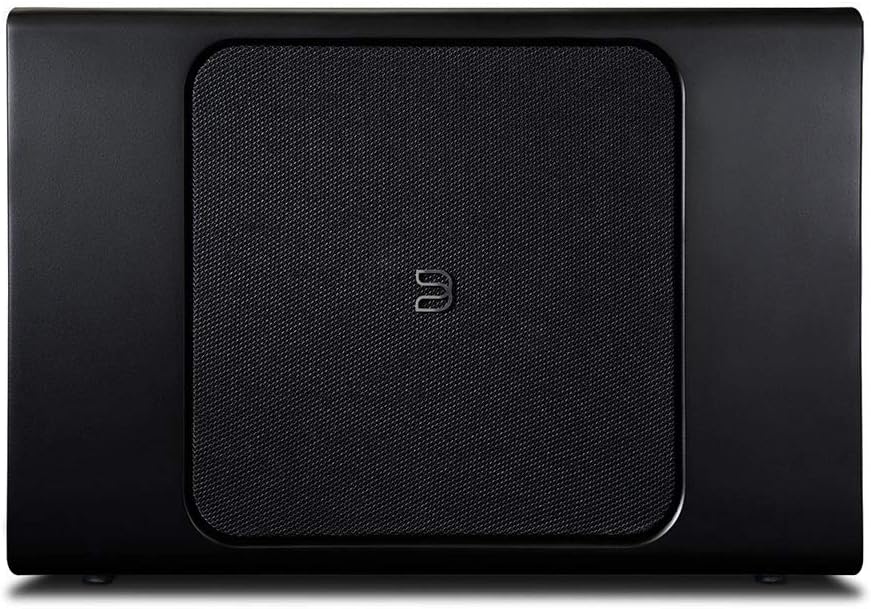
Image: Front view of the Bluesound Pulse SUB+ Wireless Powered Subwoofer, showcasing its sleek black design and central mesh grille.
2. Package Contents
Upon unboxing your Bluesound Pulse SUB+, please ensure all components are present:
- Pulse SUB+ Wireless Powered Subwoofer
If any items are missing or damaged, please contact Bluesound customer support.
3. Setup
Setting up your Pulse SUB+ is designed to be straightforward, primarily managed through the BluOS Controller App. This wireless subwoofer offers effortless integration into your existing Bluesound ecosystem.
3.1 Initial Connection
Connect the Pulse SUB+ to a power outlet using the provided power cable. The subwoofer is designed for wireless connectivity, eliminating the need for audio cables to your main system.

Image: Rear panel of the Bluesound Pulse SUB+, displaying the power input, service ports, and Ethernet port for wired network connection if preferred.
3.2 BluOS Controller App Configuration
Download and install the BluOS Controller App on your mobile device (smartphone or tablet). Within minutes, you can pair and configure the subwoofer through the app. The app provides full control over your audio experience, including volume and crossover controls, allowing you to customize the sound to your preferences.
3.3 Wired Network Connection (Optional)
For a stable and reliable connection, you may choose to connect the Pulse SUB+ to your network via an Ethernet cable. This can be particularly beneficial in environments with high wireless interference.
4. Operating the Pulse SUB+
The Pulse SUB+ is primarily operated and controlled via the BluOS Controller App, offering a seamless user experience.
4.1 App Control
Use the BluOS Controller App to:
- Adjust the subwoofer's volume level.
- Set the crossover frequency (40-120Hz) to blend the subwoofer's output with your main speakers.
- Toggle the subwoofer on/off.
- Access advanced settings for fine-tuning audio performance.

Image: Close-up of the illuminated control button on the side of the Bluesound Pulse SUB+, indicating power or connection status.
4.2 Voice Assistant Integration
Integrate the Pulse SUB+ seamlessly into your smart home ecosystem. It is compatible with popular voice assistants such as Amazon Alexa and Google Assistant. Simply use your voice commands to control and adjust the subwoofer settings, enhancing the convenience and accessibility of your audio setup.
5. Placement Options
The Pulse SUB+ offers versatile placement options to suit your needs and room aesthetics. Its sleek and compact design allows it to blend effortlessly with your decor.
- Standing: Position the subwoofer upright beside furniture or in a corner.
- Laying Down: Its slim profile allows it to be laid flat, fitting discreetly beneath furniture.
- Wall Mounting: Utilize the included custom mounting bracket to mount the subwoofer on a wall, saving floor space and providing a clean look.

Image: The Bluesound Pulse SUB+ positioned next to a media console, showcasing its ability to integrate into a home entertainment setup.

Image: The Bluesound Pulse SUB+ placed discreetly under a couch, highlighting its compact design and flexible placement capabilities.
Experiment with different placements to find the optimal position that delivers the best bass response for your listening environment.
6. Maintenance
To ensure the longevity and optimal performance of your Bluesound Pulse SUB+, follow these simple maintenance guidelines:
- Cleaning: Use a soft, dry cloth to clean the exterior surfaces. Avoid abrasive cleaners, waxes, or solvents.
- Ventilation: Ensure adequate airflow around the subwoofer. Do not block any ventilation openings.
- Environment: Avoid exposing the subwoofer to extreme temperatures, humidity, or direct sunlight. Keep it away from sources of heat and moisture.
- Power: Disconnect the power cable from the wall outlet if the unit will be unused for a long period.
7. Troubleshooting
If you encounter issues with your Pulse SUB+, refer to the following common troubleshooting steps:
7.1 No Sound or Low Output
- Power Check: Ensure the subwoofer is properly plugged into a working power outlet and the power indicator light is on.
- App Settings: Open the BluOS Controller App and verify that the subwoofer's volume is not muted or set too low. Check the crossover settings to ensure they are appropriate for your main speakers.
- Source: Ensure your main Bluesound player is outputting audio and the subwoofer is correctly paired and configured within the BluOS app.
- Network Connection: A weak or unstable Wi-Fi connection can affect performance. Try moving the subwoofer closer to your router or connecting via Ethernet.
7.2 Boomy or Undefined Bass
- Placement: Experiment with different placement options. Placing the subwoofer too close to a wall or corner can sometimes result in boomy bass. Try moving it slightly or adjusting its orientation.
- Crossover Adjustment: Adjust the crossover frequency in the BluOS app. A lower crossover setting might reduce boominess and provide a tighter bass response.
- Phase Control: Some subwoofers have a phase control. While not explicitly listed as a user-adjustable feature for this model, ensuring proper phase alignment with your main speakers is crucial for seamless integration. The BluOS app handles this automatically during setup.
7.3 Subwoofer Goes Out of Sync
- Network Stability: This issue is often related to network instability. Ensure your Wi-Fi network is strong and free from interference. Consider connecting the subwoofer directly to your router via an Ethernet cable for a more stable connection.
- Router Reboot: Try rebooting your home router and the Pulse SUB+.
- Firmware Update: Ensure your Pulse SUB+ and BluOS app are running the latest firmware versions. Updates often include performance improvements and bug fixes.
For persistent issues, consult the official Bluesound support resources or contact their customer service.
8. Specifications
Below are the key technical specifications for the Bluesound Pulse SUB+ Wireless Powered Subwoofer:
| Feature | Specification |
|---|---|
| Model Name | Pulse Sub Plus Black |
| Speaker Type | Subwoofer |
| Speaker Maximum Output Power | 150 Watts |
| Woofer Diameter | 8 Inches |
| Connectivity Technology | Wireless (Wi-Fi, Bluetooth) |
| Control Method | App Control |
| Product Dimensions | 17.99 x 11.81 x 5.75 inches |
| Item Weight | 18.22 pounds (8.28 Kilograms) |
| Color | Black |
| Mounting Type | Tabletop Mount (Wall mount bracket included) |
| UPC | 786357001418 |
9. Warranty and Support
The Bluesound Pulse SUB+ comes with a Limited Warranty. For detailed information regarding warranty terms and conditions, please refer to the documentation included with your product or visit the official Bluesound website.
9.1 User Manual (PDF)
A comprehensive User Manual in PDF format is available for download. You can access it via this link: Bluesound Pulse SUB+ User Manual (PDF)
9.2 Customer Support
For technical assistance, product inquiries, or warranty claims, please contact Bluesound customer support. Visit the official Bluesound website for contact information and additional resources.
9.3 Optional Protection Plans
Extended protection plans are available for purchase to provide additional coverage beyond the standard manufacturer's warranty. Options may include 2-Year or 3-Year Protection Plans, or a Complete Protect plan. Please check with your retailer for availability and details.


