
1. Introduction
The Vgate VR800 OBD2 Scanner is a powerful and user-friendly diagnostic tool designed for automotive enthusiasts and professional mechanics alike. It provides comprehensive diagnostic functions for OBD-II/EOBD compliant vehicles, enabling users to quickly identify and resolve issues related to the Check Engine Light (CEL). This manual provides detailed instructions on how to set up, operate, and maintain your VR800 scanner to ensure optimal performance and accurate vehicle diagnostics.
2. Product Overview
The Vgate VR800 is a handheld diagnostic device featuring a color LCD display, intuitive button layout, and a durable OBD-II connector cable. Its compact design allows for easy portability and use in various automotive environments.
2.1 Key Components
- LCD Color Display: Provides clear and detailed diagnostic information.
- Navigation Buttons: Up, Down, Left, Right arrows for menu navigation.
- OK Button: Confirms selections.
- I/M Button: Shortcut for I/M Readiness status.
- Question Mark (?) Button: Provides help and DTC lookup information.
- Return Button: Navigates back to the previous screen.
- OBD-II Connector: Connects the scanner to the vehicle's diagnostic port.
- USB Port: For software updates and data printing.

3. Features
The Vgate VR800 OBD2 Scanner offers a comprehensive set of features for vehicle diagnostics:
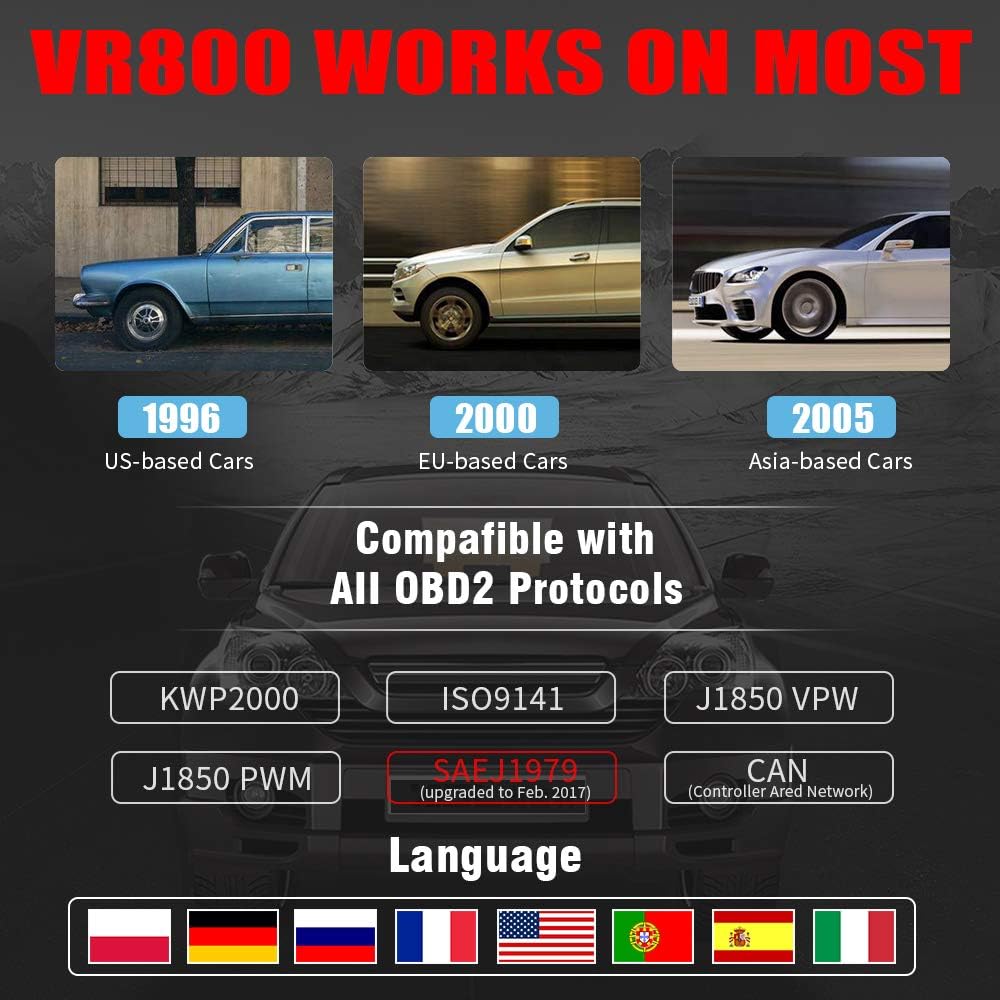
- All OBD2 Protocols Support: Compatible with ISO9141, KWP2000, J1850 PWM, J1850 VPW, and CAN protocols. Compliance with SAEJ1979 has been upgraded to the latest standards (February 2017).
- Broad Vehicle Compatibility: Works with most American vehicles manufactured after 1996, European vehicles after 2000, and Asian vehicles after 2005. Applicable to OBD-II/CAN/EOBD-compliant vehicles, including light-duty trucks (6.5T or less), SUVs, and minivans.
- Smog Check Helper (I/M Readiness): Features Red-Yellow-Green LEDs and a built-in speaker to indicate readiness status for emissions testing. Dedicated I/M and '?' shortcut keys provide quick access to readiness checks.
- Full OBD Service Modes: Quickly reads and checks Diagnostic Trouble Codes (DTCs), views freeze frame data, reads live PCM data stream, performs On-Board Monitor tests, and displays live O2 sensor test data.
- Built-in DTC Lookup Library: Allows accurate determination of the causes of the Check Engine Light.
- Accurate Battery Status Check: Reads real-time battery and voltage information.
- Multi-language Support: Available in English, French, German, Italian, Spanish, Russian, Polish, and Portuguese.
- Data Logging and Printing: Supports data logging and connection to a PC for printing diagnostic data files.



4. Setup
Follow these steps to set up your Vgate VR800 OBD2 Scanner:
- Locate the OBD-II Port: The OBD-II port is typically located under the dashboard on the driver's side of the vehicle. Refer to your vehicle's owner's manual if you cannot find it.
- Connect the Scanner: Plug the VR800's OBD-II connector cable firmly into the vehicle's OBD-II port.
- Power On: The scanner will automatically power on once connected to the vehicle's OBD-II port. No external power source or batteries are required as it draws power directly from the vehicle.
- Initial Setup (if prompted): If this is your first time using the scanner or after a factory reset, you may be prompted to select a language. Use the navigation buttons to select your preferred language and press OK.

5. Operating Instructions
Once the scanner is connected and powered on, you can begin diagnosing your vehicle.
5.1 Navigating the Menu
Use the UP and DOWN arrow buttons to scroll through menu options. Press the OK button to select an option. Press the Return button to go back to the previous screen.
5.2 Reading Diagnostic Trouble Codes (DTCs)
- From the main menu, select Read DTCs.
- The scanner will display any active or pending DTCs. Each code will have a brief description.
5.3 Clearing DTCs
Warning: Clearing DTCs will erase all diagnostic trouble codes from the vehicle's computer and may reset readiness monitors. Ensure you have addressed the underlying issue before clearing codes.
- From the main menu, select Clear DTCs.
- Confirm your selection when prompted. The scanner will attempt to clear the codes.
5.4 I/M Readiness Function
The I/M Readiness function checks if the various emissions-related systems on the vehicle are operating correctly and if they have completed their self-tests.
- Press the dedicated I/M button on the scanner.
- The display will show the status of various monitors (e.g., O2 Sensor, EVAP, Catalyst). A green light indicates ready, yellow indicates pending, and red indicates not ready or a fault.
5.5 Viewing Live Data
Live Data allows you to view real-time sensor data from the vehicle's engine control unit (ECU).
- From the main menu, select Live Data.
- Choose the specific data parameters you wish to view (e.g., engine RPM, vehicle speed, O2 sensor voltage).
5.6 DTC Lookup
If you have a DTC and need more information, use the built-in DTC lookup library.
- From the main menu, select DTC Lookup or press the ? button when a DTC is displayed.
- Enter the DTC code (if not already displayed) to get a detailed description and possible causes.
5.7 Battery Status Check
To check your vehicle's battery voltage and status:
- From the main menu, select Battery.
- The scanner will display the current battery voltage and an estimated charge percentage.
6. Maintenance
Proper maintenance ensures the longevity and accuracy of your Vgate VR800 scanner.
- Cleaning: Use a soft, dry cloth to clean the scanner's exterior. Do not use abrasive cleaners or solvents.
- Storage: Store the scanner in a clean, dry environment away from extreme temperatures and direct sunlight.
- Software Updates: Regularly check for software updates to ensure compatibility with the latest vehicle models and diagnostic protocols. Updates can typically be performed by connecting the scanner to a PC via the USB port and using the provided update software.
7. Troubleshooting
If you encounter issues while using your Vgate VR800 scanner, refer to the following common problems and solutions:
- Scanner Does Not Power On:
- Ensure the OBD-II connector is securely plugged into the vehicle's port.
- Verify the vehicle's ignition is in the ON position (engine can be off).
- Check the vehicle's fuse for the OBD-II port (consult your vehicle's manual).