
1. Introduction
Thank you for choosing the MARVO Scorpion Gaming Mouse M399. This manual provides essential information for setting up, operating, maintaining, and troubleshooting your new gaming mouse. Please read it carefully to ensure optimal performance and longevity of your device.
2. Product Features
- Ultra-lightweight Honeycomb Design: Weighing approximately 76 grams, the mouse features a unique honeycomb shell for reduced weight and enhanced airflow.
- High-Performance Optical Sensor: Equipped with a gaming-grade optical sensor, offering up to 6400 DPI for precise tracking.
- 6 Programmable Buttons: Customize your gaming experience with six buttons that can be assigned various functions.
- Dynamic RGB Backlighting: Enjoy 16.8 million colors with 7 different backlight modes to personalize your setup.
- Ambidextrous Ergonomic Design: Comfortable design suitable for both left and right-handed users, ideal for extended gaming or office use.
3. Package Contents
- MARVO Scorpion Gaming Mouse M399
- User Manual
4. Setup
- Connect the Mouse: Plug the USB connector of the MARVO Scorpion Gaming Mouse M399 into an available USB port on your computer.
- Automatic Driver Installation: Your operating system will typically detect the mouse and install the necessary drivers automatically. This may take a few moments.
- Test Functionality: Once installed, move the mouse and click the buttons to ensure basic functionality.
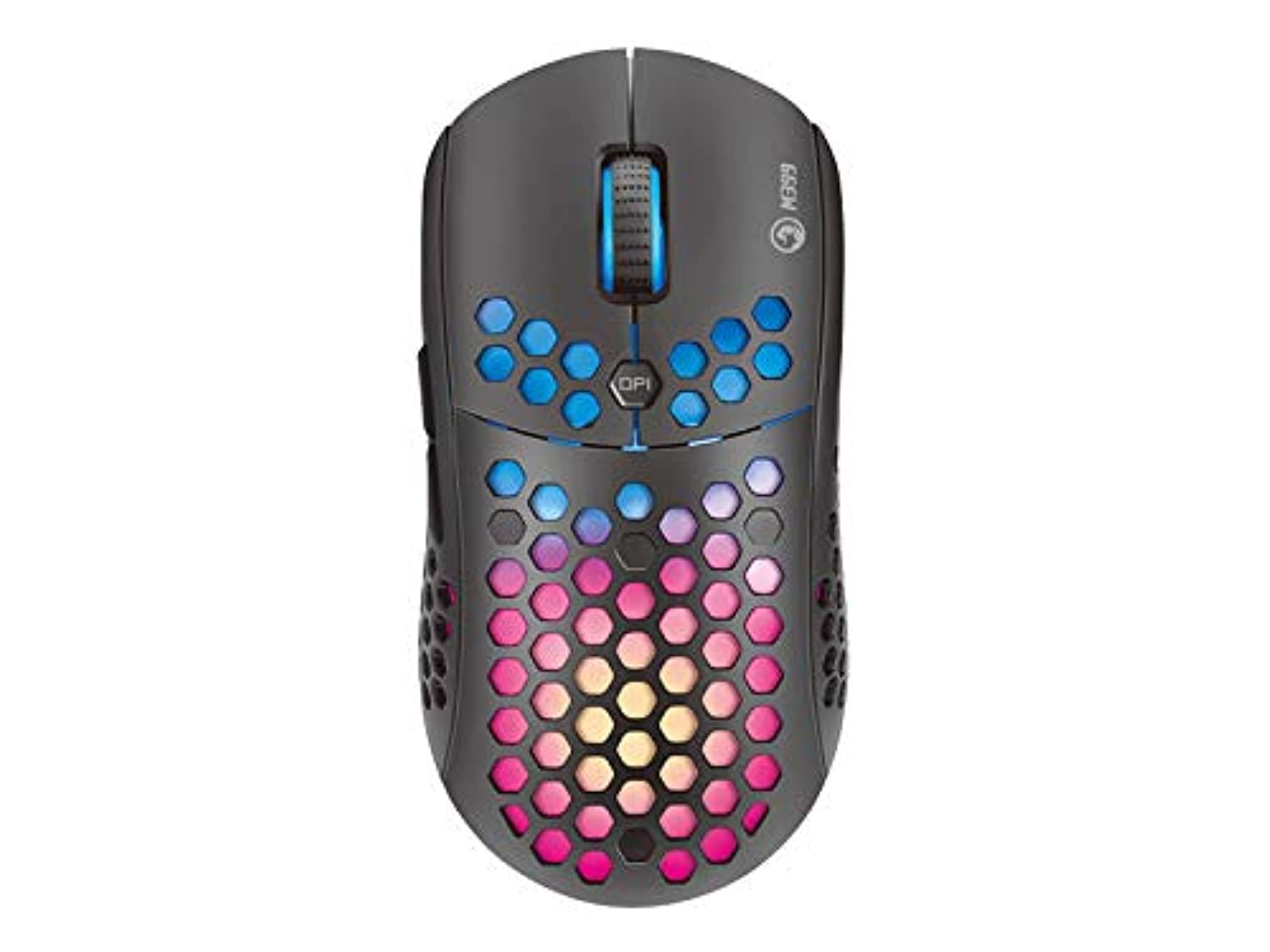
Figure 1: Top-down view of the MARVO Scorpion Gaming Mouse M399, highlighting its honeycomb shell and illuminated scroll wheel.
5. Operating Instructions
5.1 Basic Functions
- Left Click: Primary action button.
- Right Click: Secondary action button, typically for context menus.
- Scroll Wheel: Scroll up/down documents or web pages. Can also be clicked for middle-click functionality.
5.2 DPI Adjustment
The mouse features a dedicated DPI button (usually located behind the scroll wheel) to cycle through different sensitivity levels. Press this button to instantly change the DPI setting to match your preference or game requirements. The default DPI settings are typically pre-configured but can be customized via software.
5.3 Programmable Buttons
The MARVO M399 includes 6 programmable buttons. These buttons can be assigned various functions, macros, or key combinations using the dedicated MARVO software. Refer to the customization section for more details.

Figure 2: Side view of the MARVO Scorpion Gaming Mouse M399, illustrating the ergonomic contour and accessible side buttons.
6. Customization
To unlock the full potential of your MARVO Scorpion Gaming Mouse M399, including button remapping, macro creation, and advanced RGB lighting effects, you will need to download and install the official MARVO software. This software allows for detailed personalization of your mouse settings.
- Button Assignment: Reassign functions to any of the 6 programmable buttons.
- DPI Settings: Adjust DPI levels and create custom profiles.
- RGB Lighting: Choose from 7 different backlight modes and millions of colors, adjust brightness, speed, and effects.
- Macro Editor: Create and assign complex macros to streamline in-game actions.
Note: The software can typically be found on the official MARVO website. Ensure you download the correct version for your M399 model.
7. Maintenance
Proper maintenance ensures the longevity and performance of your gaming mouse.
- Cleaning: Use a soft, dry cloth to wipe the surface of the mouse. For stubborn dirt, a slightly damp cloth can be used, but ensure no liquid enters the mouse. Use compressed air to clean dust from the honeycomb holes and around buttons.
- Sensor Care: Keep the optical sensor on the underside of the mouse clean and free from debris. Avoid touching the sensor directly.
- Cable Management: Avoid sharp bends or excessive pulling on the USB cable to prevent damage.
- Storage: Store the mouse in a clean, dry environment away from extreme temperatures and direct sunlight when not in use.
8. Troubleshooting
If you encounter issues with your MARVO Scorpion Gaming Mouse M399, refer to the following common solutions:
| Problem | Possible Solution |
|---|---|
| Mouse not responding |
|
| Cursor movement is erratic or jumpy |
|
| RGB lighting not working or stuck |
|
| Programmable buttons not working |
|
9. Specifications
| Feature | Detail |
|---|---|
| Model Number | M399 |
| Sensor Type | Optical |
| DPI (Dots Per Inch) | Up to 6400 DPI |
| Buttons | 6 Programmable Buttons |
| Lighting | RGB, 16.8 Million Colors, 7 Modes |
| Design | Ultra-lightweight Honeycomb, Ambidextrous |
| Weight | Approx. 76 grams |
| Connectivity | USB Wired |
| Product Dimensions | 4.4 x 3.23 x 2.98 cm (approximate) |
10. Warranty and Support
10.1 Warranty Information
MARVO products are designed and manufactured to the highest quality standards. This product is covered by a limited warranty from the date of purchase. Please refer to the warranty card included with your product or visit the official MARVO website for detailed warranty terms and conditions specific to your region.
10.2 Technical Support
For technical assistance, driver downloads, or further inquiries, please visit the official MARVO support website or contact their customer service. You may need your product model number (M399) and proof of purchase when seeking support.
- Official Website: www.marvo-tech.com (Please check for regional variations)
- Support Email: Refer to the website for contact details.


