
Tera HW0010
Tera Pro Series Mini CMOS Ring Barcode Scanner User Manual
Model: HW0010 | Brand: Tera
Introduction
The Tera Pro Series Mini CMOS Ring Barcode Scanner (Model HW0010) is a versatile and portable device designed for efficient 1D, 2D, and QR code scanning. Its unique ring design allows for comfortable wear on the finger, enhancing mobility and ease of use in various work environments. This scanner supports multiple connection modes, including Bluetooth, 2.4G wireless, and USB 2.0 wired, offering flexible integration with a wide range of devices.
Key Features
- Portable Ring Design: Mini barcode scanner with a special ring design that rotates freely on the finger for enhanced convenience and ease of use.
- High-Resolution Camera: Equipped with a 1MP camera for fast and accurate scanning of high-density, blurry, damaged, or incomplete 1D, 2D, and QR barcodes, including those on screens or DPM codes.
- 3-in-1 Connection Modes: Supports 2.4 GHz wireless, Bluetooth, and USB 2.0 cable connections for versatile compatibility.
- Vibration Alarm: Features a vibration function to indicate successful barcode detection, ideal for quiet work environments.
- Two Upload Modes: Instant upload mode and memory mode (16MB built-in memory, stores up to 50,000 barcodes).
- Extended Battery Life: 400 mAh battery provides longer standby and continuous working time compared to similar ring scanners.
- Supported Barcodes:
- 1D: UPC, EAN, Code128, Code39, Code 39 Full ASCII, Coda bar, Industrial 2/5, Interleaved 2/5, Code 93, MSI, Code11, ISBN, ISSN, GS1, Databar, Code32, etc.
- 2D: QR, Data Matrix, PDF417, Micro PDF417, MaxiCode, Aztec, etc.
Package Contents
Please check the package contents upon receipt. The standard package for the Tera Pro Series Mini CMOS Ring Barcode Scanner (HW0010) typically includes:
- 1 x Tera HW0010 Ring Barcode Scanner
- 1 x 2.4G USB Dongle
- 1 x USB Charging Cable
- 1 x User Manual (this document)
Setup
Charging the Scanner
Before first use, fully charge the scanner. Connect the provided USB charging cable to the scanner and a compatible USB power adapter (not included). The recommended charging voltage/current is 5V/1A. The maximum charging voltage/current is 5V/1.2A. Do not use USB PD (Power Delivery) power adapters and cables to charge the device.

Image: Recommended charging specifications and a warning against using USB PD adapters.
Connection Modes
The Tera HW0010 scanner offers three primary connection methods:
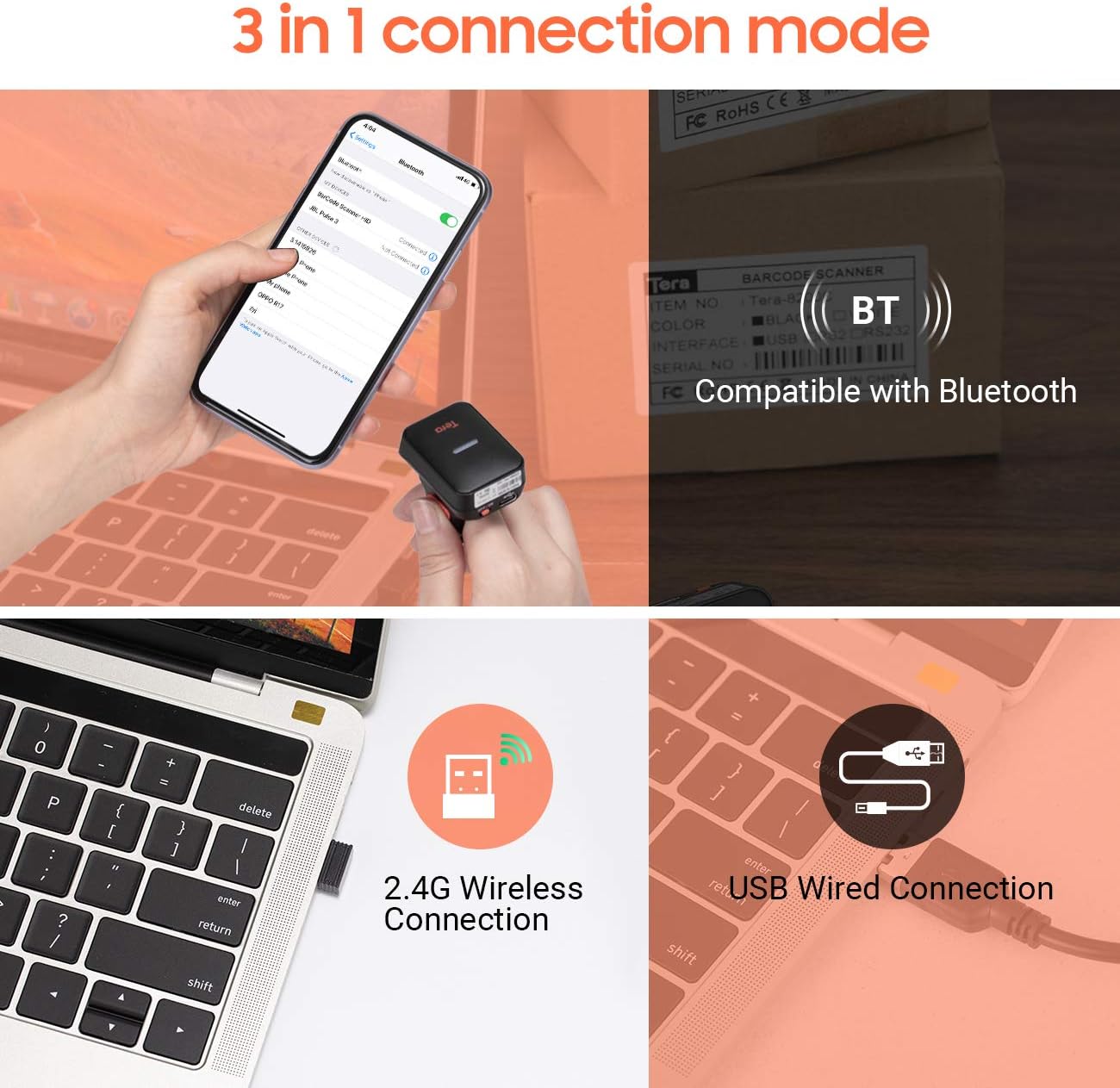
Image: Overview of the 3-in-1 connection modes.
- Bluetooth Connection:
To connect via Bluetooth, ensure the scanner is powered on. Scan the Bluetooth pairing barcode (usually found in the full manual or a quick start guide). On your host device (smartphone, tablet, computer), search for Bluetooth devices and select "Tera Barcode Scanner" or similar. The scanner will pair automatically.
- 2.4G Wireless Connection:
Insert the 2.4G USB dongle into an available USB port on your computer or laptop. Power on the scanner. The scanner should automatically connect to the dongle. If not, scan the "Pair 2.4G Dongle" barcode (refer to the full manual for specific barcodes).
- USB Wired Connection:
Connect the scanner directly to your computer using the provided USB cable. The scanner will function as a wired scanner and also charge simultaneously. No special drivers are usually required for basic scanning functionality.
Compatible Devices and Systems
The scanner is compatible with a wide range of devices and operating systems, ensuring broad usability.

Image: Compatible devices (PC, laptop, iPad, iPhone) and systems (Windows, iOS, Linux, Android, Mac OS).
- Devices: Laptop, Desktop PC, Smartphone (iPhone, Android), Tablet (iPad).
- Operating Systems: Windows, iOS, Android, Linux, Mac OS.
Operating Instructions
Wearing the Scanner
The scanner is designed to be worn comfortably on your finger, allowing for hands-free operation. Adjust the strap to ensure a snug fit without being too tight.

Image: The Tera ring scanner worn on a finger, demonstrating its ergonomic design.
Scanning Barcodes
To scan a barcode, point the scanner's lens at the barcode and press the scan button. The scanner will emit a light beam to read the code. A successful scan is typically indicated by a vibration (if enabled) and/or an audible beep.

Image: The scanner's capability to read 1D, 2D, and QR codes from various sources.
The scanner can read a wide variety of barcode types, including:
- 1D Barcodes: UPC, EAN, Code128, Code39, Code 39 Full ASCII, Coda bar, Industrial 2/5, Interleaved 2/5, Code 93, MSI, Code11, ISBN, ISSN, GS1, Databar, Code32.
- 2D Barcodes: QR Code, Data Matrix, PDF417, Micro PDF417, MaxiCode, Aztec.
Upload Modes
- Instant Upload Mode: In this mode, scanned barcodes are immediately transmitted to the connected device. This is the default mode and is suitable for real-time data entry.
- Memory Mode: If the scanner is out of range or not connected to a host device, it can store scanned barcodes in its internal 16MB memory. This memory can hold up to 50,000 barcodes. To upload stored data, reconnect the scanner to your device and scan the "Upload Data" barcode (refer to the full manual for specific barcodes).
Vibration Function
The scanner features a vibration function to provide tactile feedback upon a successful scan. This is particularly useful in noisy environments where audio cues might be missed, or in quiet environments where an audible beep is undesirable. You can typically enable or disable this function by scanning specific configuration barcodes (refer to the full manual).
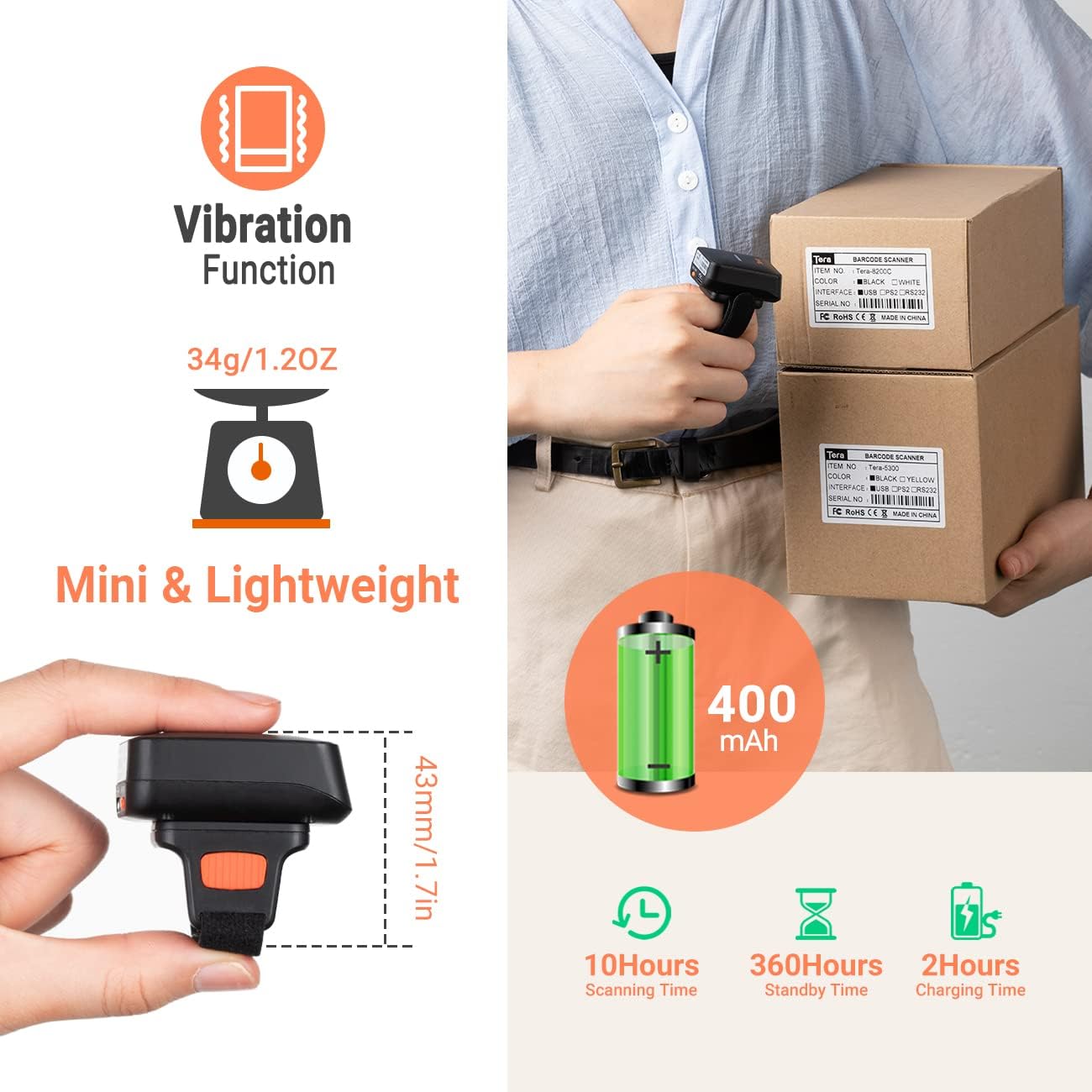
Image: Features including vibration, compact size, and battery life.
Maintenance
Cleaning
Wipe the scanner's exterior with a soft, dry, lint-free cloth. For stubborn dirt, slightly dampen the cloth with water. Do not use harsh chemicals, abrasive cleaners, or solvents, as these can damage the device.
Storage
Store the scanner in a cool, dry place away from direct sunlight and extreme temperatures. If storing for an extended period, ensure the battery is partially charged (around 50%) to prolong its lifespan.
Battery Care
The scanner is equipped with a 400mAh rechargeable battery. To maximize battery life:
- Avoid fully discharging the battery frequently.
- Avoid leaving the scanner connected to power for prolonged periods after it's fully charged.
- Charge the scanner using only the provided USB cable and a compatible 5V/1A (max 5V/1.2A) power source.
Troubleshooting
| Problem | Possible Cause | Solution |
|---|---|---|
| Scanner not connecting via Bluetooth. | Scanner not in pairing mode; device Bluetooth off; interference. | Ensure scanner is in Bluetooth pairing mode (scan appropriate barcode). Turn Bluetooth off/on on host device. Move closer to host device. |
| Scanner not reading barcodes. | Barcode damaged/unreadable; insufficient light; scanner settings. | Ensure barcode is clear and well-lit. Try scanning a different, known-good barcode. Check scanner's configuration settings (refer to full manual). |
| Scanned data not appearing on device. | Not connected; incorrect upload mode; application issue. | Verify connection (Bluetooth, 2.4G, USB). Ensure scanner is in instant upload mode. Check if the receiving application is active and ready for input. |
| Short battery life. | Battery not fully charged; aging battery; high usage. | Ensure full charge before use. Reduce continuous scanning if possible. If battery life significantly degrades, contact support. |
Specifications
| Attribute | Detail |
|---|---|
| Brand | Tera |
| Model Number | HW0010 |
| Color | Orange |
| Connectivity Technology | Bluetooth, 2.4G Wireless, USB |
| Scan Rate | 300 images per second |
| Real View Angle | 45 degrees |
| Compatible Devices | Laptop, Desktop PC, Smartphone, Tablet |
| Power Source | Rechargeable Battery (400mAh) |
| Internal Memory | 16MB (stores up to 50,000 barcodes) |
| Supported 1D Barcodes | UPC, EAN, Code128, Code39, Code 39 Full ASCII, Coda bar, Industrial 2/5, Interleaved 2/5, Code 93, MSI, Code11, ISBN, ISSN, GS1, Databar, Code32, etc. |
| Supported 2D Barcodes | QR, Data Matrix, PDF417, Micro PDF417, MaxiCode, Aztec, etc. |
| Product Weight | Approx. 34g / 1.2oz |
| Charging Time | Approx. 2 hours |
| Scanning Time (continuous) | Approx. 10 hours |
| Standby Time | Approx. 360 hours |
| Country of Origin | China |
| UPC | 787803926484 |
Warranty and Support
Tera products are designed and manufactured to high-quality standards. For warranty information and technical support, please refer to the official Tera website or contact their customer service directly. Keep your purchase receipt as proof of purchase for warranty claims.

Image: Tera Customer Support.
For further assistance, please visit the Tera Brand Store on Amazon or consult the comprehensive user manual available on the manufacturer's website.
Ask a question about this manual
Ask about setup, troubleshooting, compatibility, parts, safety, or missing instructions. Manuals+ will review the question and use this page’s manual context to help answer it.