
Introduction
This instruction manual provides detailed information on the setup, operation, and maintenance of your HCDZ RM-SUXLP6R replacement remote control. This remote is designed to be compatible with various JVC Micro Component Stereo Systems, including models UX-G357, UX-G377, CA-UXG377, UX-G377E, UX-G377EN, UX-G377EV, UX-G377UT, UX-LP55W, and UX-LP55B.
Please read this manual thoroughly to ensure proper use and to maximize the lifespan of your remote control.
Package Contents
- 1 x HCDZ RM-SUXLP6R Replacement Remote Control
Note: Batteries and instructions are not included in the package. This manual serves as the instruction guide.
Setup
1. Battery Installation
The remote control requires one CR2025 battery (not included). To install the battery:
- Locate the battery compartment on the back of the remote control.
- Open the battery compartment cover.
- Insert one CR2025 battery, ensuring the positive (+) terminal is facing upwards as indicated inside the compartment.
- Close the battery compartment cover securely.
Important Battery Information:
- Do not use a new battery with an old one.
- If the remote will not be used for an extended period, remove the batteries to prevent leakage and corrosion.
2. Initial Use
This replacement remote control requires no programming. Once new batteries are correctly installed, it will function immediately with your compatible JVC Micro Component Stereo System.
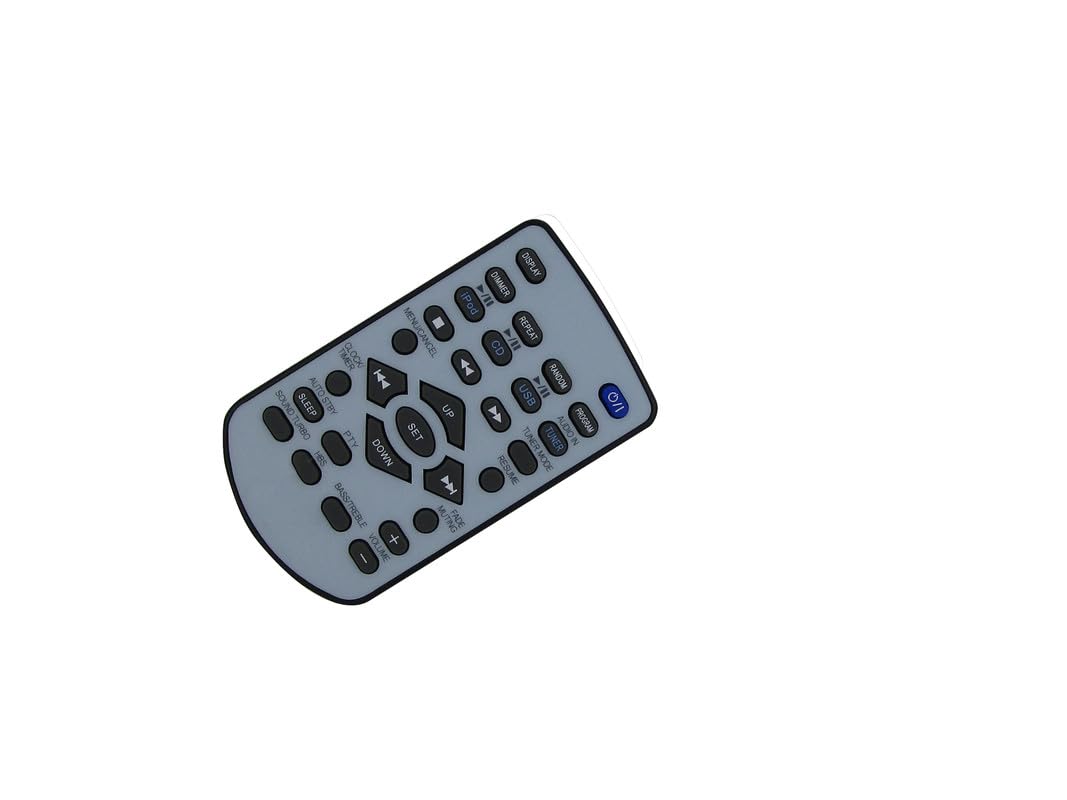
An image showing the HCDZ replacement remote control. The remote is light grey with black buttons, featuring controls for power, display, dimmer, iPod, CD, USB, audio input, tuner, menu, navigation, volume, and various audio functions.
Operating Instructions
Button Functions
The following table outlines the primary functions of the buttons on your remote control:
| Button | Function |
|---|---|
| 0/1 (Power) | Turns the stereo system on or off. |
| DISPLAY | Changes the information displayed on the unit's screen. |
| DIMMER | Adjusts the brightness of the unit's display. |
| iPod | Selects the iPod input source. |
| CD | Selects the CD input source. |
| USB | Selects the USB input source. |
| AUDIO IN | Selects the Audio In input source. |
| TUNER | Selects the Tuner (radio) input source. |
| MENU/CANCEL | Accesses or exits menu options; cancels current operation. |
| UP / DOWN / LEFT / RIGHT | Navigates through menus or tracks/stations. |
| SET | Confirms a selection in menus. |
| REPEAT | Repeats the current track or album. |
| RANDOM | Plays tracks in a random order. |
| PROGRAM | Enters program mode for creating custom playlists. |
| TUNER MODE | Switches between FM/AM bands or tuning modes. |
| RESUME | Resumes playback from the last stopped point. |
| CLOCK/TIMER | Accesses clock settings or timer functions. |
| AUTO STBY | Activates or deactivates auto standby function. |
| SLEEP | Sets a sleep timer for the unit to turn off automatically. |
| PTY | Program Type search for radio stations. |
| SOUND TURBO | Activates or deactivates the Sound Turbo audio enhancement. |
| HBS | Activates or deactivates Hyper Bass Sound. |
| BASS/TREBLE | Adjusts bass and treble levels. |
| VOLUME + / - | Increases or decreases the volume level. |
| FADE MUTING | Mutes the audio output. |
Basic Operation
- Power On/Off: Press the 0/1 button to turn the stereo system on or off.
- Source Selection: Press the dedicated source buttons (e.g., CD, USB, TUNER) to switch between input sources.
- Volume Adjustment: Use the VOLUME + or VOLUME - buttons to adjust the sound level.
- Navigation: Use the UP, DOWN, LEFT, RIGHT, and SET buttons to navigate menus and make selections.
Maintenance and Care
To ensure the longevity and proper functioning of your remote control, please follow these guidelines:
- Environment: Do not leave the remote control in an extremely hot or humid place. High temperatures or moisture can damage the internal components.
- Sunlight Exposure: Do not expose the remote sensor to direct sunlight or strong lighting apparatuses. This may cause a malfunction or reduce the remote's effective range.
- Battery Storage: If you do not plan to use the remote control for an extended period, remove the batteries to avoid potential damage from battery leakage and corrosion.
- Cleaning: Wipe the remote control with a soft, dry cloth. Do not use abrasive cleaners or solvents.
Troubleshooting
If you experience issues with your remote control, consider the following:
- Remote Not Responding:
- Check if the battery is inserted correctly with the correct polarity.
- Replace the battery with a new CR2025 battery.
- Ensure there are no obstructions between the remote control and the stereo system's sensor.
- Confirm the remote is pointed directly at the stereo system's sensor.
- Limited Range:
- Replace the battery. A weak battery can reduce the remote's effective range.
- Ensure no strong light sources (like direct sunlight) are interfering with the remote's infrared signal.
- Specific Functions Not Working:
- Verify that the stereo system is in the correct input mode for the function you are trying to use (e.g., CD functions only work when the CD source is selected).
- Some functions may be specific to certain models or require the original unit's menu to be accessed first.
Specifications
| Feature | Detail |
|---|---|
| Brand | HCDZ |
| Model Number | RM-SUXLP6R |
| Connectivity Technology | Infrared (IR) |
| Compatible Devices | JVC Micro Component Stereo Systems (UX-G357, UX-G377, CA-UXG377, UX-G377E, UX-G377EN, UX-G377EV, UX-G377UT, UX-LP55W, UX-LP55B) |
| Max Number of Supported Devices | 1 |
| Controller Type | Button Control |
| Maximum Range | 8 Meters |
| Battery Type | CR2025 (Lithium) |
| Number of Batteries Required | 1 |
| Special Feature | No programming needed, works out of package |
Warranty and Support
Warranty: This HCDZ replacement remote control comes with a 90-day warranty from the date of purchase. This warranty covers manufacturing defects under normal use.
Support: For any issues not covered in this manual or for warranty claims, please contact the seller or retailer from whom you purchased the product. Provide your purchase details and a clear description of the issue for assistance.