
1. Introduction
This manual provides detailed instructions for the Walfront HBV-W202012HD USB Camera Module. This compact camera module is designed for various applications requiring high-definition imaging and broad system compatibility. Please read this manual thoroughly before using the product to ensure proper setup and operation.

Image 1.1: Close-up view of the Walfront HBV-W202012HD USB Camera Module, showing its compact design and lens.
2. Product Features
The Walfront HBV-W202012HD USB Camera Module offers a range of features for versatile use:
- High-Definition Imaging: Equipped with a 1-megapixel lens, providing clear 1280x720P resolution.
- Wide Field of View: Features a 50° field of view for broader visual coverage.
- Broad System Compatibility: Supports WinXP, Win7, Win8, Win10, OS X, Linux, and Android operating systems.
- Manual Focus: Allows adjustment of focus according to object distance for optimal clarity.
- OV9726 Photosensitive Chip: Utilizes a high-definition OV9726 chip for enhanced image quality.
- Plug and Play (UVC Protocol): Standard UVC protocol and USB interface ensure easy, driver-free installation.
- OTG Support: Compatible with On-The-Go (OTG) functionality for direct connection to mobile devices.
- IR Supplementary Light Support: Can be connected to an IR supplementary light for improved night vision.
- Versatile Applications: Suitable for QR scanning, face recognition, industrial products, and various DIY projects.

Image 2.1: Visual comparison demonstrating the clarity provided by the 1-megapixel high-definition lens.

Image 2.2: Illustration showing the wider coverage of the 50-degree field of view compared to a normal lens.

Image 2.3: Examples of diverse applications for the camera module, such as license plate recognition, face recognition, and robot vision.
3. Setup
3.1 Package Contents
Before proceeding with the setup, please ensure all components are present in the package:
- 1 x Walfront HBV-W202012HD USB Camera Module
- 1 x USB Cable (approximately 50cm / 19.7in)

Image 3.1: The camera module connected to its USB cable, as typically found in the package.
3.2 Connecting the Camera Module
- Unpack the Module: Carefully remove the camera module and USB cable from its packaging.
- Connect the Cable: Attach the small connector end of the USB cable to the corresponding port on the camera module. Ensure it is securely seated.
- Connect to Device: Plug the standard USB-A end of the cable into an available USB port on your computer (Windows, OS X, Linux) or a compatible Android device with OTG support.
- Driver Installation: The module is UVC compliant and typically does not require manual driver installation. Your operating system should automatically recognize and install the necessary drivers.
- Verification: Open a camera application or software on your device to verify that the camera module is detected and displaying video.
Video 3.1: Demonstration of unboxing and handling the Walfront HBV-W202012HD USB Camera Module and its USB cable.
4. Operation
4.1 Basic Usage
Once connected and recognized by your system, the camera module can be used with various applications:
- Windows: Use the built-in Camera app or third-party webcam software.
- OS X: Use Photo Booth, QuickTime Player, or other compatible applications.
- Linux: Use applications like Cheese, VLC, or other webcam utilities.
- Android (OTG): Requires an OTG-compatible device and a camera app that supports external USB cameras.
4.2 Adjusting Focus
The HBV-W202012HD features manual focus. To adjust the focus:
- Point the camera module at the desired object or scene.
- Gently rotate the lens ring on the camera module until the image appears clear and sharp on your display.
- Adjust as needed for different distances.

Image 4.1: The camera module illustrating its field of view, which can be optimized through manual focus adjustment.
4.3 IR Supplementary Light (Optional)
For low-light or night vision applications, the module supports an external IR supplementary light. Connect the IR light to the designated pins on the camera module's PCB. Refer to the module's pinout diagram for correct connection. This will enhance image clarity in dark environments.
5. Maintenance
To ensure the longevity and optimal performance of your camera module, follow these maintenance guidelines:
- Cleaning: Gently wipe the lens with a soft, lint-free cloth. For stubborn smudges, use a lens cleaning solution specifically designed for optical surfaces. Avoid abrasive materials or harsh chemicals.
- Storage: Store the camera module in a cool, dry place away from direct sunlight and extreme temperatures. If not in use for extended periods, consider storing it in an anti-static bag.
- Handling: Handle the module by its edges to avoid touching the lens or the electronic components on the PCB. Static electricity can damage sensitive electronics.
- Moisture: Keep the module away from water and high humidity. Moisture can cause internal damage and corrosion.
6. Troubleshooting
If you encounter issues with your Walfront HBV-W202012HD USB Camera Module, refer to the following common problems and solutions:
| Problem | Possible Cause | Solution |
|---|---|---|
| Camera not detected / No image |
|
|
| Image is blurry |
|
|
| Poor image quality in low light |
|
|
| Android device not recognizing camera |
|
|
7. Specifications
Technical specifications for the Walfront HBV-W202012HD USB Camera Module:
| Feature | Detail |
|---|---|
| Model | HBV-W202012HD |
| Resolution | 1 Megapixel (1280x720P) |
| Photo Sensor | OV9726 (1/6 inch) |
| Field of View (FOV) | 50° |
| Focal Length | 3.2 mm (Maximum) |
| Focus Type | Manual Focus |
| Connectivity | USB 2.0 |
| Protocol | UVC (USB Video Class) |
| Compatibility | WinXP, Win7, Win8, Win10, OS X, Linux, Android (with OTG) |
| Special Features | IR Supplementary Light Support |
| Video Capture Format | MJPG |
| Cable Length | Approx. 50 cm (19.7 in) |
| Weight | Approx. 0.352 ounces |
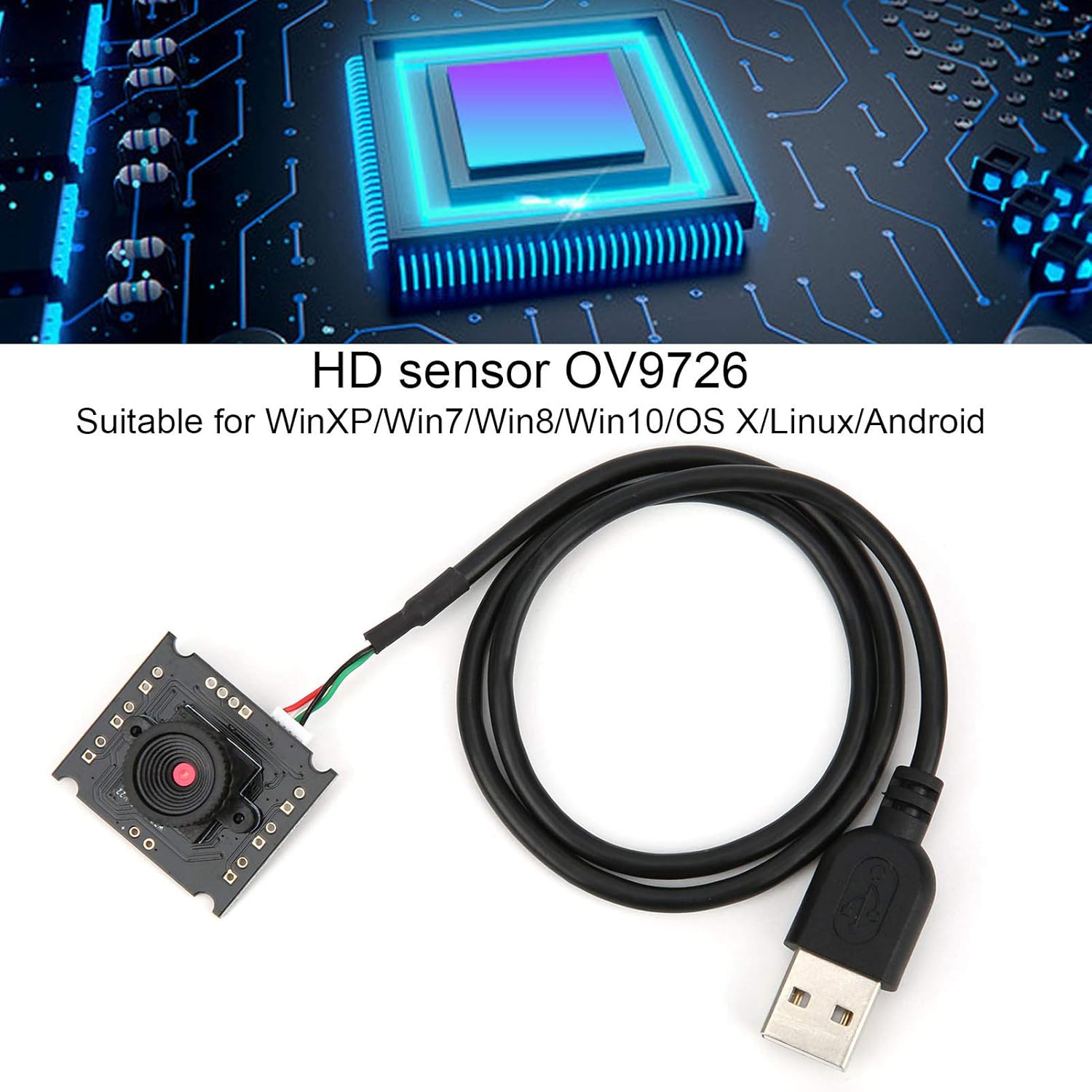
Image 7.1: Illustration highlighting the OV9726 HD sensor and broad operating system compatibility.
8. Warranty and Support
Walfront products are manufactured to high-quality standards. For specific warranty information, please refer to the documentation included with your purchase or contact your retailer. For technical support or inquiries, please reach out to Walfront customer service through their official channels.
