
1. Introduction
This manual provides detailed instructions for the operation and maintenance of your KONNWEI KW850 OBD2 Scanner and KW206 Car HUD Gauge. The KW850 is a professional vehicle diagnostic tool designed to read and clear engine fault codes, perform various system tests, and monitor battery status. The KW206 is an all-in-one OBD2 HUD that displays real-time engine parameters and offers safety driving alarms. Please read this manual thoroughly before using the devices to ensure proper and safe operation.
2. Safety Information
- Always perform automotive testing in a well-ventilated area.
- Wear eye protection and protective clothing when working on vehicles.
- Keep the devices dry and away from extreme temperatures.
- Do not attempt to disassemble or modify the devices.
- Ensure the vehicle's ignition is off before connecting or disconnecting the OBD2 connector, unless instructed otherwise for specific tests.
3. Package Contents
- KONNWEI KW850 OBD2 Scanner
- KONNWEI KW206 Car HUD Gauge
- OBD2 Connection Cable (for KW850)
- USB Cable (for KW850 updates)
- Battery Clamp Cable (for KW850 battery test)
- User Manuals
- Protective Carrying Bag

Figure 3.1: KONNWEI KW850 OBD2 Scanner and KW206 Car HUD Gauge.
4. Device Overview
4.1. KONNWEI KW850 OBD2 Scanner
The KW850 features a color screen and a user-friendly interface with dedicated buttons for navigation and function selection.
- Display Screen: Shows diagnostic data, menus, and test results.
- ESC Button: Exits current screen or cancels an operation.
- ENTER Button: Confirms a selection or enters a menu.
- OK Button: Confirms a selection.
- Directional Buttons (Up/Down/Left/Right): Navigates through menus and options.
- I/M Readiness Button: Quick access to I/M Readiness status.
- 'i' (Information) Button: Provides helpful information or definitions.
- OBD2 Connector: Connects to the vehicle's OBD2 port.

Figure 4.1: KONNWEI KW850 OBD2 Scanner with key features highlighted.
4.2. KONNWEI KW206 Car HUD Gauge
The KW206 is a compact head-up display that connects to your vehicle's OBD2 port to show essential driving information.
- 3.5-inch Color Screen: Displays various real-time parameters.
- OBD2 Connector: Connects to the vehicle's OBD2 port for power and data.
- Mounting Base: Allows for easy placement on the dashboard.

Figure 4.2: KONNWEI KW206 Car HUD Gauge displaying vehicle data.
5. Setup
5.1. Connecting the KW850 OBD2 Scanner
- Locate the vehicle's 16-pin Data Link Connector (DLC), usually under the dashboard on the driver's side.
- Ensure the vehicle's ignition is OFF.
- Firmly plug the KW850's OBD2 connector into the vehicle's DLC.
- Turn the ignition to the ON position (engine off or running, depending on the test). The scanner will power on automatically.
5.2. Connecting the KW206 Car HUD Gauge
- Locate the vehicle's 16-pin Data Link Connector (DLC).
- Plug the KW206's OBD2 connector into the vehicle's DLC.
- Mount the KW206 on your dashboard using the provided base, ensuring it does not obstruct your view.
- Turn the ignition to the ON position. The HUD will power on and display data.
6. Operating the KW850 OBD2 Scanner
6.1. Basic Navigation
Use the directional buttons to scroll through menu options and the ENTER/OK buttons to make selections. The ESC button returns to the previous screen.
6.2. Reading and Erasing Diagnostic Trouble Codes (DTCs)
- From the Main Menu, select 'Diagnose' and press ENTER.
- Select 'Read Codes' to view current, pending, or permanent DTCs.
- To clear codes, select 'Erase Codes' and press ENTER. Follow the on-screen prompts. Note: Erasing codes will turn off the Check Engine Light but will not fix the underlying problem.

Figure 6.1: KW850 displaying the 'Erase DTC' option.
6.3. Live Data Stream
This function displays real-time data from the vehicle's sensors. You can view all items, select specific items, or view them in a graphical format.
- From the Main Menu, select 'Live Data' or 'Diagnose' then 'Data Stream'.
- Choose 'View All Items' for a comprehensive list, 'Select Items' to customize, or 'View Graphic Items' for visual representation.
6.4. I/M Readiness
Checks the readiness of the emission monitoring systems to determine if the vehicle is ready for an emissions test.
- From the Main Menu, select 'Diagnose' then 'I/M Readiness'.
- The screen will display the status of various monitors (e.g., Misfire, Fuel System, O2 Sensor).
6.5. Battery Voltage Waveform
The KW850 can display a real-time graph of the battery voltage, showing current, maximum, and minimum voltage values. This is useful for diagnosing battery and charging system issues.
- From the Main Menu, select 'Waveform' and press ENTER.
- The screen will display a graph of the battery voltage over time, along with numerical values.
- You can start the engine while monitoring to observe voltage drops during cranking and charging voltage once the engine is running.
- The device allows you to save and review waveform data.
7. Operating the KW206 Car HUD Gauge
7.1. Displaying Real-time Parameters
The KW206 displays a wide range of engine parameters on its 3.5-inch color screen, providing immediate feedback on vehicle performance.
- Speedometer: Current vehicle speed.
- RPM: Engine revolutions per minute.
- Coolant Temperature (ECT): Engine coolant temperature.
- Fuel Consumption: Real-time fuel usage.
- Fuel Level: Current fuel tank level.
- Voltage: Battery voltage.

Figure 7.1: KW206 Car HUD Gauge displaying multiple parameters in a vehicle.
7.2. Safety Driving Alarms
The KW206 can be configured to provide audible and visual warnings for various parameters, enhancing driving safety.
- RPM Alarm: Alerts when engine RPM exceeds a set limit.
- VSS Speed Alarm: Warns if vehicle speed surpasses a predefined limit.
- ECT Alarm: Notifies if engine coolant temperature becomes too high.
- Voltage Alarm: Indicates if battery voltage drops below or rises above safe levels.
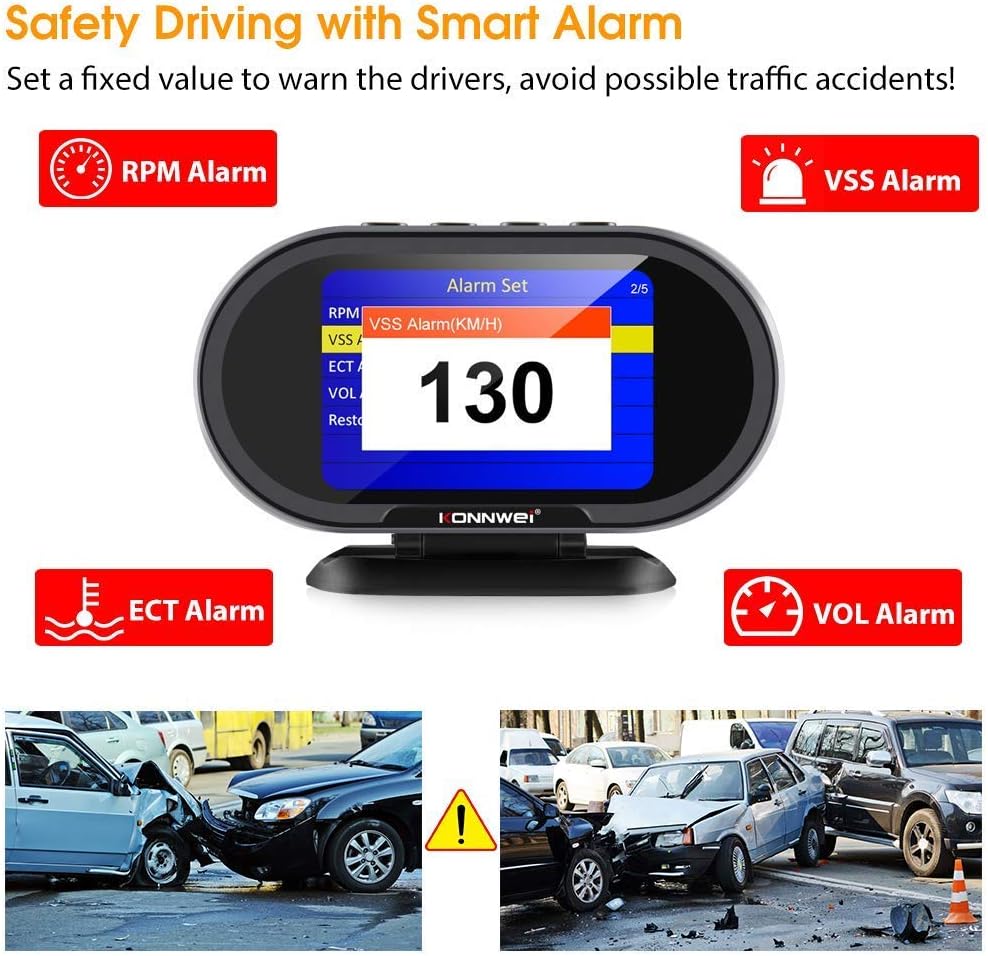
Figure 7.2: KW206 Car HUD Gauge displaying alarm settings.
8. Maintenance
8.1. Software Updates (KW850)
The KW850 scanner supports lifetime free online updates. Visit the KONNWEI official website for the latest software and update instructions.
8.2. General Care
- Clean the device screens with a soft, dry cloth.
- Avoid exposing the devices to direct sunlight for extended periods.
- Store the devices in their protective bag when not in use.
9. Troubleshooting
- Device does not power on: Check the OBD2 connection. Ensure the vehicle's ignition is on. Verify vehicle battery voltage.
- Link Error: Ensure the OBD2 connector is securely plugged in. Verify the vehicle supports the OBD2 protocol. Try on a different vehicle if possible.
- No communication with vehicle: Confirm the vehicle is OBD2 compliant (most vehicles from 1996 onwards). Check for blown fuses in the vehicle's OBD2 circuit.
- Inaccurate readings on KW206: Ensure the KW206 is correctly configured for your vehicle type and units of measure in its settings.
10. Specifications
10.1. KONNWEI KW850 OBD2 Scanner
- Display: Color TFT screen
- Operating Voltage: 9-18V
- Supported Protocols: J1850 PWM, J1850 VPW, ISO9141, KWP2000, CAN
- Functions: Read/Erase DTCs, Live Data, I/M Readiness, Freeze Frame, O2 Sensor Test, On-Board Monitoring, EVAP System Test, Battery Test (Waveform)
10.2. KONNWEI KW206 Car HUD Gauge
- Display: 3.5-inch Color Screen
- Operating Voltage: 9-18V
- Functions: Real-time data display (Speed, RPM, ECT, Fuel, Voltage), DTC Read/Erase, Alarm functions (Speed, RPM, ECT, Voltage)
11. Warranty and Support
KONNWEI products typically come with a manufacturer's warranty. Please refer to the warranty card included in your package or visit the official KONNWEI website for specific warranty terms and conditions. For technical support, troubleshooting assistance, or any inquiries, please contact KONNWEI customer service through their official channels.


