
1. Introduction
The Intelbras FD 1000 Digital Overlay Lock provides a secure and convenient keyless access solution for your property. Designed for ease of use and robust security, this lock eliminates the need for traditional keys by offering multiple digital access options.
Key features include:
- Up to 9 programmable access codes (1 administrator, 4 daily use, 4 temporary visitor codes).
- Intuitive touchscreen keypad.
- Automatic locking mechanism for enhanced security.
- "Protected Password" function to prevent code discovery.
- Battery-powered operation with an average life of one year.
- Suitable for doors with a thickness of 25 mm to 50 mm.
2. Important Safety Instructions
Please read and understand all safety instructions before installing and operating the Intelbras FD 1000 Digital Overlay Lock. Failure to follow these instructions may result in damage to the product, property, or personal injury.
- Do not attempt to disassemble or modify the lock. Unauthorized modifications can compromise security and void the warranty.
- Keep batteries out of reach of children. If swallowed, seek immediate medical attention.
- Use only specified AA alkaline batteries. Do not mix old and new batteries, or different types of batteries.
- Ensure the door is properly aligned and closes smoothly before installation to prevent undue stress on the lock mechanism.
- Avoid exposing the lock to extreme temperatures, direct sunlight for prolonged periods, or excessive moisture.
- Regularly check the battery level and replace batteries promptly when the low battery indicator appears.
- Do not use abrasive cleaners or solvents on the lock's surface.
3. Package Contents
Verify that all components are present before beginning installation:
- 1 x Intelbras FD 1000 Digital Overlay Lock (External Unit and Internal Unit)
- 4 x AA Alkaline Batteries
- Installation Template
- Mounting Hardware (screws, etc.)
- User Manual (this document)
Note: A 9V alkaline battery for contingency power is not included and must be purchased separately if desired.
4. Installation Guide
The Intelbras FD 1000 is an overlay lock designed for doors with a thickness between 25 mm and 50 mm. Proper installation is crucial for the lock's functionality and security. It is recommended to consult a professional for installation if you are not familiar with door hardware installation.
4.1. Preparation
- Check Door Compatibility: Ensure your door's thickness is within the 25-50 mm range.
- Gather Tools: You will need a drill, appropriate drill bits, a screwdriver, and potentially a hole saw for new installations or modifications.
- Review Template: Use the provided installation template to mark drilling points accurately on your door.
4.2. Mounting the Lock
- Prepare the Door: Drill holes as indicated by the installation template. Ensure all edges are smooth.
- Install External Unit: Position the external unit on the outside of the door, aligning it with the drilled holes.
- Install Internal Unit: Connect the internal unit to the external unit, ensuring the cable is properly routed and not pinched. Secure with screws.
- Insert Batteries: Open the battery compartment on the internal unit and insert the 4 AA alkaline batteries, observing polarity.
- Test Functionality: Before closing the door, test the lock mechanism to ensure smooth operation.

Image 4.2.1: Internal unit of the Intelbras FD 1000 Digital Overlay Lock, showing the latch mechanism and manual turn knob. This unit is mounted on the inside of the door.
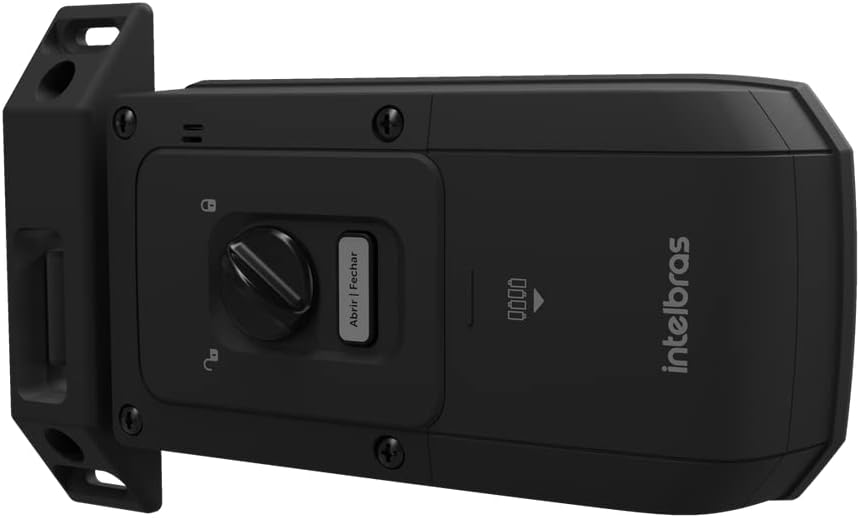
Image 4.2.2: Side view of the Intelbras FD 1000 internal lock unit, illustrating its profile and how it would sit against the door frame. This perspective highlights the depth of the unit.
5. Operation
The Intelbras FD 1000 offers various methods for secure access and management.
5.1. Initial Setup and Administrator Password
- Upon first power-up, the lock will be in initial setup mode.
- Press the * key, then enter your desired 4-12 digit administrator password, and press #.
- Re-enter the administrator password and press # to confirm.
- The lock will emit a confirmation sound, indicating the administrator password is set.

Image 5.1.1: The illuminated touchscreen keypad of the Intelbras FD 1000 Digital Overlay Lock, showing the numeric keys, checkmark, and gear icon. The green padlock indicates the lock is currently open or ready for input.
5.2. Adding User Passwords (Daily Use / Visitor)
The lock supports up to 4 daily use passwords and 4 visitor passwords.
- Press the * key, enter the administrator password, and press #.
- Press 1 for daily use passwords or 2 for visitor passwords.
- Enter the new 4-12 digit user password and press #.
- Re-enter the user password and press # to confirm.
- The lock will confirm the new password.
5.3. Unlocking the Door
- Touch the keypad to activate it.
- Enter a valid 4-12 digit access code.
- Press the # key.
- The lock will unlock, and you can open the door.
5.4. Protected Password Function
To prevent others from guessing your password by observing your finger movements, you can enter random numbers before or after your actual password. For example, if your password is "1234", you can enter "567123489" and the lock will still recognize "1234" as the correct code.
5.5. Automatic Locking
The Intelbras FD 1000 features an automatic locking mechanism. After the door is closed, the lock will automatically engage the bolt after a short delay, ensuring your door is always secured.
6. Maintenance
6.1. Battery Replacement
The lock is powered by 4 AA alkaline batteries, providing approximately one year of use (based on 10 accesses per day). When the battery level is low, the lock will provide an audible and/or visual indicator.
- Locate the battery compartment on the internal unit.
- Remove the cover.
- Remove the old batteries and dispose of them responsibly.
- Insert 4 new AA alkaline batteries, ensuring correct polarity (+/-).
- Replace the battery compartment cover.
6.2. Contingency Power
In case of complete battery depletion, the lock can be temporarily powered using a 9V alkaline battery (not included). Locate the 9V battery terminals on the external unit, connect the battery, and then enter your access code to unlock the door.
6.3. Cleaning
Clean the lock's surface with a soft, dry cloth. For stubborn marks, a slightly damp cloth with mild soap can be used, followed by drying. Avoid using abrasive materials, harsh chemicals, or solvents, as these can damage the finish and electronic components.
7. Troubleshooting
| Problem | Possible Cause | Solution |
|---|---|---|
| Lock does not respond to keypad input. | Dead batteries. | Replace all 4 AA alkaline batteries. Use a 9V contingency battery if needed. |
| Access code not working. | Incorrect code entered; code not properly registered; lock in error state. | Ensure the correct code is entered. Re-register the code if necessary. Try resetting the lock (refer to advanced settings in full manual). |
| Automatic locking not engaging. | Door not fully closed; sensor obstruction; setting disabled. | Check door alignment and ensure it closes completely. Clean any debris around the latch. Verify automatic locking is enabled in settings. |
| Keypad is unresponsive or slow. | Low battery; environmental factors (extreme cold/heat). | Replace batteries. Ensure the lock is within its operating temperature range (-10 to 55 °C). |
8. Technical Specifications
- Model: FD 1000
- Brand: Intelbras
- Part Number: 36596
- Power Supply: 6 Vdc (4 x AA alkaline batteries, included)
- Contingency Power: 9 Vdc (1 x alkaline battery, not included)
- Operating Temperature: -10 °C to 55 °C
- Authentication Type: Numeric password
- Maximum Password Capacity: 9 (4 to 12 digits)
- Estimated Battery Life: 1 year (based on 10 daily accesses)
- Door Thickness Compatibility: 25 mm to 50 mm
- External Unit Dimensions (W x H x D): 70 mm x 178 mm x 28 mm
- Internal Unit Dimensions (W x H x D): 166.3 mm x 89 mm x 38.6 mm
- Impact Resistance: 300 kgf
- Materials: Polycarbonate, Aluminum, Zinc, ABS
- Humidity: 0 to 95% (non-condensing)
- Special Features: Alarm
- Color: Black
9. Warranty and Support
For warranty information, technical assistance, or further support, please refer to the official Intelbras website or contact their customer service department. Keep your purchase receipt as proof of purchase for warranty claims.
Intelbras Official Website: www.intelbras.com.br
Please note that warranty terms and conditions may vary by region and product. Always consult the most current information provided by the manufacturer.


