
Introduction
This manual provides detailed instructions for the installation, operation, and maintenance of your Cable Matters ATX 24 Pin Motherboard Cable and 6 Pin to 8 Pin PCIe Adapter Power Cables. Please read this manual thoroughly before use to ensure proper and safe operation.
Product Overview
This package includes two types of power cables designed for internal computer component connections:
ATX 24 Pin Motherboard Cable (12 Inches)

Image: The 12-inch ATX 24 Pin Motherboard Cable, used to extend the main power connection from a power supply to a motherboard.
This cable extends the connection between an existing power supply and the 24-pin ATX power connector on a motherboard. It is typically used in larger cases or for improved cable management.
PCIe 6 Pin to 8 Pin Adapter Power Cables (4 Inches, 2-Pack)
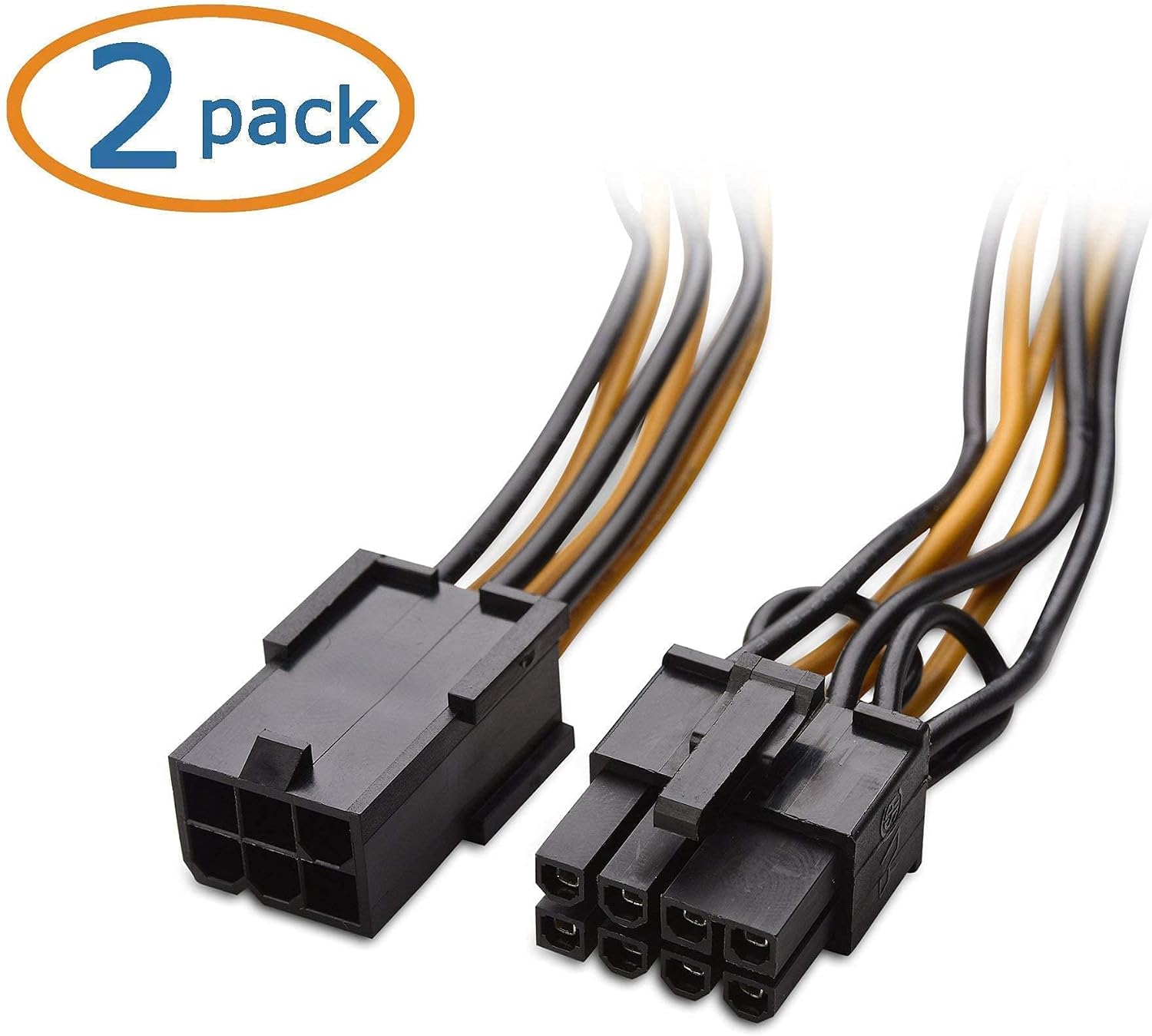
Image: Two 4-inch PCIe 6 Pin to 8 Pin Adapter Power Cables, designed to convert a 6-pin PCIe power connector to an 8-pin PCIe power connector.
These adapter cables convert a 6-pin PCIe power connector from a power supply to an 8-pin PCIe power connector, commonly required by modern graphics cards. This package includes two such adapters.
Setup Instructions
Before beginning any installation, ensure your computer system is completely powered off and unplugged from the wall outlet. It is recommended to wear an anti-static wrist strap to prevent damage to components from static discharge.
1. Installing the ATX 24 Pin Motherboard Cable
- Locate the 24-pin ATX power connector on your motherboard. This is typically the largest power connector on the motherboard.
- Locate the 24-pin ATX power cable coming from your power supply unit (PSU).
- Connect the male end of the ATX 24 Pin Motherboard Cable (the end with pins) to the female connector of your PSU's 24-pin cable. Ensure the latch clicks into place.

Image: Close-up of the male end of the ATX 24-pin cable.
- Connect the female end of the ATX 24 Pin Motherboard Cable (the end with receptacles) to the 24-pin ATX power connector on your motherboard. Apply firm, even pressure until it is fully seated and the latch engages.
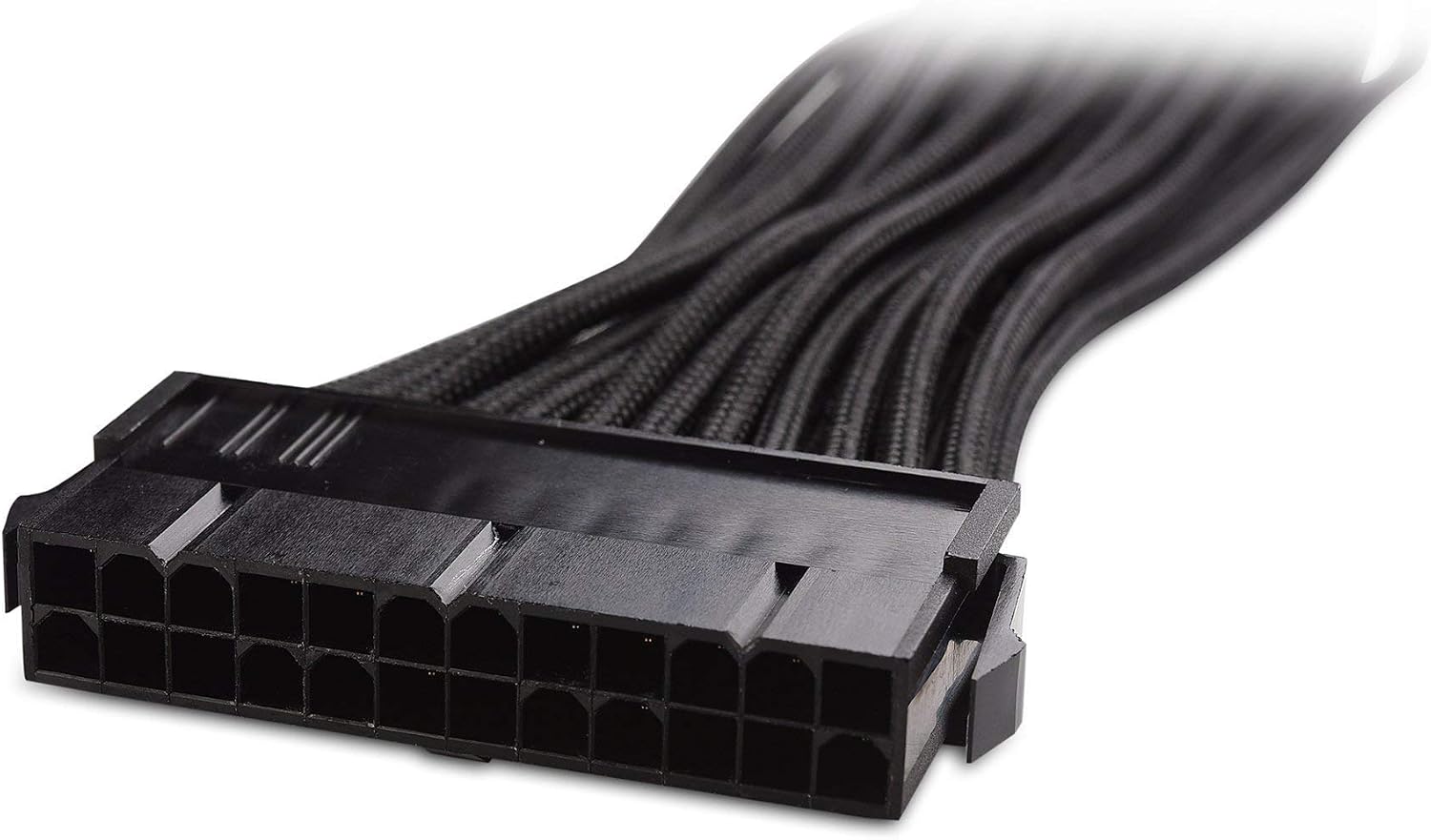
Image: Close-up of the female end of the ATX 24-pin cable.
- Ensure both connections are secure and fully seated.
2. Installing the PCIe 6 Pin to 8 Pin Adapter Power Cables
- Identify the graphics card or other component requiring an 8-pin PCIe power connection.
- Locate an available 6-pin PCIe power cable from your power supply unit (PSU).
- Connect the 6-pin male end of the adapter cable to the 6-pin PCIe power cable from your PSU. Ensure it clicks into place.

Image: Close-up of the 6-pin male end of the PCIe adapter cable.
- Connect the 8-pin female end of the adapter cable to the 8-pin PCIe power input on your graphics card or component. Apply firm, even pressure until it is fully seated and the latch engages.

Image: Close-up of the 8-pin female end of the PCIe adapter cable.
- Ensure all connections are secure. If your graphics card requires multiple 8-pin connections, use additional adapter cables as needed.
Operation
Once all cables are securely connected as described in the "Setup Instructions" section, you can power on your computer system. The cables will facilitate the necessary power delivery to your motherboard and graphics card (or other PCIe components).
Ensure that your power supply unit (PSU) has sufficient wattage to support all connected components, especially high-power graphics cards, to prevent system instability or damage.
Maintenance
These cables require minimal maintenance. Follow these guidelines to ensure their longevity and proper function:
- Regular Inspection: Periodically inspect the cables for any signs of wear, fraying, or damage, especially near the connectors.
- Cleanliness: Keep the cables and connectors free from dust and debris. Use compressed air or a soft, dry cloth to clean them. Ensure the system is powered off and unplugged before cleaning.
- Proper Handling: Avoid bending the cables sharply or putting excessive strain on the connectors. Always grasp the connector housing when plugging or unplugging, not the cable itself.
- Cable Management: Proper cable management within your computer case can prevent cables from being pinched or damaged by other components, and improve airflow.
Troubleshooting
If you encounter issues after installing the cables, consider the following troubleshooting steps:
- No Power to Motherboard/System:
- Ensure the 24-pin ATX cable from the PSU is securely connected to the ATX 24 Pin Motherboard Cable.
- Ensure the ATX 24 Pin Motherboard Cable is securely connected to the motherboard's 24-pin header.
- Verify that your power supply unit is functioning correctly and is switched on.
- Graphics Card Not Detected or No Display:
- Confirm that the 6-pin PCIe cable from the PSU is fully inserted into the adapter cable.
- Confirm that the 8-pin end of the adapter cable is fully inserted into the graphics card's power input.
- Ensure your PSU has enough wattage to power your graphics card. Some high-end cards require significant power.
- Check if the graphics card requires multiple PCIe power connections and if all are properly connected.
- Loose Connections:
Power off and unplug the system. Carefully disconnect and reconnect all cables, ensuring each latch clicks into place and connections are firm. A loose connection is a common cause of power delivery issues.
- Component Damage:
If issues persist, and you have ruled out cable connection problems, the issue may lie with the power supply, motherboard, or graphics card itself. Consult the manuals for those components or seek professional assistance.
Specifications
| Brand | Cable Matters |
| Color | Black |
| Compatible Devices | Motherboards, Graphics Cards, and other PCIe components |
| Cable 1 Type | ATX 24 Pin Motherboard Extension Cable |
| Cable 1 Length | 12 Inches (approx. 30 cm) |
| Cable 2 Type | PCIe 6 Pin to 8 Pin Adapter Power Cable (2-Pack) |
| Cable 2 Length | 4 Inches (approx. 10 cm) |
| Number of Connectors | Total 3 cables (1x 24-pin ATX, 2x 6-pin to 8-pin PCIe) |
Warranty and Support
For specific warranty information and technical support, please refer to the official Cable Matters website or contact their customer service directly. Keep your purchase receipt as proof of purchase.
Manufacturer: Cable Matters
Website: www.cablematters.com (Note: This is a general link, please verify the exact support page on the manufacturer's official site.)