
Introduction
The Amazon Fire TV Stick 4K Max is a powerful streaming device designed to transform your television into a smart entertainment hub. It offers vibrant 4K Ultra HD streaming, supports next-generation Wi-Fi 6 for smoother performance, and comes with an Alexa Voice Remote for intuitive control. This manual provides essential information for setting up, operating, and maintaining your device.
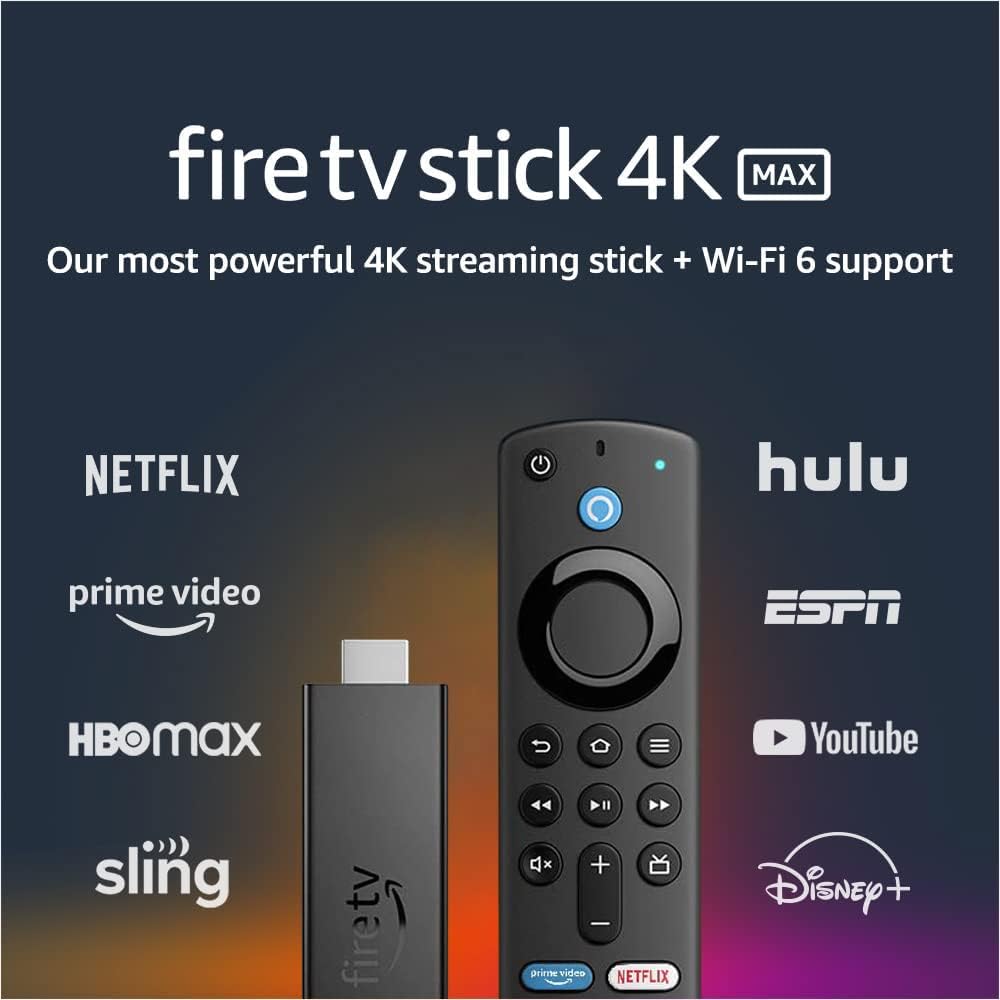
Image: The Fire TV Stick 4K Max and its Alexa Voice Remote, surrounded by logos of popular streaming services like Netflix, Prime Video, Hulu, and Disney+.
What's in the Box
Verify that all components are present in your package:
- Fire TV Stick 4K Max
- Alexa Voice Remote (3rd Gen)
- USB cable and power adapter
- HDMI extender cable for Fire TV Stick 4K Max
- 2 AAA batteries
- Quick Start Guide

Image: A flat lay of all items included in the Fire TV Stick 4K Max package: the Fire TV Stick, Alexa Voice Remote, USB cable, power adapter, HDMI extender, and two AAA batteries.
Setup
- Connect the Fire TV Stick: Plug the Fire TV Stick 4K Max directly into an available HDMI port on your television. If space is limited, use the included HDMI extender cable.
- Power the Device: Connect the USB cable to the Fire TV Stick and the power adapter, then plug the adapter into a wall outlet.
- Insert Batteries into Remote: Open the battery compartment on the back of the Alexa Voice Remote and insert the two included AAA batteries, observing the correct polarity.
- Pair the Remote: Once the Fire TV Stick powers on, follow the on-screen instructions to pair your Alexa Voice Remote. Typically, you press and hold the Home button for about 10 seconds until the remote pairs.
- Connect to Wi-Fi: Select your Wi-Fi network from the list and enter your password. For optimal performance, connect to a Wi-Fi 6 compatible router if available.
- Sign In: Sign in with your Amazon account. If you don't have one, you will be prompted to create one.
- Complete Setup: Follow any remaining on-screen prompts to customize settings, download essential apps, and complete the initial setup.

Image: The Fire TV Stick 4K Max streaming device and its accompanying Alexa Voice Remote, shown side-by-side.
Operating Instructions
Basic Navigation
- Use the circular navigation pad on the Alexa Voice Remote to move through menus and select items.
- The Home button (house icon) returns you to the main Fire TV home screen.
- The Back button (arrow icon) goes back to the previous screen.
- The Menu button (three horizontal lines) provides contextual options.
Performance and Features
The Fire TV Stick 4K Max is designed for powerful and smooth streaming, especially with Wi-Fi 6 networks.

Image: The Alexa Voice Remote resting on a couch, with text emphasizing smoother 4K streaming with next-gen Wi-Fi 6.
Using the Alexa Voice Remote
The Alexa Voice Remote allows for voice commands and direct control of your TV and soundbar.
- Voice Control: Press and hold the Alexa button (blue circle with Alexa logo) and speak your command. You can search for movies, launch apps, check weather, or control smart home devices.
- Preset Buttons: Quickly access popular streaming services like Netflix, Prime Video, Disney+, and Hulu using the dedicated preset buttons.
- TV Controls: Use the Power button to turn your TV on/off and the Volume Up/Down buttons to adjust audio.

Image: The Alexa Voice Remote on a table, with a speech bubble above a TV screen showing the command "Alexa, play 'Obi-Wan Kenobi' on Disney+."
Streaming Content
- Access a vast library of movies and TV episodes from various streaming services. Subscription fees may apply for certain services.
- Enjoy live TV, news, and sports through supported apps.
- The device supports 4K Ultra HD with Dolby Vision, HDR, HDR10+, and immersive Dolby Atmos audio for a cinematic experience.

Image: A collage of logos from various streaming services, including Apple TV, Prime Video, HBO Max, Disney+, and YouTube, indicating the wide range of content available.
Smart Home Integration
- View live camera feeds from compatible smart home cameras directly on your TV using Live View Picture-in-Picture.
- Ask Alexa to control smart home devices like lights or thermostats.

Image: A television screen showing a main video of a person exercising, with a smaller picture-in-picture window displaying a live feed from a front door camera.
Maintenance
- Cleaning: Use a soft, dry, lint-free cloth to clean the device and remote. Do not use liquid cleaners or aerosols.
- Software Updates: The Fire TV Stick 4K Max receives automatic software security updates. Ensure your device is connected to the internet to receive these updates.
- Storage Management: The device has 8 GB of storage. Periodically check and manage your installed apps to free up space if needed, which can improve performance.
- Power Cycle: If you experience issues, try unplugging the power adapter from the wall outlet for a few seconds and then plugging it back in.
Troubleshooting
| Issue | Possible Solution |
|---|---|
| No power/No display |
|
| Remote not responding |
|
| Buffering or poor streaming quality |
|
| Apps crashing or slow performance |
|
Specifications
| Feature | Detail |
|---|---|
| Device Dimensions (Housing) | 99 mm x 30 mm x 14 mm |
| Device Dimensions (with connector) | 108 mm x 30 mm x 14 mm |
| Device Weight | 48.4 g |
| Processor | Quad-core 1.8GHz MT8696 |
| GPU | IMG GE9215, 750MHz |
| Internal Storage | 8 GB |
| Wi-Fi Connectivity | MT7921LS. Supports 802.11a/b/g/n/ac/ax (Wi-Fi 6) networks. |
| Bluetooth | Bluetooth 5.0 + LE |
| Voice Support | Yes, with Alexa Voice Remote (included) or free Fire TV app |
| IR Device Control | Controls Fire TV Stick 4K Max and certain TV/soundbar functions (power, volume) |
| Cloud Storage | Free for digital content purchased from Amazon |
| Ports | HDMI ARC output, micro USB (power only) |
| Audio Support | Dolby Atmos, 7.1 surround sound, 2-channel stereo, HDMI audio pass through up to 5.1 |
| 4K Support | Requires compatible Ultra HD TV. Services and availability may vary. |
| Content Formats Supported | Video: Dolby Vision, HDR 10, HDR10+, HLG, H.265, H.264, VP9, AV1. Audio: AAC-LC, AC3, eAC3, FLAC, MP3, PCM/Wave, Vorbis, Dolby Atmos. Photo: JPEG, PNG, GIF, BMP. |
| Output Resolution Supported | 2160p, 1080p and 720p up to 60 fps |
| System Requirements | High-definition television with HDMI input, high-speed internet connection via Wi-Fi. Wi-Fi 6 router needed for Wi-Fi 6 support. |
| TV Compatibility | 4K UHD TVs with HDMI (2160p @ 24/25/30/50/60 Hz, HDCP 2.2) or HDTVs with HDMI (1080p or 720p @ 50/60 Hz). |
| Accessibility Features | VoiceView screen reader, closed captioning, Bluetooth headphone support. |
| Software Security Updates | Guaranteed until at least four years after last purchase availability. |
| Remote Dimensions | 38 mm x 142 mm x 16 mm |
| Remote Weight (without batteries) | 43.4 g |
| Remote Batteries | 2 AAA (included) |
| Remote Technology | Bluetooth |
| Remote Compatibility | Fire TV Stick (3rd Gen), Fire TV Stick 4K, Fire TV Stick 4K Max |
Warranty and Support
Your Amazon Fire TV Stick 4K Max comes with a 1-year limited warranty and service. Extended warranty options (2-year and 3-year) are available for purchase separately for U.S. customers.
For detailed warranty terms and conditions, please refer to the official Amazon Fire TV terms of use. For further assistance or technical support, visit the Amazon support website or contact customer service.


