
Binrrio D5
Binrrio 1080P HD Spy Hidden Camera Bracelet User Manual
Model: D5
Product Overview
The Binrrio D5 is a portable, wearable 1080P HD spy camera integrated into a smart bracelet, designed for discreet video and photo recording. It features a built-in 32GB memory, silent operation, and a wide-angle lens, making it suitable for various recording scenarios.
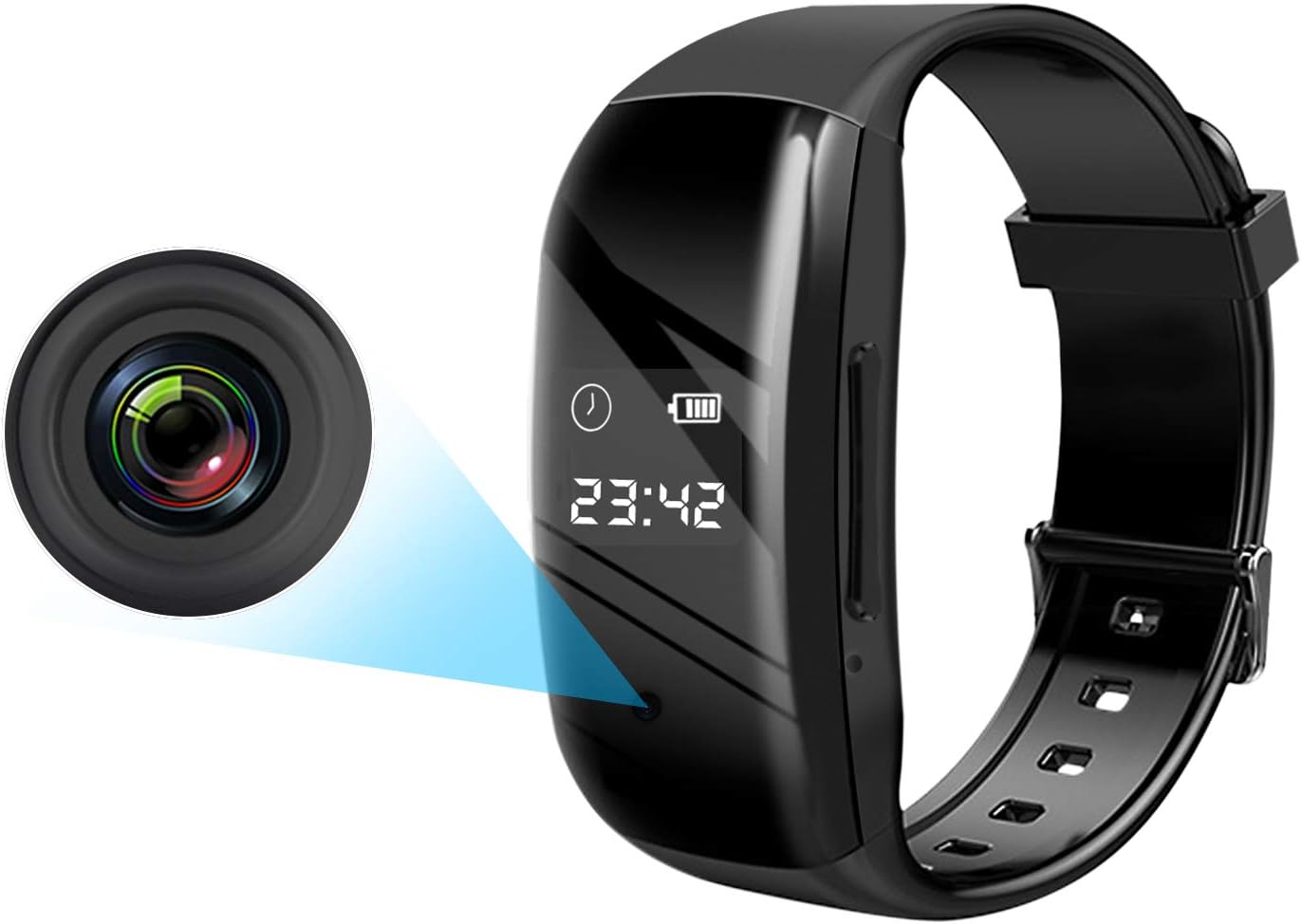
Image: The Binrrio D5 smart bracelet, highlighting the discreetly integrated camera lens on the side. The bracelet also displays time and battery status.

Image: An infographic illustrating key features of the Binrrio D5, including 1080P HD video, wearable design, photo shooting, silent operation, waterproof rating, 8-core noise reduction, automatic save, loop recording, OTG function, and time display.
Important Notes Before Use
- Initial Charging: Please use an adapter to fully charge the camera before its first use.
- Video Playback: For optimal performance, transfer video files to a computer for playback. Direct playback on the device may result in choppy video. Experiment with different video players if issues arise.
- Data Cable Usage: Always use the included data cable for checking video files. Other USB charging cables may not function correctly for data transfer.
- Shooting Stability: To ensure clear image quality, minimize shaking during video recording or photo capture.
- Water Resistance: The device has normal waterproof capabilities. Avoid exposing it to excessive water, such as in bathrooms or swimming pools.
- Low Power Charging: If the device has not been charged for an extended period and has low power, use a charger adapter for charging. Computer charging may not be sufficient in such cases.
Setup
Charging the Device
Connect the included USB data cable to the charging port on the bracelet and the other end to a USB power adapter or a computer's USB port. The device will indicate charging status. A full charge typically takes approximately 2 hours.
Setting the Device Time
The device supports self-synchronization for time. If manual adjustment or formatting is required, back up important files and use the 'TIME UPDATER.exe' software on a computer. Refer to the software instructions for detailed steps. If Method 1 for time setting fails, try Method 2 or contact support.
Operating Instructions
Basic Operation
The portable camcorder features dedicated buttons for power on/off, photo capture, and video recording. Corresponding operation icons (e.g., triangle, circle, camera symbol) will appear on the device display to confirm your action. Files are automatically saved upon power off.
Video Recording
- Ensure the device is adequately charged.
- Press the video recording button to start recording. The device will indicate that recording is in progress.
- Press the video recording button again to stop recording. The video file will be saved automatically.
- The device records 1080p HD video at 30 frames per second.
Photo Shooting
- Ensure the device is adequately charged.
- Press the photo button to capture a still image. The device will indicate that a photo has been taken.
- Photos are saved in JPG format.
Accessing Files (OTG Function & PC Connection)
To view recorded videos and photos, connect the device to a computer or an Android phone with OTG function using the original data cable.

Image: A visual guide demonstrating how to connect the Binrrio D5 bracelet to a laptop via USB and to an Android phone using an OTG adapter for quick file checking. It emphasizes using the original data cable.
- PC Connection: Connect the bracelet to your computer using the provided USB data cable. The device will appear as a removable disk, allowing you to access and transfer files.
- Android Phone (OTG): For Android phones with OTG functionality, connect the bracelet using the original data cable and an appropriate OTG adapter (e.g., Type-C to USB). Your phone's file manager will then allow you to browse the device's storage.
Loop Recording
When the built-in 32GB memory card becomes full, the device will automatically overwrite the oldest files with new recordings, ensuring continuous operation. Back up important files regularly to prevent loss.
Maintenance
- Cleaning: Wipe the device with a soft, dry cloth. Avoid using harsh chemicals or abrasive materials.
- Storage: Store the device in a cool, dry place away from direct sunlight and extreme temperatures.
- Battery Care: To prolong battery life, avoid completely draining the battery frequently. Charge the device regularly, especially if it will be stored for an extended period.
- Data Backup: Regularly back up important video and photo files to a computer or external storage to prevent data loss, especially before formatting the device or when the memory is nearing capacity.
Troubleshooting
| Problem | Possible Cause | Solution |
|---|---|---|
| Device not turning on or recording. | Low battery. | Charge the device fully using the provided adapter. |
| Choppy video playback on computer. | Incompatible video player or computer performance. | Try a different video player software. Ensure your computer meets minimum requirements for HD video playback. |
| Cannot access files on computer/phone. | Incorrect data cable or connection issue. | Ensure you are using the original data cable. For Android, confirm OTG function is enabled and adapter is correct. Reconnect the device. |
| Time setting not working. | Incorrect procedure or software issue. | Ensure 'TIME UPDATER.exe' software is used correctly. Try alternative time setting methods if available, or contact support. |
| Image/video quality is poor. | Device movement during recording, low light, or dirty lens. | Keep the device stable during recording. Ensure adequate lighting. Gently clean the camera lens. |
Specifications
| Feature | Detail |
|---|---|
| Model | D5 |
| Built-in Memory | 32GB |
| Video File Format | AVI |
| Video Resolution | 1920x1080p |
| Video Frame Rate | 30 fps |
| Photo Format | JPG |
| Battery Capacity | 330mAh |
| Battery Type | Built-in Polymer Lithium Battery |
| Voltage | 3.7V |
| Lens Parameter | F/NUMBER 2.25 |
| Field of View (FOV) | 65 degrees (OV9732 SENSOR) |
| Charging Time | Approx. 2 Hours |
| Continuous Video Recording | 2-3 Hours (after full charge) |
| Connectivity | Wired (USB) |
| Compatible Devices | Personal Computer, Smartphone (with OTG) |
Warranty and Support
For warranty information and technical support, please refer to the product packaging or contact Binrrio customer service directly. Ensure you have your product model number (D5) and purchase details available when seeking assistance.

Image: A collage depicting multiple use scenarios for the Binrrio D5 hidden camera, including recording during conferences, documenting theft, capturing car accident details, classroom notes, interviews, and gathering evidence for corruption, violence, or court cases.
Related documentsD5

Ask a question about this manual
Ask about setup, troubleshooting, compatibility, parts, safety, or missing instructions. Manuals+ will review the question and use this page’s manual context to help answer it.