
Globe Electric 50278
Globe Electric Wi-Fi Smart RGB LED Strip Light (Model 50278) Instruction Manual
Model: 50278 | Brand: Globe Electric
Product Overview
The Globe Electric Wi-Fi Smart Multicolor Changing RGB LED Plug-in Strip Light provides customizable lighting for indoor spaces. This 3-meter (9.84 feet) strip light connects via USB and is controlled through the GLOBE SUITE App, voice commands, or an inline switch. It offers a spectrum of colors and shades to enhance your environment.

Image: The Globe Electric Wi-Fi Smart RGB LED Strip Light, illustrating its flexible design and integrated connectors.
Setup Instructions
1. Physical Installation
- Prepare the Surface: Ensure the desired installation surface is clean, dry, and smooth for optimal adhesive performance.
- Attach the Strip Light: Peel the self-adhesive 3M backing from the LED strip light and carefully press it onto your chosen surface. For enhanced adhesion, especially on textured or vertical surfaces, consider using additional double-sided tape or mounting clips (included).
- Connect Sections (if applicable): Use the provided 0.16-meter (0.52-foot) connecting cords to link multiple sections of the strip light or to navigate corners. Ensure secure connections.
- Power Connection: Connect the strip light to the smart controller, then plug the USB cable from the controller into a nearby USB port for power.
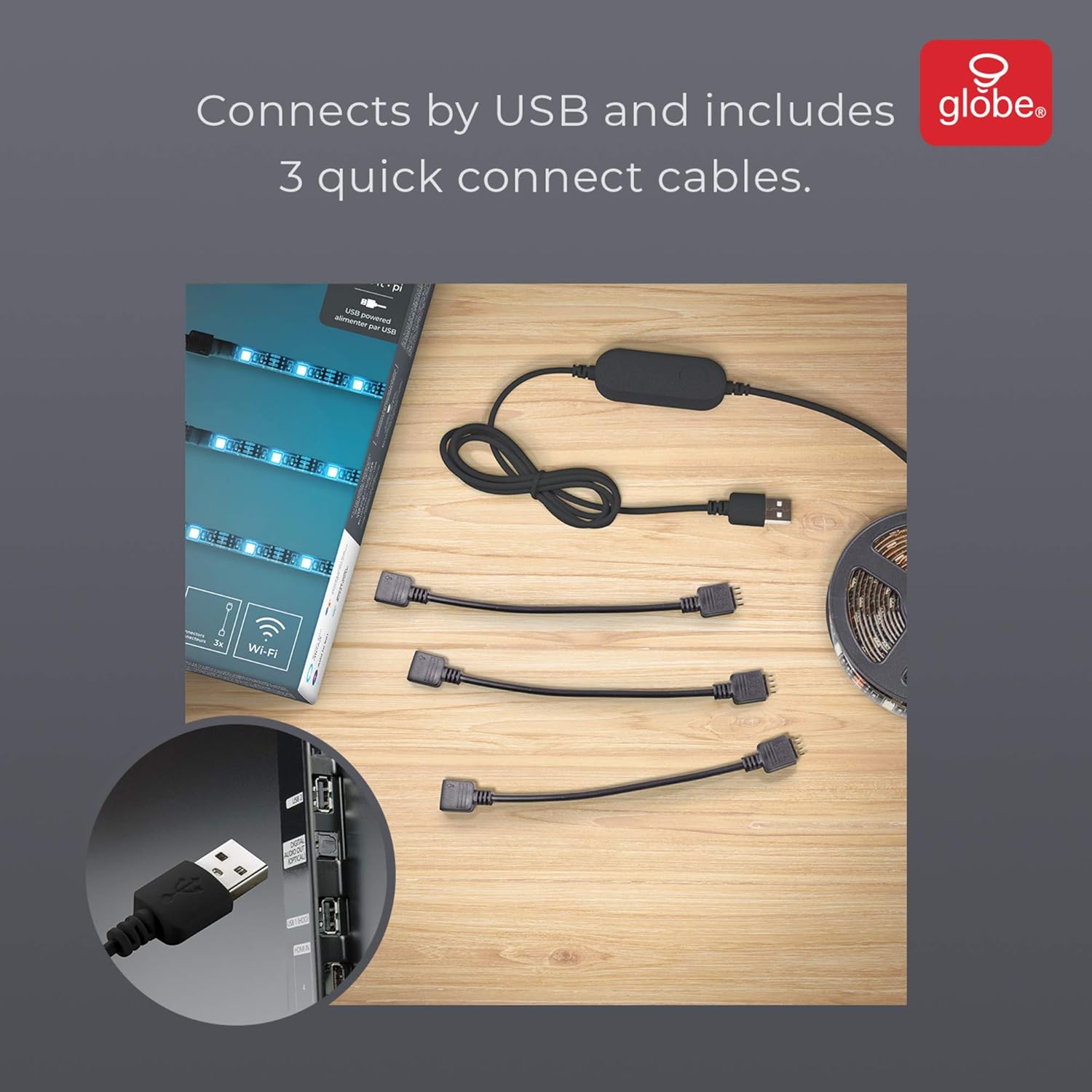
Image: The LED strip light components, showing the USB connector and three quick connect cables for flexible installation.
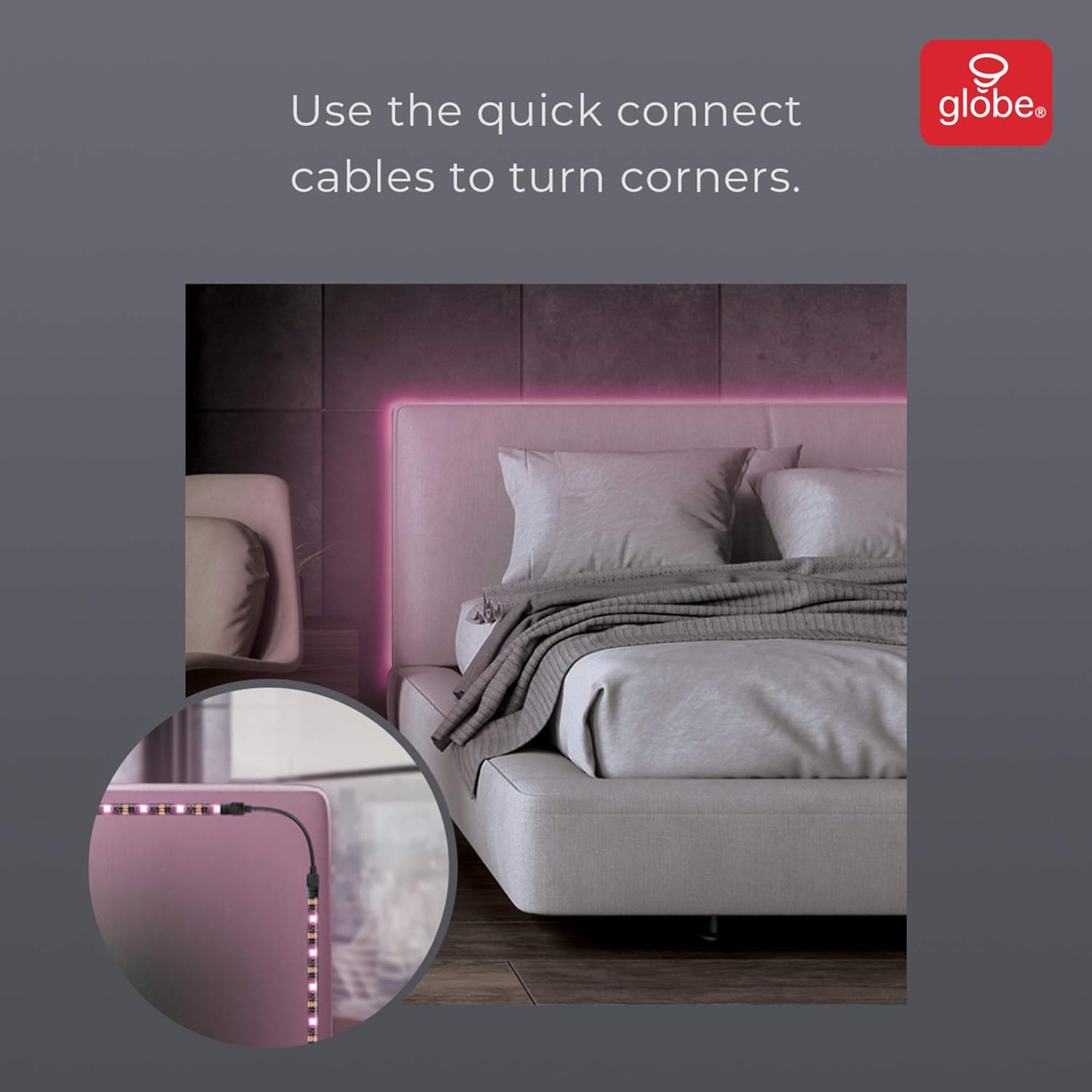
Image: An example of the LED strip light installed around a bed frame corner, demonstrating the use of quick connect cables.
2. App Setup (GLOBE SUITE App)
- Download the App: Download the free GLOBE SUITE App from your smartphone's app store.
- Connect to Wi-Fi: Open the app and follow the on-screen instructions to connect your smartphone to your home Wi-Fi network. Ensure you are connected to a 2.4 GHz network during the initial setup. You may switch back to a 5 GHz connection after the device is synced if preferred.
- Sync Device: Within the GLOBE SUITE App, select the option to add a new smart device and follow the prompts to sync your LED strip light.
Operating Instructions
1. Voice Control
Once synced with the GLOBE SUITE App, you can link your LED strip light to voice assistants such as Google Assistant, Amazon Alexa, or Siri. Use simple voice commands to turn the lights on/off, change colors, or adjust brightness.
2. App Control
The GLOBE SUITE App provides comprehensive control over your LED strip light:
- Color and Brightness Adjustment: Easily select from a wide range of colors and adjust the brightness to your preference from anywhere.
- Custom Scenes: Create and save custom lighting scenes to set the perfect mood for any occasion.
- Schedules: Set schedules for your lights to turn on or off automatically.

Image: A smartphone displaying the app interface for adjusting color and brightness of the LED strip light.
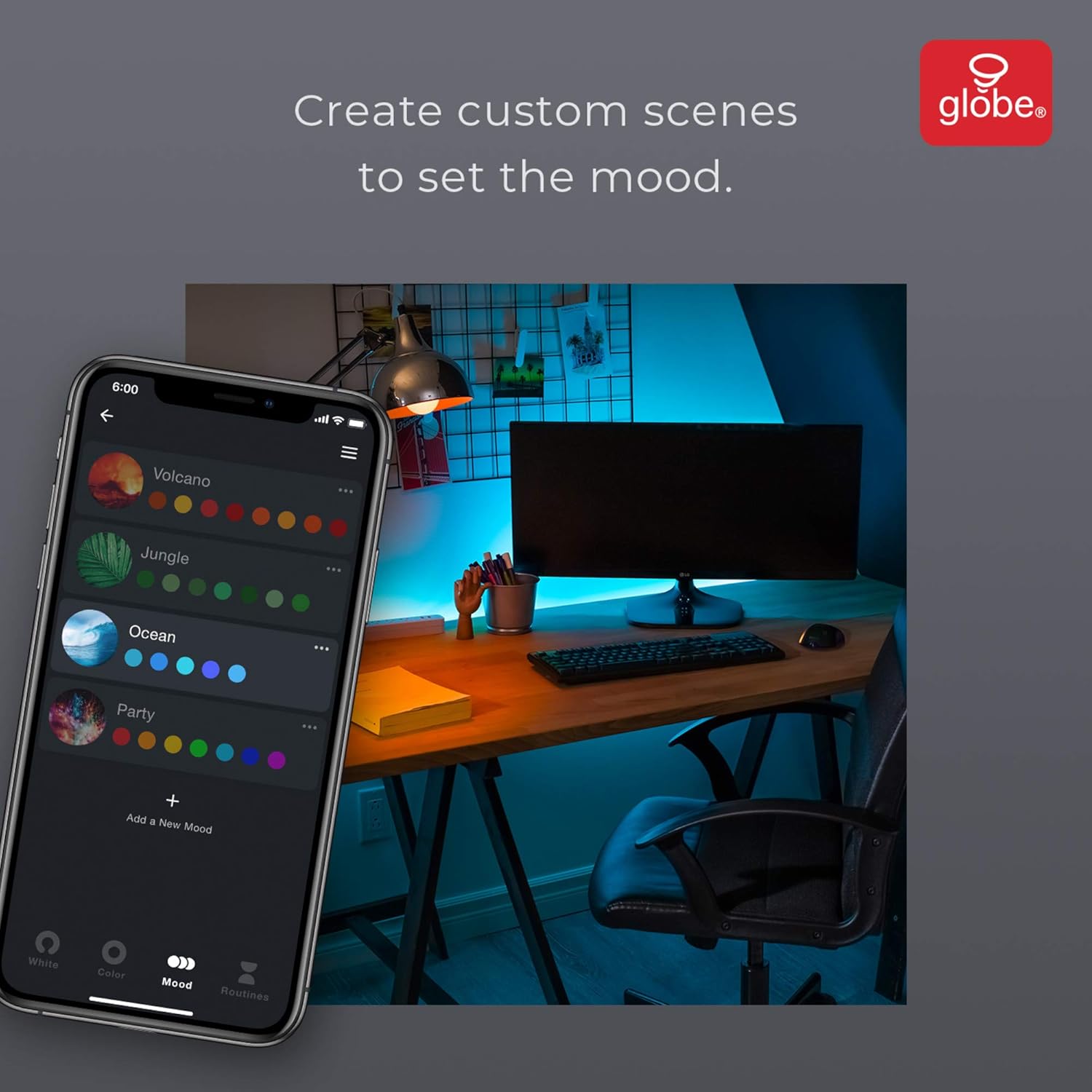
Image: A smartphone displaying the app interface for creating custom lighting scenes.
3. Manual Control
The inline smart controller features buttons for basic control, allowing you to turn the lights on/off and cycle through various colors and modes without using the app or voice commands.
Maintenance
The LED strip light is designed for durability. No specific maintenance is required beyond keeping the strip clean and ensuring connections are secure. For cleaning, gently wipe the strip with a dry, soft cloth. Avoid using harsh chemicals or abrasive materials.
Troubleshooting
- Lights not sticking: The self-adhesive backing may lose effectiveness over time or on certain surfaces. Use additional double-sided tape or mounting clips for a more secure installation.
- Lights not turning on: Ensure the USB cable is securely plugged into a working USB port and the smart controller is properly connected to the LED strip. Check the power source.
- Connectivity issues with App: During initial setup, ensure your smartphone is connected to a 2.4 GHz Wi-Fi network. If issues persist, try restarting the app, your smartphone, and the LED strip light by unplugging and re-plugging it.
Specifications
| Feature | Detail |
|---|---|
| Model Number | 50278 |
| Length | 3 Meters (9.84 Feet) |
| Color | Multicolor (RGB) |
| Power Source | Corded Electric (USB) |
| Voltage | 5 Volts |
| Bulb Type | LED |
| Special Features | Color Changing, Wi-Fi Enabled, Voice Activated, No Hub Required |
| Included Components | LED Strip Light, Smart Controller, USB Cable, Connectors (3), Adhesive Tape, Mounting Brackets (4), Screws (8) |
| Indoor/Outdoor Usage | Indoor Only |
Warranty and Support
This product comes with a 2-year manufacturer's limited warranty. For support, please refer to the contact information provided in the product packaging or visit the official Globe Electric website.
Related Videos
Video: Prisma Light Strip - A demonstration of the LED strip light's features and color changes.
Related documents50278


Ask a question about this manual
Ask about setup, troubleshooting, compatibility, parts, safety, or missing instructions. Manuals+ will review the question and use this page’s manual context to help answer it.