
Introduction
This manual provides essential information for the proper use and care of your ProCase Smart Case. Designed to protect your iPad Air while enhancing its functionality, this case offers a slim profile, robust protection, and versatile viewing options. Please read these instructions carefully to ensure optimal performance and longevity of your product.
Compatibility
The ProCase Smart Case is specifically designed to fit the following iPad Air models:
- iPad Air 11-inch M4 (2026, Models A3460/A3463)
- iPad Air 11-inch M3 (2025, Models A3266/A3267/A3270)
- iPad Air 11-inch M2 (2024, Models A2902/A2903/A2904)
- iPad Air 5th Generation 10.9-inch (2022, Models A2588/A2589/A2591)
- iPad Air 4th Generation 10.9-inch (2020, Models A2072/A2316/A2324/A2325)
Note: This case is NOT compatible with iPad A16/10th Gen (2025/2022) or any other iPad models. To confirm your iPad model number, navigate to Settings > General > About on your device.

Figure 1: Compatibility chart and location of iPad model number.
Key Features
- Slim Protective Hard Back Design: Features a lightweight hard PC back shell combined with a premium PU exterior. This design protects your iPad Air against daily drops, bumps, shocks, and scratches while maintaining a slim, lightweight, and travel-friendly profile.
- Clear Frosted Back: The translucent matte back cover allows the Apple logo to be visible while preventing fingerprints, smudges, and scratches. This design adds style without adding bulk.
- Apple Pencil Support: Built-in magnets support magnetic attachment and wireless charging for Apple Pencil Pro, 2nd Generation, and USB-C Pencil.
- Auto Sleep/Wake Function: The smart magnetic cover automatically wakes your iPad when opened and puts it to sleep when closed, helping to extend battery life.
- Tri-Fold Stand with Two Viewing Angles: The magnetic front cover folds into stable viewing and typing positions, ideal for watching videos, reading, or working.
- Precise Cutouts: Ensures full access to the camera, speakers, ports, and Touch ID without needing to remove the case.
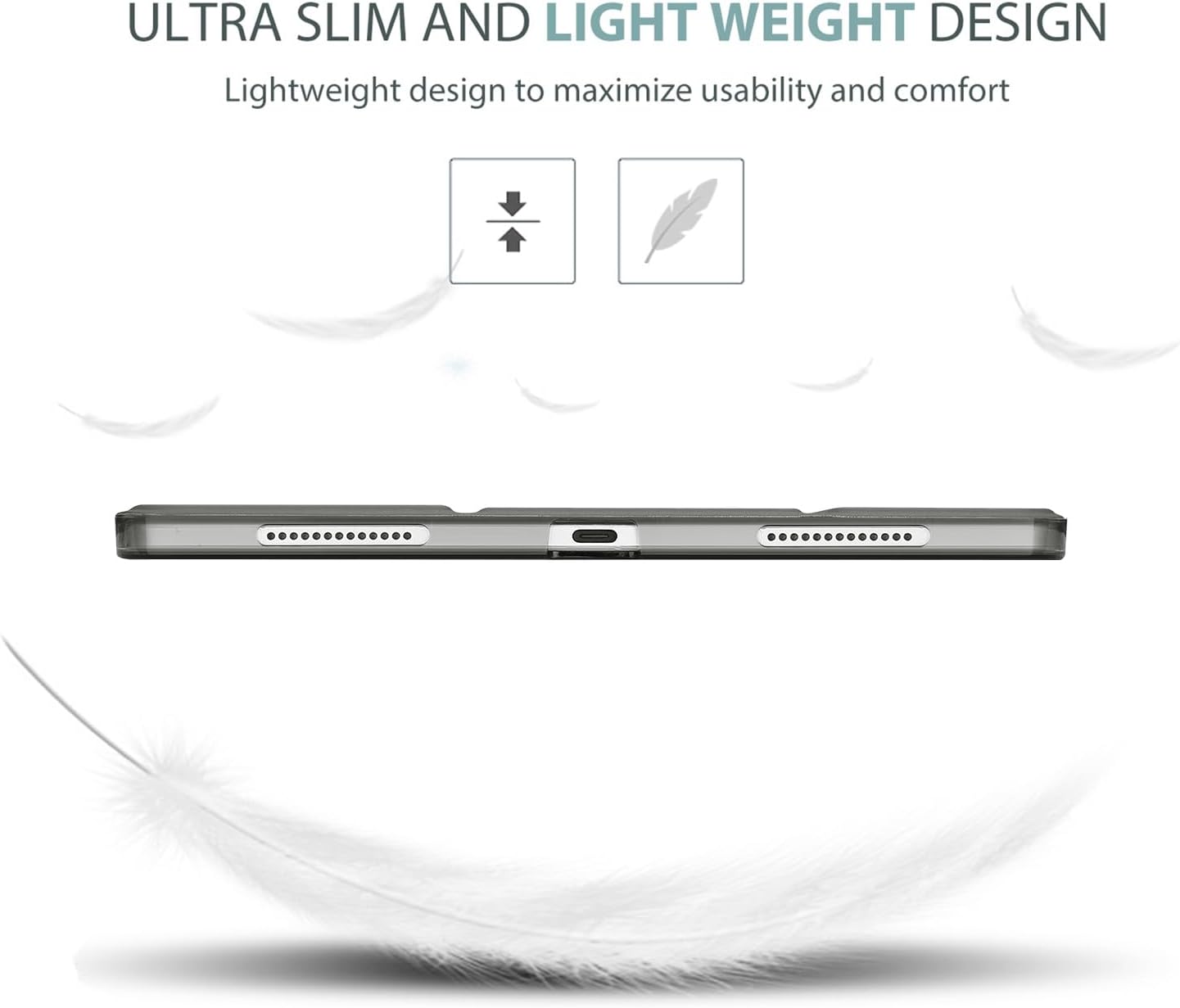
Figure 2: Ultra-slim and lightweight design for enhanced portability.

Figure 3: Translucent cover design showcasing the iPad's original aesthetic while offering protection.
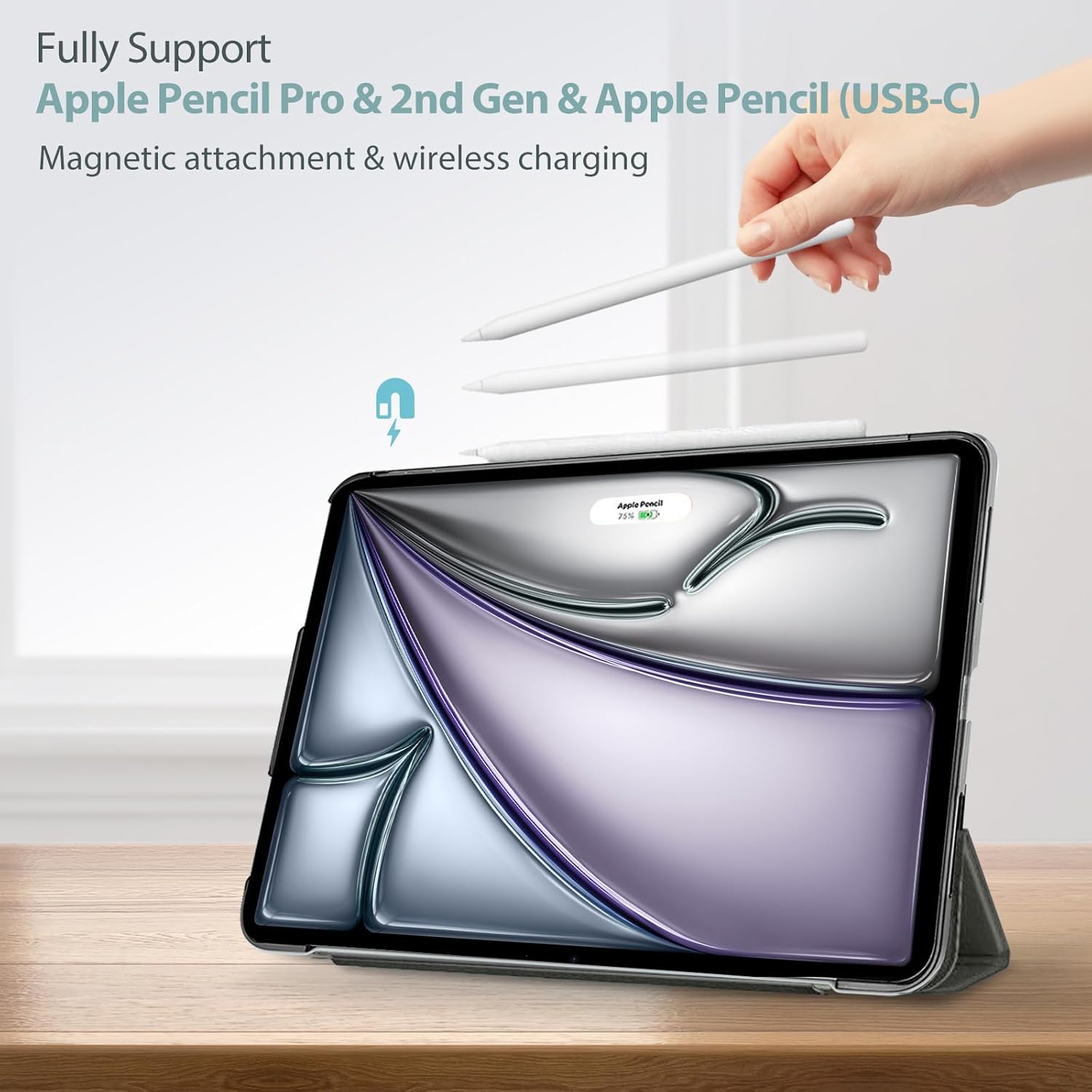
Figure 4: Full support for Apple Pencil magnetic attachment and wireless charging.
Installation Guide
Follow these steps to properly install your iPad Air into the ProCase Smart Case:
- Ensure your iPad Air is clean and free of dust or debris.
- Align the iPad with the hard back shell of the case, making sure the camera cutout and port openings match.
- Gently press the iPad into the case, starting from one corner and working your way around until all edges are securely snapped into place.
- Verify that all buttons, ports, and the camera are accessible and unobstructed.

Figure 5: Precise cutouts ensure full access to all iPad features.
Important Note for Touch ID
If your iPad model features Touch ID, please complete the Touch ID settings and fingerprint registration prior to assembling the case. This ensures proper functionality of the Touch ID sensor once the case is installed.
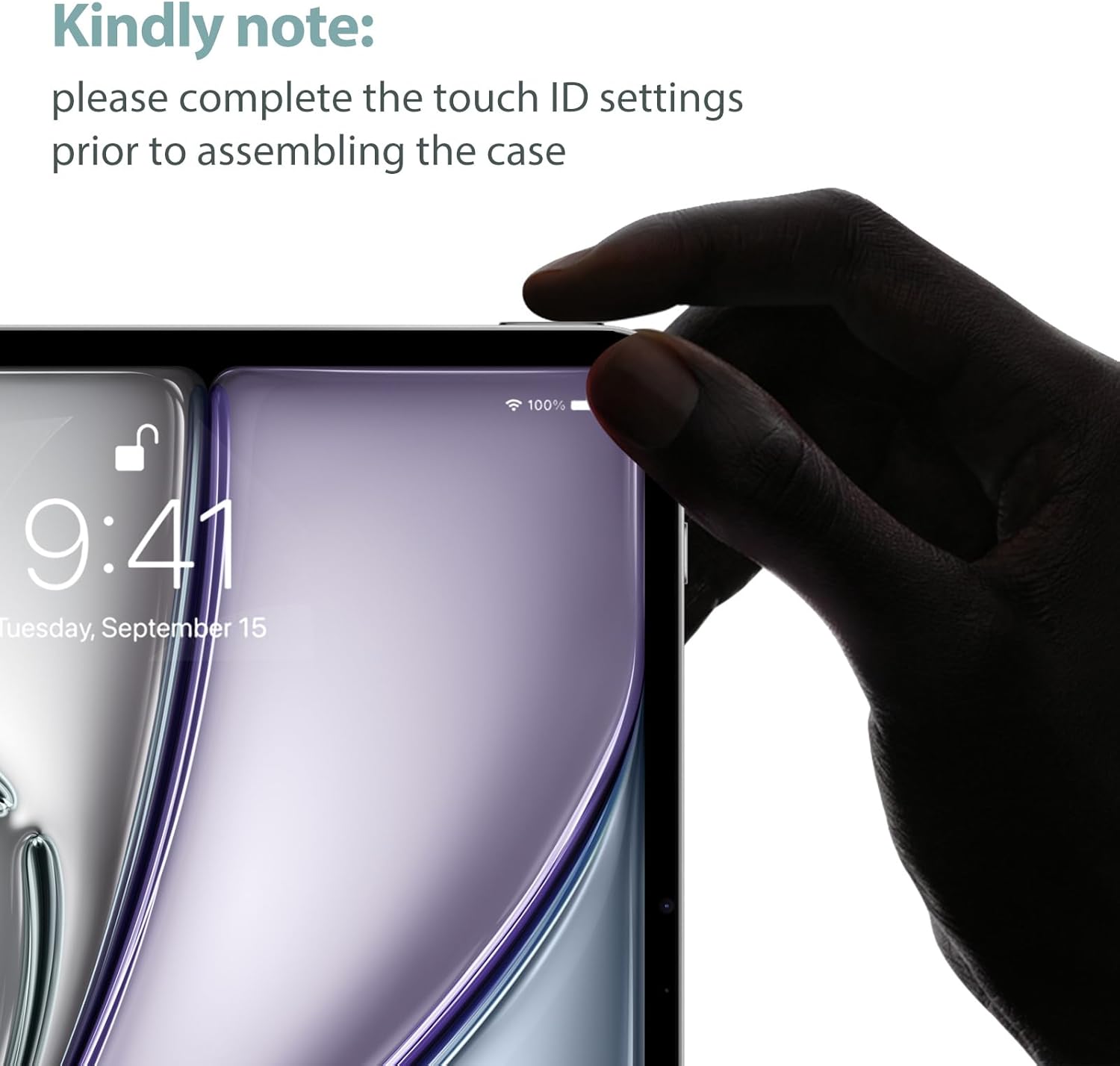
Figure 6: Reminder to set up Touch ID before installing the case.
Operating Instructions
Using the Tri-Fold Stand
The magnetic front cover can be folded into two stable positions to provide different viewing angles:
- Viewing Angle (65°): Fold the front cover into a triangular stand to prop up your iPad for comfortable video watching or presentations.
- Typing Angle (30°): Fold the front cover into a lower triangular stand for an ergonomic typing or drawing experience.

Figure 7: Tri-fold stand offering two stable viewing and typing angles.
Auto Sleep/Wake Function
The case features a magnetic sensor that interacts with your iPad. Simply open the front cover to automatically wake your iPad, and close it to put your iPad to sleep. This feature helps conserve battery power.

Figure 8: Auto Sleep/Wake functionality for convenient power management.
Product Overview Video
Video 1: A comprehensive overview of the ProCase Smart Case, demonstrating its features including anti-scratch properties, translucent back, auto sleep/wake, precise cutouts, Apple Pencil support, and the versatile tri-fold stand for various viewing and typing angles.
Care and Maintenance
To keep your ProCase Smart Case in optimal condition:
- Cleaning: Wipe the exterior with a soft, damp cloth. For stubborn stains, a mild soap solution can be used, followed by wiping with a clean, damp cloth and air drying. Avoid harsh chemicals or abrasive cleaners.
- Avoid Extreme Conditions: Do not expose the case to extreme temperatures, direct sunlight for prolonged periods, or excessive moisture.
- Handle with Care: While the case offers protection, avoid unnecessary drops or impacts to prolong its lifespan.
Troubleshooting
- Case Does Not Fit: Double-check your iPad model number against the compatibility list in this manual (Settings > General > About). Ensure you have the correct case size for your specific iPad Air generation.
- Auto Sleep/Wake Not Working: Verify that the iPad is correctly seated in the case and that the magnetic cover is fully closing. Ensure the 'Lock/Unlock' feature is enabled in your iPad settings (Settings > Display & Brightness > Lock/Unlock).
- Apple Pencil Not Charging/Attaching: Ensure your Apple Pencil is compatible with your iPad model and that the case's magnetic strip is clean and unobstructed. Re-seat the iPad in the case to ensure proper alignment.
- Case Feels Loose: Remove the iPad from the case and re-install it, ensuring all corners and edges snap firmly into place. If the issue persists, verify compatibility.
Product Specifications
| Feature | Detail |
|---|---|
| Brand | ProCase |
| Manufacturer | ProCase |
| Product Dimensions | 9.8 x 7.17 x 0.39 inches |
| Item Weight | 2.8 ounces |
| Color | Grey |
| Form Factor | Case, Cover |
| Shell Type | Hard |
| Special Features | Lightweight, Auto Sleep/Wake, Tri-Fold Stand, Apple Pencil Support |
Warranty and Support
Specific warranty details for the ProCase Smart Case are not provided in the product information. For warranty claims, technical support, or further inquiries, please refer to the official ProCase website or contact their customer service directly. Keep your purchase receipt as proof of purchase.