
Introduction
Thank you for choosing the STOGA MK Mechanical Gaming Keyboard. This manual provides essential information for setting up, operating, and maintaining your new keyboard. Please read it thoroughly to ensure optimal performance and longevity of your device.
Package Contents
- STOGA MK Mechanical Gaming Keyboard
- USB Cable (Type-C to Type-A)
- Keycap Puller Tool
- User Manual
Setup
1. Connecting the Keyboard
- Locate the USB Type-C port on the back of the keyboard.
- Connect the smaller end (Type-C) of the provided USB cable to the keyboard.
- Connect the larger end (Type-A) of the USB cable to an available USB port on your computer (PC, Mac, Gaming Console, or compatible device).
- The keyboard will automatically be recognized by your operating system (Windows, macOS, Linux, Android, iOS) and drivers will install if necessary.
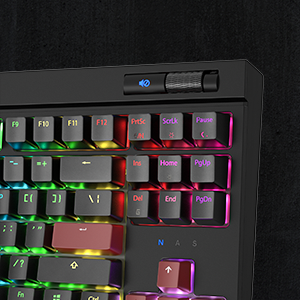
Image: Connecting the detachable USB-C cable to the keyboard. Ensure a secure connection for proper functionality.
2. Adjusting Keyboard Height
The keyboard features adjustable feet on the underside. Flip them out to raise the keyboard to a more ergonomic typing angle, or fold them in for a flatter profile.
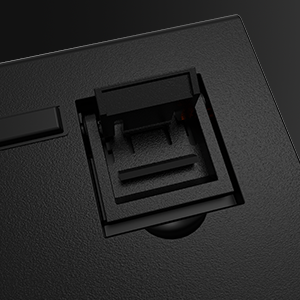
Image: The adjustable feet on the keyboard's underside, allowing users to customize the typing angle.
Operating Instructions
1. LED Backlight Control
The STOGA MK keyboard features dynamic RGB backlighting with multiple modes and customization options. Use the function (Fn) key in combination with other keys to adjust the lighting effects.
- Fn + [Key]: Specific key combinations (refer to keyboard legends or software) control different lighting patterns, brightness, and speed.
- The keyboard offers various preset RGB lighting modes, including static colors and dynamic effects.
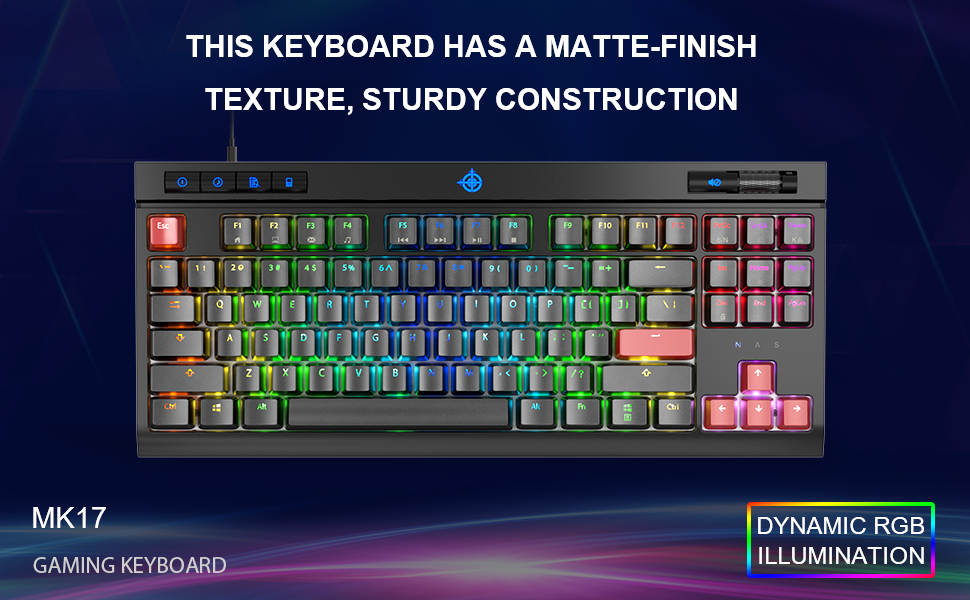
Image: The STOGA MK keyboard showcasing its dynamic RGB lighting effects across the keys.
2. Multimedia Keys and Volume Control
The keyboard is equipped with dedicated multimedia keys and an adjustable volume control wheel for convenient access to audio and system functions.
- Dedicated buttons for functions such as sleep, search, and calculator are located on the top left.
- An adjustable volume control wheel is positioned on the top right for quick audio adjustments.

Image: Close-up view of the dedicated multimedia keys on the top left of the keyboard.
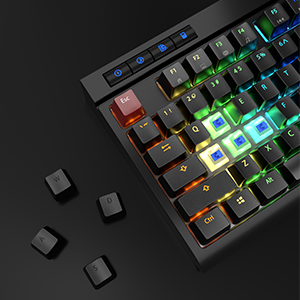
Image: The adjustable volume control wheel located on the top right of the keyboard.
3. Anti-Ghosting Keys
The STOGA MK keyboard features 100% anti-ghosting keys, ensuring that every keypress is registered accurately, even during rapid and simultaneous inputs common in gaming.
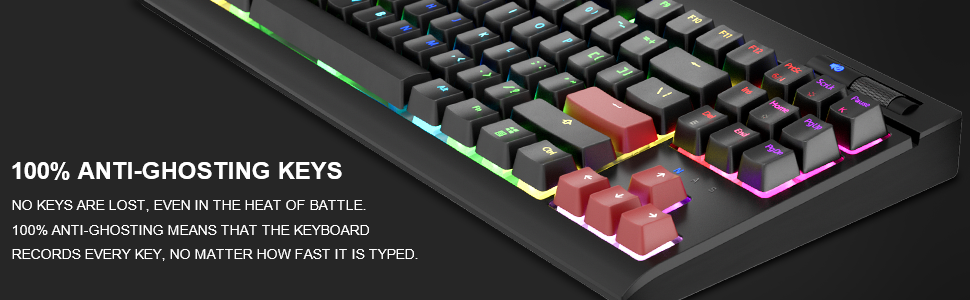
Image: Illustration emphasizing the 100% anti-ghosting capability of the keyboard keys.
Maintenance
1. Cleaning the Keyboard
To maintain the performance and appearance of your keyboard, regular cleaning is recommended.
- Disconnect the keyboard from your computer before cleaning.
- Use a soft, dry cloth to wipe down the surface of the keyboard.
- For deeper cleaning, use the provided keycap puller tool to carefully remove keycaps. Gently pull the keycap straight up.
- Once keycaps are removed, use compressed air to clear debris from beneath the keys. Wipe the keycaps with a damp cloth and allow them to dry completely before reattaching.
- Ensure all keycaps are securely reattached before reconnecting the keyboard.
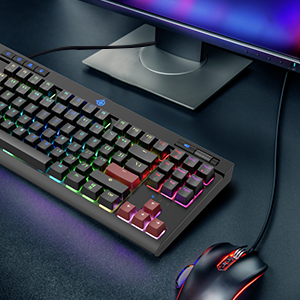
Image: The included keycap puller tool being used to remove a keycap, revealing the blue mechanical switch underneath.
Troubleshooting
| Problem | Solution |
|---|---|
| Keyboard is not responding. |
|
| LED backlights are not working or are dim. |
|
| Certain keys are not registering. |
|
Specifications
- Model: MK
- Keys: 87 Keys
- Switch Type: Blue Switches (Clicky)
- Connectivity: Wired (USB)
- Backlighting: RGB (Rainbow Backlit)
- Hardware Platform: PC, Smartphone
- Operating System Compatibility: Windows, macOS, Linux, Android, iOS
- Item Weight: 2.68 pounds
- Product Dimensions (LxWxH): 14.17 x 6.37 x 0.98 inches
- Special Features: Multimedia Keys, Volume Control Wheel, 100% Anti-Ghosting
Official Product Video
Video: An official product video from STOGA showcasing the features and design of the STOGA Gaming Keyboard. This video highlights the keyboard's aesthetics and functionality.
Warranty and Support
For warranty information, technical support, or further assistance, please refer to the official STOGA website or contact their customer service directly. Keep your purchase receipt for warranty claims.
STOGA Official Store: Visit the STOGA Store on Amazon


