
1. Introduction
This manual provides detailed instructions for the installation, operation, and maintenance of your XTRONS 1DIN Android 14 Car Navigation System, Model DX121L. Please read this manual thoroughly before using the product to ensure proper functionality and safety.
2. Product Overview
The XTRONS DX121L is an advanced 1DIN car navigation system featuring a 10.1-inch QLED rotatable display, powered by Android 14. It offers robust performance with an 8-core processor, 4GB RAM, and 64GB ROM. Key features include 4G communication, wireless CarPlay, Android Auto, Wi-Fi, USB tethering, and enhanced audio capabilities.
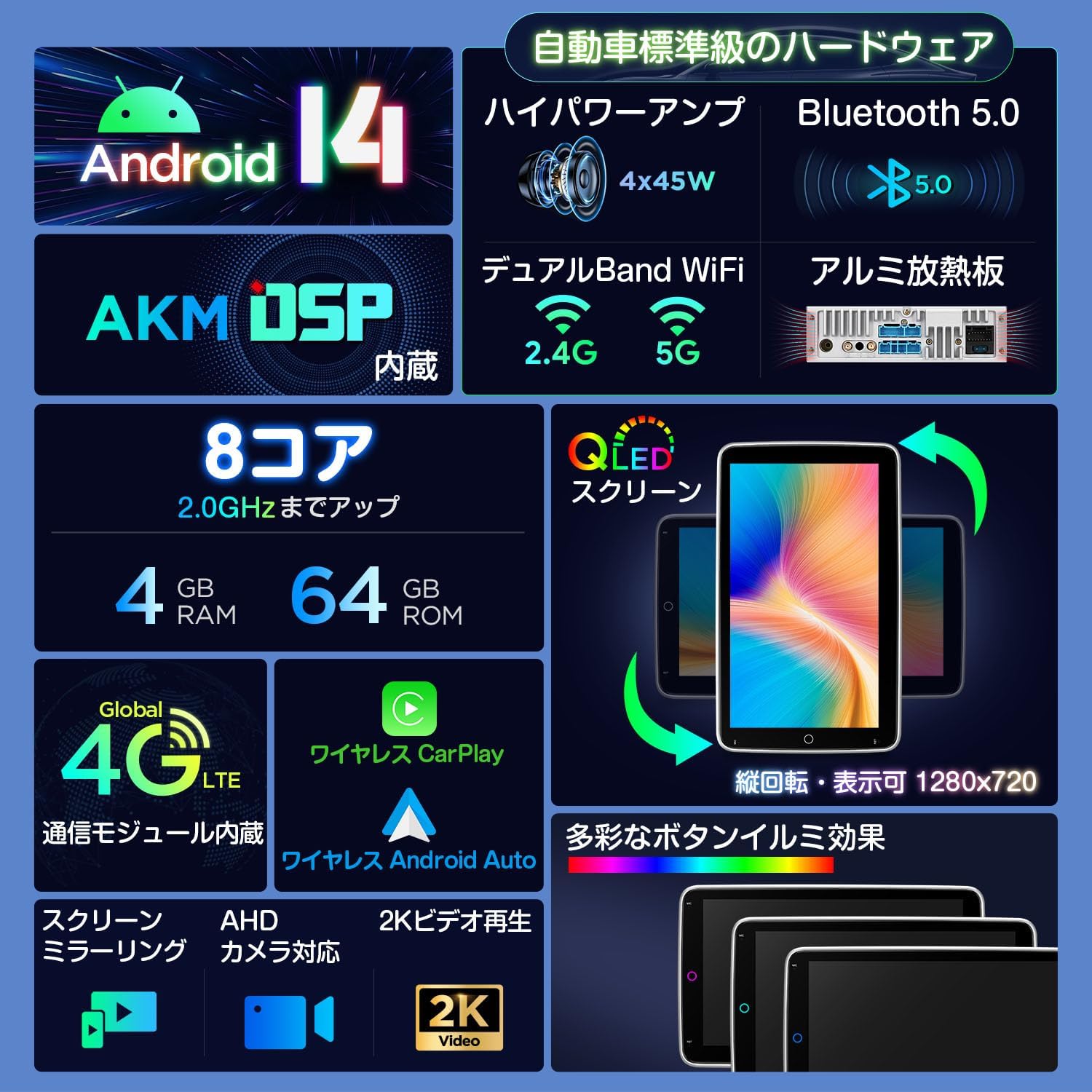
Figure 2.1: Overview of the XTRONS DX121L system features, including Android 14, 8-core processor, 4GB RAM, 64GB ROM, QLED screen, 4G LTE, wireless CarPlay/Android Auto, screen mirroring, AHD camera support, and 2K video playback.
3. Setup and Installation
3.1 Package Contents
Before installation, ensure all components are present:
- 1x ISO Cable
- 1x SIM Card Slot
- 1x 4G Antenna
- 1x WiFi Antenna
- 2x USB Cables
- 1x GPS Antenna
- 2x Mounting Brackets
- 8x Mounting Screws
- 1x External Microphone (3M)
- 1x Camera Cable
- 1x User Manual (English, PDF Japanese manual available for download)

Figure 3.1: Detailed view of all included accessories for the XTRONS DX121L unit.
3.2 Wiring Diagram
Refer to the following diagram for correct wiring connections. Ensure the ACC wire is not powered during installation.

Figure 3.2: Comprehensive wiring diagram illustrating all connection points for the XTRONS DX121L system.
- Radio Antenna Port
- 4G Antenna
- GPS Antenna
- USB Port 1
- USB Port 2
- USB Port 3
- SIM Card Slot
- Video Input
- Audio Output (Front/Right)
- Audio Output (Front/Left)
- Audio Input (Left)
- Audio Input (Right)
- Amp Control
- Subwoofer Output
- DVR Video Input
- External Mic Terminal
- Reverse Signal Wiring
- Bluetooth Antenna
- Brake Signal Wiring
- WiFi Antenna
- Backup Camera Input
- IR Output, JT2HD for touch operation
- Steering Wheel Control KEY1 (5V)
- Reverse Signal Wiring
- Auto Antenna
- Steering Wheel Control KEY2 (5V)
- Illumination
- ISO Power Cable
3.3 Monitor Installation
Follow these 4 steps to attach the monitor. Caution: Do not power on the main unit while attaching the monitor. Ensure the red ACC wire is not energized during attachment.

Figure 3.3: Monitor attachment steps. Connect the cable, pull clips, align, and secure.
4. Operating Instructions
4.1 Android 14 OS and Performance
The DX121L runs on the latest Android 14 operating system, providing a smooth and stable user experience. Its powerful 8-core processor, 4GB RAM, and 64GB ROM ensure quick app launches and seamless video playback.
4.2 Rotatable 10.1-inch QLED Display
The unit features a unique 10.1-inch QLED display that can be rotated to both horizontal and vertical orientations. This allows for optimal viewing angles, which can be further adjusted using the vertical slide and front/back angle adjustment functions. The high-definition 1280x720 QLED screen delivers a cinematic visual experience, with a dark UI background designed to minimize driver distraction.

Figure 4.1: The rotatable monitor allows for both vertical and horizontal display, with adjustable viewing angles.
4.3 CarPlay and Android Auto
The DX121L supports both wireless Apple CarPlay and wireless/wired Android Auto. Connect your iPhone or Android smartphone to access navigation, messages, calls, and music directly on the unit's screen without needing additional accessories.
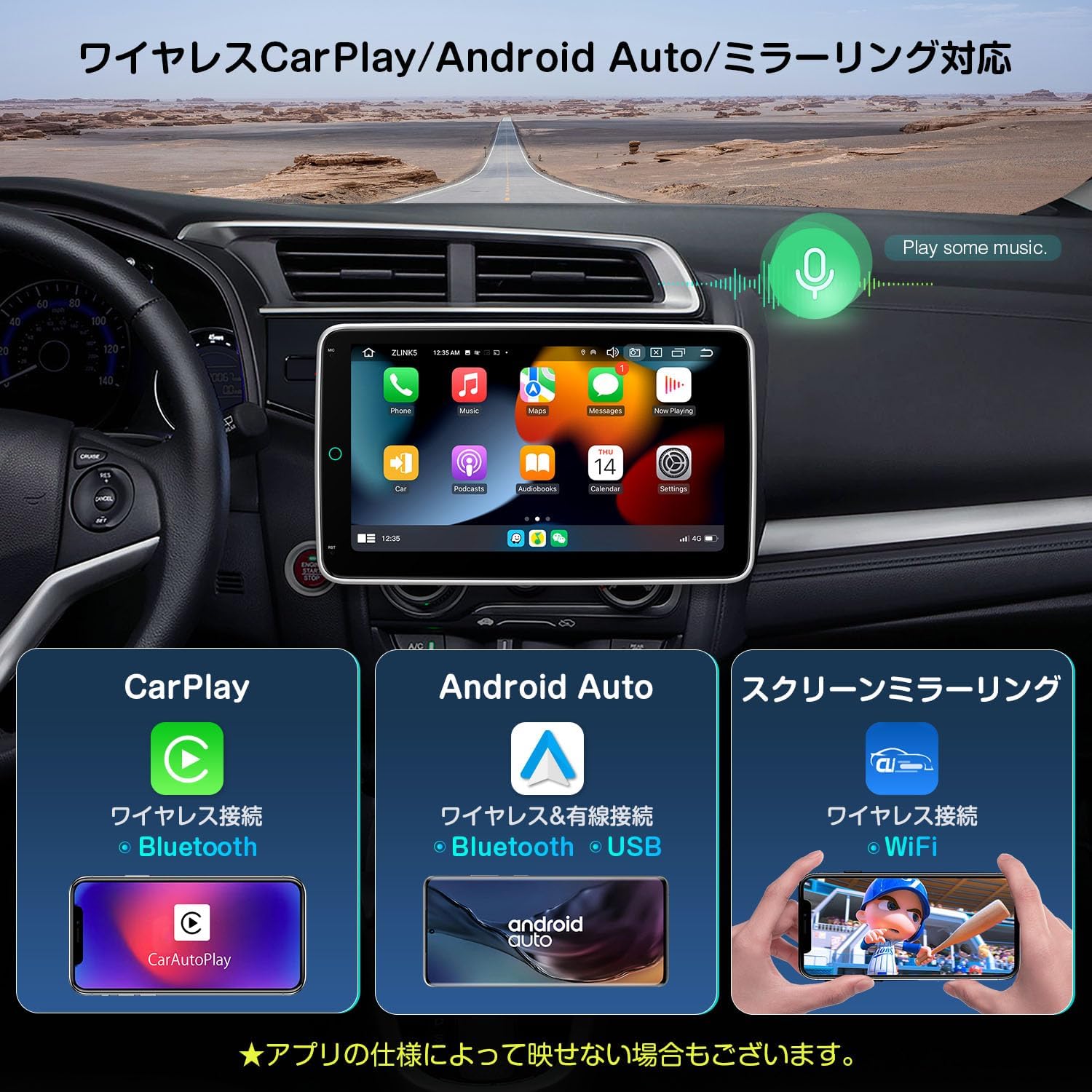
Figure 4.2: Wireless CarPlay, Android Auto, and screen mirroring capabilities.
4.4 Screen Mirroring
Utilize the screen mirroring function to display content from your smartphone, such as photos, music, and videos, directly onto the DX121L's large screen.
4.5 4G, Wi-Fi, and USB Tethering
The unit includes a built-in 4G communication module. Insert a micro SIM card into the dedicated slot for easy and secure internet access. Alternatively, connect to the internet via Wi-Fi tethering or USB tethering from your smartphone. Once connected, you can download and use various applications like Google Maps and YouTube from the integrated Play Store.

Figure 4.3: Internet connectivity options including 4G, Wi-Fi tethering, and USB tethering.
4.6 Bluetooth 5.0
With Bluetooth 5.0, enjoy stable and fast connections for hands-free calling and high-quality Bluetooth music streaming.
4.7 DSP (Digital Signal Processor)
The integrated DSP enhances your audio experience, allowing for multiple levels of sound customization to satisfy audiophiles.
4.8 Radio Module
Equipped with a powerful TDA7708 radio chip, the unit provides cutting-edge radio performance.
4.9 Multi-Window Display and PIP Mode
The multi-window display feature allows you to run two applications simultaneously on the screen, enhancing multitasking convenience. Picture-in-Picture (PIP) mode enables you to watch videos while performing other operations.
4.10 OBD2 / DVR Functionality
The system supports OBD2 and DVR functions. With an optional OBD2 adapter, you can monitor vehicle data using the dedicated Torque app. DVR functionality allows for recording driving events with an optional DVR unit.
4.11 Multi-color LED Illumination
Customize the unit's appearance with multi-color LED button illumination, allowing you to choose from various colors and effects.
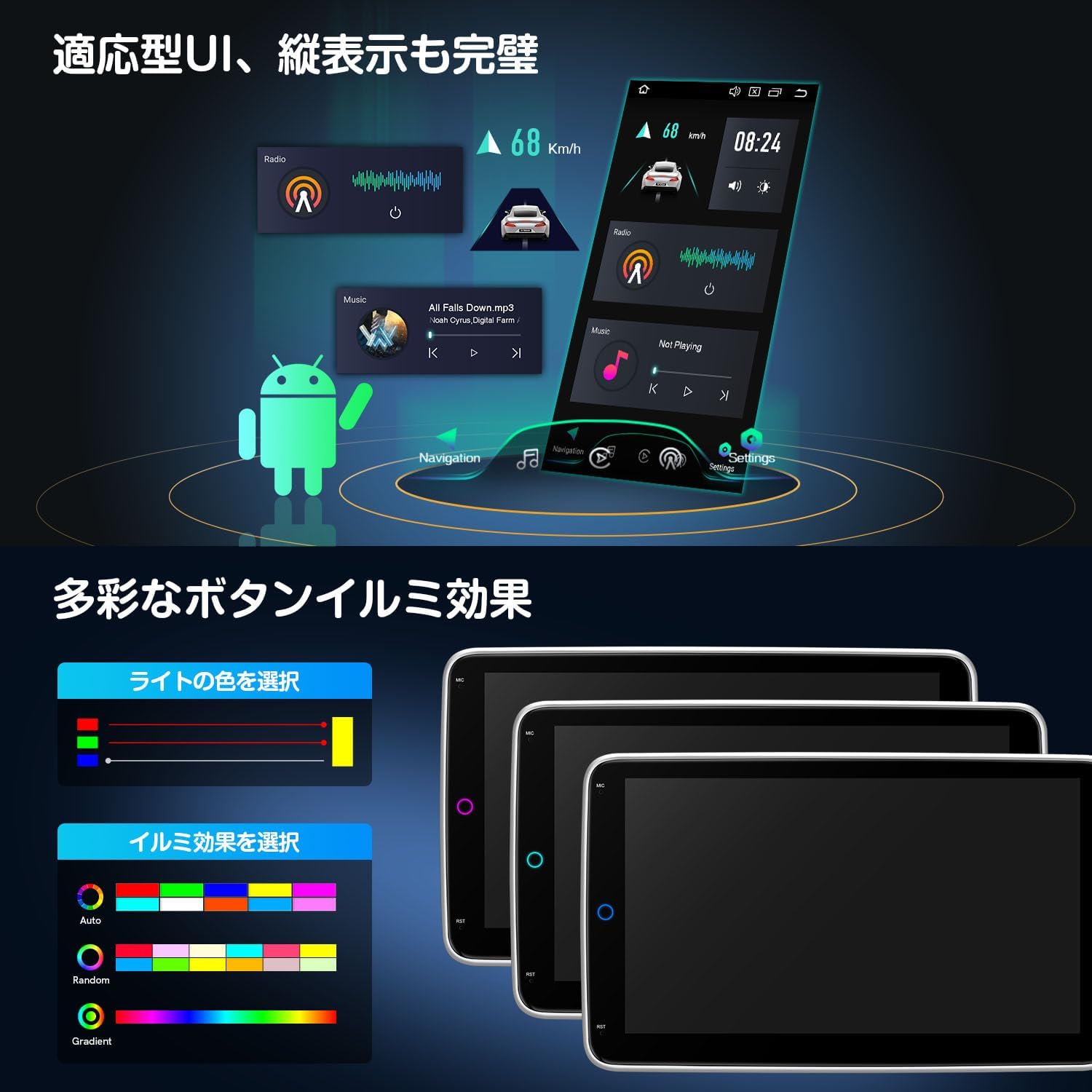
Figure 4.4: Customizable LED button illumination.
5. Maintenance
To ensure the longevity and optimal performance of your XTRONS DX121L, follow these maintenance guidelines:
- Cleaning: Use a soft, dry cloth to clean the screen and unit. Avoid abrasive cleaners or solvents.
- Software Updates: Periodically check for and install software updates to ensure the system runs efficiently and securely.
- Storage: If storing the vehicle for an extended period, ensure the unit is powered off to prevent battery drain.
6. Troubleshooting
If you encounter any issues with your XTRONS DX121L, refer to the following common troubleshooting steps:
- No Power: Check all power connections. Ensure the vehicle's ignition is on. Verify the fuse.
- No Sound: Check speaker connections. Ensure volume is not muted or set to zero. Verify audio output settings.
- Touchscreen Unresponsive: Try restarting the unit. If the issue persists, a factory reset might be necessary (refer to the settings menu).
- GPS Signal Loss: Ensure the GPS antenna is properly installed and has a clear view of the sky.
- Bluetooth Connection Issues: Ensure Bluetooth is enabled on both the unit and your device. Try unpairing and re-pairing the device.
- Internet Connectivity Problems: Check SIM card insertion and data plan if using 4G. Verify Wi-Fi or USB tethering settings on your smartphone.
For more complex issues, please contact XTRONS customer support.
7. Specifications
| Brand | XTRONS |
| Model Name | DX121L |
| Compatible Vehicle Type | Passenger Car |
| Screen Size | 10.1 inches |
| Display Type | QLED |
| Resolution | 1280x720 Pixels |
| Operating System | Android 14 |
| RAM | 4GB |
| ROM (Storage) | 64GB |
| Processor | 8-core, 64-bit |
| Connectivity Technology | Wi-Fi, 4G LTE, Bluetooth 5.0 |
| Features | Hands-free, Rotatable Display, CarPlay, Android Auto, Screen Mirroring, Multi-Window, PIP, DSP, Radio (TDA7708), Video Input (1080P, 2K), OBD2/DVR Support, Multi-color LED |
| Audio Output Mode | RCA |
| Control Method | Touch, Buttons |
| Battery Included | No |

Figure 7.1: Dimensions of the XTRONS DX121L unit.
8. Warranty and Support
Your XTRONS car navigation system comes with a 1-year warranty. For any inquiries or issues, please contact XTRONS customer support via email. A PDF version of the Japanese instruction manual is available for download from the official XTRONS community website: https://xtrons.com/community/index.php/user-manuals-japanese/
Video 8.1: Official XTRONS product video demonstrating various features and functionalities of the car navigation system.


