
Introduction
This manual provides comprehensive instructions for the UtechSmart 19-in-1 Quadruple Monitor USB C Docking Station. This device is designed to expand your laptop's connectivity and display capabilities, supporting multiple external monitors, various USB peripherals, network connectivity, and power delivery. Please read this manual thoroughly before use to ensure proper setup and operation.
Product Overview
The UtechSmart 19-in-1 docking station offers a wide array of ports to enhance your workspace.

Image: Front and rear view of the docking station, highlighting all available ports and their functions.
Key Features:
- Quadruple Display Support: Connect up to four external monitors (3x HDMI, 1x VGA) for extended or mirrored desktop environments.
- High-Resolution Output: Supports 4K resolution on HDMI ports for detailed visual experiences.
- Power Delivery (PD 3.0): Provides up to 100W to charge your host laptop and other devices.
- High-Speed Data Transfer: Features 4x USB 3.0 ports and 1x USB-C data port with 5Gbps transfer speeds, plus 2x USB 2.0 ports.
- Gigabit Ethernet: Integrated RJ45 port for stable and fast wired network connection (up to 1000Mbps).
- Memory Card Readers: Built-in SD and TF card slots for convenient data access.
- Audio Connectivity: Separate audio output and microphone input ports.
Video: An overview of the UtechSmart 19-in-1 Quadruple Display USB C Docking Station, demonstrating its features and connectivity options.
Setup Instructions
- Verify Host Laptop Compatibility: Ensure your laptop's USB-C port supports DisplayPort Alternate Mode (Alt Mode), is USB 3.1 Gen2 or Thunderbolt 3/4 or higher, and supports Power Delivery (PD) charging. Refer to your laptop's manual if unsure.
- Connect Power Adapter: Connect your laptop's original power adapter (or a compatible PD charger) to the PD 3.0 port on the docking station. This will power the docking station and charge your laptop.
- Connect to Host Laptop: Use the provided USB-C cable to connect the docking station's HOST1 or HOST2 port to your laptop's compatible USB-C port. For some Windows laptops with only one USB-C port, connect to HOST2 for peripheral device functionality.
- Connect Monitors:
- Connect up to three HDMI monitors to the HDMI 1, HDMI 2, and HDMI 3 ports.
- Connect one VGA monitor to the VGA port.
- Ensure all display cables are securely connected.
- Connect Peripherals: Connect your USB devices (keyboard, mouse, external drives), Ethernet cable, and audio devices to the corresponding ports on the docking station.
- Driver Installation (if necessary): For optimal performance, especially with multiple displays, ensure your laptop's graphics drivers are up to date. In some cases, a DisplayLink driver might be required, though this docking station typically operates without specific drivers for basic functionality.

Image: Example setup showing a laptop connected to the docking station, which extends to multiple displays and various peripherals.
Operating Instructions
Display Modes:
The docking station supports various display configurations depending on your operating system and laptop capabilities.
- Extend Mode: Each connected monitor displays a different desktop, allowing for increased workspace.
- Mirror Mode: All connected monitors display the same content as your primary display.
Windows Display Configuration:
For Windows systems, the docking station supports quadruple monitors in Extend mode.
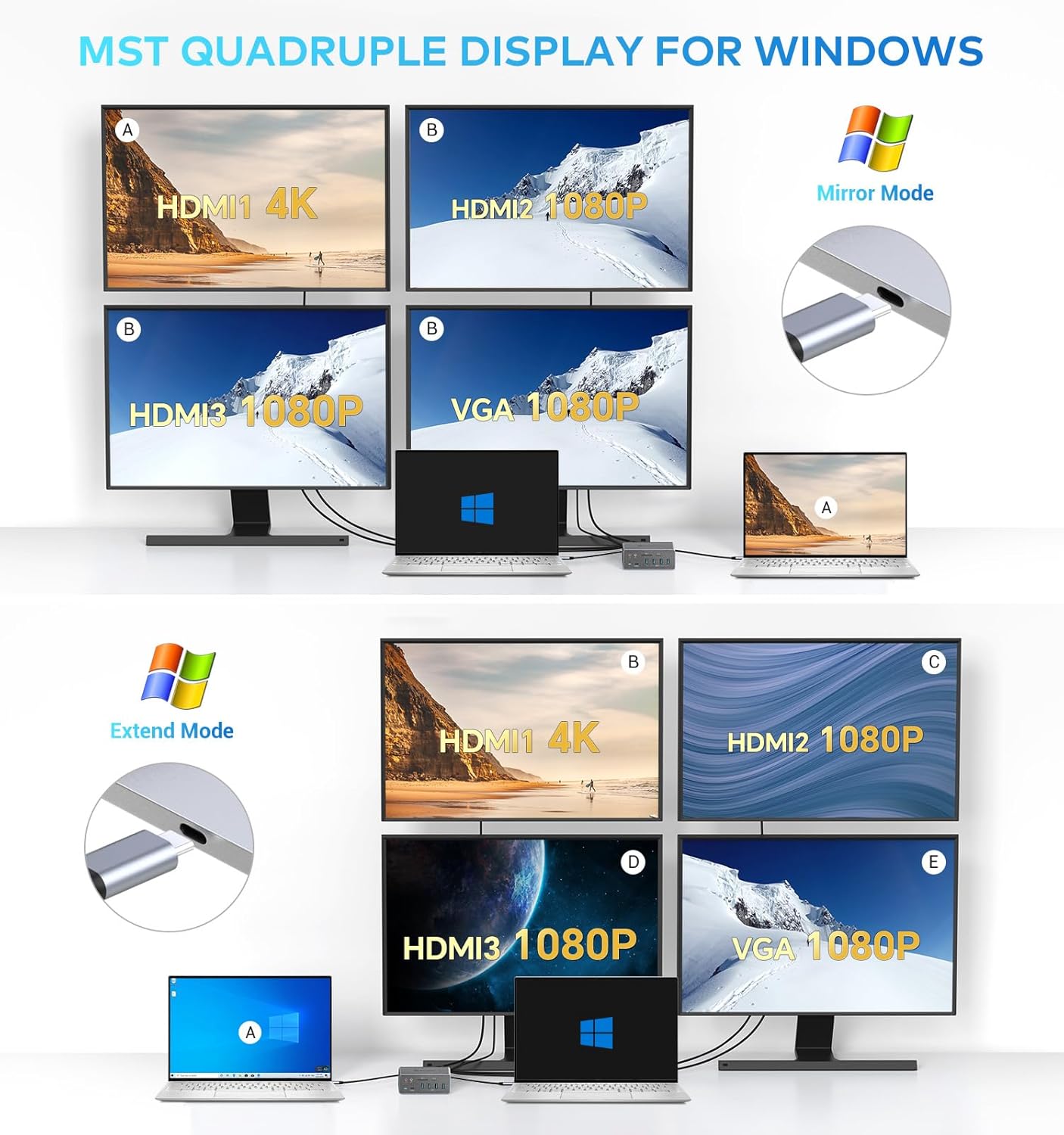
Image: Visual guide for configuring multiple displays on Windows, including mirror and extended desktop options.
macOS Display Configuration:
For macOS systems, the docking station supports up to triple displays in No-mirror mode (extended) and quadruple displays in Mirror mode. Apple's native display limitations mean that in extended mode, some displays may mirror each other.

Image: Visual guide for configuring multiple displays on macOS, detailing mirror and extended desktop options and potential mirroring behavior.
Data Transfer and Charging:
- USB 3.0 and USB-C Data Ports: Use these ports for high-speed data transfer with compatible devices.
- USB 2.0 Ports: Suitable for connecting keyboards, mice, and other low-bandwidth peripherals.
- Power Delivery: The PD 3.0 port charges your laptop and connected devices. Ensure your laptop's power adapter is connected to this port for optimal charging.

Image: The docking station providing 100W Power Delivery to a laptop and smartphone.

Image: Highlighting the high-speed data transfer capabilities of the USB 3.0 and USB-C ports.
Maintenance
- Keep the docking station in a dry, well-ventilated area.
- Avoid exposing the device to extreme temperatures or direct sunlight.
- Clean the exterior with a soft, dry cloth. Do not use liquid cleaners or solvents.
- Ensure all cables are connected securely to prevent accidental disconnections.
Troubleshooting
If you encounter issues with your docking station, please refer to the following common solutions:
- No Display Output:
- Verify your laptop's USB-C port supports DisplayPort Alternate Mode.
- Ensure all display cables (HDMI, VGA) are firmly connected to both the docking station and monitors.
- Check monitor input settings to ensure the correct source is selected.
- Update your laptop's graphics drivers.
- For Windows, ensure the display settings are configured for extend or mirror mode.
- For macOS, be aware of Apple's display limitations which may cause some displays to mirror.
- Charging Issues:
- Confirm your laptop's power adapter is connected to the PD 3.0 port on the docking station.
- Ensure your laptop's USB-C port supports Power Delivery.
- USB Device Malfunction:
- Do not connect external devices that draw more than 1.5A to the USB ports, as this may cause instability.
- Avoid connecting USB 2.0 devices to USB 3.0 ports if experiencing wireless interference with other wireless devices.
- Try connecting the USB device directly to your laptop to rule out the docking station as the cause.
- Network Connectivity Issues:
- Ensure the Ethernet cable is securely connected to both the docking station and your router/modem.
- Check your laptop's network settings.
- General Instability:
- Disconnect and reconnect the docking station from your laptop.
- Restart your laptop.
- Ensure your laptop's operating system and drivers are up to date.
For further assistance, please refer to the official UtechSmart troubleshooting guide or contact customer service.
Specifications
| Feature | Detail |
|---|---|
| Model | B08M5K925M |
| Brand | UtechSmart |
| Color | Gray |
| Hardware Interface | HDMI, VGA, USB-C, USB 3.0, USB 2.0, RJ45, SD/TF Card, Audio |
| Video Output | 3x HDMI (up to 4K), 1x VGA (up to 1080p) |
| USB Ports | 4x USB 3.0 (5Gbps), 2x USB 2.0 (480Mbps), 1x USB-C Data (5Gbps) |
| Power Delivery | PD 3.0, up to 100W |
| Ethernet | Gigabit (10/100/1000Mbps) |
| Card Reader | SD, TF |
| Audio | 3.5mm Audio Out, 3.5mm Mic In |
| Compatible Operating Systems | Windows 10/11, macOS, ChromeOS |
| Enclosure Material | Aluminum |
| Dimensions (L x W x H) | 5.9" x 7.1" x 2.5" |
Warranty and Support
The UtechSmart 19-in-1 Quadruple Monitor USB C Docking Station comes with an 18-month warranty, offering refund or replacement for eligible issues.
For technical support, troubleshooting assistance, or warranty claims, please contact UtechSmart customer service. Support is available 24/7 for any questions you may have.


