
1. Introduction
Thank you for choosing the Strong SRT55UC7433 55-inch 4K UHD Smart Android TV. This manual provides essential information for setting up, operating, and maintaining your new television. Please read it thoroughly before use and retain it for future reference.
This television offers an immersive viewing experience with its 4K Ultra HD resolution, High Dynamic Range 10 (HDR), and Wide Color Gamut (WCG) technology, delivering vibrant colors and exceptional detail. Powered by Android TV, it provides seamless access to a wide range of streaming services and applications, enhanced by integrated Wi-Fi and Google Assistant voice control.
2. Safety Information
To ensure safe operation and prevent damage, please observe the following safety precautions:
- Power Supply: Connect the TV only to an AC power outlet with the correct voltage. Do not overload power outlets.
- Ventilation: Ensure adequate ventilation around the TV. Do not block ventilation openings or place the TV on soft surfaces that may impede airflow.
- Placement: Place the TV on a stable, level surface to prevent it from falling. Avoid placing it in direct sunlight, near heat sources, or in areas with high humidity.
- Water and Moisture: Do not expose the TV to rain or moisture. Do not place objects filled with liquids, such as vases, on or near the TV.
- Cleaning: Unplug the TV before cleaning. Use a soft, dry cloth. Do not use liquid or aerosol cleaners.
- Children: Supervise children to prevent them from climbing on the TV or playing with the remote controls.
- Servicing: Do not attempt to service the TV yourself. Refer all servicing to qualified service personnel.
3. Package Contents
Verify that all items are present in the packaging:
- Strong SRT55UC7433 55-inch 4K UHD Smart Android TV
- Standard Remote Control
- Smart Remote Control with Google Assistant button
- AAA Batteries (4x) for remote controls
- Power Cable
- Quick Installation Guide (QIG)
- TV Stand/Feet (2x) and screws
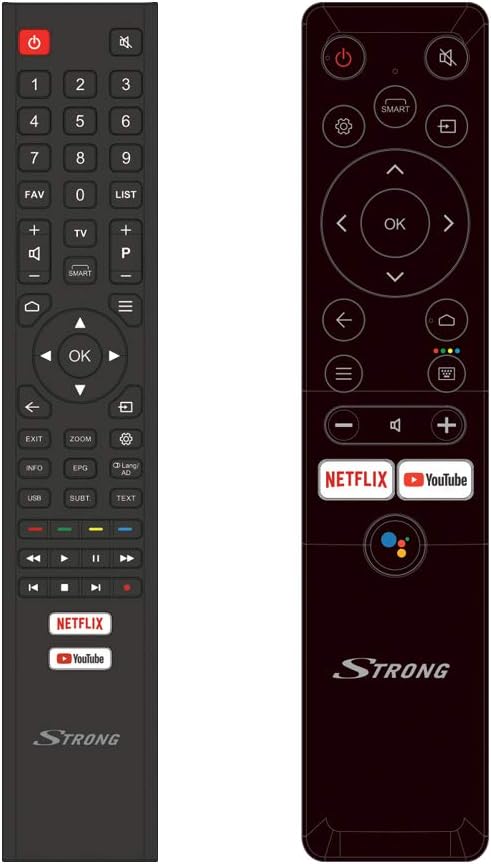
Image: The two included remote controls, one standard and one smart remote with Google Assistant.
4. Setup
4.1 Unpacking and Placement
Carefully remove the TV from its packaging. It is recommended to have two people for this process due to the size and weight of the unit. Place the TV in a location that allows for proper ventilation and is away from direct sunlight or heat sources. Ensure the surface is stable enough to support the TV's weight.

Image: The TV in a typical room, illustrating its dimensions (1231.6 mm width, 715.2 mm height without stand).
4.2 Attaching the Stand
If you are not wall-mounting the TV, attach the included stand feet:
- Place the TV face down on a soft, clean surface to prevent screen damage.
- Align each stand foot with the corresponding slots on the bottom of the TV.
- Secure the feet using the provided screws. Ensure they are tightened firmly.

Image: Front view of the Strong SRT55UC7433 TV with its stand properly attached.
4.3 Connecting Peripherals
Your TV offers various connection options for external devices:
- HDMI: Connect Blu-ray players, game consoles, or set-top boxes to the HDMI ports (3x HDMI 2.0).
- USB: Connect USB storage devices for media playback (2x USB ports).
- Antenna/Cable: Connect your antenna or cable TV signal to the appropriate input.
- Ethernet: For a stable internet connection, connect an Ethernet cable to the LAN port.
- CI Slot: Insert a Common Interface module for conditional access to Pay TV services.

Image: Icons representing the various connectivity options including HDMI, USB, AV, Headphone, Ethernet, SAT in, CI slot, and S/PDIF.
4.4 Initial Power On and Setup Wizard
After connecting all necessary cables, plug the TV into a power outlet and press the power button on the TV or remote control. The TV will guide you through the initial setup process, which typically includes:
- Language Selection: Choose your preferred language.
- Network Setup: Connect to your Wi-Fi network or use a wired Ethernet connection.
- Google Account Login: Sign in with your Google account to access Android TV features and the Google Play Store.
- Channel Scan: The TV will automatically scan for available channels from your antenna or cable connection. You can create favorite channel lists later.
5. Operating Instructions
5.1 Remote Controls
Your TV comes with two remote controls. The standard remote provides full functionality, while the smart remote offers simplified navigation and direct access buttons for popular streaming services and Google Assistant.
- Power Button: Turns the TV on or off.
- Navigation Buttons: Use the directional pad and OK button to navigate menus.
- Volume/Channel: Adjust volume and change channels.
- Netflix/YouTube Buttons: Direct access to these streaming applications.
- Google Assistant Button: Activate voice commands on the smart remote.
5.2 Smart TV Features (Android TV)
The Android TV interface provides access to a world of entertainment:
- Applications: Download and install apps from the Google Play Store, including streaming services like Netflix, YouTube, Prime Video, and Disney+.
- Google Assistant: Press the Google Assistant button on your smart remote and speak commands to search for content, get information, or control smart home devices.
- Casting: Use built-in Chromecast functionality to cast content from your smartphone or tablet to the TV.

Image: The Android TV home screen showing various applications like YouTube, Google Play Store, and other streaming services.
5.3 Additional Features
- Parental Control: Set up parental controls to restrict access to certain channels or content based on ratings.
- Hotel Mode: This feature allows for customization of TV settings for use in hotel environments.
- Electronic Program Guide (EPG): View upcoming TV programs and schedule recordings (if supported by external recording device).
- Teletext: Access text-based information services provided by broadcasters.
6. Maintenance
6.1 Cleaning the Screen
To clean the screen, first unplug the TV. Gently wipe the screen with a soft, lint-free cloth. For stubborn marks, slightly dampen the cloth with water or a specialized screen cleaner, then wipe dry immediately. Avoid applying pressure to the screen.
6.2 General Care
Keep the TV free from dust by regularly wiping the cabinet with a soft, dry cloth. Do not use abrasive cleaners or solvents. Ensure the TV is not exposed to extreme temperatures or humidity.
7. Troubleshooting
If you encounter issues with your TV, refer to the following common problems and solutions:
| Problem | Possible Cause | Solution |
|---|---|---|
| No power | Power cable disconnected; power outlet fault | Check power cable connection; try a different outlet. |
| No picture, but sound is present | Incorrect input source; faulty HDMI cable | Press the 'Source' button on the remote to select the correct input; replace HDMI cable. |
| No sound, but picture is present | Volume muted or too low; external audio system issue | Unmute volume or increase level; check connections to external audio devices. |
| Remote control not working | Dead batteries; obstruction between remote and TV | Replace batteries; remove any obstructions. |
| Cannot connect to Wi-Fi | Incorrect password; router issue; TV too far from router | Verify Wi-Fi password; restart router; move TV closer to router or use Ethernet. |
If the problem persists after trying these solutions, please contact Strong customer support.
8. Specifications
| Feature | Specification |
|---|---|
| Brand | Strong |
| Model Number | SRT55UC7433 |
| Screen Size | 55 inches (139 cm) |
| Resolution | 3840 x 2160 (4K UHD) |
| Display Technology | LED |
| Operating System | Android |
| Connectivity | Wi-Fi, Ethernet, 3x HDMI 2.0, 2x USB, Common Interface (CI) |
| Special Features | HDR10, WCG, Google Assistant, Parental Control, Hotel Mode, EPG, Teletext |
| Dimensions (with stand) | 1231.6 x 260 x 782.4 mm |
| Weight (with stand) | 13.2 kg |
| Refresh Rate | 120 Hz |
| Color | Black |
9. Warranty and Support
For warranty information and customer support, please refer to the documentation included with your product or visit the official Strong website. You can also find useful numbers and information on Strong's Facebook profile and LinkedIn page.
Strong is committed to providing support for all your needs. Please ensure you have your model number (SRT55UC7433) and purchase details ready when contacting support.


