
1. Introduction
This manual provides detailed instructions for the setup, operation, and maintenance of your ABKO Hacker N550 Virtual 7.1 RGB Gaming Headset. Please read this manual thoroughly before using the product to ensure optimal performance and longevity.
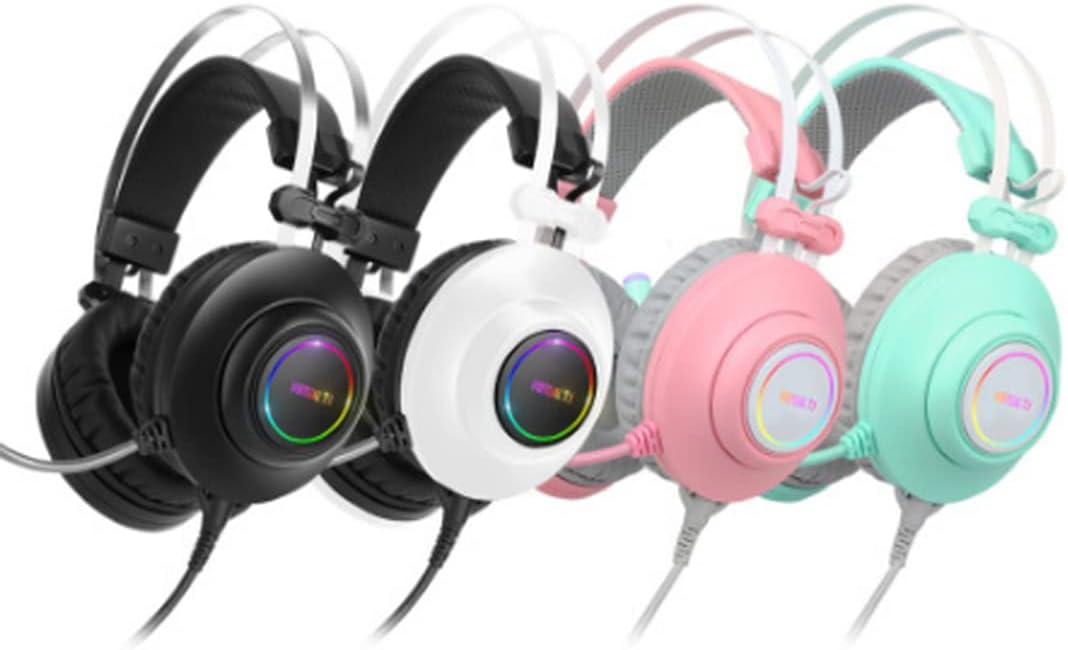
Image 1.1: The ABKO Hacker N550 Gaming Headset, available in various colors including black, white, pink, and mint, showcasing its design and RGB lighting on the earcups.
2. Package Contents
Verify that all items are present in the package:
- ABKO Hacker N550 Virtual 7.1 RGB Gaming Headset
- USB Cable (integrated)
- User Manual (this document)
3. Key Features
- Virtual 7.1 Surround Sound: Experience immersive audio environments.
- ENC Microphone Noise Cancellation: Ensures clear communication by reducing background noise.
- 50mm Audio Drivers: Delivers powerful and precise sound.
- RGB LED Lighting: Customizable lighting effects on the earcups.
- 3D Sound Effect: Enhances spatial audio perception.
- Specialized Software Support: Allows for advanced customization and control.
- Flexible Microphone: Adjustable for optimal voice pickup.
- Comfortable Lightweight Design: Designed for extended wear.
- Vibration Effect: Provides tactile feedback for enhanced immersion.
- Multi-Controller: Convenient access to audio adjustments.
Video 3.1: An overview of the ABKO N550 Gaming Headset, highlighting its key features such as virtual 7.1 surround sound, 50mm drivers, noise cancellation, and RGB lighting.
4. Setup Instructions
- Connect the Headset: Plug the USB connector of the ABKO Hacker N550 headset into an available USB port on your computer or gaming console.
- Driver Installation (Windows/macOS): For Windows and macOS, the necessary drivers should install automatically. If not, please visit the official ABKO website for driver downloads.
- Software Installation: To unlock full features like Virtual 7.1, RGB customization, and 3D sound effects, download and install the specialized ABKO N550 software from the official ABKO website.
- Audio Output Configuration: After connecting, ensure the ABKO N550 headset is selected as the default audio output and input device in your operating system's sound settings.

Image 4.1: The ABKO N550 headset displayed alongside its specialized software interface, illustrating the customization options available for audio and lighting settings.
5. Operating Instructions
5.1. Basic Audio Control
- Volume Adjustment: Use the volume roller or buttons on the headset's multi-controller to adjust the master volume.
- Microphone Mute: A dedicated button on the multi-controller allows you to mute or unmute the microphone. An indicator light may show the microphone status.
5.2. Advanced Features (via Software)
Once the ABKO N550 software is installed, you can access the following:
- Virtual 7.1 Surround Sound: Activate or deactivate virtual 7.1 surround sound for positional audio.
- Equalizer Settings: Customize audio profiles for different game genres or media types.
- RGB Lighting Control: Change colors, patterns, and brightness of the RGB LEDs.
- Vibration Effect: Adjust the intensity or toggle the vibration feature.
- Microphone Settings: Fine-tune microphone sensitivity and noise cancellation levels.

Image 5.1: The ABKO N550 headset in pink, highlighting its comfortable earcups and flexible microphone, designed for extended gaming sessions.
6. Maintenance
- Cleaning: Use a soft, dry cloth to wipe down the headset. For earcups, a slightly damp cloth can be used, but ensure no moisture enters the speaker grilles.
- Storage: Store the headset in a cool, dry place away from direct sunlight and extreme temperatures.
- Cable Care: Avoid sharp bends or excessive pulling on the USB cable to prevent damage.
7. Troubleshooting
| Problem | Possible Cause | Solution |
|---|---|---|
| No sound from headset | Incorrect audio output selected; Volume too low; Loose USB connection. | Check OS sound settings; Increase volume; Reconnect USB cable. |
| Microphone not working | Microphone muted; Incorrect audio input selected; Software settings. | Unmute microphone; Check OS sound settings for input device; Adjust mic settings in ABKO software. |
| RGB lights not working | Software not installed or configured; USB power issue. | Install/configure ABKO software; Try a different USB port. |
| Vibration effect not active | Feature disabled in software; Content does not support vibration. | Enable vibration in ABKO software; Test with compatible media. |
8. Specifications
| Feature | Detail |
|---|---|
| Model Name | N550 |
| Brand | ABKO |
| Connectivity Technology | Wired (USB) |
| Headphones Jack | USB |
| Audio Driver Type | Dynamic Driver |
| Audio Driver Size | 50mm |
| Ear Placement | Over Ear |
| Form Factor | Over Ear |
| Noise Control | Active Noise Cancellation (ENC for Mic) |
| Special Features | Lightweight, Noise Cancellation, Virtual 7.1, RGB LED, Vibration Effect |
| Compatible Devices | Devices with USB audio output (computers, laptops, gaming consoles) |
| UPC | 639015035044 |
9. Warranty and Support
ABKO products are manufactured to high quality standards. For information regarding warranty coverage, technical support, or service inquiries, please refer to the warranty card included with your product or visit the official ABKO website.
Official ABKO Website: www.abko.co.kr