
1. Introduction
The Polk React Sound Bar is designed to elevate your home entertainment experience with immersive Dolby & DTS Virtual Surround Sound and integrated Next Gen Alexa Voice Engine. This manual will guide you through the setup, operation, and maintenance of your new sound bar, ensuring optimal performance and enjoyment. The system is expandable to a full 5.1 surround sound setup with optional Polk React Wireless Subwoofer and SR2 Surround Speakers.

Figure 1: Front view of the Polk Audio React Sound Bar.
2. What's in the Box
Carefully unpack your Polk React Sound Bar and ensure all items are present:
- Polk React Sound Bar
- Remote Control (requires 2 AA batteries, included)
- Power Cord
- HDMI Cable
- Optical Cable
- Wall Mount Template
- Quick Start Guide

Figure 2: The Polk React Sound Bar integrated into a home entertainment system, shown with optional subwoofer.
3. Setup
3.1 Initial Placement
Place the sound bar centrally below your TV. Ensure it does not block the TV's remote sensor. For optimal sound, place it on a stable, flat surface or wall-mount it using the provided template.
3.2 Connections
Connect the sound bar to your TV using one of the following methods:
- HDMI ARC (Recommended): Connect one end of the HDMI cable to the HDMI ARC port on the sound bar and the other end to the HDMI ARC port on your TV. This allows for audio return channel functionality, simplifying control.
- Optical: If your TV does not have an HDMI ARC port, connect one end of the optical cable to the TV OPTICAL port on the sound bar and the other end to the optical digital audio output on your TV.
- USB: The USB-A port can be used for firmware updates or playing music from a USB drive.
Once connected, plug the power cord into the sound bar and then into a wall outlet.
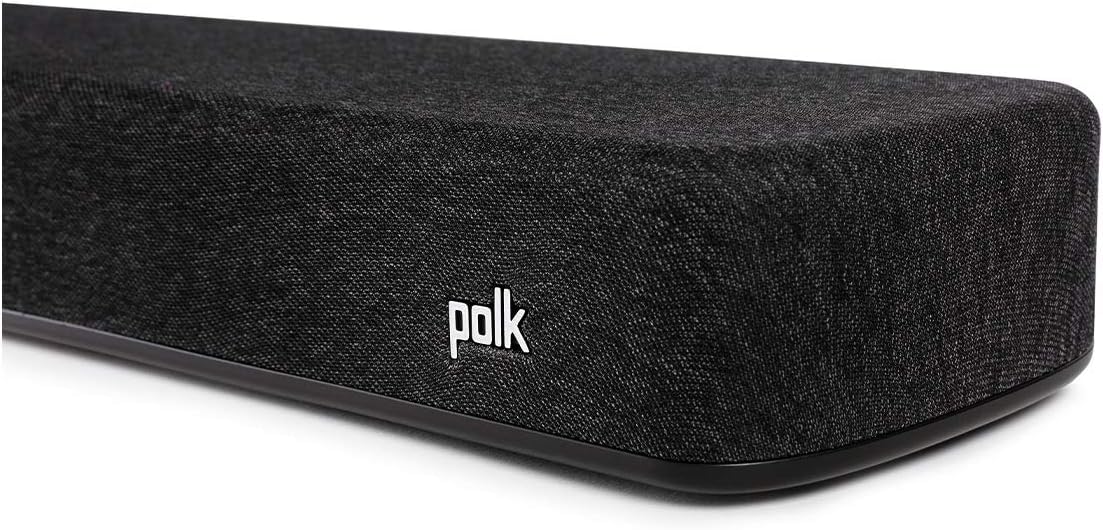
Figure 3: Rear connections of the Polk React Sound Bar.
3.3 Alexa Voice Control Setup
To enable Alexa voice control, download the Amazon Alexa app on your smartphone or tablet. Follow the in-app instructions to add a new device and connect your Polk React Sound Bar to your Wi-Fi network and Amazon account. This process typically involves scanning a QR code on the sound bar or its packaging.

Figure 4: Top control panel of the Polk React Sound Bar, featuring the Alexa button.
3.4 Optional Subwoofer and Surround Speaker Pairing
The Polk React Sound Bar can be expanded to a 5.1 system by adding the optional Polk React Wireless Subwoofer and SR2 Surround Speakers. To pair these devices:
- Ensure the sound bar is powered on.
- Plug in the optional subwoofer and surround speakers to a power outlet.
- Press the 'Connect' button on the back of the sound bar.
- Within 30 seconds, press and hold the 'Connect' button on the back of the subwoofer and each surround speaker until the indicator light confirms pairing.
4. Operating Instructions
4.1 Basic Controls
The sound bar can be controlled using the top-panel buttons or the included remote control.
- Power Button: Turns the sound bar on/off.
- Volume Up/Down (+/-): Adjusts the master volume.
- Microphone Mute: Toggles the built-in Alexa microphone on/off.
- Alexa Action Button: Activates Alexa without using the wake word.
- Source Selection (Remote): Switch between TV, Bluetooth, and other inputs.
- Bass +/- (Remote): Adjusts the bass level.
- Voice +/- (Remote): Adjusts the Voice Adjust level.
Figure 5: The remote control for the Polk React Sound Bar.
4.2 Voice Control (Alexa)
With Alexa built-in, you can control your sound bar and other smart home devices using voice commands. Simply say "Alexa" followed by your command. Examples include:
- "Alexa, turn up the volume."
- "Alexa, play music."
- "Alexa, switch to TV input."
- "Alexa, what's the weather?"
4.3 Sound Modes
The sound bar features one-button presets for optimized audio performance based on content type:
- Movie Mode: Enhances cinematic sound for movies and TV shows.
- Music Mode: Optimizes audio for music playback.
- Night Mode: Reduces bass and dynamic range for late-night listening.
- Sport Mode: Enhances dialogue and crowd noise for sports broadcasts.
4.4 Bluetooth Streaming
To stream audio from your smartphone, tablet, or other Bluetooth-enabled device:
- Press the Bluetooth button on the remote control or say "Alexa, switch to Bluetooth."
- On your device, enable Bluetooth and select "Polk React" from the list of available devices.
- Once paired, you can play audio from your device through the sound bar.
4.5 Voice Adjust Technology
Polk's proprietary Voice Adjust Technology allows you to customize voice levels from the sound bar, ensuring clear and crisp dialogue. Use the "Voice +/-" buttons on the remote to increase or decrease the dialogue clarity.
Video 1: Official Polk Audio overview of the React Series, highlighting key features and design.
5. Maintenance
To keep your Polk React Sound Bar in optimal condition:
- Clean the exterior with a soft, dry cloth.
- Avoid using liquid cleaners, abrasive cleaners, or solvents, as they may damage the finish.
- Do not block any ventilation openings.
6. Troubleshooting
If you encounter issues with your Polk React Sound Bar, try the following solutions:
6.1 No Sound
- Ensure the sound bar is powered on and not muted.
- Verify that the correct input source is selected on the sound bar (e.g., TV, Bluetooth).
- Check all cable connections (HDMI, Optical) between the sound bar and your TV.
- Confirm your TV's audio output is set to the correct external speaker option.
6.2 Poor Sound Quality
- Adjust the Bass and Voice Adjust levels using the remote control.
- Try different sound modes (Movie, Music, Night, Sport) to see if it improves audio for your content.
- Ensure the sound bar is not obstructed and is placed optimally.
6.3 Alexa Not Responding
- Check if the microphone is muted (indicator light will be red).
- Ensure the sound bar is connected to your Wi-Fi network.
- Verify your Amazon Alexa app settings and account linking.
- Try power cycling the sound bar (unplug from power for 30 seconds, then plug back in).
6.4 Connectivity Issues (Bluetooth/Wi-Fi)
- For Bluetooth, ensure the sound bar is in pairing mode and your device's Bluetooth is enabled.
- For Wi-Fi, check your router and internet connection. Re-run the Alexa app setup if necessary.
7. Specifications
| Feature | Specification |
|---|---|
| Model Name | Polk React |
| Speaker Type | Soundbar |
| Surround Sound Channel Configuration | 3.0 |
| Special Feature | Dolby Enabled |
| Controller Type | Alexa, Voice Control |
| Wireless Communication Technology | Bluetooth, Wi-Fi |
| Bluetooth Range | 10 Meters |
| Connectivity Technology | Bluetooth, USB, Optical, HDMI |
| Product Dimensions | 4.76"D x 34.02"W x 2.2"H |
| Item Weight | 0.141 ounces (Soundbar) |
| Material | Plastic, Metal |
| Mounting Type | Wall Mount |
| Power Source | Corded Electric |
| Speaker Maximum Output Power | 30 Watts |
| Frequency Response | 20 KHz |
| Number of Batteries | 2 AA batteries required. (included) |
| Water Resistance Level | Not Water Resistant |

Figure 6: Dimensions of the Polk React Sound Bar.
8. Warranty and Support
The Polk React Sound Bar comes with a Limited Warranty. For detailed information regarding warranty coverage, terms, and conditions, please refer to the warranty card included with your product or visit the official Polk Audio website. For technical support, troubleshooting assistance beyond this manual, or service inquiries, please contact Polk Audio customer support through their official channels.


