1. Introduction
Welcome to the user manual for your Razer Blade 15 Base Gaming Laptop 2020. This document provides essential information for setting up, operating, maintaining, and troubleshooting your device. Please read this manual thoroughly to ensure optimal performance and longevity of your laptop.
2. What's in the Box
Your Razer Blade 15 Base package includes the following items:
- Razer Blade 15 Base Gaming Laptop
- Power Adapter and Cable (Charger)
3. Product Overview
The Razer Blade 15 Base is designed for high-performance computing and gaming. Below are some of its key features and components.
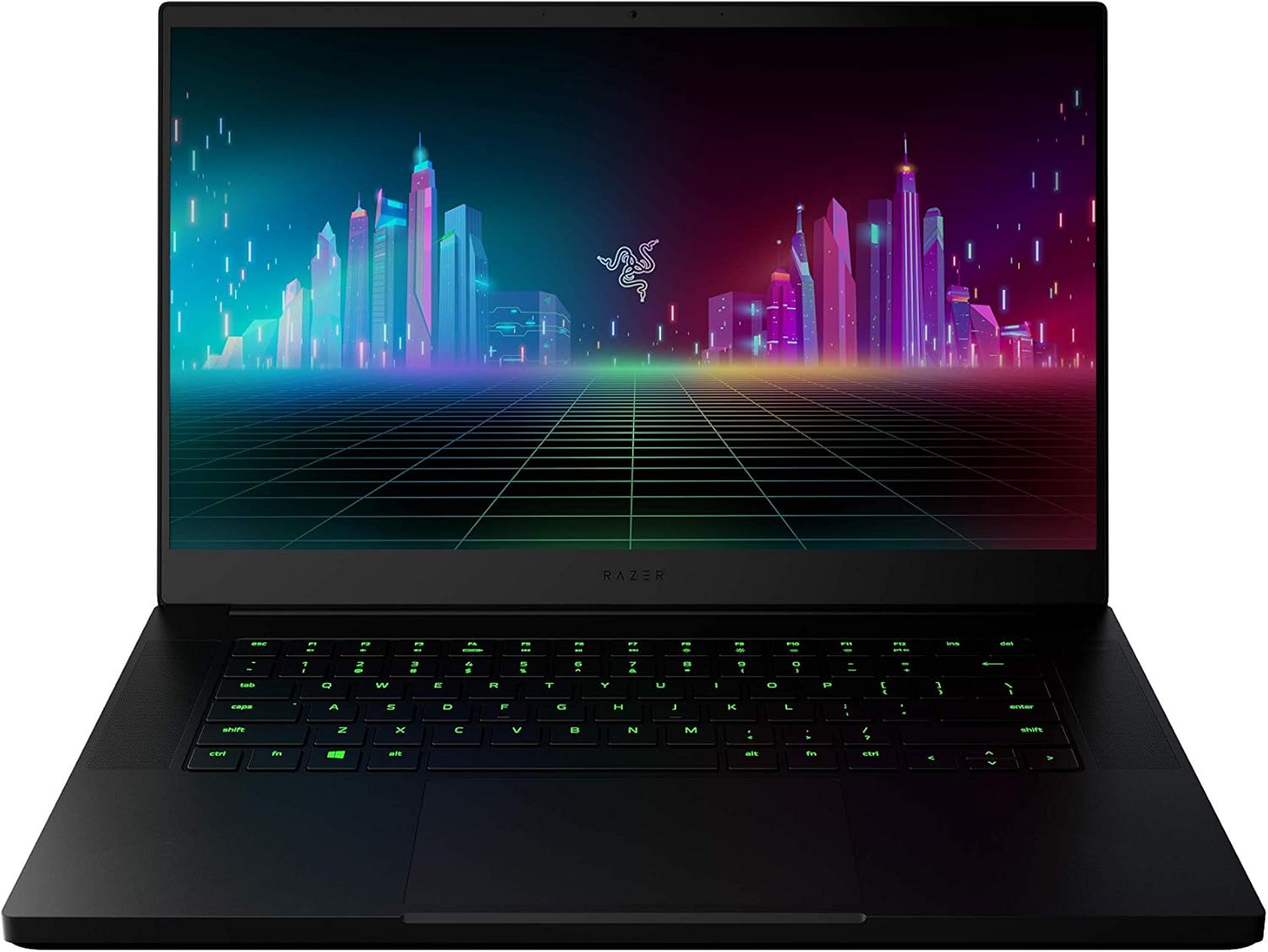
Figure 3.1: Front view of the Razer Blade 15 Base Gaming Laptop, showcasing its sleek design and vibrant display.
3.1 High-Performance Processor
Equipped with the 10th Gen Intel Core i7-10750H processor, this laptop delivers exceptional performance with up to 5.0GHz Max Turbo frequency and 6 cores, suitable for demanding applications and gaming.

Figure 3.2: The laptop highlighting its powerful 10th Gen Intel Core i7 processor.
3.2 Dedicated Graphics Card
Experience superior graphics performance with the NVIDIA GeForce GTX 1660 Ti. This dedicated GPU provides a significant boost for modern games and creative tasks.

Figure 3.3: A user engaging in gaming on the Razer Blade 15 Base, emphasizing the NVIDIA GeForce GTX 1660 Ti graphics.
3.3 High Refresh Rate Display
The 15.6-inch Full HD (1080p) display features a 120Hz refresh rate and thin bezels, providing a smooth and immersive visual experience for fast-paced gaming.

Figure 3.4: The laptop's display showcasing a high-frame-rate game, highlighting the 120Hz Full HD screen.
3.4 Durable and Compact Design
Constructed with a CNC aluminum unibody frame, the laptop offers remarkable durability in a compact form factor, measuring just 0.78 inches thin.

Figure 3.5: Side profile of the Razer Blade 15 Base, illustrating its thin and compact aluminum chassis.
3.5 Comprehensive Connectivity
The laptop provides extensive connectivity options, including a webcam, wireless-AC, Bluetooth 5, multiple USB Type-A and Type-C ports, and more for versatile peripheral connections.

Figure 3.6: Close-up view of the laptop's side ports, demonstrating its array of connectivity options.
3.6 Customizable RGB Lighting and Precision Touchpad
Personalize your experience with Razer Chroma RGB lighting for the keyboard, allowing for custom backlight colors. The laptop also features a precise glass touchpad for accurate navigation.

Figure 3.7: The laptop's keyboard illuminated with customizable Razer Chroma RGB lighting, alongside the precision glass touchpad.
4. Setup
4.1 Initial Power On
- Connect the Power Adapter: Plug the power adapter into the laptop's charging port and then into a wall outlet.
- Open the Laptop: Carefully open the laptop lid.
- Power On: Press the power button, typically located on the top right of the keyboard deck.
- Follow On-Screen Instructions: Windows 10 Home will guide you through the initial setup process, including language selection, network connection, and user account creation.
4.2 Connecting Peripherals
Utilize the available ports to connect external devices such as mice, keyboards, external displays, and storage devices. The laptop features USB Type-A, USB Type-C, and an HDMI port.
5. Operating Instructions
5.1 Keyboard and Touchpad
- Keyboard Backlighting: Customize RGB lighting effects and brightness using the Razer Synapse software.
- Function Keys: Use the Fn key in combination with the F1-F12 keys for quick access to functions like volume control, screen brightness, and media playback.
- Precision Glass Touchpad: Supports multi-touch gestures for navigation. Refer to Windows settings for touchpad gesture customization.
5.2 Razer Synapse Software
Razer Synapse is a unified configuration software that allows you to customize your Razer Blade 15. Use it to:
- Adjust keyboard backlighting and effects.
- Configure macros and key assignments.
- Manage power profiles and fan speeds.
- Update firmware and drivers.
Ensure Razer Synapse is installed and updated for full control over your laptop's features. It can typically be downloaded from the official Razer support website.
6. Maintenance
6.1 Cleaning Your Laptop
- Screen: Use a soft, lint-free cloth lightly dampened with water or a screen cleaner. Avoid harsh chemicals.
- Keyboard and Chassis: Use a soft cloth. For stubborn dirt, a slightly damp cloth with mild soap can be used, ensuring no liquid enters openings. Compressed air can remove dust from between keys.
- Vents: Periodically use compressed air to clear dust from the cooling vents to maintain optimal airflow.
6.2 Software Updates
Regularly update your operating system, drivers, and Razer Synapse software to ensure system stability, security, and performance. Windows Update can be accessed via Settings > Update & Security.
6.3 Battery Care
To prolong battery life, avoid extreme temperatures and fully discharging the battery frequently. For long-term storage, charge the battery to around 50-70% and store in a cool, dry place.
7. Troubleshooting
7.1 Common Issues and Solutions
- Laptop Not Powering On: Ensure the power adapter is securely connected to both the laptop and a working power outlet. Try a different outlet.
- Overheating: Ensure cooling vents are not obstructed. Adjust fan speeds via Razer Synapse. Consider using a laptop cooling pad for extended heavy use.
- Short Battery Life: Adjust power settings in Windows to optimize for battery life. Reduce screen brightness and close unnecessary background applications.
- No Display Output: If connecting to an external monitor, ensure the correct input source is selected on the monitor. Try pressing Fn + F4 to cycle display modes.
- Peripheral Connectivity Issues: Ensure drivers are updated for the peripheral. Try connecting to a different USB port. For Bluetooth devices, ensure they are in pairing mode and within range.
For further assistance, refer to the Razer support website or contact customer service.
8. Specifications
Below are the detailed technical specifications for the Razer Blade 15 Base Gaming Laptop (Model: RZ09-03519E11-R3U1).
| Feature | Specification |
|---|---|
| Model Name | Razer Blade 15 Base |
| Item Model Number | RZ09-03519E11-R3U1 |
| Processor | Intel Core i7-10750H (6-Core, up to 5.0 GHz) |
| Graphics Coprocessor | NVIDIA GeForce GTX 1660 Ti (6 GB GDDR6) |
| RAM | 16 GB DDR4 |
| Storage | 256 GB SSD |
| Screen Size | 15.6 Inches |
| Screen Resolution | 1920 x 1080 pixels (Full HD) |
| Refresh Rate | 120Hz |
| Operating System | Windows 10 Home |
| Wireless Type | 802.11a/b/g/n/ac, Bluetooth 5 |
| USB Ports | 2x USB Type-A, 2x USB Type-C |
| Dimensions (LxWxH) | 9.25 x 13.98 x 0.81 inches |
| Item Weight | 4.5 pounds |
| Average Battery Life | Up to 8 Hours (usage dependent) |
9. Warranty and Support
For warranty information, technical support, and additional resources, please visit the official Razer support website. You can also find FAQs and driver downloads there.
Razer Support Website: www.razer.com/support
For information about the Razer brand, visit the Razer Store on Amazon.
10. Safety Information
- Do not expose the laptop to extreme temperatures, humidity, or direct sunlight.
- Avoid placing heavy objects on the laptop.
- Use only the provided power adapter or a Razer-approved replacement.
- Do not attempt to disassemble or repair the laptop yourself. Refer to qualified service personnel.
- Keep liquids away from the laptop to prevent damage.


