1. Introduction
The LogiLink ID0201 Bluetooth V5.1 Wireless Keypad is designed to provide a dedicated numeric input solution for laptops and other compatible devices. It connects wirelessly via Bluetooth V5.1, offering a compact and ergonomic design for efficient data entry without cable clutter. This manual provides essential information for the proper setup, operation, and maintenance of your keypad.
2. Safety Information
- Keep the device away from water, moisture, and extreme temperatures.
- Do not attempt to disassemble or repair the device yourself. Refer all servicing to qualified personnel.
- Use only specified batteries (1x AAA). Ensure correct polarity when inserting batteries.
- Dispose of batteries according to local regulations.
- Avoid dropping or subjecting the keypad to strong impacts.
3. Package Contents
Please check the package contents upon unboxing:
- LogiLink ID0201 Bluetooth V5.1 Wireless Keypad
- 1x AAA Battery
- User Manual (this document)
4. Product Overview
The LogiLink ID0201 features a compact design with 17 keys, including a Num Lock function. Its ergonomic shape ensures comfortable use.

Figure 4.1: Front view of the LogiLink ID0201 Wireless Keypad, showing the 17-key layout including Num Lock, arithmetic operators, and navigation keys.

Figure 4.2: Side profile of the LogiLink ID0201 Wireless Keypad, highlighting its ergonomic design.
5. Setup
5.1 Battery Installation
- Locate the battery compartment on the underside of the keypad.
- Gently slide open the battery cover.
- Insert the provided 1x AAA battery, ensuring the correct polarity (+/-) as indicated inside the compartment.
- Close the battery cover securely.

Figure 5.1: Underside of the keypad showing the battery compartment for AAA battery installation.
5.2 Bluetooth Pairing
To connect your LogiLink ID0201 Wireless Keypad to your device:
- Ensure the keypad has a fresh battery installed.
- Turn on the keypad using the power switch (if available, otherwise it may be always on). The Bluetooth indicator light should begin to flash, indicating it is in pairing mode.
- On your computer, laptop, or compatible device, navigate to the Bluetooth settings.
- Enable Bluetooth and search for new devices.
- Select "LogiLink ID0201" or a similar name from the list of available devices.
- Follow any on-screen prompts to complete the pairing process. A successful connection will usually be indicated by the Bluetooth light on the keypad becoming solid or turning off.
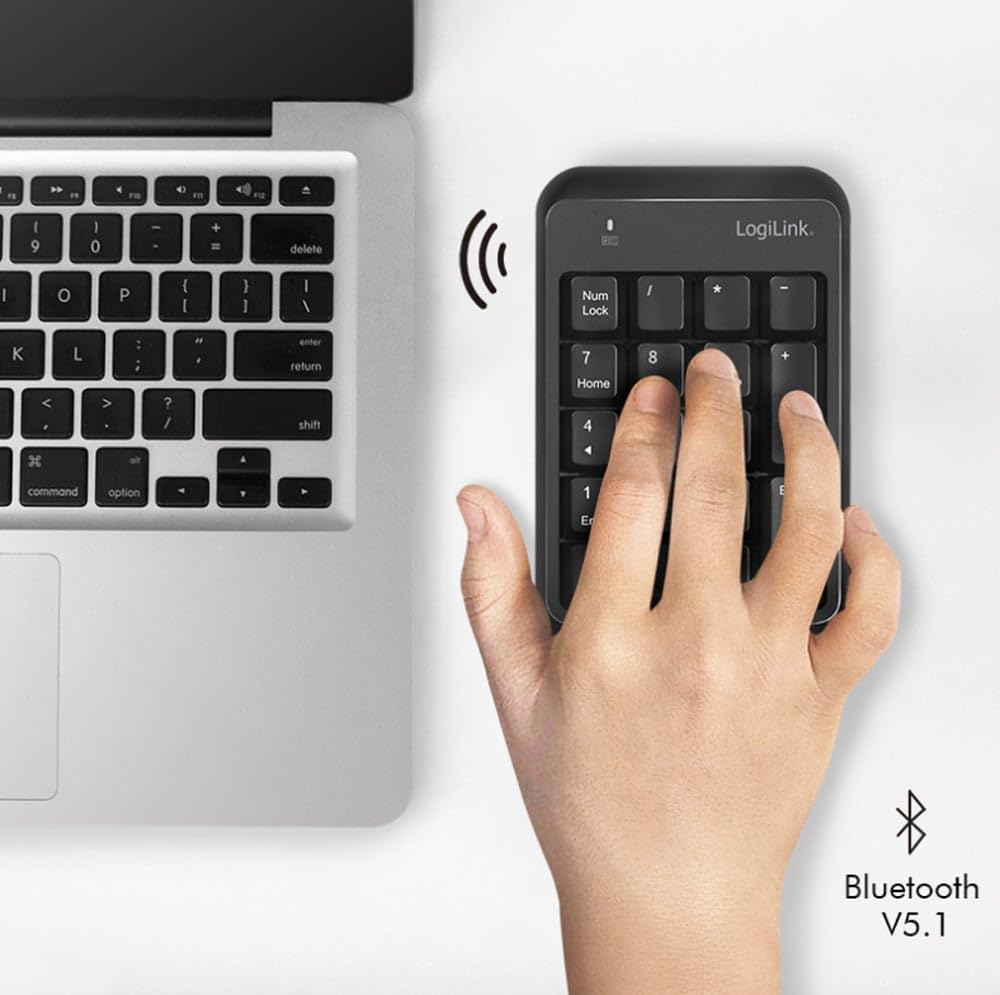
Figure 5.2: The LogiLink ID0201 Keypad positioned next to a laptop, illustrating its wireless connectivity via Bluetooth V5.1.
6. Operating Instructions
6.1 Basic Usage
Once paired, the keypad functions as a standard numeric keypad. Simply press the desired number or function key to input data into your active application.
6.2 Num Lock Function
The Num Lock key toggles the numeric input mode. When Num Lock is active, the keys will input numbers. When Num Lock is inactive, some keys may function as navigation keys (e.g., Home, End, PgUp, PgDn, arrow keys), as indicated by the secondary legends on the keycaps.
6.3 Compatibility
The LogiLink ID0201 Wireless Keypad is compatible with various operating systems, including:
- Windows
- Linux
- Android
- Mac OS

Figure 6.1: The LogiLink ID0201 Keypad being used alongside a standard keyboard and monitor, demonstrating its application in a typical desktop environment.
7. Maintenance
7.1 Cleaning
To clean your keypad:
- Ensure the keypad is turned off.
- Use a soft, dry, lint-free cloth to wipe the surface.
- For stubborn dirt, slightly dampen the cloth with water or a mild, non-abrasive cleaner.
- Do not spray liquids directly onto the keypad.
- The keys can be removed for thorough cleaning if necessary, but exercise caution to avoid damage.
7.2 Battery Replacement
When the keypad's performance degrades or the indicator light suggests low battery, replace the AAA battery by following the steps in Section 5.1.
8. Troubleshooting
- Keypad not responding: Check battery level and ensure it is correctly inserted. Try replacing the battery.
- Bluetooth connection issues:
- Ensure Bluetooth is enabled on your device.
- Make sure the keypad is within the 10-meter operating range.
- Try unpairing and re-pairing the keypad with your device (refer to Section 5.2).
- Restart your computer/device and the keypad.
- Incorrect characters or no numbers: Ensure the Num Lock function is active. Press the Num Lock key to toggle it.
- Input delay: Ensure there are no other devices causing Bluetooth interference. Try moving closer to your device.
9. Specifications
| Feature | Specification |
|---|---|
| Brand | LogiLink |
| Model Name | ID0201 |
| Connectivity Technology | Bluetooth V5.1 |
| Operating Range | Up to 10 meters |
| Number of Keys | 17 |
| Special Features | Ergonomic |
| Compatible Devices | Laptop, Computer |
| Compatible Operating Systems | Windows, Linux, Android, Mac OS |
| Power Source | 1x AAA Battery (included) |
| Color | Black |
| Manufacturer | 2direct GmbH |
| Country of Origin | China |
10. Warranty and Support
LogiLink products are designed for reliability and performance. This product typically comes with a manufacturer's warranty covering defects in materials and workmanship for a specified period. Please refer to the warranty card included with your purchase or visit the official LogiLink website for detailed warranty terms and conditions.
For technical support, troubleshooting assistance, or warranty claims, please contact your retailer or the LogiLink customer service department. Contact information can usually be found on the product packaging or the official LogiLink website.


