Introduction
The Lenovo 530 Wireless Mouse is designed for reliable and convenient navigation. Featuring 2.4 GHz wireless technology and a nano USB receiver, it offers a plug-and-play experience without the need for complex installations. Its ergonomic and contoured design ensures comfort for extended use, making it suitable for various computing tasks.
Overview of the Lenovo 530 Wireless Mouse, highlighting its features and design.
Setup
Follow these steps to set up your Lenovo 530 Wireless Mouse:
- Insert the Battery: Open the battery compartment located on the underside of the mouse. Insert one AA battery, ensuring correct polarity. The mouse comes with an included AA battery.
- Locate the Nano USB Receiver: The nano USB receiver is typically stored inside the battery compartment for safekeeping during transport. Remove it from its storage slot.
- Connect the Receiver: Plug the nano USB receiver into an available USB port on your computer (PC).
- Power On: Turn on the mouse using the power switch, usually located on the bottom of the mouse.
- Automatic Connection: The mouse should automatically connect to your computer. No additional drivers are typically required for Windows 7, 8, 8.1, 10, or 11.

Image showing the battery compartment and nano USB receiver storage on the underside of the mouse.

The Lenovo 530 Wireless Mouse connected wirelessly to a laptop via its 2.4 GHz nano USB receiver.
Operating Instructions
The Lenovo 530 Wireless Mouse features a standard three-button design with a scroll wheel for intuitive control.
- Left Click: Use the left button for selecting items, opening applications, and confirming actions.
- Right Click: Use the right button to access context menus and additional options.
- Scroll Wheel: Rotate the scroll wheel to navigate vertically through documents and web pages. The scroll wheel also functions as a middle button when pressed.
- Optical Sensor: The 1200 DPI optical sensor provides precise and responsive tracking on various surfaces.

The mouse features a 1200 DPI optical sensor for smooth navigation and is compatible with Windows operating systems.
Ergonomics and Comfort
The mouse is designed for ambidextrous use, accommodating both left-handed and right-handed users comfortably. Its contoured shape provides a natural grip for extended periods.

The ambidextrous design ensures comfortable use for both left and right-handed individuals.
Maintenance
- Battery Replacement: When the mouse performance degrades or stops responding, replace the AA battery. Open the battery compartment on the underside, remove the old battery, and insert a new AA battery with correct polarity. The mouse offers up to 12 months of battery life, which may vary based on usage.
- Cleaning: Use a soft, dry cloth to clean the exterior of the mouse. For the optical sensor, use a cotton swab lightly dampened with rubbing alcohol, ensuring no liquid enters the mouse.
- Receiver Storage: When not in use or during travel, store the nano USB receiver in its dedicated slot within the battery compartment to prevent loss.

The mouse is lightweight and designed for portability, offering up to 12 months of battery life.
Troubleshooting
- Mouse Not Responding:
- Ensure the mouse is powered on.
- Check if the battery is correctly inserted and has sufficient charge. Replace if necessary.
- Verify the nano USB receiver is securely plugged into a working USB port on your computer. Try a different USB port.
- Move the mouse closer to the USB receiver to rule out interference or range issues.
- Erratic Cursor Movement:
- Clean the optical sensor on the underside of the mouse.
- Ensure you are using the mouse on a suitable surface. Highly reflective or transparent surfaces may affect tracking. A mouse pad is recommended.
- Connectivity Issues:
- If the connection is lost, try unplugging and re-plugging the nano USB receiver.
- Restart your computer.
Specifications
| Feature | Detail |
|---|---|
| Model Number | GY50Z18988 |
| Connectivity | 2.4 GHz Wireless (Nano USB Receiver) |
| Sensor Technology | Optical |
| DPI (Dots Per Inch) | 1200 DPI |
| Buttons | Left, Right, Scroll Wheel (Middle Click) |
| Button Lifespan | Up to 8 million clicks (Left/Right buttons) |
| Battery Type | 1 x AA Battery (included) |
| Battery Life | Up to 12 months (actual duration may vary based on usage) |
| Operating System Compatibility | Windows 7, Windows 8, Windows 8.1, Windows 10, Windows 11 |
| Dimensions (L x W x H) | 4.17 x 2.48 x 1.46 inches (10.6 x 6.3 x 3.7 cm) |
| Weight | 2.24 ounces (65g) |
| Special Features | Lightweight, Ambidextrous Design, Nano USB Receiver Storage |
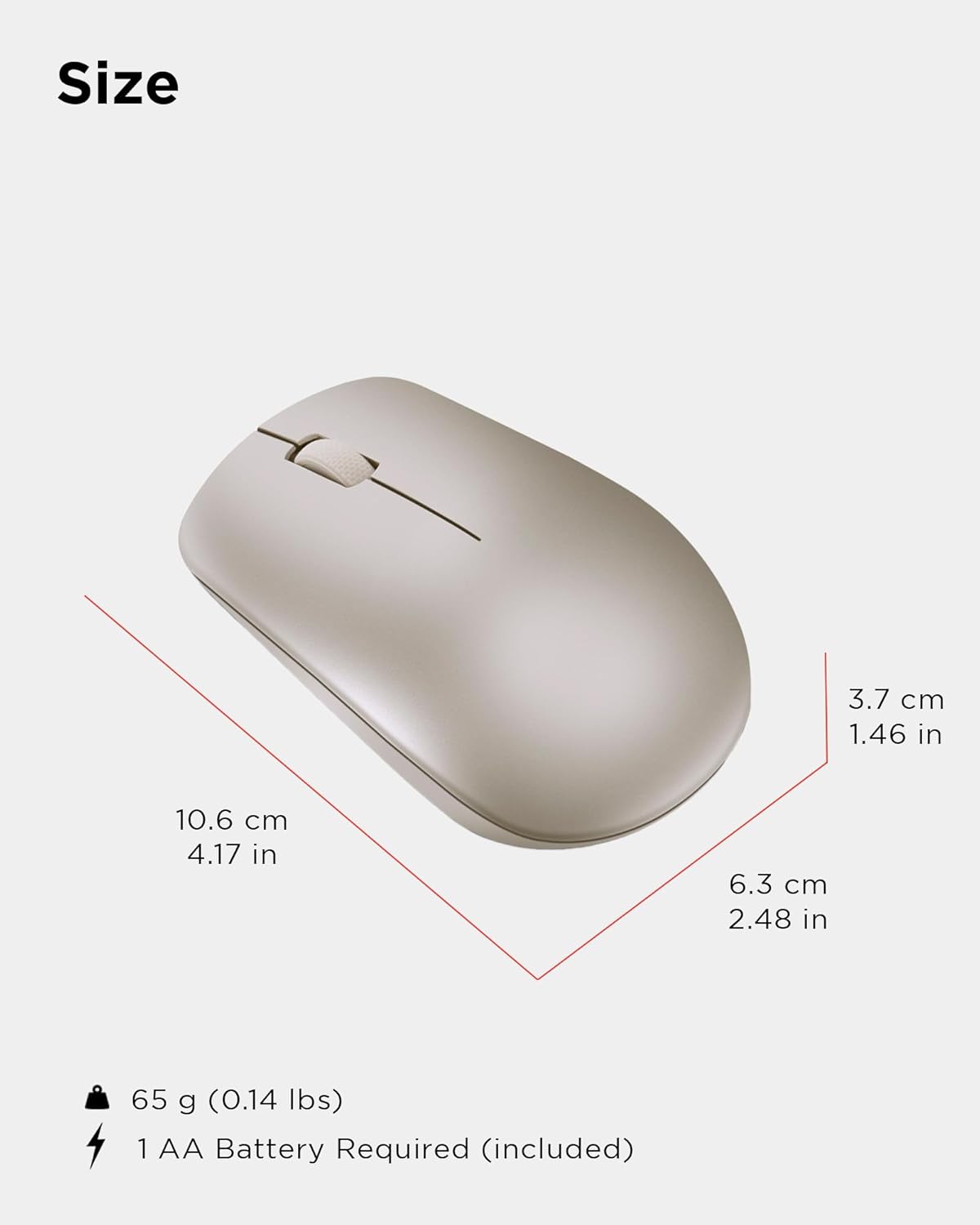
Physical dimensions and weight of the Lenovo 530 Wireless Mouse.
Warranty and Support
For warranty information and technical support, please refer to the documentation included with your product packaging or visit the official Lenovo support website. The warranty period and terms may vary by region and retailer.
Online Support: Visit support.lenovo.com for drivers, manuals, and troubleshooting guides.
Contact Support: Refer to your product's warranty card or the Lenovo support website for regional contact numbers and service options.


