
1. Introduction
This manual provides detailed instructions for the setup, operation, and maintenance of your Laxihub O1 Full HD 1080p WiFi Outdoor Security Camera. Please read this manual thoroughly before using the product to ensure correct installation and optimal performance. Keep this manual for future reference.
2. Product Overview
2.1 Package Contents
- Laxihub O1 Camera
- Power Adapter
- USB Cable
- Mounting Clamp
- Screws
- User Manual (this document)
2.2 Key Features
- Full HD 1080p Resolution: Provides clear and stable video footage day and night.
- Infrared Night Vision: Integrated sensor supports recordings and streaming in low-light conditions.
- Motion & Sound Detection: Receives warning notifications and automatically records 60-second video clips upon detection.
- Two-Way Audio: Communicate with visitors or deter intruders using the built-in microphone and noise-reduction speaker.
- Smart Home Integration: Compatible with Alexa and Google Assistant for voice control and live view.
- Local Storage: Supports local recording via an included 32GB SD card.
- Outdoor Durability: Designed for outdoor use (note: not waterproof, ensure protected installation).
2.3 Camera Components
Familiarize yourself with the physical components of your Laxihub O1 camera.
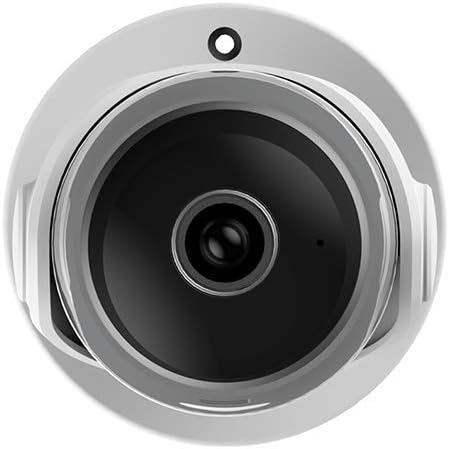
Image 1: Front view of the Laxihub O1 camera, showing the lens and indicator light.
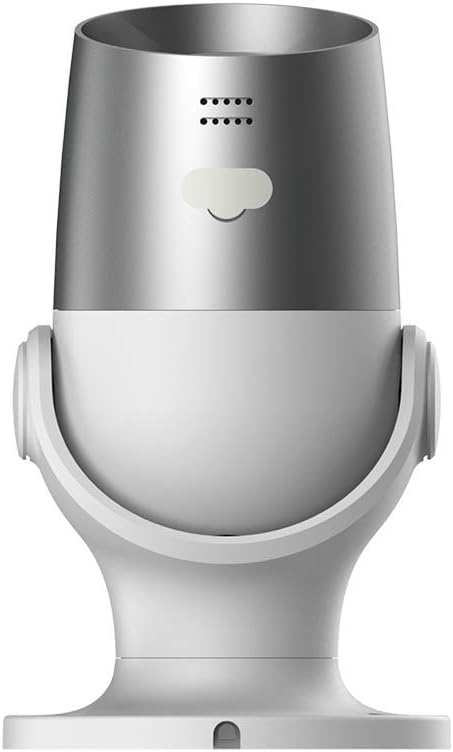
Image 2: Rear view of the Laxihub O1 camera, highlighting the power input and reset button.
3. Setup
3.1 App Download and Account Registration
- Download the 'Laxihub' app from the App Store (iOS) or Google Play Store (Android).
- Open the app and register for a new account or log in with an existing one.
3.2 Camera Installation
The Laxihub O1 camera is designed for wall mounting. Choose a location that provides the desired viewing angle and is within range of your Wi-Fi network and a power outlet. Ensure the camera is protected from direct heavy rain as it is not fully waterproof.
- Mark the drilling positions on the wall using the mounting clamp as a template.
- Drill holes and insert wall anchors if necessary.
- Secure the mounting clamp to the wall using the provided screws.
- Attach the camera to the mounting clamp and adjust its angle.
3.3 Powering On and Pairing
- Connect the USB cable to the camera and the power adapter. Plug the power adapter into a power outlet.
- The camera's indicator light will flash, indicating it is ready for pairing.
- Open the Laxihub app, tap '+' to add a new device, and follow the on-screen instructions to connect the camera to your Wi-Fi network.
- Ensure your Wi-Fi network is 2.4GHz, as the camera does not support 5GHz networks.
4. Operating Instructions
4.1 Live View and Recording
Once paired, you can access the live video feed from your camera through the Laxihub app. Tap on the camera's name in the app to view the live stream. You can manually record video or take screenshots from this interface.
4.2 Two-Way Audio
The camera supports two-way audio communication. Tap the microphone icon in the live view interface to speak through the camera's speaker. Tap it again to end communication.

Image 3: Illustration of the two-way audio feature, showing a person communicating through the camera.
4.3 Motion and Sound Detection
Configure motion and sound detection settings within the app. You can adjust sensitivity levels and set detection zones to minimize false alarms. When an event is detected, the camera will automatically record a 60-second clip and send a notification to your smartphone.

Image 4: Depiction of AI-powered human motion and sound detection, showing alerts on a smartphone.
4.4 Night Vision
The Laxihub O1 camera automatically switches to infrared night vision in low-light conditions, providing clear black and white video footage.

Image 5: Comparison image showing the camera's clear 1080p video quality during both day and night.
4.5 Smart Home Integration
The Laxihub O1 camera can be integrated with Amazon Alexa and Google Assistant. Follow the instructions in your smart home app to link your Laxihub account and enable voice commands or view the camera feed on compatible smart displays.

Image 6: Example of the camera working with Alexa, displaying the camera feed on an Echo Show device.
5. Maintenance
5.1 Cleaning the Camera
To ensure optimal image quality, regularly clean the camera lens with a soft, dry cloth. Do not use harsh chemicals or abrasive cleaners.
5.2 Firmware Updates
Periodically check the Laxihub app for available firmware updates. Keeping your camera's firmware up-to-date ensures the latest features, security patches, and performance improvements.
5.3 SD Card Management
The camera supports local storage via a Micro SD card. Ensure the SD card is properly inserted. You can format the SD card and manage recordings through the Laxihub app. Replace the SD card if it becomes corrupted or reaches its end of life.
6. Troubleshooting
| Problem | Possible Cause | Solution |
|---|---|---|
| Camera fails to connect to Wi-Fi | Incorrect Wi-Fi password; 5GHz network used; camera too far from router. | Verify Wi-Fi password. Ensure you are connecting to a 2.4GHz network. Move camera closer to the router or use a Wi-Fi extender. Reset the camera and try pairing again. |
| No video feed | Camera is offline; power issue; app malfunction. | Check if the camera is powered on and the indicator light is active. Restart the camera by unplugging and replugging. Restart the Laxihub app. Check internet connection. |
| Motion detection not working | Detection settings disabled; sensitivity too low; incorrect detection zone. | Enable motion detection in the app settings. Increase sensitivity. Adjust detection zones to cover the desired area. |
| Poor night vision quality | Lens obstruction; infrared sensor blocked. | Clean the camera lens. Ensure there are no objects directly in front of the camera blocking the infrared LEDs. |
| SD card not recording | SD card full or corrupted; incorrect recording settings. | Format the SD card via the app. Check recording settings to ensure continuous or event-based recording is enabled. Replace the SD card if it is faulty. |
7. Specifications
| Feature | Detail |
|---|---|
| Model Name | O1 |
| Brand | LAXIHUB |
| Video Resolution | 1080p Full HD |
| Connectivity Technology | Wi-Fi (2.4GHz only) |
| Power Source | Corded Electric (4.5 Watts) |
| Material | Plastic |
| Dimensions (L x W x H) | 13.7 x 6.5 x 7.5 cm |
| Weight | 440 grams |
| Mounting Type | Wall Mount |
| Special Features | Local Recording, HD Resolution, Infrared Night Vision, Two-Way Audio, Motion Detection, Sound Detection |
| Controller Type | Google Assistant, Smartphone App |
| Indoor/Outdoor Use | Outdoor (Note: Not waterproof, ensure protected installation) |
8. Warranty and Support
Laxihub products come with a standard manufacturer's warranty. For specific warranty terms and conditions, please refer to the warranty card included in your product packaging or visit the official Laxihub website. For technical support, troubleshooting assistance, or to report any issues, please contact Laxihub customer service through their official website or the contact information provided in the app.


