
1. Introduction
Thank you for choosing the MageGee G6 Wired Gaming Mouse. This ergonomic USB optical mouse is designed to enhance your gaming and work experience with its high precision sensor, adjustable speed levels, and vibrant LED backlighting. Please read this manual thoroughly to ensure proper setup and optimal performance.
2. Setup
2.1 Package Contents
- MageGee G6 Wired Gaming Mouse
- Instruction Manual
2.2 System Requirements
- Operating System: Windows 10, Windows 8, Windows 7, Windows XP, WinME, Vista, Linux, etc.
- Available USB Port
2.3 Connecting the Mouse
- Locate an available USB port on your computer (PC, Laptop, or Desktop).
- Plug the USB connector of the MageGee G6 mouse into the USB port.
- The mouse is plug-and-play; no additional drivers or software are required for basic functionality.
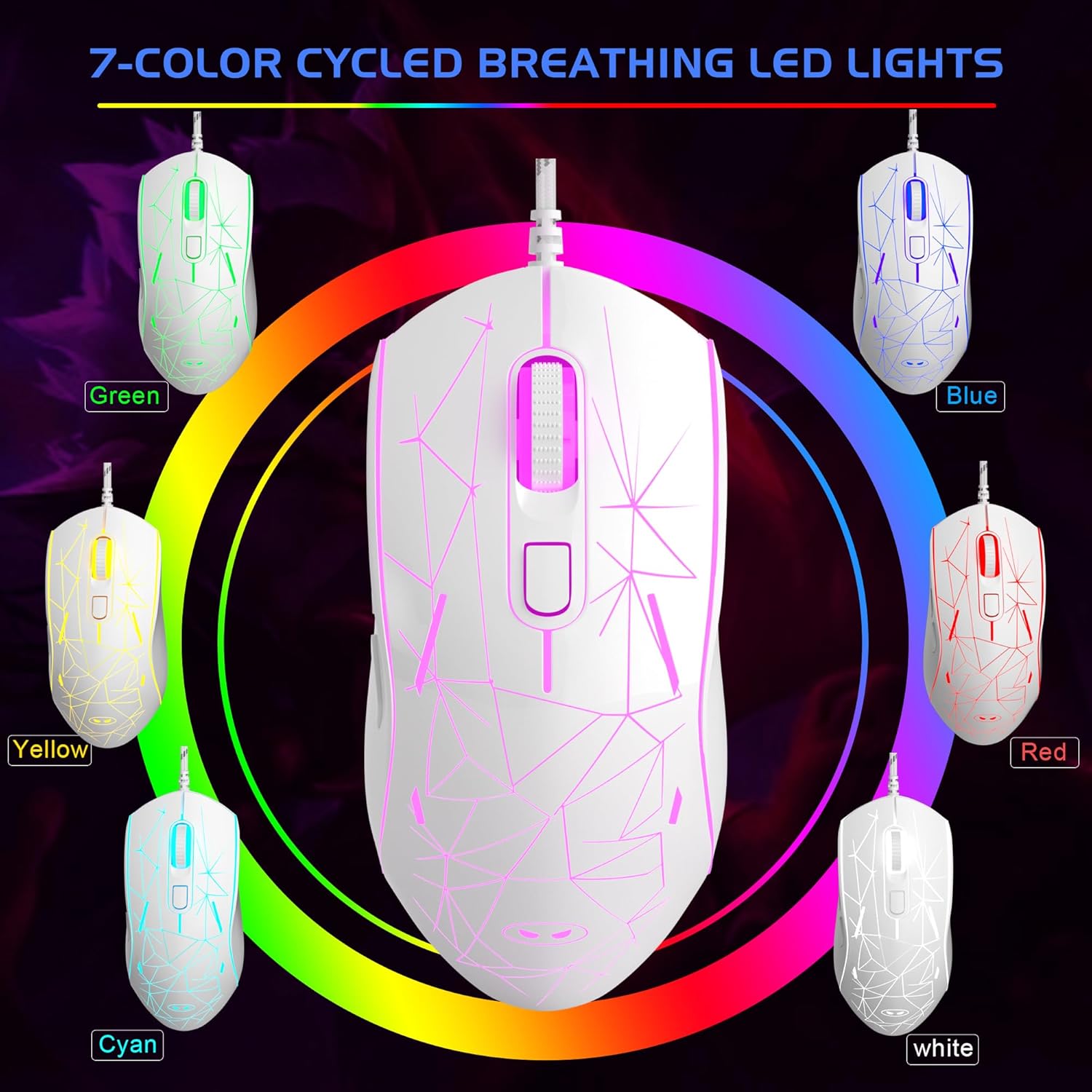
Image: The MageGee G6 Wired Gaming Mouse with its USB cable connected to a computer.
3. Operating Instructions
3.1 Button Functions
The MageGee G6 offers 6 flexible buttons for versatile control:
- Left Button: Standard left-click function.
- Right Button: Standard right-click function.
- Scroll Wheel: Scrolls up/down, and acts as a middle-click button.
- Speed Button (DPI Button): Adjusts the DPI (Dots Per Inch) sensitivity.
- Forward Button: Navigates forward in web browsers or applications.
- Back Button: Navigates backward in web browsers or applications.
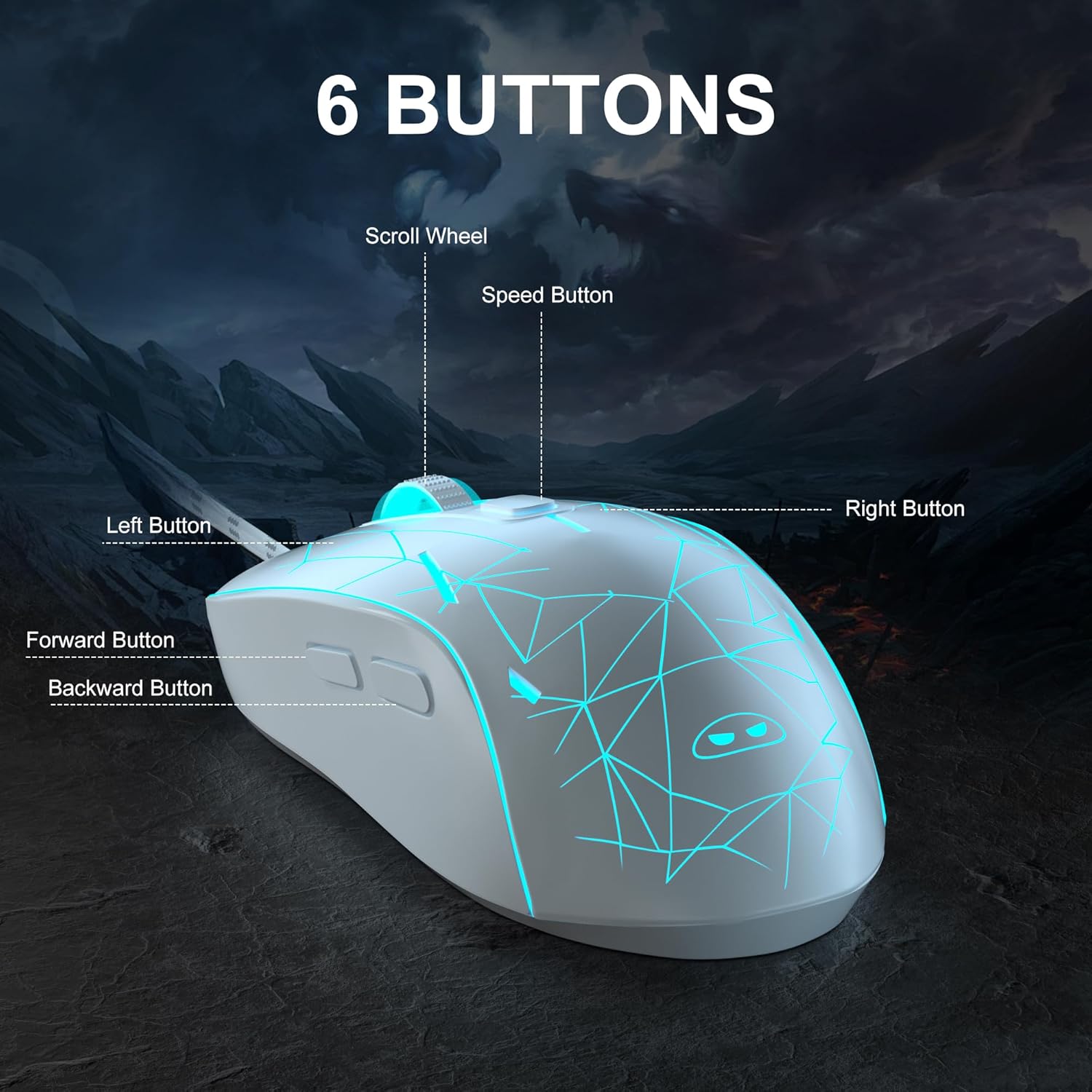
Image: A detailed view of the MageGee G6 mouse highlighting the Left, Right, Scroll Wheel, Speed, Forward, and Back buttons.
3.2 Adjusting DPI Speed Levels
The MageGee G6 offers 6 adjustable DPI speed levels for precise cursor control:
- 600 DPI
- 800 DPI
- 1200 DPI
- 1600 DPI
- 2400 DPI
- 3200 DPI
Press the Speed Button (located below the scroll wheel) to cycle through the different DPI settings. Each press will change the sensitivity, allowing you to find the optimal speed for your tasks or games.
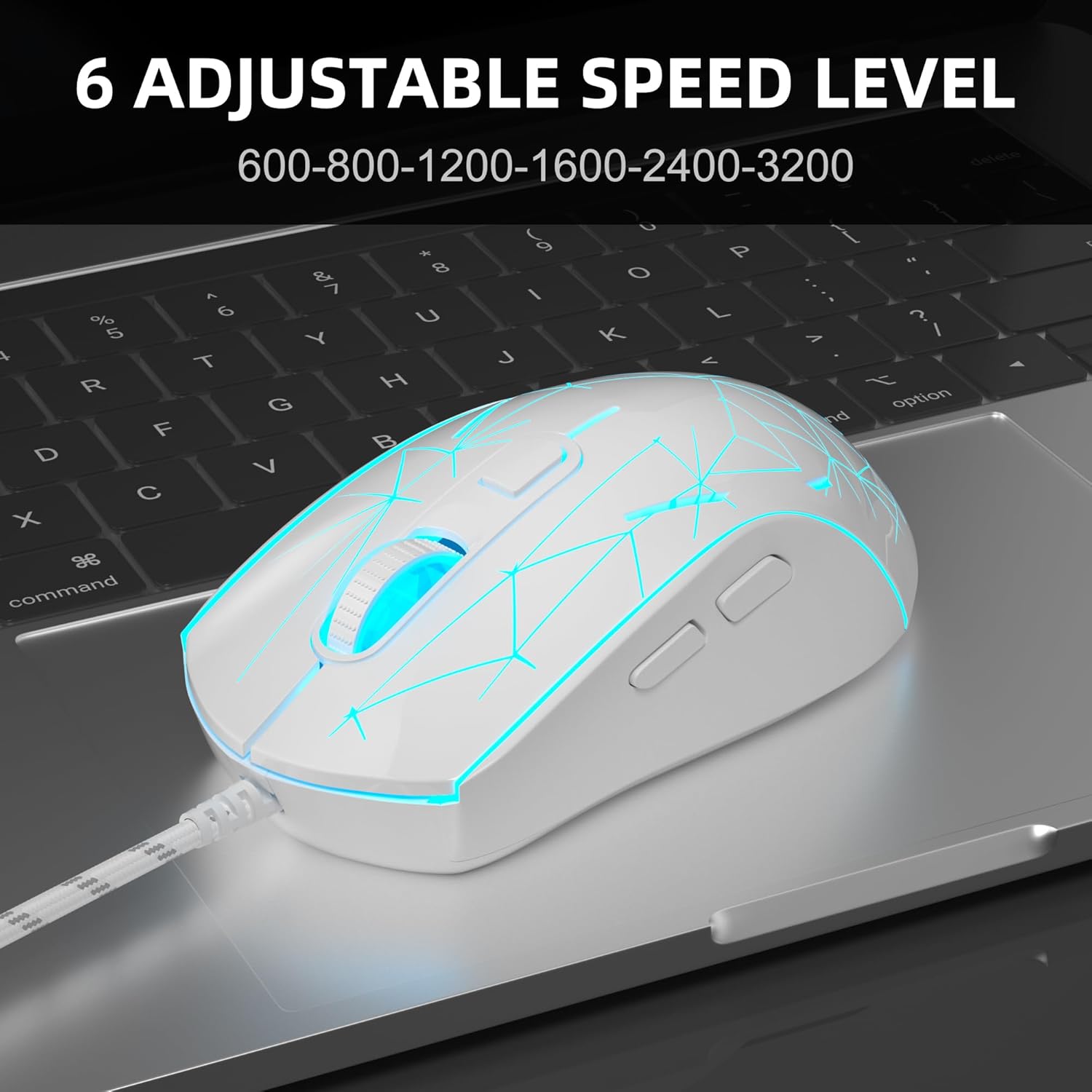
Image: The MageGee G6 mouse in use, demonstrating the adjustable DPI settings from 600 to 3200.
3.3 LED Backlight Control
The MageGee G6 features 7-color breathing LED backlighting. You can control the lighting as follows:
- Change Color: Press the Speed Button and the Forward Button simultaneously to cycle through and lock a specific color.
- Turn On/Off Lights: Press and hold the Speed Button for 3 seconds to toggle the LED lights on or off.
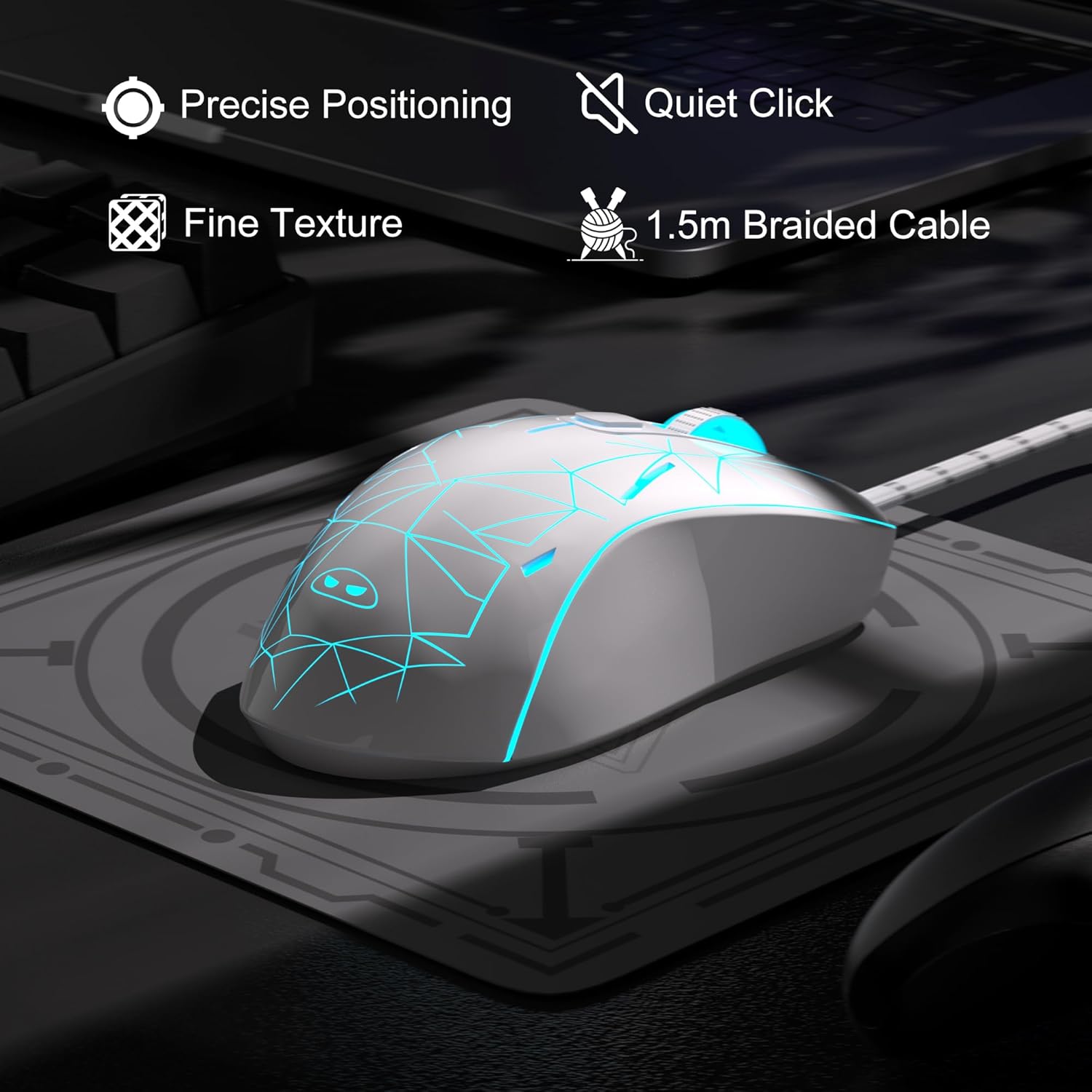
Image: The MageGee G6 mouse showcasing its 7-color breathing LED lights, including green, yellow, cyan, blue, red, and white.
4. Maintenance
- Cleaning: Use a soft, dry cloth to clean the mouse. Avoid using harsh chemicals or abrasive materials.
- Cable Care: Do not pull or twist the braided USB cable excessively to prevent damage.
- Storage: Store the mouse in a dry place away from extreme temperatures.
5. Troubleshooting
5.1 Mouse Not Responding
- Ensure the USB cable is securely plugged into a working USB port on your computer.
- Try plugging the mouse into a different USB port.
- Restart your computer.
5.2 LED Lights Not Working
- Ensure the mouse is properly connected to your computer.
- Press and hold the Speed Button for 3 seconds to toggle the LED lights on or off.
5.3 Cursor Movement is Erratic
- Clean the optical sensor on the bottom of the mouse with a soft cloth.
- Ensure you are using the mouse on a suitable surface (e.g., a mouse pad).
- Adjust the DPI sensitivity using the Speed Button.
6. Specifications
| Feature | Detail |
|---|---|
| Brand | MageGee |
| Model | G6 |
| Connectivity Technology | USB, Wired |
| Movement Detection Technology | Optical |
| DPI Levels | 600/800/1200/1600/2400/3200 (Adjustable) |
| Buttons | 6 (Left, Right, Scroll Wheel, Speed, Forward, Back) |
| LED Backlight | 7 Colors Breathing LED (Blue, Red, Green, Purple, Cyan, Yellow, White) |
| Cable Length | 1.5 meters (Durable Braided Cable) |
| Ergonomics | Ergonomic Design with Comfortable Grip |
| Compatibility | Windows 10, 8, 7, XP, WinME, Vista, Linux, PC, Laptop, Desktop |
| Item Weight | 5.6 ounces |
| Package Dimensions | 5.31 x 3.62 x 1.65 inches |
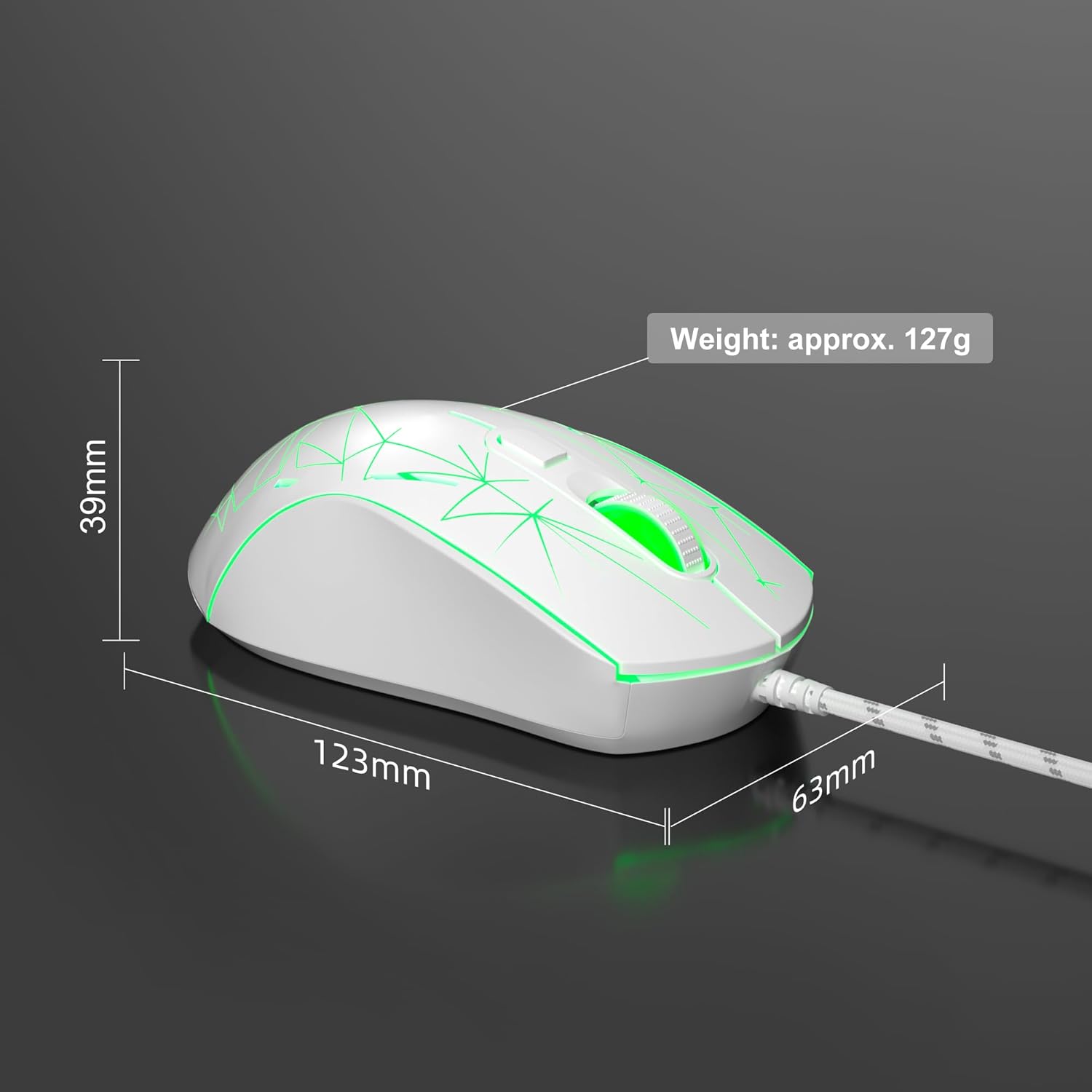
Image: Diagram illustrating the dimensions of the MageGee G6 Wired Gaming Mouse (123mm length, 63mm width, 39mm height, approx. 127g weight).
7. Warranty & Support
For warranty information and customer support, please refer to the official MageGee website or contact your retailer. Keep your purchase receipt for warranty claims.
MageGee is committed to technological and product innovation, providing quality computer peripherals. Our after-sales team is available to promptly respond and solve your problems.
Visit the MageGee Store for more products and information.
