
1. Introduction
Thank you for choosing the MageGee TS92 Wireless 60% Gaming Keyboard. This compact, rechargeable keyboard offers a stable 2.4G wireless connection, vibrant RGB backlighting, and a durable, water-resistant design. This manual provides detailed instructions for setup, operation, and maintenance to ensure optimal performance.

Image: MageGee TS92 wireless keyboard on a wooden table next to a speaker and a book, showcasing its use in a home environment. This image provides a general view of the product in use.
2. Package Contents
- MageGee TS92 Wireless 60% Gaming Keyboard
- USB Nano Receiver (stored in the keyboard's bottom compartment)
- Detachable USB Type-C Charging Cable
- User Manual (this document)
3. Setup
3.1 Initial Charging
Before first use, fully charge the keyboard using the provided USB Type-C cable. Connect the Type-C end to the keyboard's charging port and the USB-A end to a power source (e.g., computer USB port, USB wall adapter). The charging indicator will show the charging status.

Image: MageGee TS92 keyboard connected via USB-C cable with 2.4G wireless dongle inserted into a laptop. This image illustrates the charging connection and the wireless receiver.
3.2 Wireless Connection
- Locate the USB Nano Receiver in the compartment on the bottom of the keyboard.
- Plug the USB Nano Receiver into an available USB port on your computer or laptop.
- Turn on the keyboard using the power switch located on the bottom of the keyboard.
- The keyboard should automatically connect to your device. No additional software or drivers are required.
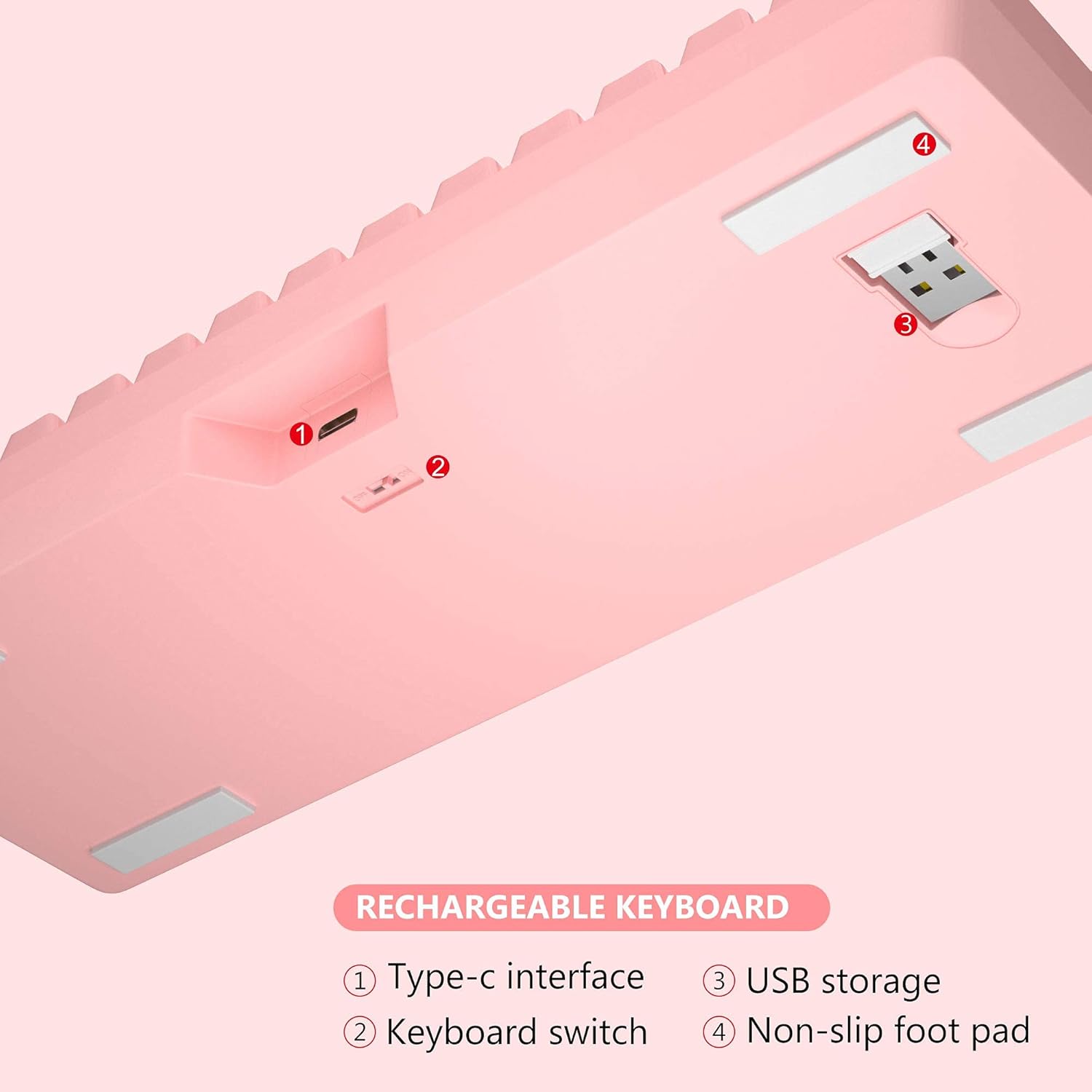
Image: Bottom view of MageGee TS92 keyboard showing the USB receiver storage compartment, power switch, and Type-C interface. This image highlights the location of the wireless dongle and power switch.
4. Operating Instructions
4.1 RGB Backlighting Control
The MageGee TS92 keyboard features vibrant RGB backlighting with 7 color options (red, green, purple, yellow, blue, white, cyan) and various lighting effects.
- FN + K: Switch between different backlight modes (e.g., Ripples, Waves, Breathing, Aurora).
- FN + L: Adjust backlight brightness (5 levels).
- FN + I: Turn backlight on/off.
- FN + U: Increase backlight speed.
- FN + J: Decrease backlight speed.

Image: MageGee TS92 keyboard displaying colorful RGB backlighting. This image showcases the keyboard's illuminated keys.
Video: Demonstration of MageGee TS92 Wireless 61 Keys RGB Keyboard features, including various RGB lighting modes and key functions. This video provides a visual guide to the keyboard's dynamic lighting effects.
4.2 Multimedia and Function Keys
The 61-key layout includes essential multimedia and function keys accessible via the FN key combinations.
| Combination | Function |
|---|---|
| FN + R | Volume Down |
| FN + T | Volume Up |
| FN + Y | Mute |
| FN + K | Switch backlight modes |
| FN + L | Adjust backlight brightness |
| FN + I | Backlight on/off |
| FN + U | Speed up backlight speed |
| FN + J | Slow down backlight speed |

Image: Diagram showing FN key combinations for multimedia and lighting control on MageGee TS92 keyboard. This image provides a visual reference for special key functions.
4.3 Power Management
The keyboard is equipped with a 2000mAh rechargeable battery. It offers up to 24 hours of wireless usage and 480 hours of standby time on a single charge.
- The keyboard will automatically enter sleep mode after 1 minute of inactivity to conserve power.
- Click any key to wake it up.
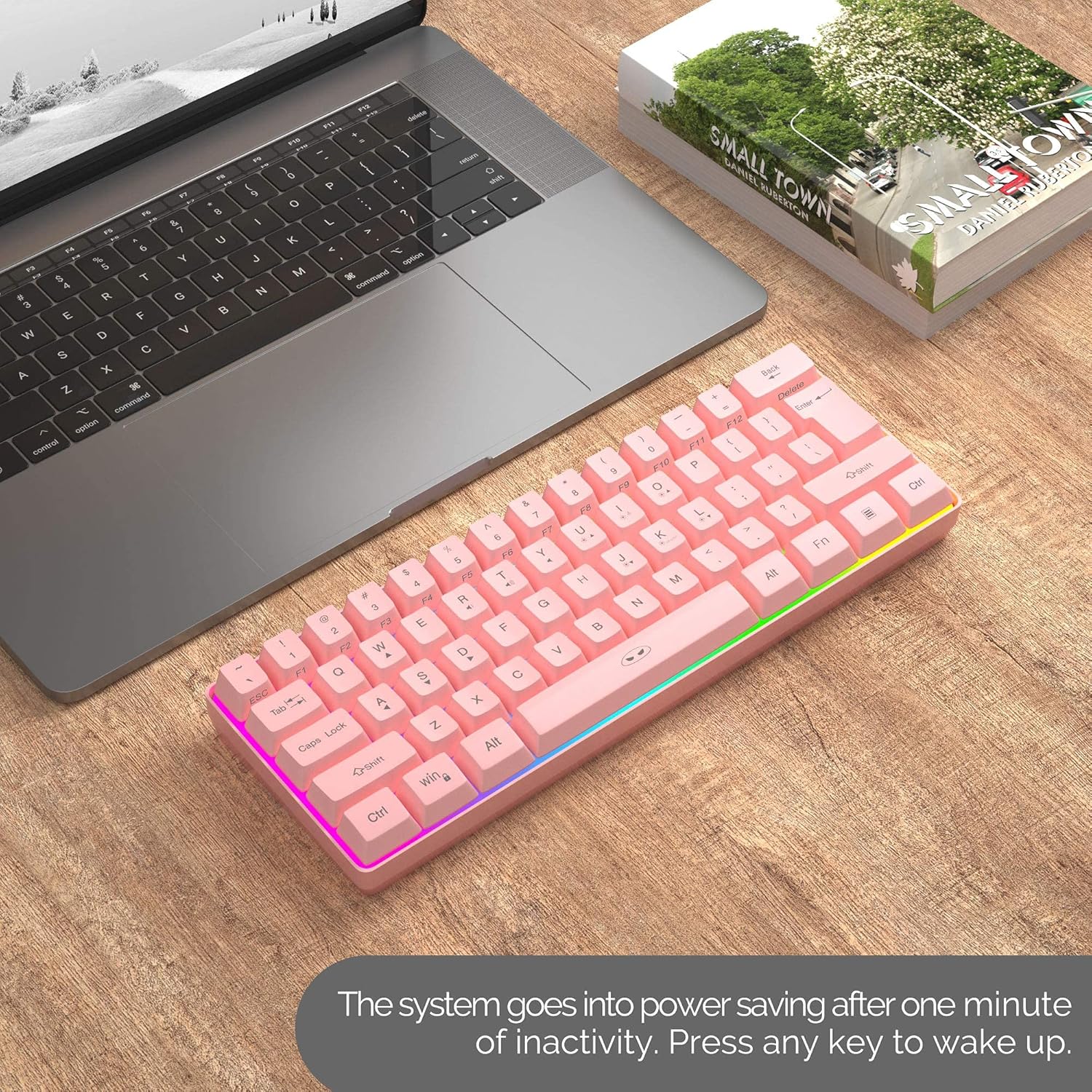
Image: MageGee TS92 keyboard on a desk next to a laptop, illustrating the automatic sleep mode feature. This image shows the keyboard in a typical usage scenario.
4.4 Compatibility
The MageGee TS92 keyboard is compatible with a wide range of operating systems, including:
- Windows (Win2000, Win XP, Win ME, Vista, Win 7, Win 8, Win 10)
- Mac OS
- Linux
- Other devices with USB ports
5. Maintenance
5.1 Water Resistance
The keyboard is designed to be water-resistant, protecting against damage from spilled drinks or coffee. However, it is important to note:
- DO NOT soak the keyboard in water.
- DO NOT rinse it under tap water.
- In case of spills, gently wipe the keyboard dry with a soft cloth.
5.2 Cleaning
To clean the keyboard, use a soft, slightly damp cloth. Avoid using harsh chemicals or abrasive materials that could damage the surface or keycaps.
6. Troubleshooting
- Keyboard not responding:
- Ensure the keyboard is powered on.
- Check if the USB Nano Receiver is securely plugged into a working USB port on your device.
- Verify the keyboard battery is charged. Connect the Type-C cable to charge if needed.
- Try plugging the USB Nano Receiver into a different USB port.
- Restart your computer.
- RGB lights not working or stuck:
- Press FN + I to ensure the backlight is turned on.
- Press FN + K to cycle through different lighting modes.
- Press FN + L to adjust brightness.
- Ensure the keyboard battery is sufficiently charged.
- Intermittent connection:
- Ensure the keyboard is within the 10-meter operating range of the USB receiver.
- Avoid placing the keyboard near strong electromagnetic interference sources.
- Ensure the keyboard is fully charged.
7. Specifications
| Feature | Detail |
|---|---|
| Model | TS92 |
| Connection Mode | 2.4G Wireless |
| Number of Keys | 61 |
| Battery Capacity | 2000mAh |
| Charging Port | USB Type-C |
| Operating Distance | Up to 10 meters |
| Compatibility | Windows, Mac, Linux |
| Special Features | RGB Backlit, Rechargeable, Water Resistant |
| Keyboard Dimensions | 292 x 102 x 40 mm (approx. 11.5 x 4.0 x 1.6 inches) |
| Item Weight | 1.12 pounds (approx. 508g) |
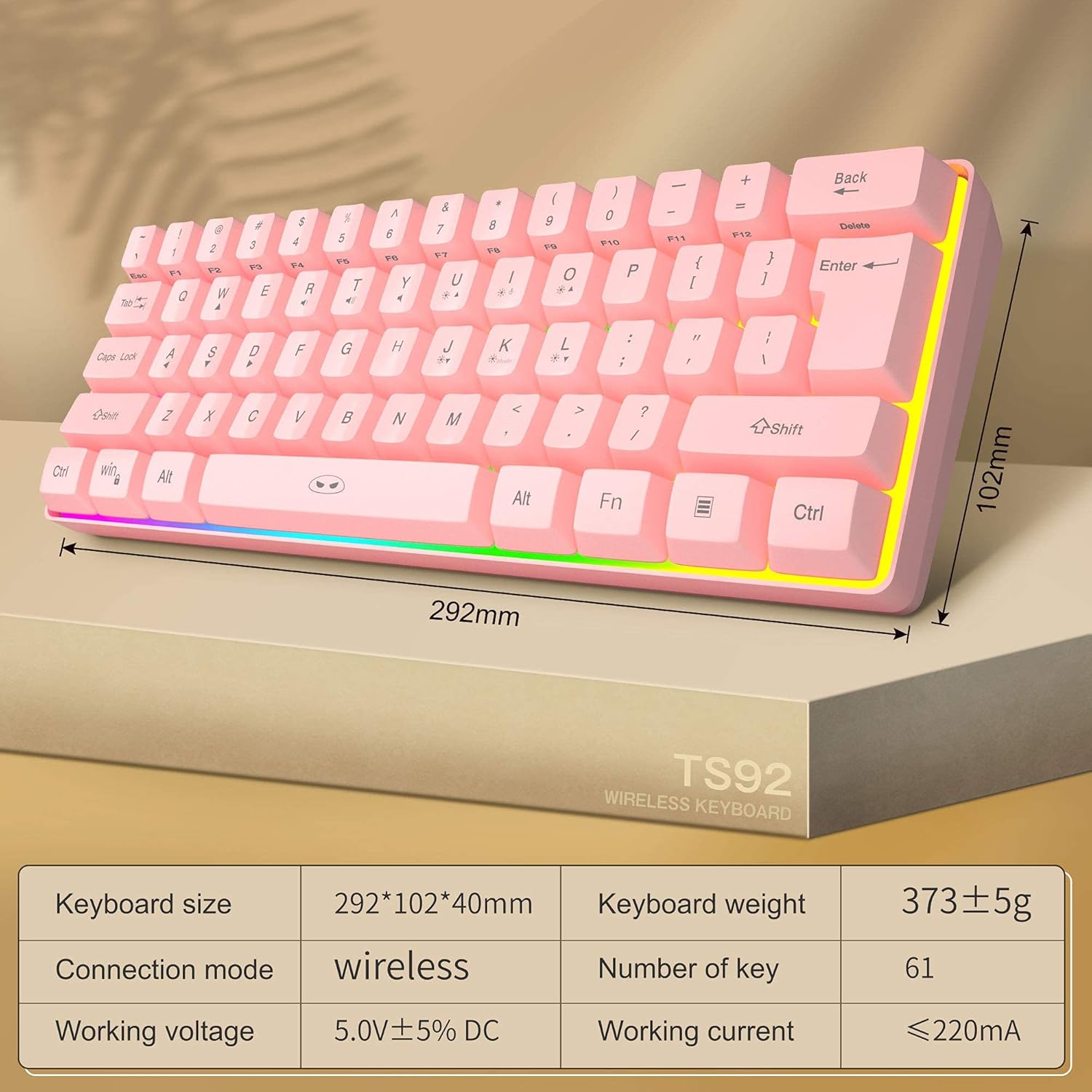
Image: Diagram showing the dimensions and key specifications of the MageGee TS92 wireless keyboard. This image provides a visual overview of the keyboard's physical attributes and technical details.
8. Warranty and Support
MageGee products are designed for reliability and performance. For warranty information or technical support, please refer to the contact details provided with your purchase or visit the official MageGee website. Keep your purchase receipt for warranty claims.

