1. Introduction
Thank you for choosing the ZHNN Double Din Car Stereo Radio. This manual provides essential information for the proper installation, operation, and maintenance of your new car stereo. Featuring a 7-inch HD LCD touch screen, this unit supports Apple CarPlay, Android Auto, Bluetooth connectivity, Mirror Link, a backup camera input, USB/SD media playback, and FM/AM radio. Please read this manual thoroughly before use to ensure optimal performance and safety.
2. Product Overview and Dimensions
Familiarize yourself with the main components and physical dimensions of your car stereo unit.

Figure 2.1: Front view of the ZHNN Double Din Car Stereo, showcasing the 7-inch HD LCD touch screen and physical buttons.
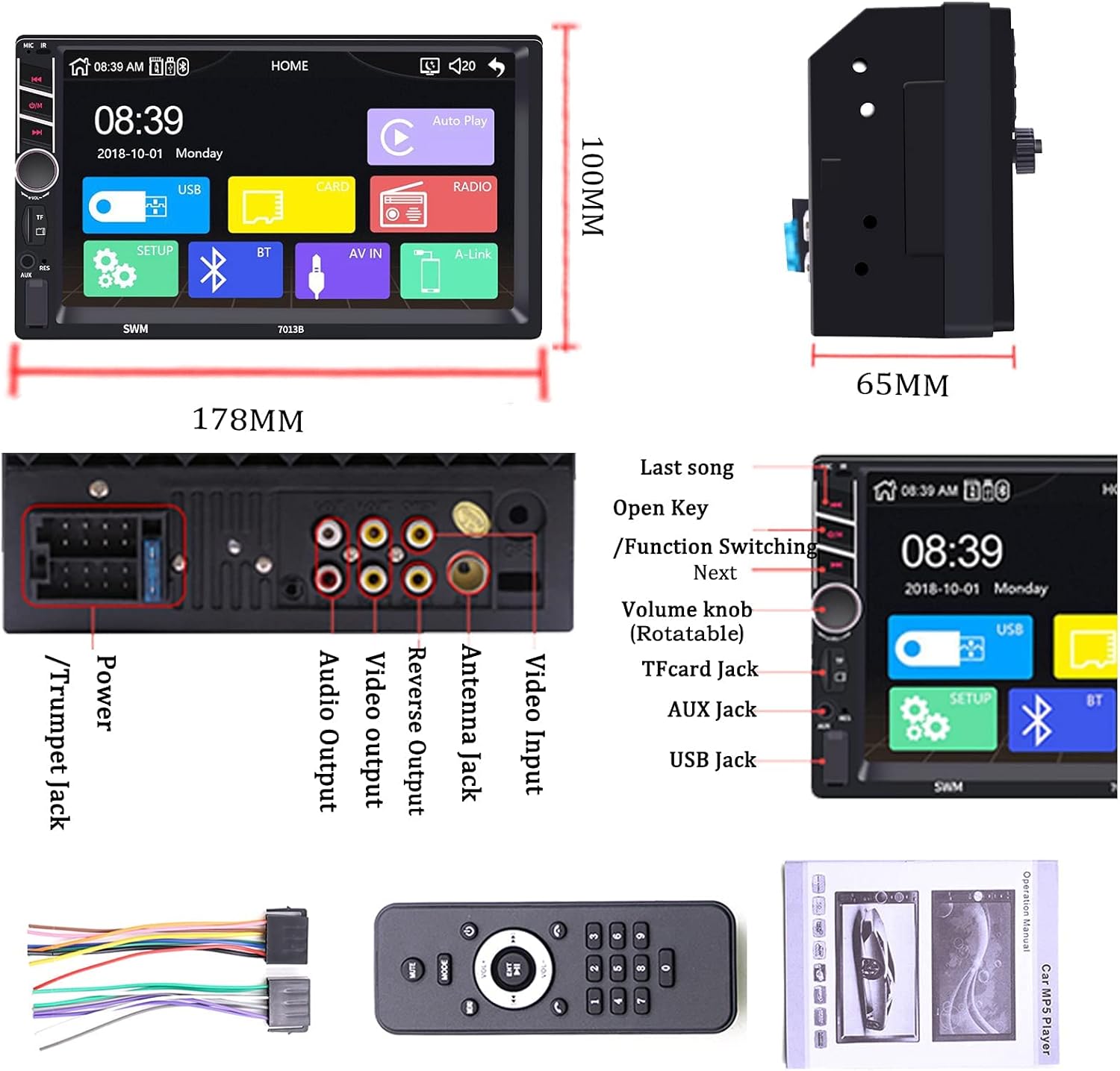
Figure 2.2: Detailed dimensions of the car stereo (178mm width, 100mm height, 65mm depth) and a view of the rear ports including RCA input/output, power cable, camera input, USB cables, and GPS antenna connection.
3. Setup and Installation
Proper installation is crucial for the optimal performance of your car stereo. It is recommended to have this unit installed by a professional.
3.1 Wiring Diagram
Refer to the following diagram for correct wiring connections. Ensure all connections are secure to prevent malfunctions.
Figure 3.1: Comprehensive wiring diagram showing connections for power, speakers (rear right, front left, rear left, front right), reverse control, auto antenna, illuminate backlight, ignition switch (ACC), memory backup (+12V), and ground (B-).
Video 3.1: A short demonstration of the ZHNN Double Din Car Stereo Wire Diagram, illustrating the various connections for installation.
3.2 General Installation Steps
- Disconnect the vehicle's negative battery terminal.
- Remove the factory radio from the dashboard.
- Connect the wiring harness according to the diagram (Figure 3.1).
- Connect any external accessories such as the backup camera or GPS antenna.
- Mount the new car stereo securely into the dashboard.
- Reconnect the vehicle's negative battery terminal and test the unit.
4. Operating Instructions
This section details the operation of various features of your ZHNN car stereo.
4.1 Apple CarPlay
Connect your iPhone via USB to access CarPlay features directly on the stereo's screen. This allows for hands-free calling, navigation, music playback, and more.

Figure 4.1: The Apple CarPlay interface displayed on the 7-inch screen, showing phone, music, maps, and messaging apps.
Video 4.1: Demonstration of Wireless CarPlay functionality, including hands-free calling, music playback, and navigation features.
Video 4.2: Detailed overview of Apple CarPlay features on the ZHNN 7-inch double din car stereo, showcasing various applications and interactions.
4.2 Android Auto
Connect your Android phone via USB to use Android Auto. This integrates your phone's functions like navigation, communication, and entertainment into the car's display.
Video 4.3: A demonstration of Android Auto features on the ZHNN double din car stereo, including navigation, music, and phone calls.
4.3 Mirror Link (Wired & Wireless)
Mirror Link allows you to display your smartphone's screen directly onto the car stereo. This feature supports both wired and wireless connections for Apple and Android devices.
Video 4.4: Overview of the ZHNN 7-inch double din car stereo, highlighting the wired and wireless Mirror Link capabilities for both Apple and Android phones.
4.4 Bluetooth Connectivity
Pair your smartphone via Bluetooth for hands-free calling and wireless audio streaming. This enhances safety and convenience while driving.

Figure 4.2: The Bluetooth connection screen, showing options for Bluetooth music playback and hands-free calling with a dial pad.
4.5 FM/AM Radio
Tune into your favorite FM/AM radio stations for news, music, and entertainment on the go. The unit features a clear digital display for station frequencies.
Figure 4.3: The FM/AM radio interface, displaying frequency tuning and preset station options.
4.6 Media Playback (USB/SD)
Play your favorite audio and video files directly from a USB drive or SD card. The unit supports various media formats for versatile entertainment.

Figure 4.4: Media playback screen showing music files from a USB device, with options for track selection and playback control.
4.7 Backup Camera Input
Connect a backup camera to the dedicated input for enhanced safety when reversing. The screen automatically displays the rear view when the vehicle is in reverse gear.
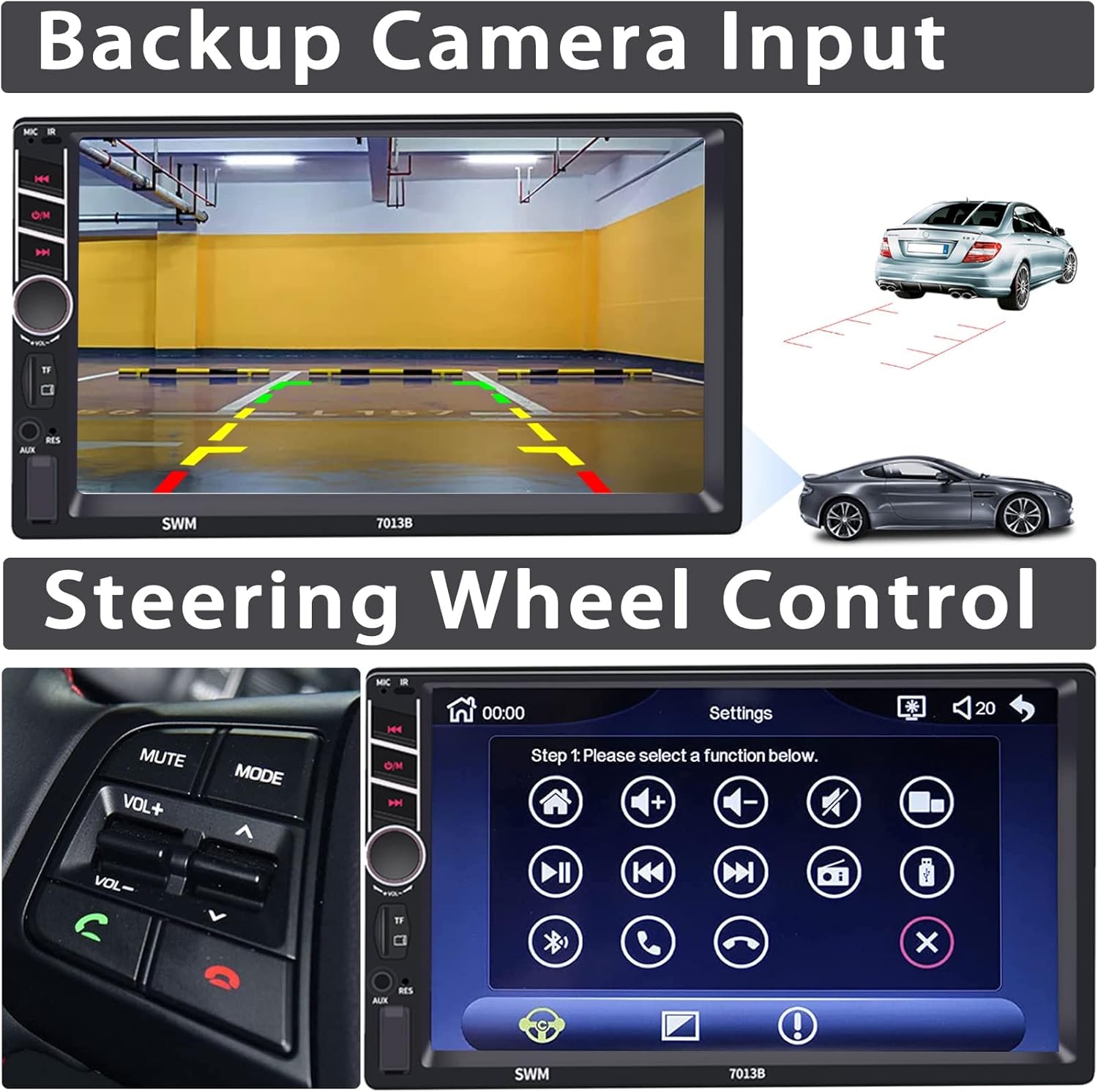
Figure 4.5: The backup camera display showing the rear view with parking guidelines, alongside an illustration of a car reversing.
4.8 Steering Wheel Control
Integrate with your vehicle's existing steering wheel controls for convenient operation of the stereo without taking your hands off the wheel.
Figure 4.6: The steering wheel control setup interface, allowing users to map various functions to their vehicle's steering wheel buttons.
4.9 User Interface and Customization
The intuitive user interface offers various customization options, including colorful lamp settings and different home screen layouts.
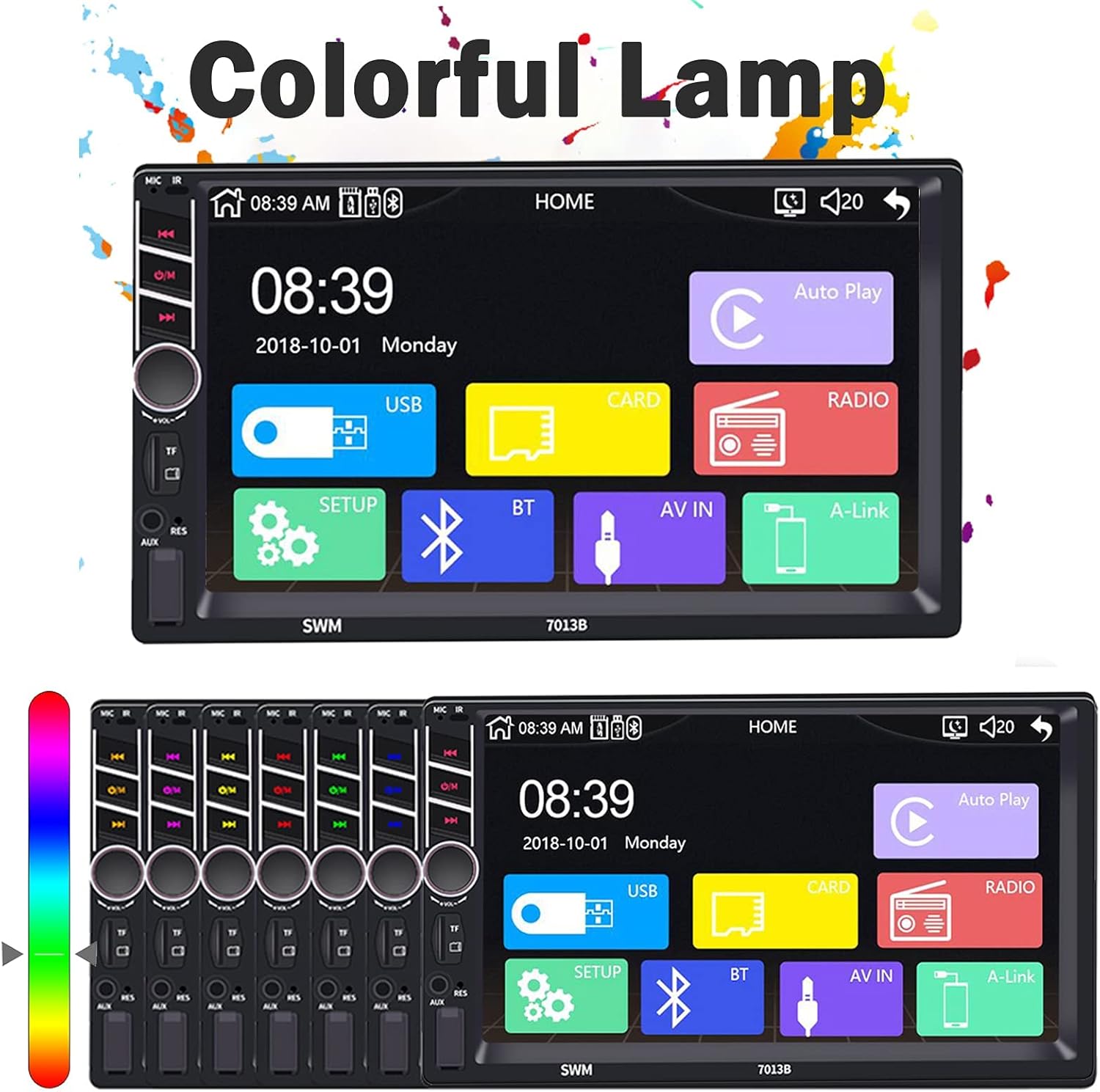
Figure 4.7: The colorful lamp settings interface, allowing users to customize the illumination colors of the unit's buttons.

Figure 4.8: A collage of various user interface screens, demonstrating the phone dialer, music player, radio, and settings menus.
5. Maintenance
To ensure the longevity and optimal performance of your ZHNN car stereo, follow these maintenance guidelines:
- Cleaning the Screen: Use a soft, lint-free cloth to gently wipe the touch screen. For stubborn smudges, slightly dampen the cloth with water or a screen-cleaning solution. Avoid harsh chemicals or abrasive materials.
- General Cleaning: Keep the unit free from dust and debris. Use a soft brush or compressed air to clean around buttons and ports.
- Temperature: Avoid exposing the unit to extreme temperatures. Prolonged exposure to direct sunlight or very cold conditions can affect performance and lifespan.
- Software Updates: Periodically check the manufacturer's website for any available software updates to ensure you have the latest features and bug fixes.
6. Troubleshooting
If you encounter any issues with your car stereo, refer to the following common troubleshooting steps:
| Problem | Possible Cause | Solution |
|---|---|---|
| No power | Loose power connection, blown fuse | Check power cables and fuse. Ensure proper connection to battery and ignition. |
| No sound | Volume too low, incorrect audio source, loose speaker wires | Increase volume. Select correct audio source. Check speaker connections. |
| Touch screen unresponsive | System freeze, debris on screen | Restart the unit (turn car off and on). Clean the screen. |
| CarPlay/Android Auto not connecting | Faulty USB cable, phone settings, app issues | Use original or certified USB cable. Check phone settings for CarPlay/Android Auto. Restart phone and unit. |
| Bluetooth not pairing | Bluetooth off, device not discoverable, interference | Ensure Bluetooth is on for both devices. Make device discoverable. Try pairing in a different location. |
7. Specifications
Key technical specifications of the ZHNN Double Din Car Stereo Radio:
- Brand: ZHNN
- Model: B08LR81FP1
- Screen Size: 7-inch HD LCD Touch Screen
- Connectivity Technology: Auxiliary, Bluetooth, USB
- Controller Type: Android (compatible with Apple CarPlay)
- Compatible Devices: Speaker, Smartphone
- Connector Type: 3.5mm Jack, USB
- Audio Encoding: Stereo
- Audio Output Mode: Stereo
- Number of Channels: 4
- Supported Internet Services: Maps, Spotify
- Control Method: Touch
- Item Weight: 1.83 pounds
- Package Dimensions: 7.68 x 6.77 x 4.41 inches
8. Warranty and Support
For warranty information or technical support, please refer to the product packaging or contact ZHNN customer service directly. Keep your purchase receipt as proof of purchase for any warranty claims.
For further assistance, please visit the official ZHNN website or contact their support team through the contact information provided with your product.