
Introduction
This manual provides instructions for the KLIM Unity Wireless Keyboard and Mouse Set. This set is designed to offer a wireless input solution for various devices, including PCs, Macs, PS4, and PS5 consoles. It features a backlit keyboard with a semi-mechanical feel and an ergonomic mouse with adjustable DPI.

Image: The KLIM Unity Wireless Keyboard and Mouse Set, showcasing the keyboard's vibrant backlighting and the sleek design of the accompanying mouse.
Setup
1. Unpacking and Components
Ensure all components are present:
- KLIM Unity Wireless Keyboard
- KLIM Unity Wireless Mouse
- USB Receiver (located underneath the mouse)
- USB Charging Cable
2. Connecting the USB Receiver
The KLIM Unity set operates wirelessly, connecting both the keyboard and mouse to your computer via a single USB receiver. The USB receiver is stored in a compartment underneath the mouse for convenience.
- Locate the USB receiver in its storage slot underneath the mouse.
- Insert the USB receiver into an available USB port on your computer or console.
- The devices should connect automatically.

Image: The wireless mouse and a portion of the keyboard, illustrating the compact USB receiver and key features like adjustable DPI.
3. Initial Charging
Both the keyboard and mouse feature built-in rechargeable batteries. For optimal performance, it is recommended to fully charge both devices before first use.
- Connect the supplied USB charging cable to the charging port on the keyboard and mouse.
- Connect the other end of the USB cable to a powered USB port (e.g., on your computer or a USB wall adapter).
- Charging indicators will typically show when the devices are charging and when they are fully charged.
Operating the Keyboard
1. Backlight Control
The keyboard features colorful backlighting. You can adjust the lighting to suit your preference.
- Turning On/Off: Use the dedicated backlight control keys (often indicated by a light bulb icon or combined with a Function key) to toggle the backlighting.
- Adjusting Brightness: Use the Function (Fn) key in combination with specific arrow keys or dedicated brightness keys to increase or decrease the backlight intensity.
- Changing Colors/Modes: Some models allow cycling through different color modes or static colors using Fn key combinations.
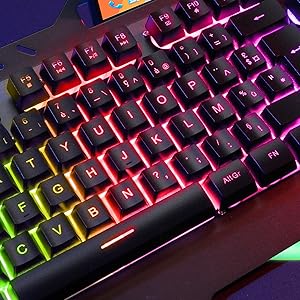
Image: A detailed view of the keyboard keys, showcasing the colorful RGB backlighting.
2. Function Keys and Shortcuts
The keyboard includes a special Function (Fn) key that, when pressed in combination with other keys, provides access to various shortcuts.
- Media Controls: Common shortcuts include volume control (up, down, mute), play/pause, previous/next track.
- Application Shortcuts: Some keys may launch specific applications or functions.
3. Typing Experience
The keyboard features hybrid keys, combining elements of mechanical keyboards for a responsive feel with reduced noise levels, suitable for both typing and gaming.

Image: The keyboard with a smartphone in its integrated holder, demonstrating a practical feature.
Operating the Mouse
1. Ergonomic Design and Grip
The wireless mouse features an ergonomic design with anti-skid flanks for comfortable use during extended periods. Its symmetrical design accommodates both right-handed and left-handed users, though side buttons are located on one side only.
2. DPI Adjustment
The mouse includes adjustable DPI (Dots Per Inch) settings, allowing you to change cursor sensitivity to match your preferences or task requirements.
- Locate the DPI adjustment button, typically near the scroll wheel.
- Press the button to cycle through available DPI settings. The mouse's LED indicator may change color to indicate the current DPI level.
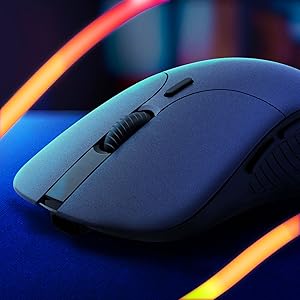
Image: A close-up view of the wireless mouse, highlighting its ergonomic contours.
Maintenance
1. Charging
To charge the keyboard and mouse, use the provided USB cable. Connect the cable to the respective charging ports on each device and to a powered USB source. The devices are designed with long-lasting built-in batteries.
2. Cleaning
To clean the keyboard and mouse:
- Ensure both devices are powered off.
- Use a soft, dry, lint-free cloth to wipe surfaces.
- For stubborn dirt, a slightly damp cloth can be used, ensuring no moisture enters openings.
- Avoid harsh chemicals or abrasive materials.
Troubleshooting
1. Connectivity Issues
- No Connection: Ensure the USB receiver is securely plugged into a working USB port. Verify that both the keyboard and mouse are powered on.
- Interference: Move the receiver closer to the devices or away from other wireless devices that might cause interference.
2. Lag or Delayed Response
- Low Battery: Charge both the keyboard and mouse fully. Low battery can affect wireless performance.
- Distance: Ensure the devices are within the operational range (up to 10 meters) of the USB receiver.
- Power Saving: Some devices may enter a power-saving mode after inactivity, which can cause a slight delay upon reactivation.
3. Backlight Not Working
- Check if the backlight is simply turned off using the dedicated control keys.
- Ensure the keyboard has sufficient battery charge, as backlighting consumes power.
Specifications
| Feature | Detail |
|---|---|
| Product Dimensions | 17.5 x 7.6 x 1.68 inches |
| Item Weight | 1.98 pounds |
| Manufacturer | KLIM |
| Item Model Number | k108-6 |
| Batteries | 1 Lithium Polymer batteries required (included) |
| Connectivity Technology | Wireless |
| Special Features | Backlit, Ergonomic |
| Compatible Devices | Mac, PS4, PS5, Personal Computer |
| Color | Black |
Official Product Video
Video: An official overview of the KLIM Unity Wireless Keyboard and Mouse Set, demonstrating its features and design.
Warranty
The KLIM Unity Wireless Keyboard and Mouse Set comes with a 5-year warranty, covering manufacturing defects and ensuring product reliability.
Support
For any questions, technical assistance, or warranty claims, please contact KLIM Customer Service. The support team aims to provide a response within 24 hours.
For further information, please visit the KLIM Store on Amazon.


