
1. Introduction
This manual provides detailed instructions for the KLIM Unity Wireless Keyboard and Mouse Set. Please read this manual carefully before use to ensure optimal performance and longevity of your devices. This set is designed for seamless wireless connectivity and enhanced user experience.
2. Package Contents
The KLIM Unity Wireless Keyboard and Mouse Set includes the following items:
- KLIM Unity Wireless Keyboard
- KLIM Unity Wireless Mouse
- USB Receiver (2.4 GHz)
- USB Charging Cable
- User Manual
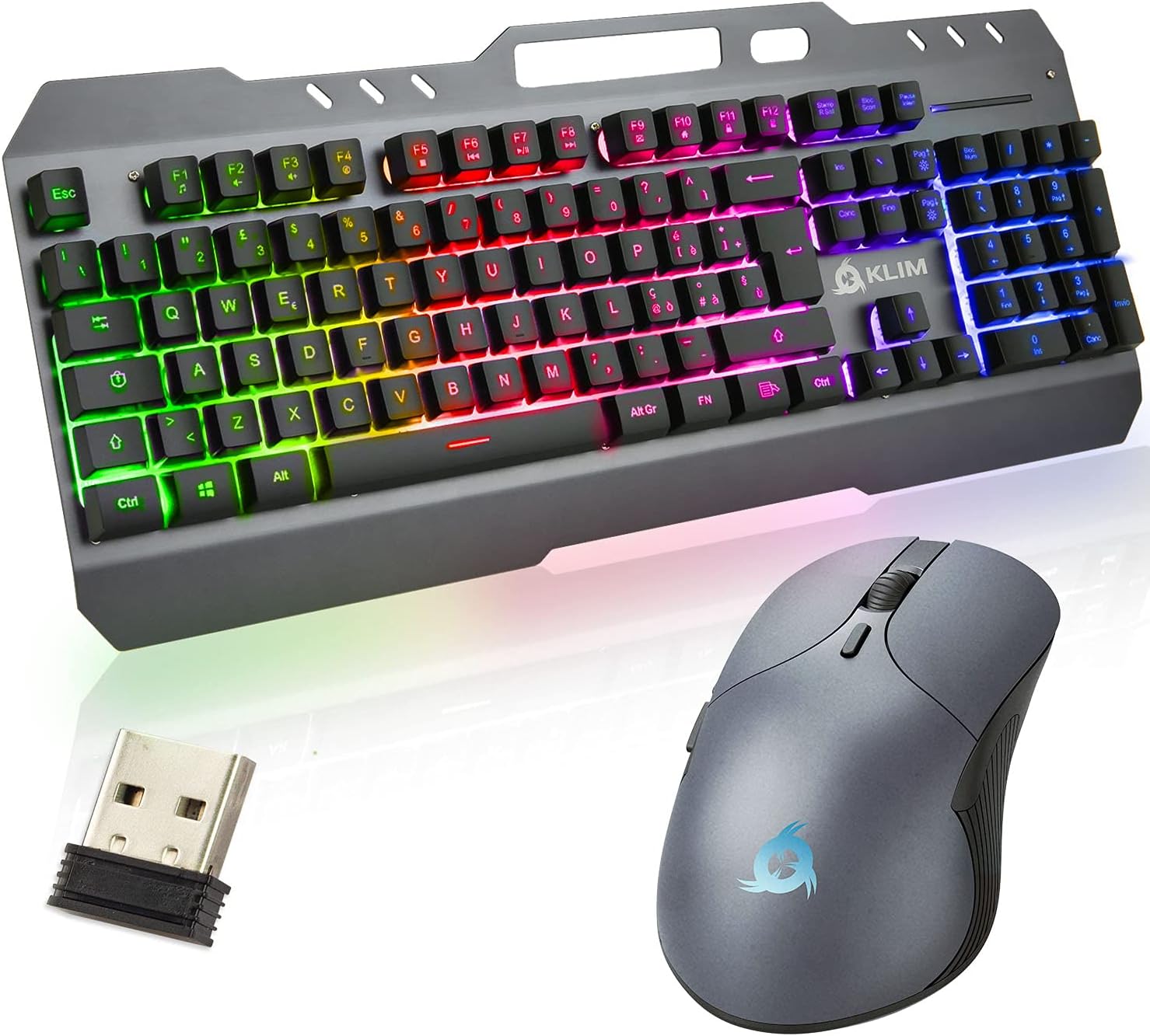
Image: The KLIM Unity Wireless Keyboard and Mouse Set, including the keyboard, mouse, and USB receiver.
3. Setup
3.1 Connecting the USB Receiver
The USB receiver is typically stored inside the mouse's battery compartment for safekeeping. Locate and remove the USB receiver. Plug it into an available USB port on your computer or compatible device. The keyboard and mouse will automatically connect to the receiver.
3.2 Charging the Devices
Both the keyboard and mouse are equipped with rechargeable Lithium Polymer batteries. Connect the provided USB charging cable to the charging port on each device and to a USB power source (e.g., computer USB port, USB wall adapter).
- Keyboard Charging Port: Located on the top edge of the keyboard. A full charge takes approximately 2-3 hours.
- Mouse Charging Port: Typically located on the front edge of the mouse. A full charge takes about 1 hour.
3.3 Powering On/Off
The keyboard and mouse have dedicated power switches.
- Keyboard Power Switch: Usually located on the top edge of the keyboard.
- Mouse Power Switch: Located on the underside of the mouse.
Turn the switch to the 'ON' position to power on the devices. Turn to 'OFF' when not in use to conserve battery life.

Image: Close-up view of the mouse, keyboard keys, and the USB receiver, highlighting connection points.
4. Operating Instructions
4.1 Keyboard Operation
The KLIM Unity keyboard features a standard US + Italian IT layout. After successful connection, you can begin typing immediately.
Function Keys (Fn Combinations)
The F1-F12 keys have secondary multimedia functions. To activate these functions, press the 'Fn' key simultaneously with the desired F-key:
- Fn + F1: Media Player
- Fn + F2: Volume Down
- Fn + F3: Volume Up
- Fn + F4: Mute
- Fn + F5: Stop
- Fn + F6: Previous Track
- Fn + F7: Play/Pause
- Fn + F8: Next Track
- Fn + F9: Email
- Fn + F10: Web Browser
- Fn + F11: My Computer
- Fn + F12: Calculator
Backlight Control
The keyboard features customizable RGB backlighting:
- Turn On/Off: Press the 'Scroll Lock' key to toggle the backlight on or off.
- Brightness Adjustment: Press 'Fn + Page Up' to increase brightness, and 'Fn + Page Down' to decrease brightness.
- Color Modes: Press 'Fn + Scroll Lock' to cycle through different lighting modes and colors.

Image: Detailed view of the keyboard keys illuminated with green backlighting.
Smartphone/Tablet Holder
The keyboard includes an integrated slot at the top, designed to securely hold a smartphone or tablet for convenient viewing while working or gaming.

Image: The KLIM Unity keyboard showcasing its integrated smartphone holder with a device in place.
4.2 Mouse Operation
The mouse connects wirelessly via the USB receiver. It features standard left and right click buttons, a scroll wheel, and side buttons for navigation.
DPI Adjustment
The mouse has a dedicated DPI button, typically located behind the scroll wheel. Press this button to cycle through different DPI (Dots Per Inch) sensitivity settings (800 / 1600 / 2400 DPI), allowing you to adjust cursor speed to your preference.
5. Maintenance
5.1 Cleaning
To clean the keyboard and mouse, use a soft, dry cloth. For stubborn dirt, a slightly damp cloth with mild soap can be used, ensuring no liquid enters the device. Avoid harsh chemicals or abrasive materials.
5.2 Battery Care
To prolong battery life, avoid fully discharging the devices frequently. Charge them when the battery indicator is low. If storing for an extended period, charge them to about 50% and power them off.
6. Troubleshooting
6.1 Connection Issues
If the devices are not connecting:
- Ensure the USB receiver is securely plugged into a working USB port.
- Check that both the keyboard and mouse are powered on.
- Try plugging the USB receiver into a different USB port.
- Recharge both devices to ensure sufficient battery.
6.2 Backlight Not Working
If the backlight is off:
- Press the 'Scroll Lock' key to toggle it on.
- Ensure the keyboard battery is sufficiently charged.
6.3 Device Unresponsive
If a device becomes unresponsive:
- Turn the device off and then on again.
- Recharge the device.
- Try reconnecting the USB receiver.
7. Specifications
| Feature | Keyboard | Mouse |
|---|---|---|
| Weight | 730 g (1.61 lbs) | 81 g (0.18 lbs) |
| Dimensions (L x W x H) | 438 x 180 x 40 mm (17.24 x 7.09 x 1.57 inches) | 120 x 66 x 40 mm (4.72 x 2.60 x 1.57 inches) |
| Battery Capacity | 2000 mAh | 400 mAh |
| Battery Voltage | 3.7 V | 3.7 V |
| Charging Time | 2-3 hours | 1 hour |
| Wireless Range | Up to 10 m | Up to 10 m |
| Key Stroke Distance | 3.0 mm | N/A |
| Key Life | 10 million keystrokes | N/A |
| Connection | USB receiver (2.4 GHz) | USB receiver (2.4 GHz) |
| Waterproof Rating | IPX3 | N/A |
| Mouse Buttons | N/A | 5 + DPI switch |
| DPI Settings | N/A | 800 / 1600 / 2400 |
| Tracking Speed | N/A | 30 IPS |
| Max Acceleration | N/A | 10 G |
Compatible Systems
- Windows XP / Vista / 7 / 8 / 10
- Mac OS
- Linux
- PS4, PS5 (as per product details)

Image: Detailed technical specifications for the KLIM Unity Wireless Keyboard and Mouse Set.
8. Warranty and Support
KLIM offers a 5-year warranty for this product, ensuring long-term reliability and customer satisfaction. For technical assistance, warranty claims, or any product-related inquiries, please contact KLIM customer support. You can find more information and contact details on the official KLIM website or through your purchase platform.
For additional resources and support, please visit the KLIM Store on Amazon.